In brief
- The Image API lets you generate new images from text prompts and edit existing images.
- The Responses API can integrate image generation into conversations or multi-step workflows.
- The GPT Image guide recommends Sunburst for tasks where editing precision matters, and Flare for fast, everyday image generation.
- The sources do not specify current model pricing, system requirements, or settings tailored to architectural workflows.
What will you learn in this guide?
This guide explores how you can use the GPT Image API to develop ideas for architectural and interior visualization. You’ll learn how to request a new image from text, describe changes to an existing image, and choose the right API approach for your goal. The sample prompts describe design decisions such as space, materials, lighting, and framing. They are original examples created for this guide’s architecture and visualization scenarios, not ready-made prompts from the source document.
There is an important limitation: the supplied section of the official documentation does not show specific parameters, resolution options, or interface steps. Accordingly, this guide does not provide a specific menu path, command format, or output guarantee. Treat the prompts as text instructions in your API call, and consult the current API documentation for technical implementation details.
Requirements: which model and API?
The current GPT Image guide lists two models: gpt-image-2.5-sunburst and gpt-image-2.5-flare. According to the guide, Sunburst may be preferable when editing precision is a priority, while Flare is suited to fast, high-quality everyday image generation. These are the provider’s descriptions of intended use cases; they do not mean that the same prompt will produce the same result with every model.
There are two API options:
Image API: Lets you create images from scratch and partially or completely modify existing images using a prompt.
Responses API: Can use image generation as part of a conversation or multi-step process, and supports image inputs and outputs in context.
To get started, check that you have API access and that your selected model is available. The supplied documentation does not describe additional requirements such as operating system, computer hardware, application version, or account type. So don’t assume that a specific graphics card or local installation is required. Check the current account and documentation pages for conditions such as API access or organization verification; the verification information in the available source relates to an older announcement for gpt-image-1.
Preparing an architectural prompt step by step
First decide whether you need to generate or edit. If you want a concept image from a blank starting point, use text prompting to generate a new image. If you have a sketch, interior image, or another visual that you want to change, consider the editing option. State clearly in your prompt which aspects of the image should change and which should remain intact.
Describe the desired result in design terms. Start by specifying the type of space and its overall layout. Then add materials, lighting conditions, and the mood of the image. Rather than piling on adjectives that may contradict each other, present the design decisions in a clear order. The examples below are original starting points that you can copy and adapt.
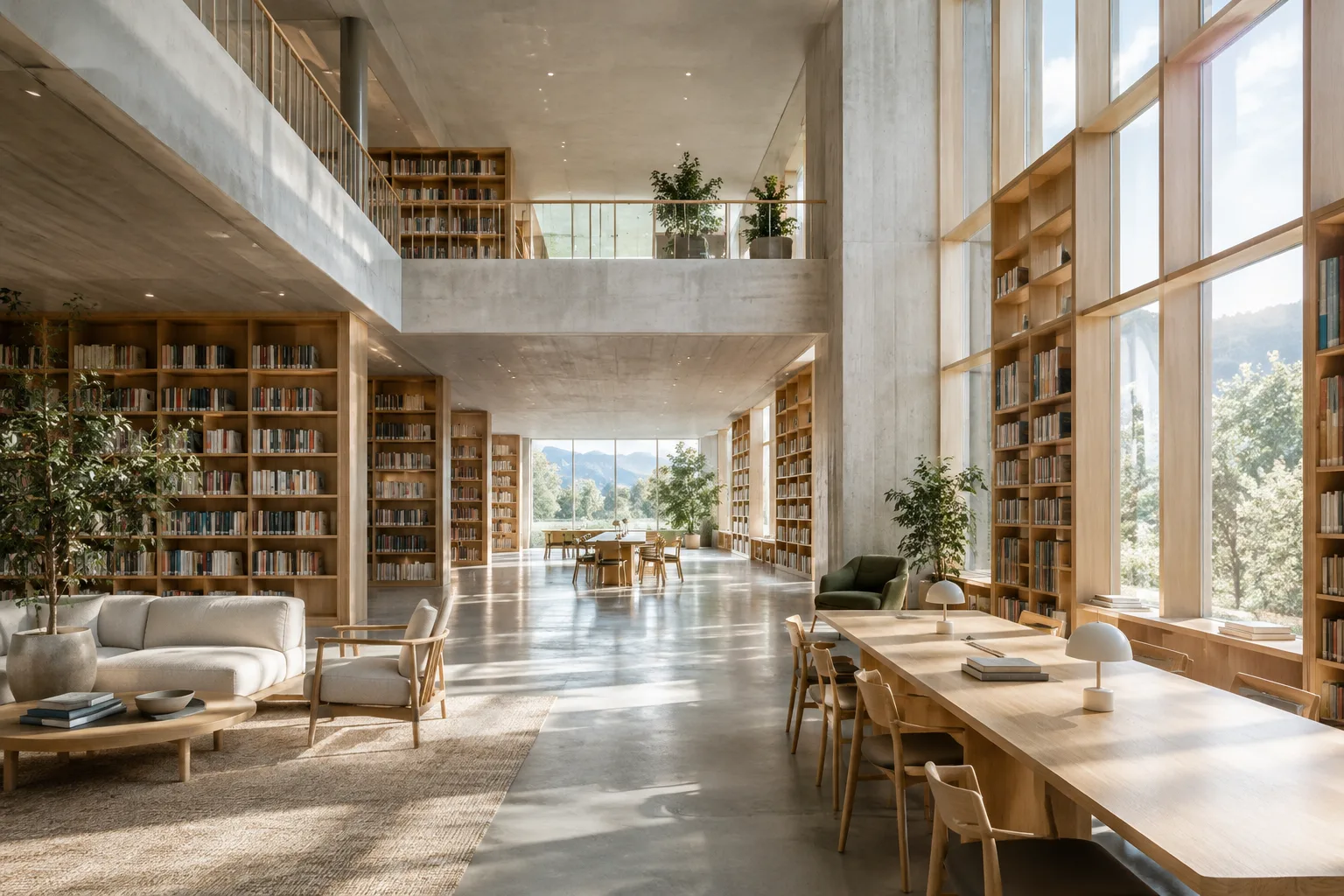
Create an architectural visualization of a compact urban library, with a double-height reading room, pale timber shelving, exposed concrete, soft overcast daylight, and a calm contemporary atmosphere.This prompt brings together the type of space, spatial relationships, materials, and lighting in one description. In a concept study, you can identify which of these elements matter; the result should not be treated as a verified drawing or technical document for a design project.
Prioritize the key elements in an interior prompt. Put the room’s function and main material choices first, followed by the mood. The example below clearly describes the living room, material palette, and daylight.
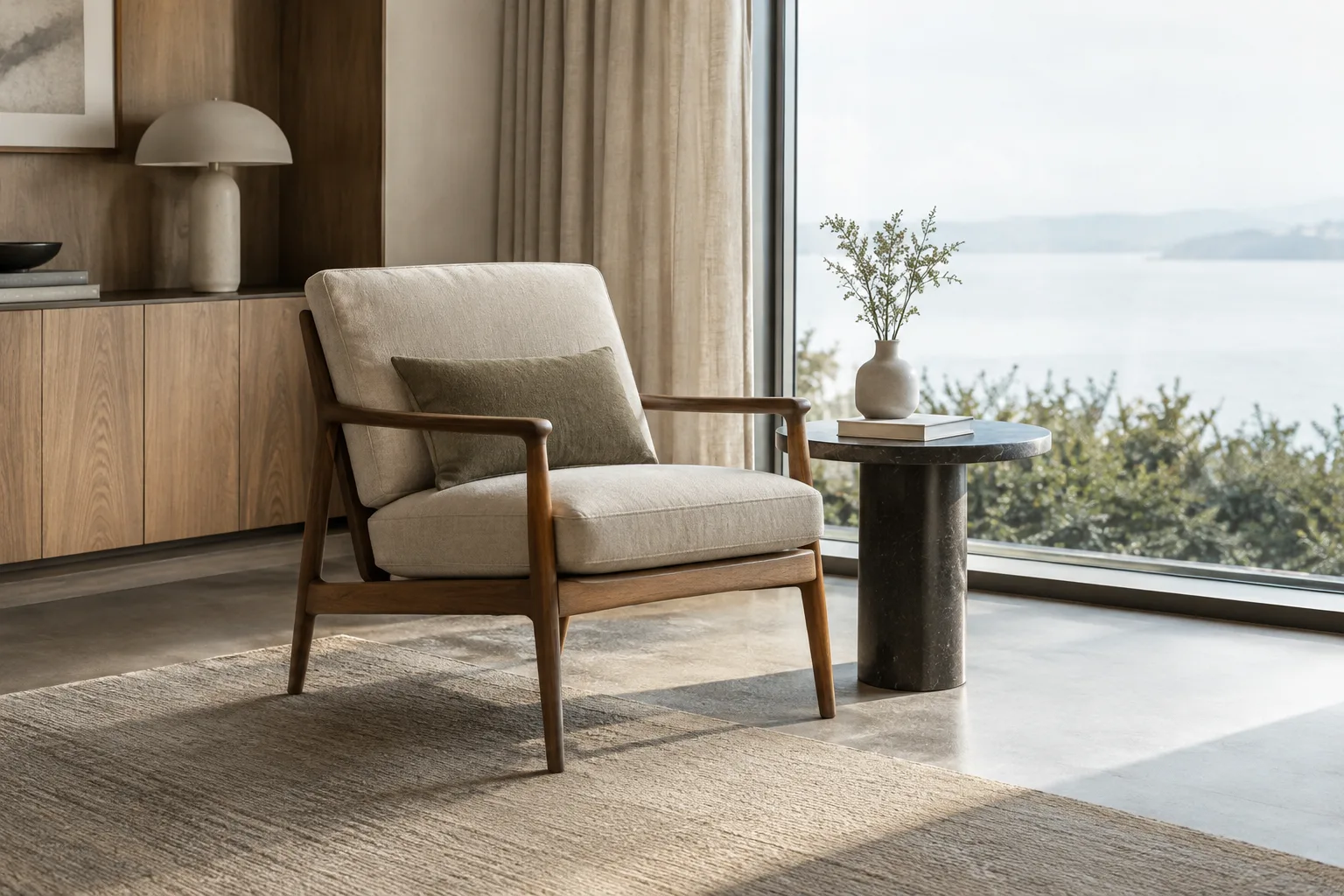
Create an interior visualization of a small apartment living room, with a built-in oak bench, warm limestone surfaces, a muted neutral palette, and gentle morning daylight entering through a large window.If the first result gets the balance of materials or lighting wrong, revise the prompt to describe one design priority more clearly at a time. This is not a special parameter described in the documentation, but a practical way to keep your prompt clear.
When editing an existing image, define the scope of the change. The Image API supports partial or complete image editing. Make the requested change specific: state which area should be transformed and which characteristics of the image should be preserved. For example, you could ask to refine only the material and lighting qualities of a sketch.
Using the supplied architectural sketch as a reference, develop a calm residential courtyard concept with light stone paving, slender trees, and soft daylight. Preserve the overall courtyard layout and building massing.This prompt is written for an editing scenario that uses an image input. The source says that editing can be partial or complete, but does not specify a masking method or guarantee that geometry will be preserved exactly. Review the result and check the design decisions separately.
If you need multiple stages, reconsider your API choice. For generation or editing with a single text prompt, the Image API covers the basic use cases described in the documentation. If image generation is part of a conversation or a multi-step process, you may want to consider the Responses API. Since the source does not explain how to configure multi-step workflows in detail, this guide does not recommend a specific sequence of calls.
Create a conceptual visualization of a neighborhood learning center, combining a welcoming public entrance, flexible shared spaces, natural materials, and soft daylight. Keep the architectural character contemporary and understated.Use this as a new-concept prompt, adapting the text as the project site, use case, or material preferences change. It does not imply that the model will independently verify a particular floor plan or code requirement.
Common mistakes
Confusing generation with editing: Requesting a new image and changing an existing one are different use cases. Deciding which one you need at the outset makes your prompt more focused.
Writing vague or contradictory descriptions: Instead of using conflicting phrases such as “bright but dark,” describe the light source and mood more consistently. Including many unrelated design qualities in one prompt can also make it harder to communicate priorities.
Treating the result as proof of technical accuracy: A generated image may help with concept development, but the supplied documentation does not say that plan dimensions, construction details, or regulatory compliance are verified automatically. Don’t use an image as a substitute for design and technical review.
Assuming model selection guarantees a result: The official guide positions Sunburst for editing precision and Flare for fast, high-quality everyday generation. This guidance is not a guarantee of flawless results for a particular project. Review the output and try different prompts for important work.
What changes in architecture, interior design, and archviz workflows?
Architects, interior designers, and visualization teams exploring concepts can use text prompts to investigate material and atmosphere variations. The ability to edit existing images may also help develop ideas from sketches or references. However, the API documentation says nothing about transferring images into CAD, BIM, or 3D scenes. It would be a mistake to treat a generated image as a dimensioned model, construction drawing, or replacement for a final-render workflow.
For teams, the first step should be to decide which stage of the design process the output will support: early concept development, material direction, or visual communication. The source also does not explain current model pricing, specific hardware needs, or software compatibility. Check current sources for budget, access, and in-house usage requirements before getting started. Students can use prompts to discuss design alternatives too, but should critically assess the results against their project decisions.
Next steps
Start with a single space scenario and describe only the key design decisions in your prompt. Then consider separately whether you need generation or editing for the same goal. When choosing an API, consider whether the work involves generating a one-off image or belongs in a conversation or multi-step process. Review the full official documentation to verify API calls, access, and current pricing; the supplied content does not cover these technical details.
Source and license
This guide is adapted from model and API usage information in OpenAI’s GPT Image prompting guide and the access context in its image generation API announcement. Both sources were provided as license=free. The sample prompts were written specifically for this article and were not copied from the sources.
Sources
2 sourcesSource texts are not republished; short quotes are marked, everything else is our own summary and commentary.
For architecture offices and visualization teams in Turkey, GPT Image could be considered a tool for quickly exploring material and atmosphere options during the concept stage. The option to edit existing images may interest teams developing ideas from sketches or references; however, the sources do not show direct integration with BIM or 3D software.
Before making a decision, check current API pricing, access conditions, and in-house usage requirements; the supplied documentation does not specify costs or hardware requirements for the current models. So don’t base your budget on assumptions. The soundest approach is to limit outputs to concept communication and leave technical decisions under the project team’s supervision.
Frequently asked questions
Can GPT Image edit an existing image?
Yes. The official guide says the Image API can partially or completely modify existing images using a prompt.
What’s the difference between Sunburst and Flare in GPT Image?
The guide recommends Sunburst for tasks where editing precision is a priority, and Flare for fast, high-quality everyday image generation.
Should I use the Image API or Responses API for architectural image generation?
The Image API offers new image generation and editing of existing images. The Responses API can be used to include image generation in a conversation or multi-step process.