In brief
- In 3D Documents, you can choose a horizontal, vertical, or arbitrary plane for placing a linear dimension line.
- Arc Length is not available among the linear dimension options in the 3D Document window.
- Elevation dimensions can be used in Section, Elevation, Interior Elevation, and 3D Document windows.
- Elevation chains can be calculated from Project Zero, Sea Level, or a defined Reference Level.
Graphisoft’s Archicad 29 help documentation explains how to place linear dimensions in the 3D Document window and create elevation chains in Section, Elevation, Interior Elevation, or 3D Document windows. The workflow involves choosing the plane for a linear dimension and the starting point for an elevation measurement. The steps below summarize these options for architecture and interior design teams creating documentation from a model.
Choosing a plane for linear dimensions in 3D Documents
When placing a dimension with the Linear Dimension tool in the 3D Document window, you can choose the plane on which the dimension line will sit using the options in the Info Box. The available options are horizontal plane, vertical plane, and any plane. “Any Plane” is the default and offers the most flexibility. This selection constrains the plane where the line is placed; it should not be treated as a separate definition of the dimension line’s direction.
| Option | Suggested value | Effect |
|---|---|---|
| Horizontal plane | When the dimension line needs to lie on a horizontal plane | Constrains the placement plane to horizontal. |
| Vertical plane | When the dimension line needs to lie on a vertical plane | Constrains the placement plane to vertical. |
| Any plane | When you need flexibility based on the geometry | The default option, providing the greatest freedom of movement. |
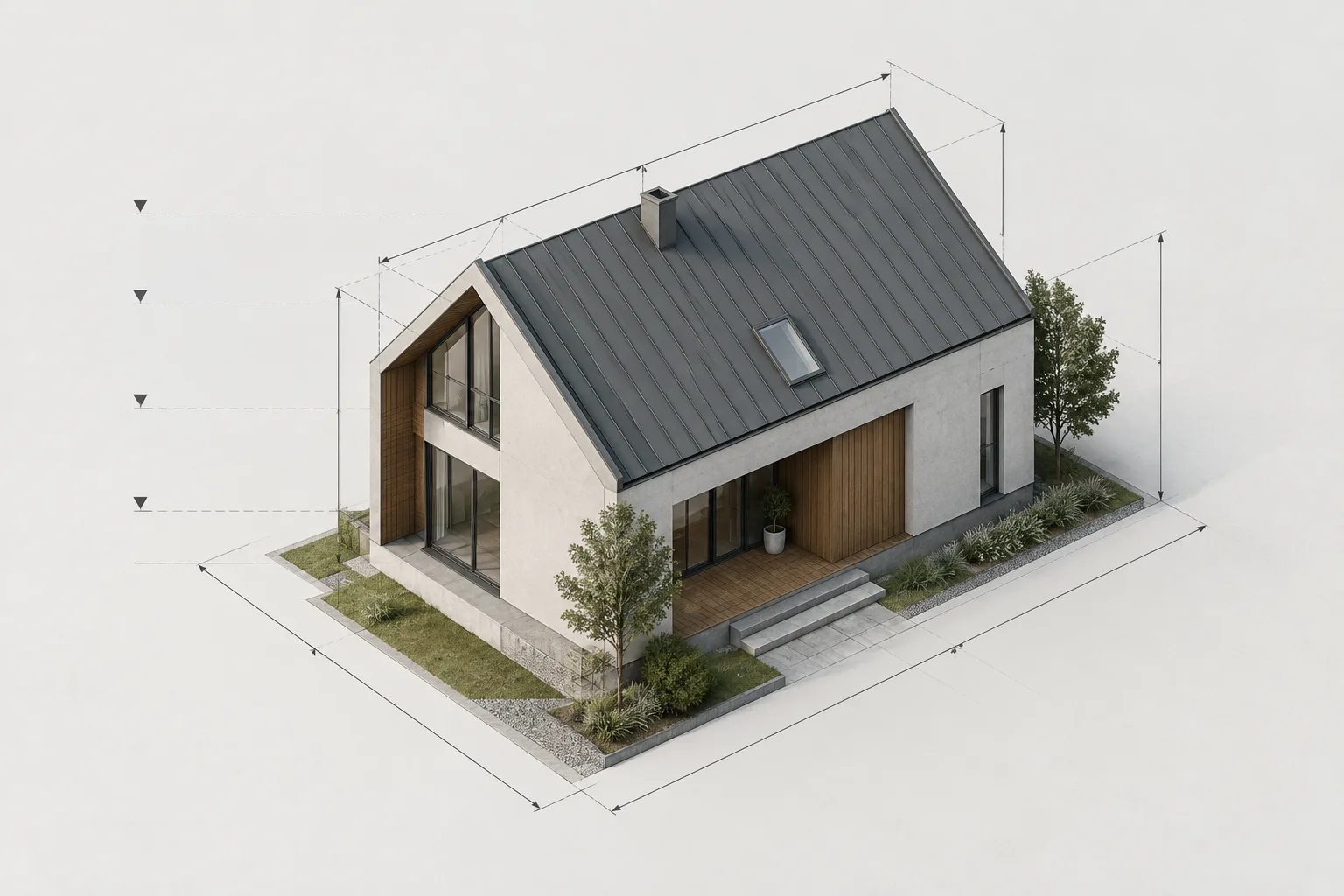
When measuring the end of a roof gable, it helps to treat point selection and plane selection as separate steps. In the sequence below, the measurement points define the length; subsequent selections determine the measurement plane and position the line:
Open the Linear Dimension tool in the 3D Document window. In the Info Box, set the geometry method to “Any Plane” and the direction option to “Any Direction.”
Mark the two ends of the roof to be measured. Double-click to complete the point input.
Move the cursor to the roof surface where you want the dimension to align, and check the on-screen alignment feedback.
Click to set the alignment with the surface. If no plane is detected in the model, skip this selection; the alignment will be vertical or horizontal.
Click once more to set the final position of the dimension line.
Although the linear dimension tool’s options are available in the 3D Document window, Arc Length is not one of them. When choosing a dimensioning method, first check whether the required measurement falls under this exception. This avoids building a workflow around an option that is not available in the tool.
Editing a placed dimension
After creating a dimension line, you can offset it within its current plane—a specific option for the 3D Document window. This does not change the dimension’s plane; it moves the line to another position within that plane. Standard editing options are also available for placed dimensions: you can add or merge dimension points, drag the dimension line, and adjust its alignment using the Pet Palette.
When editing, first consider whether the plane containing the dimension is suitable. If you only need to change the line’s position in the page or model view, you can offset it within the plane. If the plane itself is unsuitable, an offset will not change that selection, so you will need to reconsider the dimension’s placement. This distinction helps clarify which feature to use when moving a line on sloped surfaces.
Creating elevation chains and choosing a dimension origin
Elevation dimensioning is a dedicated construction method in the Dimension tool. Elevation markers can be placed in Section, Elevation, Interior Elevation, and 3D Document windows. In Floor Plan or Worksheet/Detail windows, use Level Dimensions instead of elevation markers.
An elevation chain behaves like a linked dimension chain, with values calculated relative to the Dimension Origin set in Elevation Dimension Settings. Checking this starting reference before placing the chain clarifies which datum the displayed elevations use.
Activate the Dimension tool and choose Elevation Dimensioning as the construction method.
In a Section, Elevation, Interior Elevation, or 3D Document window, define the points where you want the elevation markers.
Complete the point input by double-clicking or choosing OK in the Control Box.
Use the Hammer cursor to finish placing the elevation chain.
In Elevation Dimension Settings, check the Dimension Origin and select the reference appropriate for the project.
The source documentation lists Project Zero, Sea Level, and Reference Level as Dimension Origin options. Sea Level and Reference Level are based on the Reference Levels defined in Project Preferences. “Current User Origin” is not a general starting option: it appears when the User Origin has been changed and the selected elevation chain has not yet been updated.
In Section/Elevation windows, all Story Level Lines can be dimensioned in a single step. To select an existing elevation chain, Shift-click its invisible axis. These behaviors are useful when selecting and editing chains as well as when creating them.
| Dimension origin | Suggested value | Effect |
|---|---|---|
| Project Zero | When the project zero is the intended reference | Becomes the starting point for the elevation calculation. |
| Sea Level | When using the sea-level reference | Uses the Reference Levels definition in Project Preferences. |
| Reference Level | When using a defined reference elevation | Relies on the reference level defined in Project Preferences. |
| Current User Origin | Only in the applicable update scenario | Appears when the User Origin has changed and the selected chain has not been updated. |
What should architecture and interior design teams keep in mind?
For architects, interior designers, and modeling teams preparing dimensioned 3D documentation from a model, these tools provide a way to control the plane on which dimensions sit and the datum used to display elevations. When measuring a roof edge, check the plane selection; when presenting heights, check the Dimension Origin. These choices can make drawings easier to interpret. They are not hardware settings; they affect how the model is documented.
In offices where several people work on the same project, make sure the reference used by elevation chains matches the project settings. Since Reference Levels are defined in Project Preferences, chain settings need to be considered alongside those definitions. For 3D linear dimensions, check the placement plane before adjusting the line’s position. The options described in Archicad 29’s help documentation explain these checkpoints; do not assume the same menus and behavior are available in other versions.
Common mistakes
Looking for the Arc Length option: It is not available among the linear dimension options in the 3D Document window.
Treating plane and direction as the same thing: The options constrain the plane on which the dimension line is placed.
Assuming the dimension will align when no plane is detected: According to the source, if no plane is found, the alignment will be vertical or horizontal.
Not checking the origin before placing an elevation chain: The elevation calculation is based on the selected Dimension Origin.
Always looking for Current User Origin: This option appears only when the user origin has changed and the selected chain has not been updated.
Sources
2 sourcesSource texts are not republished; short quotes are marked, everything else is our own summary and commentary.
These options can give offices that create dimensioned 3D documents and elevation markers directly from a model more control over their workflow. Setting the correct plane and origin at the outset may reduce the need for later edits to the documentation; the benefit is less about hardware performance and more about preparing dimensions consistently.
For collaborative projects and team deliverables in Turkey, it is important to clarify the starting reference used for elevations. Archicad 29’s official help specifies the conditions for each option; in particular, Current User Origin is not always visible. For offices, the most practical step before implementation is to check dimension settings alongside their own project references.
Frequently asked questions
How do you add a linear dimension in Archicad 29’s 3D Document window?
Use the Linear Dimension tool, choose a plane option in the Info Box, mark the measurement points, and position the line. If no plane is detected, the alignment will be vertical or horizontal.
In which windows can you create an elevation chain in Archicad?
Elevation dimensions can be used in Section, Elevation, Interior Elevation, and 3D Document windows. Use Level Dimensions in Floor Plan or Worksheet/Detail windows.
Which starting references can you select for an elevation dimension?
You can select Project Zero, Sea Level, or a defined Reference Level. Current User Origin appears only when the user origin has changed and the selected chain has not been updated.