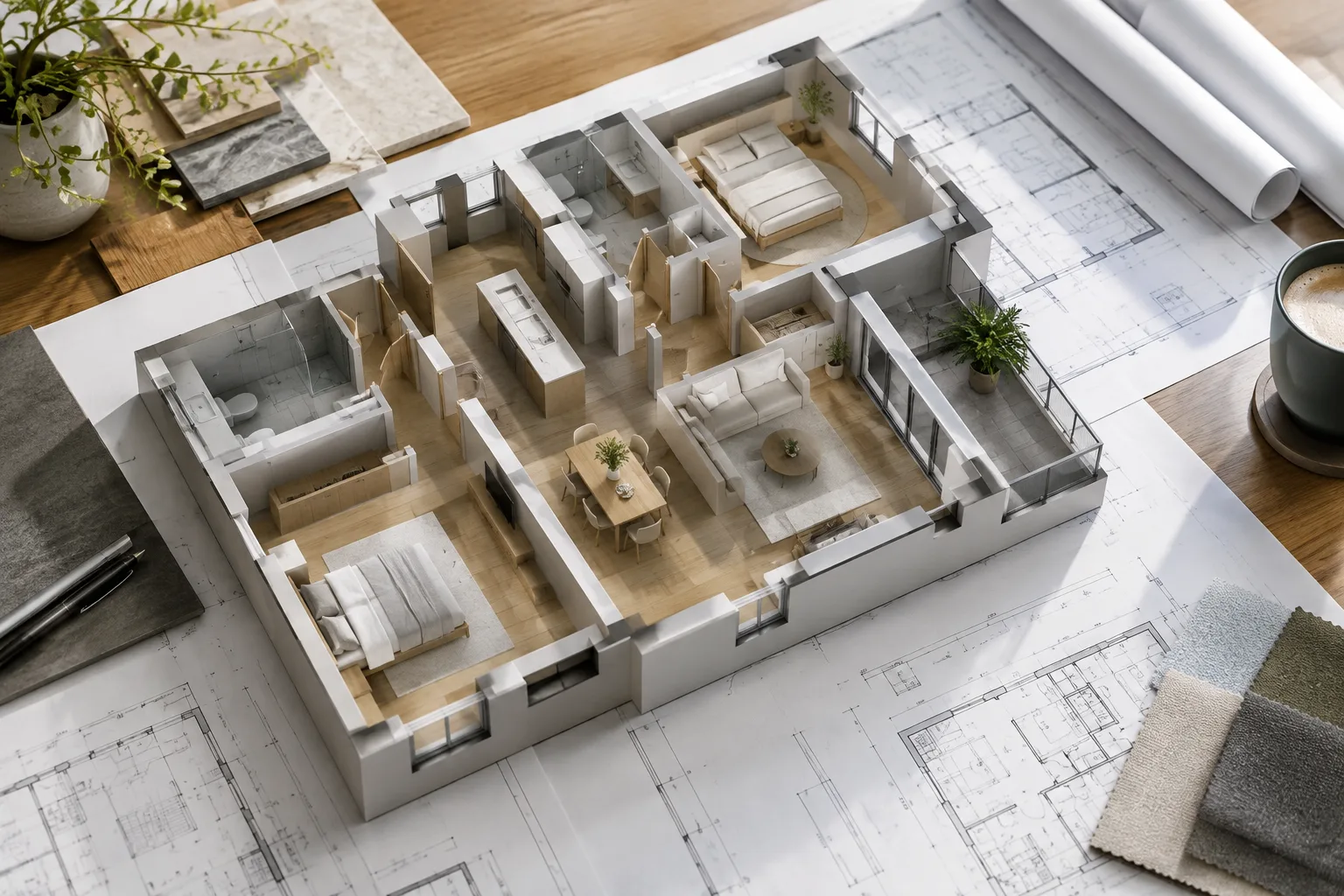
In brief
- Use the Renovation Palette to assign Existing, New, or To Be Demolished status to selected elements.
- When no elements are selected, the chosen status becomes the default for elements placed afterward.
- Renovation Filter lets you choose the renovation filter used in the current view.
- In Archicad 29, section, elevation, detail, and worksheet markers can also have a Renovation status.
In Archicad 29, the Renovation Palette can be used to set the status of elements in renovation projects and manage views for different project phases. Graphisoft’s official documentation explains how to assign statuses to selected elements through the palette, set a default for new elements, and change the Renovation Filter setting for the current view. The steps below are intended for teams that want to manage existing structures, new construction, and demolition information in models and drawings.
1. Open the Renovation Palette and assign statuses to elements
Open the palette via
Window > Palettes > Renovation Palette. The documentation also listsWindow > Palettes > RenovationandDocument > Renovation > Renovation.Select one or more elements whose status you want to change.
In the Renovation Palette, click the icon for the appropriate status:
Existing: An existing element to be retained.
New: An element to be built and retained as part of the renovation.
To Be Demolished: An element to be demolished during the renovation.
To assign the same status to multiple elements at once, select them together and use the relevant icon. For example, elements to be included in a demolition plan can be selected as a group and marked To Be Demolished. When multiple element types are selected, you can change their status using the Renovation Palette or the Edit Selection Set palette. For selected elements of a single type, you can also change the status in the Classification and Properties panel of the relevant element settings.
The status defines an element’s role in the renovation process; how it appears in a view should be considered alongside the Renovation Filter and its options. For this reason, check the filter for the relevant view after assigning statuses.
2. Set the default for new elements and the view filter
Setting the default status before placing new elements can reduce the need for corrections later:
Open the Renovation Palette and make sure no elements are selected.
Click the status icon you want new elements to receive. For example, choose New for construction included in the renovation.
From then on, elements you place will receive the selected default status, regardless of which tool you use.
According to Graphisoft’s documentation, the initial default is Existing; elements added to a project later normally receive this status as well. Changing the default to New can eliminate the need to set the status of each element individually during subsequent placement. This setting does not change the status of elements already drawn; to change existing elements, select them and assign a new status in the palette.
To change the renovation filter for the current view, select the required filter from the Renovation Filter drop-down list in the Renovation Palette. You can also change the filter via the Quick Options Palette. Filter options help determine how existing and demolished elements appear in the drawing. The table below summarizes the statuses and controls described in the documentation:
| Setting | Recommended value | Effect |
|---|---|---|
| Element renovation status | Existing, New, or To Be Demolished | Indicates whether the element will be retained, built, or demolished. |
| Default for new elements | The status selected in the palette; for example, New | Assigned to elements placed afterward, regardless of the tool used. |
| Current view filter | The required filter from the Renovation Filter list | Changes the active renovation filter for the view. |
3. Check additional filter options and markers
Graphisoft provides additional override options for Existing and To Be Demolished elements, as well as annotation elements. These options can be used in filter definitions to suit local standards or make drawings clearer.
For Existing elements, options include hiding opening dimension markers, displaying section fills as solid, and limiting intersections. These controls can be used to adjust the display of existing walls and manage how new or demolished walls intersect with them.
For To Be Demolished elements, options are available to hide opening dimension markers, door/window/skylight/opening symbols, zone information, or objects. Section fills can be displayed as solid or transparent, and doors and windows can be marked with an X. If a door or window in a wall is to be removed and closed off with new wall segments, the outline of the former opening can also be displayed as To Be Demolished.
For annotation elements, you can choose to exclude dimensions, texts, and labels; drawing fills and lines; and markers from override rules. When using these options, consider what each sheet is intended to communicate. For example, Hide Objects can be used if fixtures to be removed should not appear in a demolition view.
In Archicad 29, section, elevation, interior elevation, detail, and worksheet markers can have their own Renovation statuses. This makes it possible to manage cases such as a section marker in a new wing not appearing in Existing views. The status of a section marker can be set in Section Settings; the checkbox in Renovation Filter Options determines whether overrides are applied to markers.
When an older-version file is migrated to Archicad 29, Renovation statuses are automatically assigned to markers to help preserve the previous drawing appearance. The statuses are aligned with associated elements by default. If the project has no status visible in all Renovation Filters, linked markers can be created to preserve the drawing appearance. Check the notifications in Action Center; to find linked markers, right-click the relevant element in Navigator and use the Find Linked Marker command.
Common mistakes: Not setting the default status before placing new elements can leave them marked as Existing. Failing to check the current Renovation Filter after changing statuses can also prevent elements from appearing as expected. In older files, marker statuses and Action Center notifications should not be overlooked.
Impact on architecture and interior design workflows
These tools can be useful for architecture and interior design teams that present existing conditions, demolition, and new construction separately in model and drawing views. Batch status assignment and setting a default for new elements can help reduce repetitive edits. Filter options also make it possible to tailor demolition or existing-condition drawings to project requirements.
For projects migrated to Archicad 29, it is especially important to check automatically assigned marker statuses and Action Center notifications. Graphisoft’s documentation does not specify hardware requirements or license changes for this workflow; offices should therefore focus on verifying the statuses and drawing standards in their project templates. Checking legibility in a representative view before applying filter settings to all sheets can help identify inconsistencies early.
Sources
3 sourcesSource texts are not republished; short quotes are marked, everything else is our own summary and commentary.
In renovation projects, considering status information not only for model elements but also alongside drawing filters and markers can help produce more consistent sheets. Batch assignment and default statuses have the potential to reduce repetitive checking, particularly on projects with many new elements.
Offices in Turkey should test this workflow in a small view before applying it to existing project templates, and check markers in older files. Since the documentation does not specify hardware or licensing requirements, drawing standards and team practices are central to the implementation decision.
Frequently asked questions
How do you mark an element for demolition in Archicad 29?
Select the element or elements, then click the To Be Demolished status icon in the Renovation Palette. You can change the status of multiple selected elements in the same operation.
How do you change the default status for newly drawn elements in Archicad?
In the Renovation Palette, click the status icon you want while no elements are selected. Elements placed afterward will receive that default status.
Do markers have a renovation status in Archicad 29?
Yes. Section, elevation, interior elevation, detail, and worksheet markers can have their own Renovation statuses. The status of a section marker can be set in Section Settings.