In brief
- Freestyle is a non-photorealistic, line-based render engine in Blender.
- Enable Freestyle in the Render properties; its settings are in the View Layer properties.
- A View Layer can use one view map, multiple Line Sets, and different line styles.
- Freestyle supports only mesh objects with faces, and it can use a lot of memory.
What will you learn in this guide?
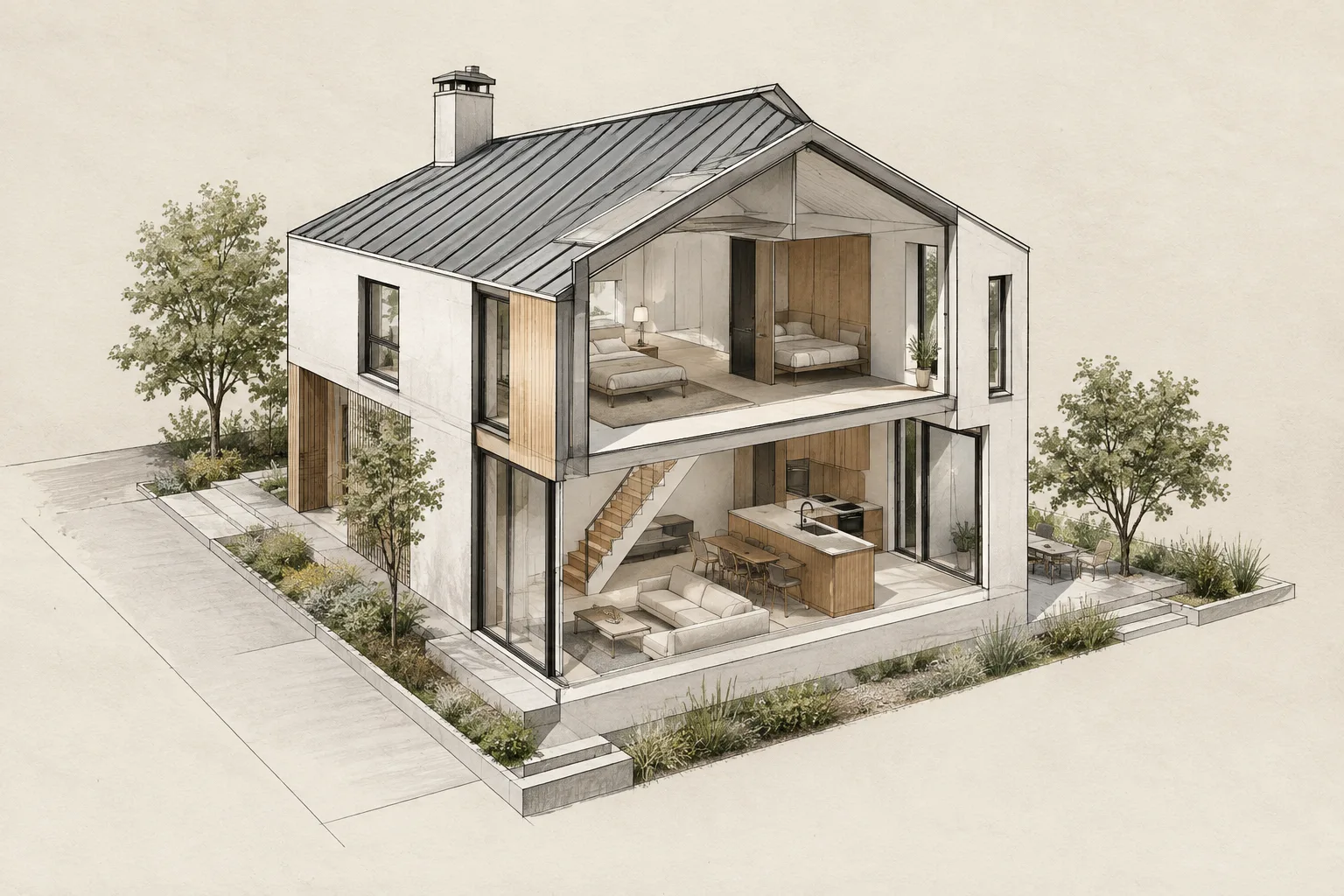
Blender Freestyle is a line-based, non-photorealistic render engine that processes selected edges in a scene as lines. In architectural visualization, this approach can give a model the look of a technical drawing, a sketch, or a hand-drawn presentation. Freestyle uses mesh data and Z-depth information. The view map, Line Set, and Line Style settings determine which edges appear as lines and how they look.
In this guide, you’ll enable Freestyle, learn how edge detection works, adjust line types and styles, and then explore the option to use lines as a separate render pass. The source Blender manual is for the “latest” version; since it doesn’t specify a particular Blender version number, check the manual for your installed version to confirm menu names and available options.
There are two main ways to create a line appearance with Freestyle. Parameter Editor Mode lets you adjust Line Set and Line Style settings using parameters in the interface. Python Scripting Mode offers more advanced control, but the source manual says it is more complex to use. This guide focuses on the interface-based method.
Requirements and preparation
You’ll need Blender and a scene containing mesh objects with faces. According to the manual, Freestyle supports only mesh objects with faces, so don’t assume that objects made only of edges will be supported. Also, all mesh objects in a View Layer must be loaded into memory at the same time. As a result, memory usage can be a significant limitation in complex scenes.
Enable Freestyle using the Freestyle option in the Render section of the Properties panel. The remaining settings are in the Freestyle panel in the View Layer properties. A View Layer uses only one view map, which holds the edge detection settings. You can define multiple Line Sets under the same view map. Each Line Set determines which lines and edge selections from the scene are rendered, and each is associated with a Line Style. A Line Style controls the color, alpha, thickness, and other appearance properties of the lines.
Before you begin, check the camera type in your scene as well. The manual states that panoramic cameras are not supported. Running a small test render before production can help you check whether the edge selection and style match the look you’re aiming for.
Set up a Freestyle line look step by step
Enable Freestyle. Go to the Render section in the Properties panel and turn on Freestyle. This activates the engine; to specify which objects and edges should produce lines, switch to the View Layer properties.
Plan edge detection. The view map settings are in the Freestyle panel of the View Layer properties. These include Crease Angle, Culling, Face Smoothness, Material Boundaries, Sphere Radius, and the advanced Kr Derivative Epsilon option. Each setting serves a different purpose: for example, Crease Angle affects the angle relationship between adjacent faces when the Crease edge type is selected in a Line Set. The same value also affects the Silhouette selection.
Use a Line Set to select the lines to draw. You can create multiple Line Sets under a view map. Each set defines the line types and selections to use from the scene. In an architectural model, organizing different line classes into separate sets—for example, connecting major contours and interior edges to different line styles—can help. This is one possible workflow; which lines to select depends on the model’s geometry and the look you’re aiming for.
Adjust the line style. Each Line Set uses a Line Style. Set appearance properties such as color, alpha, and thickness in the style settings. The same Line Style can be shared by multiple Line Sets. Parameter Editor Mode lets you define line sets and styles using parameters in the interface. If you need more advanced control, you can use Python Scripting Mode; the manual describes it as powerful but more complex.
Review curvature and contour settings. Sphere Radius affects the curvature calculation for Ridge, Valley, and Suggestive Contour edge types. According to the manual, increasing this value reduces noise and detail. For Suggestive Contour lines, Kr Derivative Epsilon controls the curvature-change threshold; increasing the value reduces the number of lines, starting with smoother regions. After changing these settings, check the amount of linework and level of detail in the result.
Evaluate the render result and pass workflow. Freestyle lines don’t have to appear directly over the rendered image. With “As Render Pass,” they can be produced as a separate render pass and composited over the image using an Alpha Over node. This can be useful in a compositing workflow where you want to handle the line pass separately from the rendered image.
Try the cache option if it suits your needs. View Map Cache lets subsequent renders reuse a previously calculated view map. The manual says it can improve performance in animation renders when mesh geometry in camera space remains unchanged, and in repeated still renders while updating the line style. The result depends on the scene and how View Layers are used, so compare performance in your own file.
Common issues
If fewer lines appear than expected, first check which edge types and selections the relevant Line Set uses, then review the view map settings. Culling ignores edges outside the field of view. This can reduce processing time and memory use, but in some cases may lower the quality of the result. Crease Angle’s effect also depends on the selected edge type: for a Crease selection, the angle between adjacent faces is what matters.
If curved lines look too noisy or detailed, check whether you’re using Ridge, Valley, or Suggestive Contour, and review the Sphere Radius value. The manual says that increasing the radius reduces noise and detail. However, there’s no single value that works for every scene; consider the model’s geometry and the desired line density together.
If rendering slows down or memory requirements rise, remember that Freestyle loads all mesh objects in the View Layer at the same time. Some limitations also can’t be addressed by changing settings: only mesh objects with faces are supported, edges where faces intersect aren’t detected yet, and panoramic cameras aren’t supported. Freestyle render results also don’t include Z-depth information, so you shouldn’t expect depth data from the line pass itself.
If the cache doesn’t deliver the expected performance gain, check whether you’re using multiple View Layers or scenes. The cache is shared across all View Layers and scenes. If Freestyle is used in multiple View Layers, the map calculated for one View Layer may replace the map for another, and you may not see a performance improvement.
What changes in an architecture and visualization workflow?
Freestyle gives architecture offices, interior designers, and visualization artists looking for a technical line drawing or sketch-style look an option for generating line-based results from scene geometry. The parameter-based Line Set and Line Style structure helps you manage multiple line classes separately. The option to output lines as a render pass is also useful when you want to keep the image and line layer separate during compositing.
Before using it in production, check scene complexity, mesh object suitability, and camera type. The sources don’t specify particular hardware requirements, so memory use should be tested with the specific scene. High memory usage, the lack of panoramic camera support, and undetected face intersections are all factors to consider when planning a project.
Next steps
Start with a small scene: enable Freestyle and create a result with a single Line Set and Line Style. Then try different line types in separate sets and observe how the view map settings affect the amount of linework. If you need to handle the lines separately from the main render, enable “As Render Pass” and try compositing them with an Alpha Over node.
For animation, you can consider View Map Cache when mesh geometry in camera space remains unchanged. According to the manual, the cache can also improve performance in repeated still renders while the line style is being updated. However, the cache memory is shared across all View Layers and scenes; when multiple View Layers are in use, one map may replace another, so you might not get the expected performance gain.
Source and license
This guide is adapted from Blender’s Freestyle introduction and View Layer manuals. Both sources are published under the CC BY-SA 4.0 license; the content has been translated into Turkish and adapted for architectural visualization workflows.
Sources
2 sourcesSource texts are not republished; short quotes are marked, everything else is our own summary and commentary.
Freestyle is a useful option for using the geometry in a Blender scene when an architectural presentation calls for a line style that differs from photorealistic rendering. The distinction between Line Sets and Line Styles can make it easier for teams seeking technical contours or a sketch look to organize different line classes. Being able to output lines as a separate render pass also adds flexibility during compositing.
For offices and students in Turkey, the priority should be to assess scene suitability and memory usage with small test renders. The manuals are licensed under CC BY-SA 4.0; this does not explain the licensing terms of the Blender software. Face intersections, the lack of panoramic camera support, and the cache shared across View Layers are also limitations to keep in mind in real projects.
Frequently asked questions
How do you enable Blender Freestyle?
Turn on the Freestyle option in the Render section of the Properties panel. Its settings are in the Freestyle panel of the View Layer properties.
Can Freestyle lines be output as a separate render pass?
Yes. With “As Render Pass,” Freestyle lines can be produced as a separate render pass and composited over the rendered image using an Alpha Over node.
What are the known limitations of Blender Freestyle?
Freestyle supports only mesh objects with faces, doesn’t detect edges where faces intersect, and doesn’t support panoramic cameras. It also loads all mesh objects in a View Layer into memory.