In brief
- The Geometry Nodes manual lists node groups for creating and transforming geometry, instancing, assigning materials, and repetition.
- The example follows a conceptual workflow for duplicating a façade element.
- The source is the latest online manual; it does not specify a particular Blender version.
- Check node names and connection options against the manual for the Blender version in use.
What will you learn in this guide?
This guide outlines a way to think through designing a repeatable façade module layout with Blender Geometry Nodes. Rather than providing specific dimensions or a ready-made recipe, it breaks down the needs of a scene into smaller operations and connects them to node groups. This makes it possible to consider the steps for creating a module’s geometry, duplicating it, positioning it, and assigning materials separately.
Blender’s online manual lists geometry nodes alongside categories such as instancing, curves, meshes, points, instances, materials, fields, and utility operations under Geometry Nodes. The façade exercise in this guide is a learning outline based on those node names; it is not a ready-made, verified recipe described step by step in the manual. For this reason, check the nodes’ inputs, outputs, and settings in the Blender version you are using.
Requirements and preparation
The basic requirements are a Blender installation with access to Geometry Nodes and a simple test scene. The source page is presented as the “latest” online manual, but the provided content does not specify a particular Blender version, hardware requirements, account requirement, or license plan. Before you begin, check the node list and available options in the manual for your installed version.
First, choose a simple façade module: for example, a flat sunshade, a basic cladding block, or a repeating panel. Don’t add complex junctions, dimensional tolerances, or material layers from a real project in your first attempt. Note the parts that make up the module, where it will repeat, and whether each instance should be identical or variable. These decisions help determine which geometry and instancing nodes to look into.
Numbered workflow
Define the module using simple geometry. The Geometry Nodes manual lists mesh primitive nodes such as Cube, Mesh Line, and Grid. Consider these as starting points when thinking about the shape of the element to test and its duplication pattern. Make your own design decisions here, such as a panel’s thickness, edge return, or spacing; the source does not provide preset values for this façade example.
Break the operations into steps. In a node-based workflow, first consider the geometry to create, then the transformations to apply, and finally the result to use in the scene. The manual lists nodes such as Transform Geometry, Join Geometry, Set Position, and Set Material separately. Their names can help identify possible stages, but check each node’s description in Blender to confirm what its inputs accept and whether it produces the result you want.
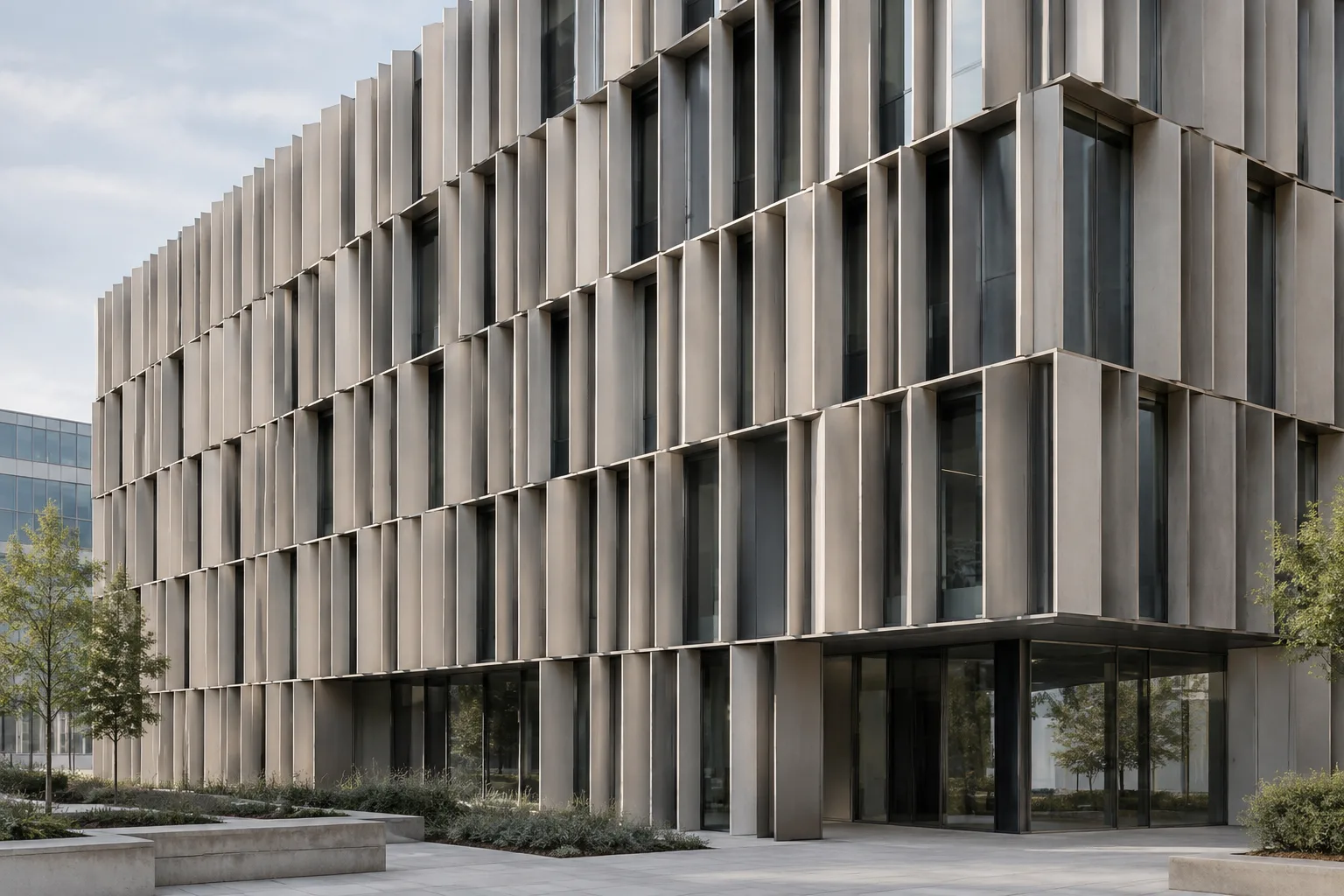
Design the repetition pattern. To place panels at regular intervals along a façade, look at the Mesh Line and Instance on Points nodes listed in the manual. Their names suggest an approach based on points along a line and instances on those points. Start with a very small test and inspect the result in the viewport to see whether the object count, orientation, and spacing are as expected. The source does not explain parameter names or connection order for these nodes, so don’t assume a specific socket arrangement.
Add variation sparingly. The manual includes Random Value and Randomize Transforms nodes. If you plan to use them, first decide which property you want the randomness to affect—for example, only orientation or scale. Changing one variable at a time makes it easier to understand the design outcome. If randomness makes the façade look uncontrolled, disable this step and return to a regular module array.
Check materials and joins. Set Material and Join Geometry appear in the manual under material and geometry operations. Use this stage to consider material choices for façade elements and how multiple parts should be treated together. A material looking correct does not mean the model has been validated for fabrication or project delivery; separately check how it is represented in the scene and how the file will be used later.
Validate the result with a small test. First assess the appearance using a limited number of elements, then try expanding the layout. The manual also includes Performance and Baking sections, which are relevant resources for further investigation. The source does not provide specific performance guarantees or processing times for these topics. So evaluate the results in your own scene, and avoid adding complex steps you don’t need.
Common mistakes
One common issue is assuming that knowing a node’s name also means knowing how to connect it. The provided content in Blender’s manual offers an extensive node list, but it does not explain every node’s sockets and settings here. Before adding a node, open its relevant manual page and review the input and output descriptions.
Another mistake is changing too many variables at once in the first attempt. If you adjust geometry, repetition, randomness, and materials together, it becomes harder to find the source of a problem. Test a simple module and regular duplication first, then add new operations one at a time. Also, don’t confuse Blender node names with similar systems in other software. Maxon’s Cinema 4D Scene Nodes manual covers a different product’s node system; don’t treat its steps as equivalents to Blender menus or nodes.
What does it offer in architectural and visualization workflows?
This approach can give architects, interior designers, and visualization artists working with repeating façade elements a structured way to explore design variations. Building a node setup as a series of small operations can make changes easier to track, particularly during early design and visualization stages when the same module is repeated across a surface. However, the sources do not provide information about BIM export, compatibility with other software, or generating fabrication data. Before treating a Geometry Nodes result as a delivery or fabrication model, carry out the necessary compatibility and geometry checks separately.
If you share files within a team, note the Blender version in use, the purpose of the node setup, and any critical design values. The sources do not explain hardware requirements or specific license costs, so don’t form definite expectations about these. As the project grows, measure viewport performance and final render times in your own scene.
Next steps
Once the initial test is successful, adapt the same approach to a more complex module, such as a panel made of multiple parts or an element that follows a curve. The manual also lists related nodes such as Curve to Points, Curve to Mesh, Resample Curve, and Instance on Points. Use these names to plan a new design test, but don’t treat it as a definitive workflow until you have checked the nodes’ behavior and connection options in the relevant Blender documentation. Then evaluate the scene setup, viewport quality, and project delivery requirements separately.
Sources and license
The main reference is Blender’s online Geometry Nodes manual. The source page is licensed under CC BY-SA 4.0; this content has been adapted into Turkish based on the node categories and names in the manual. Maxon’s Cinema 4D Scene Nodes introduction page is mentioned only as a contextual reference to avoid confusion with another software’s node system; it is not the source for the Blender steps.
Sources
2 sourcesSource texts are not republished; short quotes are marked, everything else is our own summary and commentary.
For architecture firms and students in Turkey, Geometry Nodes can support testing repeating façade components during visualization and changing the layout in a controlled way. Teams that want to compare alternatives quickly can start with a simple module and learn how the setup works.
However, the sources do not provide information about hardware requirements, license costs, or compatibility with other software. Before applying the workflow to a real project, test it in the Blender version you use, measure performance at the scale of your scene, and separately verify that the file is suitable for its intended delivery purpose.
Frequently asked questions
Can Blender Geometry Nodes be used to duplicate façade elements?
The manual lists nodes such as Mesh Line and Instance on Points, which you can explore when planning a repetition pattern. Check the manual for your Blender version to confirm the exact connections and settings.
Which Blender version is this Geometry Nodes guide for?
The source is the latest online manual page, and the provided content does not specify a particular Blender version. Check the documentation for your installed version.
Can I add random variation to a façade design with Geometry Nodes?
The manual includes the Random Value and Randomize Transforms nodes. Refer to the relevant node descriptions to find out which properties can be changed and how.