In brief
- According to the Gemini API documentation, Gemini Omni Flash is designed to generate short videos from text and images and refine results over multiple rounds.
- According to Google’s Gemini API documentation, Veo 3.1 supports built-in audio generation, video extension, generation from specific frames, and image guidance.
- The Gemini API documentation points to the Interactions API for Gemini Omni Flash and the generateContent API for Veo 3.1.
- The sources do not specify pricing, hardware requirements, or usage quotas.
What will you learn in this guide?
This guide explains how to choose between Gemini Omni Flash and Veo 3.1 when creating a short promotional video from an architectural image, and how to structure text instructions. The goal is not to guarantee a perfect result in one go, but to create a clear scene description, review the output, and refine the instructions when needed.
Google’s Gemini API documentation describes Gemini Omni Flash as a tool for generating short videos from text and images and editing them over multiple rounds. The same documentation describes Veo 3.1 as offering features such as built-in audio generation, video extension, frame-specific generation, and image guidance. Omni Flash may be worth considering for an initial architectural concept video or an interior mood piece; if you need to continue an existing clip or target a specific frame, you can look to Veo 3.1’s documented features.
What you need: software, version, and access
The workflow runs through the Gemini API. Google’s documentation specifies the Interactions API for Gemini Omni Flash and the generateContent API for Veo 3.1. You will therefore need a client or application that can work with the API, as well as Gemini API access. The sources do not explain a specific account setup process, fees, free quotas, or local software requirements; check the current API documentation for this information.
The sources do not specify requirements for a particular computer, graphics card, or operating system. Since video generation is described as an API workflow, it would be inaccurate to invent local hardware requirements. The documentation names Gemini Omni Flash and Veo 3.1 for video generation; the page also includes a notice that Gemini 3.8 Flash is available. This notice does not imply any additional hardware or installation requirements for video generation.
Before you start, choose an architectural image that is suitable for use. A clear composition, key materials, and lighting make it easier to assess the instructions. If you upload images from a real project, make sure you have the necessary sharing and usage permissions.
1. Choose a workflow
First, decide what the video is for. Try Gemini Omni Flash if you want to create a short mood video from a single image or refine the result through conversational, multi-turn editing. Consider Veo 3.1 if you want to extend an existing video, generate specific frames, or provide image guidance. Google’s documentation says these models are intended for different workflows, so your choice should be based on the features you need.
Focus on a single scene for your first attempt. For example, when introducing an interior, describe the camera movement, areas to show, and desired mood together, using clear language. The prompt examples below were created for architectural use in this guide; there is no guarantee the results will exactly match the prompts.
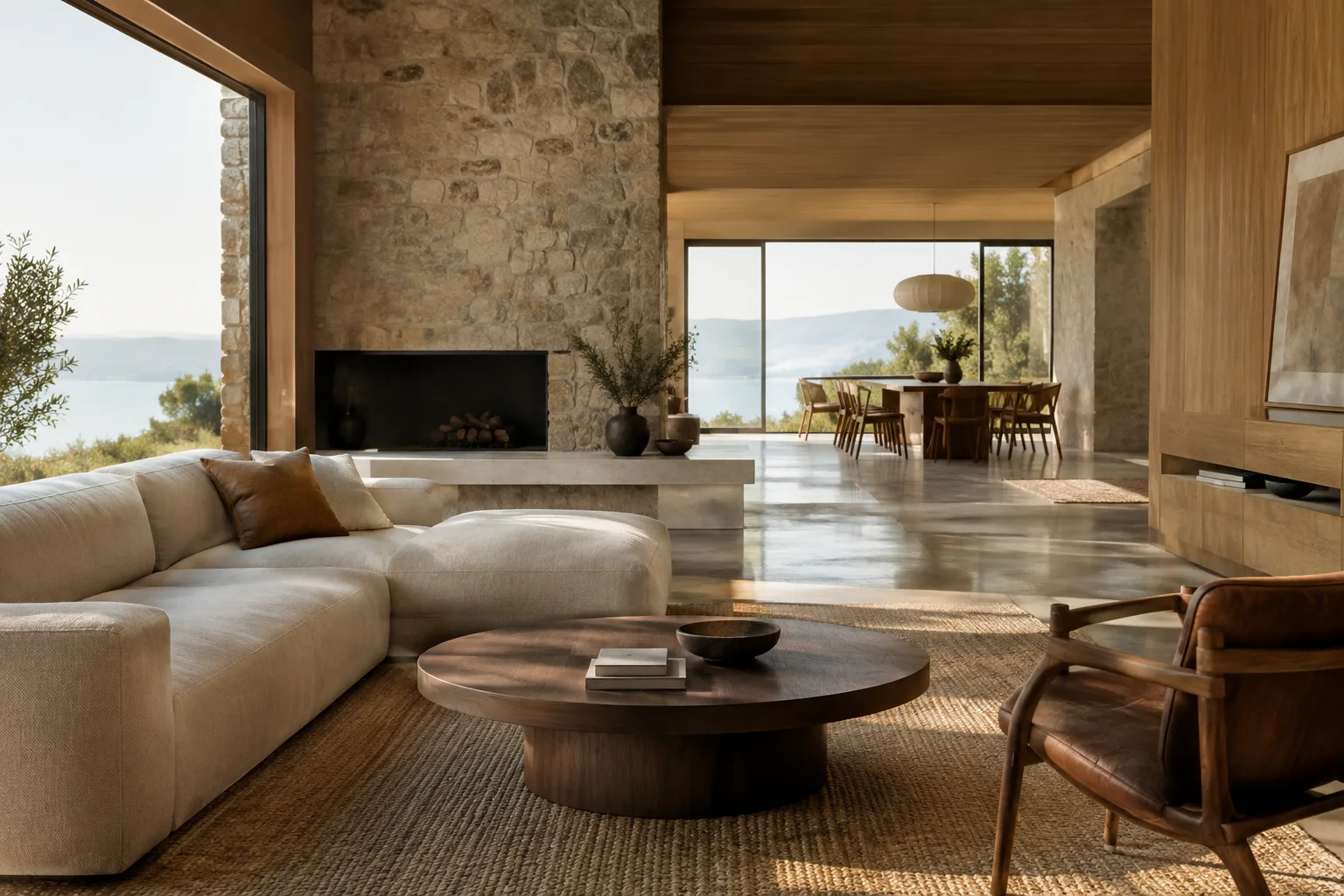
Create a short architectural visualization video from the supplied interior image. Slowly move the camera from the entrance toward the main living area. Preserve the room layout, furniture positions, materials, and daylight mood. Keep the scene calm and realistic.This example specifies a single camera movement and the visual characteristics to preserve. According to the Gemini API documentation, Gemini Omni Flash can use text and images together as input, so include the selected interior image in the workflow when appropriate.
2. Make your instructions clear and testable
Google’s prompt design guide recommends making instructions clear and specific, and describing the task, input, and desired output format where needed. For an architectural video, state separately what the scene is, what should change in the video, and what should remain consistent. Instead of open-ended phrases such as “make it more beautiful,” specify, for example, the direction of the natural light or which part of the space should be shown.
Create a short video of this contemporary courtyard from the supplied image. Show the planted courtyard and the adjacent façade in a gentle camera move. Keep the façade geometry, paving pattern, planting layout, and overcast daylight consistent with the reference.This description was prepared for a Veo 3.1 test based on image guidance. Google’s documentation states that Veo 3.1 supports image guidance, but it does not guarantee that the details described in the prompt will be preserved exactly in the result.
3. Review the first output, then edit
Google’s Gemini API documentation says Gemini Omni Flash is suited to multi-turn video editing through the Interactions API. When reviewing the first output, identify the most noticeable issue—such as camera movement, lighting, or composition—instead of requesting many changes at once. Then give a new instruction that clarifies only that issue.
Revise the previous video. Keep the room, materials, furniture, and lighting unchanged. Make the camera movement slower and end with a clear view of the dining area.This example asks for a single revision after the first round. Multiple rounds can make it easier to track what changes each time; however, the documentation specifies neither a set number of rounds nor a guaranteed result, so availability and output quality should be checked through testing.
4. Extend an existing video or target a frame
Google’s Veo 3.1 documentation specifies support for video extension and frame-specific generation. When planning to continue a short architectural clip, describe which part of the scene should carry on. The sources provided do not include detailed parameters or steps for using the video extension feature; check the current API guide for implementation details.
Veo 3.1’s support for generation from specific frames is also documented. However, the source does not explain which parameters or steps are required to use this feature. Do not assume that describing the frame only in the prompt is sufficient; check the current generateContent API guide for the implementation method.
Extend the supplied architectural video with a quiet continuation of the same courtyard view. Maintain continuity with the existing scene, including the façade, planting, paving, and lighting. Do not introduce a new location.This example describes a video-extension workflow using an architectural scene. While Google’s documentation confirms that the feature is available, it does not explain how to upload the clip or set the extension length; verify the implementation steps in the current API guide.
Common mistakes and next steps
Asking for the space, camera movement, lighting, and numerous changes all at once in an unclear prompt can make it difficult to tell what worked. Simplify the instructions and test one variable at a time.
Don’t assume the geometry or materials in a reference image will be preserved exactly. Compare the result with the project image and clearly specify any necessary changes.
Don’t treat Gemini Omni Flash and Veo 3.1 as if they were the same workflow. Choose a model based on your needs, such as multi-turn editing, video extension, frame-specific generation, or image guidance.
The sources provided do not cover pricing, quotas, output limits, or API usage steps. Check the current Gemini API documentation for these details before starting work on a real project.
For architecture and interior design offices, this approach can help create quick audiovisual drafts for concept presentations and mood tests. Archviz artists should check whether the existing visual language has been preserved and whether the video contributes to the project narrative. As a next step, compare the two models using the same image and similar instructions, focusing on the features you need; before introducing the workflow into production, also verify licensing, costs, and the conditions for sharing project data.
Sources and license
This guide has been adapted into Turkish from Google’s Gemini API documentation pages “Video generation in the Gemini API” and “Prompt design strategies.” Both sources are offered under the CC BY 4.0 license. The prompt examples for architectural use were written specifically for this guide.
Sources
2 sourcesSource texts are not republished; short quotes are marked, everything else is our own summary and commentary.
For architecture offices and students in Turkey, the practical value of these tools lies in turning concept images into short presentation videos and exploring different ways to tell a story. In particular, generating a moving draft from a static interior or façade image can support idea development ahead of a presentation.
However, since the sources do not explain pricing, quotas, or hardware requirements, API costs and access conditions should be clarified before bringing the workflow into production. For real projects, geometry, material, and lighting consistency should be reviewed separately; video should not replace verified architectural documentation.
Frequently asked questions
What can Gemini Omni Flash be used for in architectural video generation?
The Gemini API documentation describes Gemini Omni Flash as a tool for generating short videos from text and images and for multi-turn editing through the Interactions API.
What features does Veo 3.1 support for video generation?
According to Google’s Gemini API documentation, Veo 3.1 supports built-in audio generation, video extension, frame-specific generation, and image guidance.
How much do Gemini Omni Flash and Veo 3.1 cost?
The sources used do not provide pricing information. Check the Gemini API documentation for current fees and usage terms.