In brief
- Lumen is enabled by default for global illumination and reflections in newly created projects.
- In existing projects, enable Lumen under the Dynamic Global Illumination and Reflections settings in Project Settings.
- Hardware ray tracing requires both Support Hardware Ray Tracing and Support Compute Skin Cache to be enabled.
- For Lumen to use hardware ray tracing for reflections, turn on Use Hardware Ray Tracing when available and set Ray Lighting Mode to Hit Lighting for Reflections.
What will you learn in this guide?
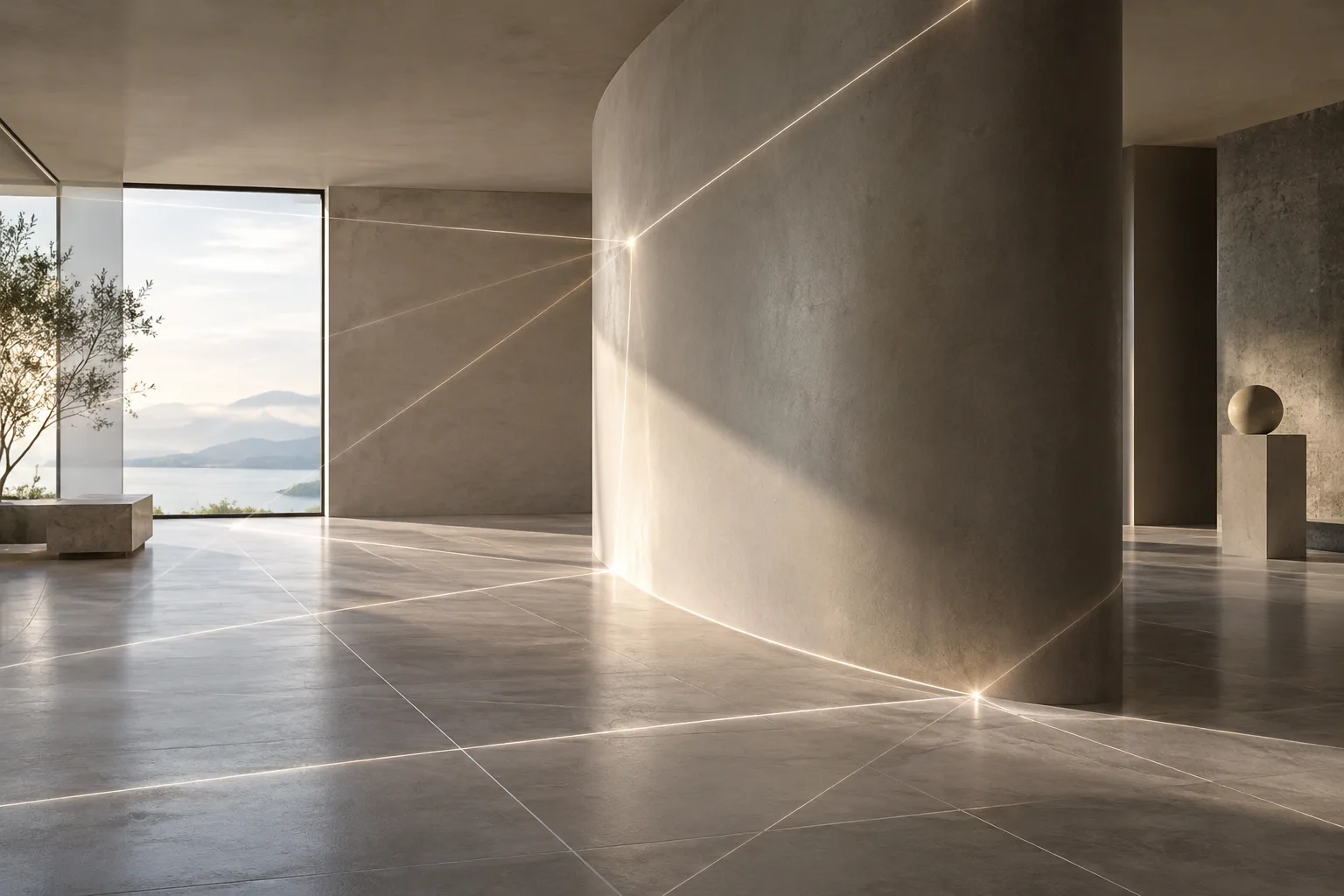
In Unreal Engine, Lumen is the system that calculates dynamic global illumination and reflections. Light that bounces off one surface and reaches another can cause color bleeding in the environment; objects can also block indirect light and contribute to shadows. Lumen is designed to work in detailed scenes ranging in scale from millimeters to kilometers, and can provide unlimited bounces for diffuse lighting.
In this guide, we’ll enable Lumen in the project settings, review the requirements for hardware ray tracing, and look at how quality controls affect performance. Setting names are given as they appear in the English-language interface in the documentation.
Requirements and before you begin
The source documentation describes Unreal Engine 5’s Lumen and ray tracing features but does not specify a particular minor version. In newly created projects, Lumen is enabled by default for global illumination and reflections. In projects converted from Unreal Engine 4 to Unreal Engine 5, it is not enabled automatically, to avoid changing the existing lighting setup.
Hardware ray tracing availability depends on graphics card, RHI, and operating system support. The documentation does not list specific graphics card models or minimum hardware requirements. It also provides no information about account requirements or licensing fees.
When Lumen is enabled, Generate Mesh Distance Fields is also turned on. This feature is required for Lumen’s software ray tracing mode, and changing it requires restarting the engine. Generating Mesh Distance Fields can increase static mesh build times, memory usage, and disk size. With Lumen enabled, precomputed static lighting contributions are disabled and lightmaps are hidden. For this reason, review the lighting setup before switching, especially in existing projects.
1. Enable Lumen in Project Settings
Open the project and go to Project Settings.
Under Rendering > Dynamic Global Illumination, set Dynamic Global Illumination Method to Lumen.
In the Reflections category, also set Reflection Method to Lumen. Since these features can be configured separately, check both.
Make sure Generate Mesh Distance Fields is enabled.
Apply the changes and restart the engine.
These options may already be enabled in a new project; check them manually in converted projects. Lumen supports Directional, Sky, Point, Spot, and Rect light types. However, lights set to Static are not supported: their contributions are stored in lightmaps and are disabled when Lumen is enabled.
For your initial check, look at indirect lighting, shadows, and reflections. Lumen’s sky lighting calculation can make interiors appear darker than exteriors. This lets you assess the effect of skylight on indoor and outdoor areas.
2. Configure hardware ray tracing
Hardware ray tracing support depends on graphics card, RHI, and operating system support. If it is unavailable, Lumen falls back to software ray tracing mode. To enable hardware support in the project:
Open Project Settings > Engine > Rendering > Hardware Ray Tracing.
Enable Support Hardware Ray Tracing.
Make sure Support Compute Skin Cache is also enabled. Hardware ray tracing requires this setting; a prompt may appear to enable it if it is turned off.
In the Lumen settings, enable Use Hardware Ray Tracing when available.
To make Lumen use hardware ray tracing for reflections, set Ray Lighting Mode to Hit Lighting for Reflections.
The final step matters: enabling hardware ray tracing support alone does not guarantee that Lumen will use it for reflections. According to the source, Use Hardware Ray Tracing when available must be enabled and Ray Lighting Mode must be set to Hit Lighting for Reflections. This mode calculates lighting at the point where the ray hits the scene; it can improve reflection quality, but significantly increases GPU costs because materials are evaluated and shadow rays are traced. Surface Cache is offered as a faster option for reflections.
Hardware ray tracing can also be used for features such as standalone ray-traced shadows, in addition to Lumen reflections. The Cast Ray Traced Shadows setting for lights offers options to follow the project default, enable ray-traced shadows, or disable them. The light source size and a directional light’s Source Angle affect shadow softness: larger sizes and angles produce softer shadows.
3. Balance quality and performance settings
Lumen’s project defaults are in Project Settings, while many of the quality options artists can control are in Post Process Volume. These volumes let you use different quality settings across an entire level or in specific areas.
Increasing Final Gather Quality can improve global illumination quality and reduce image noise, but also increases GPU costs.
Lumen Scene Detail affects how small objects are represented in the Lumen Scene. Accounting for smaller objects can increase costs.
Lumen Scene View Distance determines the range of the scene maintained for ray tracing. A greater distance extends the reach of sky occlusion and global illumination, while also increasing GPU usage.
The Quality setting for reflections can improve quality and reduce noise; this option also has a GPU cost.
High Quality Translucency Reflections can provide higher-quality mirror reflections on the front layer of translucent surfaces. This feature, which must also be enabled in the project settings, uses additional GPU resources.
Hardware ray tracing can create significant scene update costs in scenes with more than 100,000 instances. Measure performance in the actual project scene before increasing quality. For example, you could try lower quality settings in general areas and higher settings in an interior where reflections are important, using a Post Process Volume. The source documentation describes this approach as a way to balance quality and cost across different areas.
What changes in architectural and interior workflows?
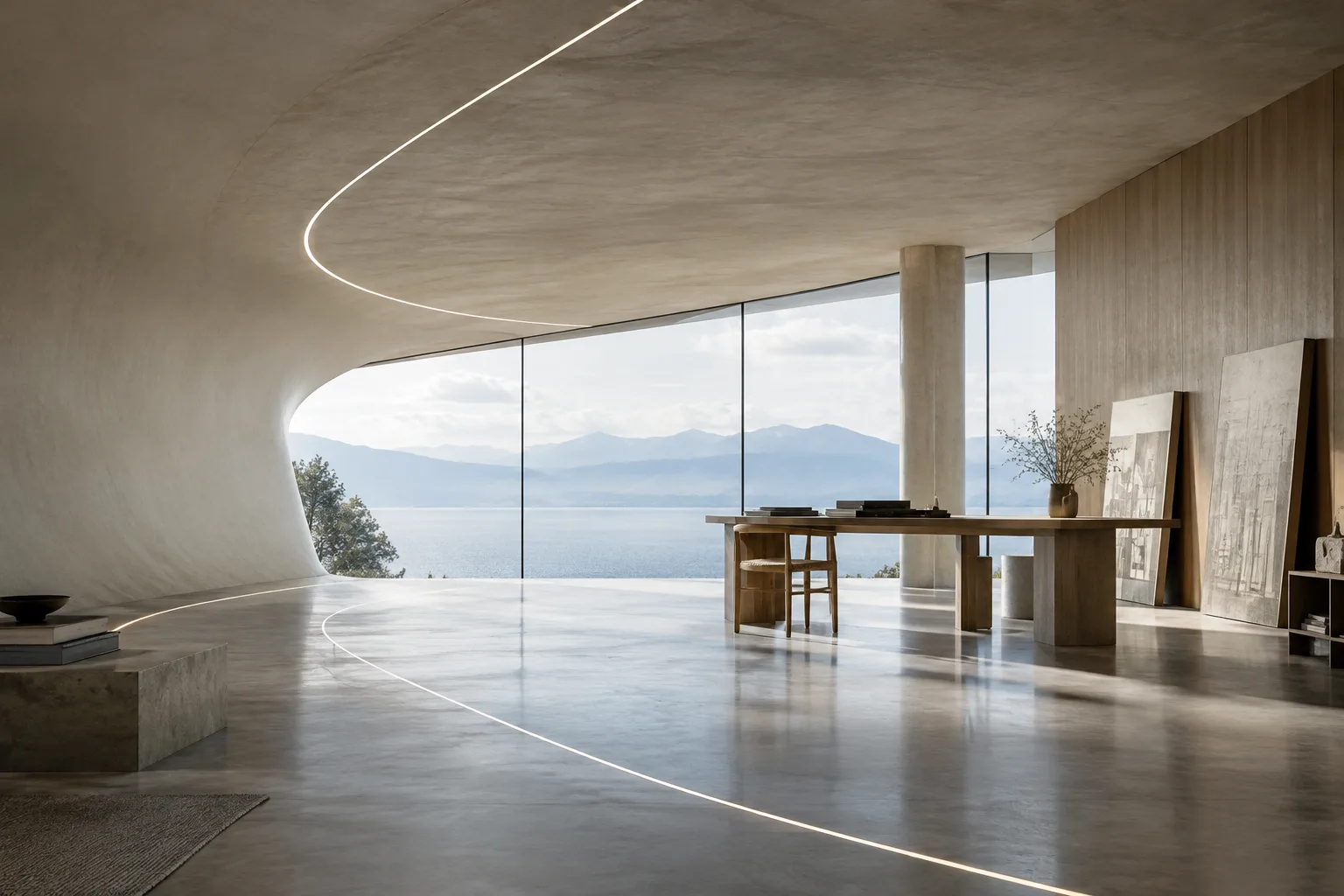
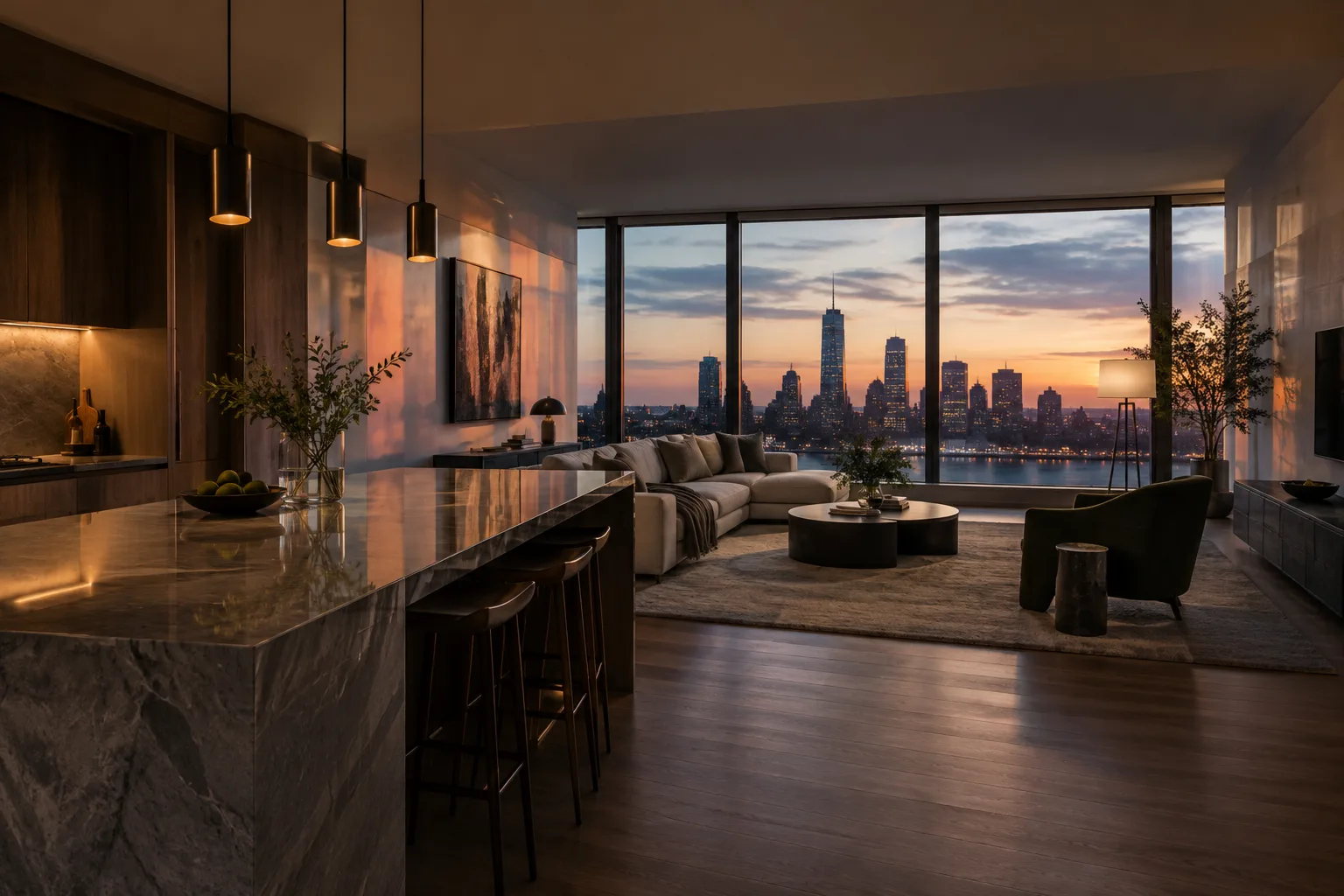
Lumen can help architectural visualization teams evaluate indirect light, color bleeding between surfaces, and reflections in real time in interior scenes. The effect of a wall’s color on its surroundings, or reflections on glossy materials, can be observed during design reviews. The sky lighting calculation can also contribute to interiors appearing darker than exteriors.
Results depend on the scene setup, settings, and hardware. If hardware ray tracing is unsupported, Lumen switches to software ray tracing; even when hardware support is available, high-quality options can increase GPU costs. In projects that rely on static lights and precomputed lighting, also check how switching to Lumen affects the scene’s appearance. Offices and students should try the settings in real scenes on their target hardware to assess whether performance suits their workflow.
Common mistakes and next steps
It can be a mistake to assume that Lumen is automatically enabled in converted projects. When enabling hardware ray tracing, don’t overlook the Support Compute Skin Cache requirement. If you want to use hardware ray tracing for Lumen reflections, verify that both Use Hardware Ray Tracing when available and Ray Lighting Mode: Hit Lighting for Reflections are set as required.
Also account for the fact that higher quality, detail, and view distance values can increase GPU costs. When troubleshooting, change one setting at a time in the same scene and compare the result. First inspect the basic Lumen lighting; then evaluate hardware ray tracing and reflection options separately. When checking differences in reflections, also consider the effect of Screen Traces in Post Process Volume: this feature uses samples from screen depth and color. Finally, try quality settings in selected interior areas and evaluate them alongside performance.
Sources and licensing
This guide has been adapted into Turkish based on Epic Games’ Lumen Global Illumination and Reflections and Hardware Ray Tracing documentation. The sources are provided under a free license.
Sources
2 sourcesSource texts are not republished; short quotes are marked, everything else is our own summary and commentary.
For architecture offices, students, and visualization teams in Turkey, Lumen’s practical value lies in letting them assess lighting and material decisions in a real-time scene. Reviewing indirect lighting and reflections in interiors can support the design process, but it doesn’t automatically mean better results in every scene.
Hardware ray tracing support depends on the graphics card, RHI, and operating system; high-quality options can also increase GPU costs. That’s why it’s important to try the settings in real project scenes and measure workstation performance before deciding. Since the sources do not specify a licensing fee, check the current terms separately when assessing costs.
Frequently asked questions
How do you enable Lumen in Unreal Engine?
In Project Settings, set Dynamic Global Illumination Method and Reflection Method to Lumen. Check Generate Mesh Distance Fields and restart the engine.
Which settings are required for hardware ray tracing in Lumen?
Support Hardware Ray Tracing and Support Compute Skin Cache must be enabled. For Lumen to use hardware ray tracing for reflections, enable Use Hardware Ray Tracing when available and set Ray Lighting Mode to Hit Lighting for Reflections.
Does Lumen affect performance?
Yes. Lumen’s quality, detail, and view distance settings can increase GPU costs. Hardware ray tracing can also lead to significant update costs in scenes with more than 100,000 instances.