In brief
- Gemini Omni Flash is recommended for generating short videos from text and images, and for conversational video editing.
- Veo 3.1 offers features such as native audio, video extension and frame-specific generation.
- A good prompt can describe the subject, action, setting and camera choices separately.
- According to Google’s guide, results and reliability can vary with advanced camera angles.
What you’ll learn in this guide
Turning an architectural scene into a video takes more than saying, “Show a modern house.” Clearly describing the space, what changes in the scene, the time of day and how the camera moves gives you a more controlled starting point. This guide covers how to build architecture- and interior-focused prompts for Gemini Omni Flash and Veo, the differences in their use cases noted in the sources, and common prompting mistakes.
Google’s documentation highlights Gemini Omni Flash for generating short videos from text and images, as well as editing through multiple conversational turns. Veo 3.1 is described as offering features such as native audio, video extension and frame-specific generation. So start by identifying what you need: consider Omni Flash for creating a new scene and iterating on the result conversationally; consider Veo 3.1 for the specified needs of extending a video or directing generation by frame.
Requirements and choosing a tool
The source documentation describes video generation with the Gemini API and Vertex AI Agent Platform. For Omni Flash, it mentions the Interactions API; for Veo 3.1, the generateContent API. The documentation does not specify a particular local software version, account type, pricing or access requirements; check the relevant service’s current documentation before getting started.
Before you begin, clarify your goal with three questions:
Are you creating a new architectural video, or analyzing an existing one? The sources cover video generation; for analyzing existing video, they direct readers to a separate video understanding guide.
Is your input text, an image or a combination of different types? Gemini Omni Flash is described as a multimodal model that supports text, image, audio and video inputs together. Image guidance is specified for Veo 3.1.
What change matters in the result? Choose a goal, such as showcasing a single space, describing camera movement or continuing a scene.
You can build a prompt from the following components: subject (the focus of the image), action (what happens), scene and context (where and when it takes place, and its atmosphere), camera angle and camera movement. You don’t need every component in every prompt; choose what fits your needs.
Architectural video prompts, step by step
1. Describe the space and focus first
The subject is the building or interior element at the center of the video. Rather than using general terms, specify visible qualities such as materials, form and spatial relationships. The example below is designed to establish a new exterior scene:
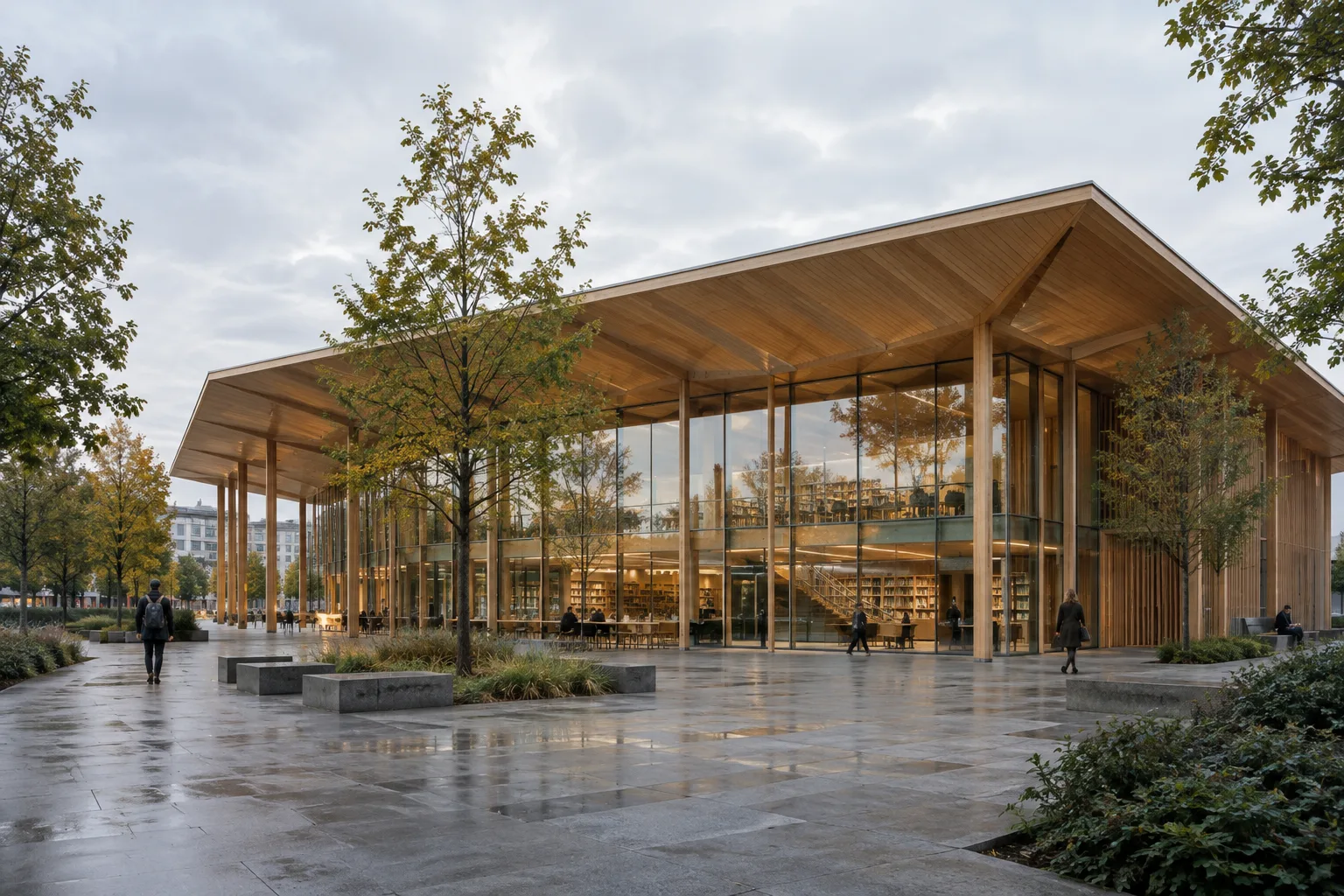
A contemporary public library with a broad timber canopy and a glazed ground floor, set in a quiet urban plaza at early morning. Soft overcast daylight reveals the timber grain and the reflections in the glass. Wide establishing shot, calm architectural visualization.This example defines the building, materials, surroundings, time of day and overall framing together. For a concept video, choose which aspect of the design to emphasize—for example, the façade rhythm, the entrance void or the building’s relationship to the plaza. Instead of adding technical details or exact measurements that won’t be visible, describe the qualities you want the video to convey.
2. Specify the action in the scene
Action describes how the video differs from a static image. In architectural visualization, you can use observable elements such as people moving, changing light or leaves stirring in the wind:
A small group of visitors walks slowly through a contemporary museum atrium, pausing beneath a large skylight. Sunlight shifts gently across the stone floor while a few leaves outside move in a light breeze. Medium-wide shot, restrained and realistic movement.Here, the actions are brief and work together. Describing many changes or events in one clip can make it unclear which movement matters most. Start with a single main action; if needed, add a small environmental movement alongside it.
3. Add the camera angle and movement
The camera angle specifies the viewpoint from which the viewer sees the space; the movement describes how the shot progresses. Google’s guide gives examples of angles such as wide, bird’s-eye, eye-level and close-up, and movements such as pan, tilt, dolly, truck, zoom and crane. It also specifically notes that results with advanced angles may vary.
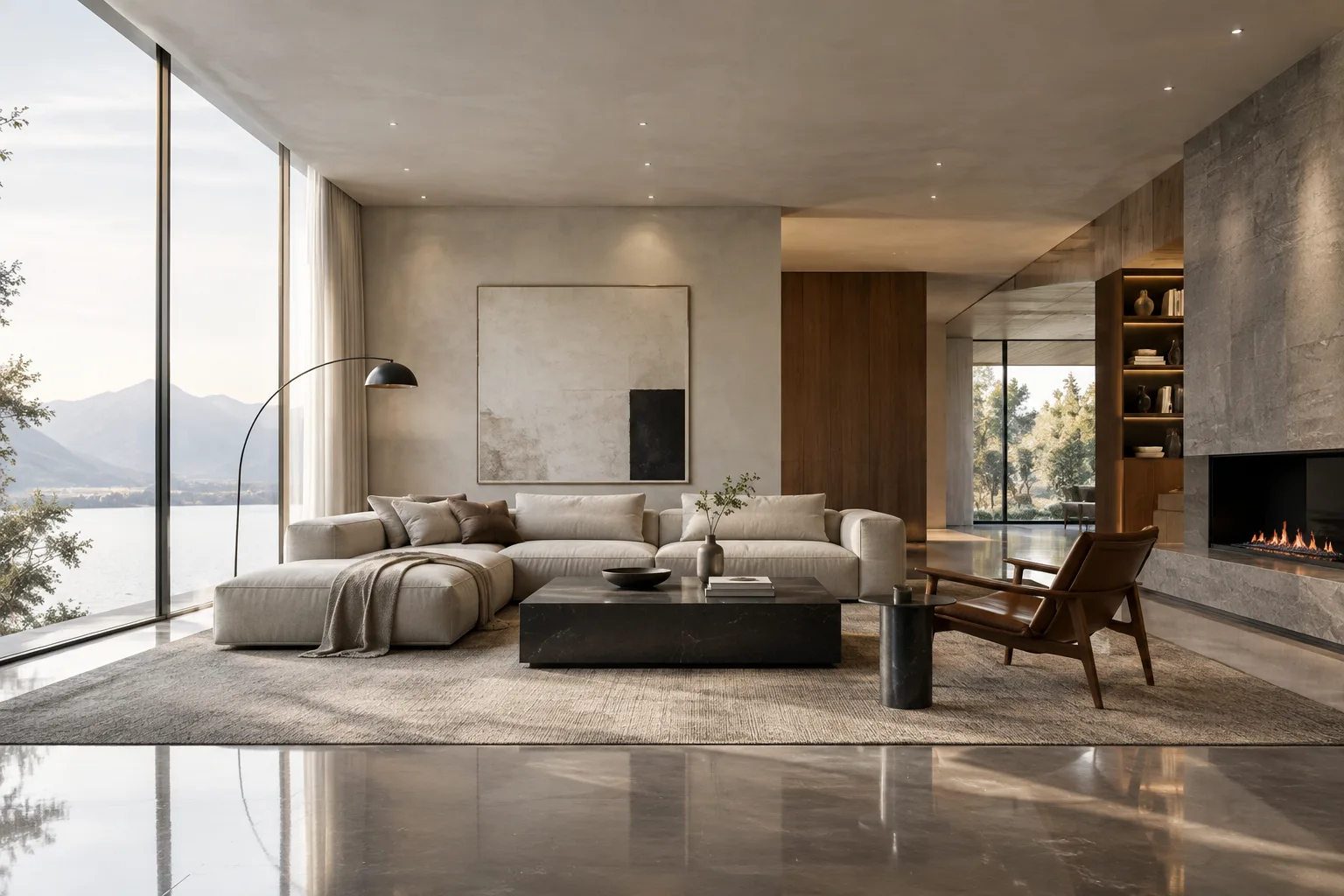
A double-height residential living room with a sculptural staircase and a large window facing a garden. Begin with a wide eye-level view, then make a slow dolly in toward the staircase. Soft late-afternoon light, stable camera, natural material detail.This prompt clearly specifies the starting frame and a single camera movement. “Dolly in” describes the camera physically moving closer to the subject; the guide distinguishes this from zoom. Rather than stacking multiple camera instructions in one shot, start with one movement so you can assess the result.
4. Connect the lighting and atmosphere to the space
Scene context includes elements such as location, time of day, weather and atmosphere. Use lighting descriptions to help make the design legible. For example, if you want material surfaces to read clearly, specify where the light comes from and the atmosphere it creates:
A quiet boutique hotel lobby with pale stone walls, a dark timber reception desk, and a shallow reflecting pool. Early morning light enters from the side and creates soft reflections on the stone. Static wide shot, subtle water movement, calm atmosphere.Here, the static camera helps keep the focus on the lobby and materials, while the water movement adds a touch of dynamism. Make sure the lighting, camera and action descriptions all support the same visual goal. For example, asking for a dramatic nighttime atmosphere while also showing the space in bright midday light can lead to conflicting results.
5. Treat image input as visual guidance
If you have a reference image, consider a workflow that includes image input. The sources state that Omni Flash can work with text and images, and that Veo 3.1 supports image guidance. They do not guarantee that every detail of an image will be preserved exactly. So also state which qualities matter in your prompt:
Use the provided architectural image as visual direction for a compact courtyard house. Show a slow truck right across the courtyard, revealing the relationship between the timber screen, planted edge, and interior glazing. Gentle daylight, restrained movement, wide shot.This example uses the image as guidance while also specifying what you want visible in the frame. If the materials or spatial relationships change in the result, revise the prompt and simplify its main focus. The sources mention image guidance but do not describe a specific image-upload step or interface path.
Common mistakes
Using overly general descriptions: Phrases such as “a beautiful house video” don’t make the subject or atmosphere clear. Describe the building type, space and feature to emphasize.
Confusing action with camera movement: In a description such as “the façade rotates as the camera moves closer,” it may be unclear which movement should take priority. Write the scene action and camera movement separately.
Requesting conflicting atmospheres: Describing different times and lighting conditions in the same prompt weakens the scene context. Choose one time and atmosphere.
Assuming all camera angles are equally reliable: Google notes that results and reliability can vary with some advanced camera angles. If you get an unexpected framing, try again with a more basic angle.
Confusing generation with analysis: The API documentation covered in this guide focuses on video generation. If you need to analyze an existing video, refer to the video understanding documentation cited in the source.
Using this approach in architectural and visualization workflows
This approach may help architects, interior designers and visualization teams turn concept scenes, interior atmospheres or a building’s relationship to its surroundings into short moving studies. Separating the subject, action and camera choices in a prompt can make it easier to compare different presentation ideas. However, the sources do not say that the resulting video will preserve project geometry or materials exactly; treat the result as a visual communication study, not a substitute for design validation.
When choosing a tool, check licensing, service access requirements and cost as well as the intended use. The source texts do not explain pricing or account requirements. Before using real project images, teams should review the relevant service terms and internal data policies; they should also verify that the selected API workflow fits their existing production pipeline. For a major presentation, it’s better to review camera and scene descriptions through short tests than to rely on a single prompt.
Next steps
Start by making a few tests for the same scene, changing only the camera movement; then update just one element, such as lighting or action. This makes it easier to see which description changed the result. The documentation notes that Gemini Omni Flash supports editing over multiple turns; when using this feature, state the intended change clearly in each turn. Match Veo 3.1 to needs described in the source, such as video extension or frame-specific generation. In either case, evaluate the results against the architectural presentation goal you’ve set.
Sources and license
This tutorial was adapted into Turkish using Google AI for Developers’ “Video generation in the Gemini API” document and Google Cloud’s “Video generation prompt guide.” Both sources are licensed under CC BY 4.0.
Sources
2 sourcesSource texts are not republished; short quotes are marked, everything else is our own summary and commentary.
For architectural teams, the practical value of this approach is that it can make it easier to turn a spatial concept into short moving sequences and test camera options before a presentation. Small experiments built around clear descriptions can support the workflow, especially when communicating a concept or atmosphere.
Offices and students in Turkey should also check service costs, access requirements and the rules for using project images before deciding whether to use these tools. The sources do not explain pricing or account requirements, and they do not say that generated videos preserve design details exactly. It’s therefore best to treat the output as visual communication support, not a design validation tool.
Frequently asked questions
What is the difference between Gemini Omni Flash and Veo 3.1?
Google highlights Gemini Omni Flash for generating short videos from text and images, and for multi-turn editing. Veo 3.1 offers features such as native audio, video extension and frame-specific generation.
What information should an architectural video prompt include?
The subject, action, scene context, camera angle and camera movement can help structure a prompt. You don’t need to use every element in every prompt.
How much do Veo 3.1 or Gemini Omni Flash cost?
The provided sources do not specify pricing. Check the relevant service’s current pricing and access requirements before use.