In brief
- Geolocate your model for real-world shadows; latitude and longitude, orientation, and time zone all affect the results.
- Access Analysis Hub from the Extensions menu or via the link in the Shadows panel.
- Advanced Shadows helps you examine shadow changes for a selected solstice or equinox.
- Other Analysis Hub analysis types are available through SketchUp Public Labs and are still in development.
What you’ll learn in this guide
Viewing shadows in SketchUp is a practical way to compare how a model looks under sunlight at different times. Advanced Shadows, added to Analysis Hub in SketchUp 2026.2, lets you examine shadows in the context of a selected solstice or equinox. This guide walks through checking model data, using the basic shadow settings, and reviewing advanced analysis results.
Treat these tools as aids for design review. The sources do not say that the features produce definitive performance reports or code-compliance documents. In particular, if the model’s location, orientation, or time zone is incorrect, it can be difficult to relate the resulting view to real-world conditions.
Requirements and model preparation
This guide is based on SketchUp’s 2026.2 release notes, dated 19 May 2026, and its official help pages. Advanced Shadows is introduced in this release as the first official analysis type in Analysis Hub. The sources do not specify any additional hardware or account requirements for this workflow, so no extra requirements should be assumed.
Your model must be geolocated before you can use real-world shadows. SketchUp takes three location details into account when calculating shadows:
The model’s latitude and longitude.
The model’s alignment relative to the cardinal directions.
The selected time zone.
The sources for this guide do not detail the geolocation steps; SketchUp Help directs users to a separate “Geolocation and Terrain” guide for that process. Before starting the analysis, make sure the model’s location and orientation accurately represent the project.
Step by step: set up a basic shadow view
Review the model’s location and orientation. The geographic information used for shadow calculations should match the actual project location. Orientation refers to how the model is positioned relative to the cardinal directions. Don’t treat a view as representative of on-site sun conditions until you’ve checked this information.
Open the Shadows panel. In the panel, you can toggle shadows on or off, choose a date and time, and adjust the intensity of the light and dark effects. When comparing different times, keeping the other settings as consistent as possible makes it easier to identify what caused a change.
Choose the date and time to examine. SketchUp uses the date and time set in the panel to generate shadows. View the times that matter for your design separately; no single date or time represents every period.
Adjust face and ground shadows as needed. The “On Faces” option lets model surfaces cast shadows onto other surfaces. According to the help documentation, turning it off can improve performance, but it also hides the shadow relationships between surfaces. “On Ground” controls whether geometry casts shadows onto the ground plane.
Understand the sun-shading setting. When “Use Sun for Shading” is enabled, the simulated sun shades parts of the model even when shadows are turned off. Note whether this setting is on or off when interpreting a view, so you can tell whether different images are being compared under the same conditions.
Step by step: Analysis Hub and Advanced Shadows
Open Analysis Hub. In SketchUp 2026.2, you can access it from the extensions list in the Extensions menu or through the Analysis Hub link in the Shadows panel. If no analysis has been created yet, the initial view presents analysis types in a grid; if an analysis has already been run, the dashboard may open instead.
Select Advanced Shadows. The 2026.2 release notes describe this as the first official analysis option in Analysis Hub. Choose a specific solstice or equinox for your review. This lets you examine the shadow view associated with that celestial event and assess the potential effects of nearby structures and trees on sun exposure.
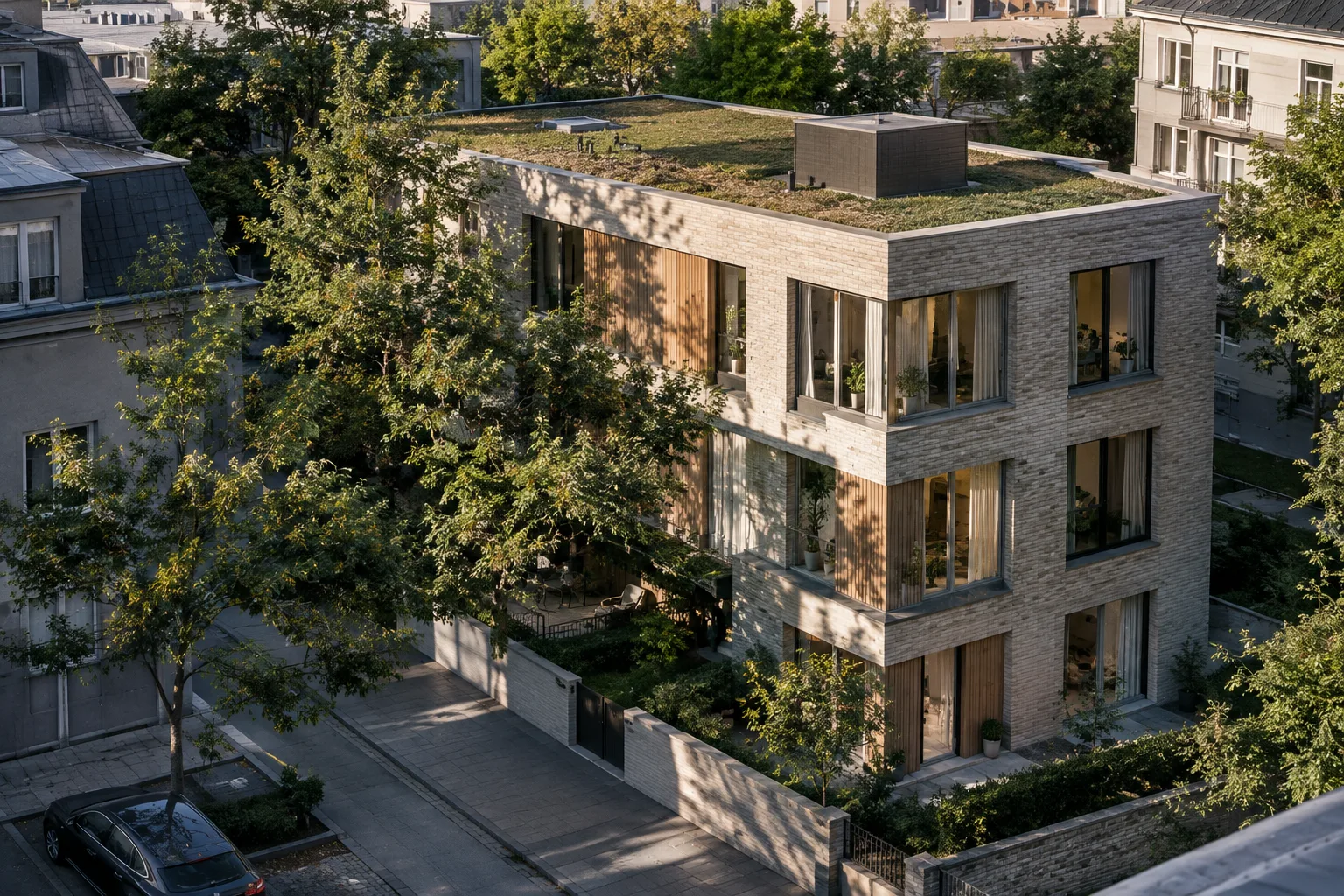
Include surrounding geometry in your assessment. Neighboring buildings, trees, and other structures can affect how a design relates to sunlight. If your goal is to examine environmental effects, don’t base your interpretation solely on the view of the main building. The sources do not describe a specific modeling method, so this guide does not provide menu steps for adding surrounding elements.
Review the results in Analysis Viewer. Once the analysis is complete, you can open the results in a 3D viewing environment. Viewer provides tools for adjusting the analysis view, changing the visibility of some data, and revisiting analysis settings. Keep track of any changes you make while reviewing the results, and make sure that different views represent the same conditions.
Other analysis types and common mistakes
In addition to Advanced Shadows, Analysis Hub includes Annual Illuminance, Daylight Factor, Underlit & Overlit (sDA & ASE), Direct Sun, and Date & Time. These are described as SketchUp Public Labs features, meaning they are available but still in development.
Annual Illuminance is intended to assess a space’s illumination throughout the year using specified climate data. Daylight Factor examines the ratio of indoor to outdoor light under overcast-sky conditions. Underlit & Overlit (sDA & ASE) helps identify areas receiving too little or too much light. Direct Sun calculates the duration of exposure to direct sunlight, while Date & Time lets you examine daylight views for specific dates and times. These options do not answer the same question, so choose an analysis type based on the design question you need to address. If you’re unsure which one to use, SketchUp’s Watch Tour video can help introduce the analysis types.
A common mistake is to treat a basic shadow view as an indication of real-world conditions without geolocating the model. Incorrect orientation or time zone can also affect your interpretation. Another mistake is to turn off “On Faces” expecting only a performance change: doing so also disables shadows cast between surfaces.
Next steps in architecture and visualization workflows
Architects and interior designers can use these tools during design to assess how building masses relate to their surroundings, which façades receive sunlight, or how to approach shading decisions. Archviz teams can also include shadow views from different dates and times in their visual reviews. Because Advanced Shadows focuses on solstices and equinoxes, it enables a broader comparison than a single snapshot of shadows.
Treat the results as part of a design discussion rather than as final technical verification. Keep in mind that the other analysis types are part of Public Labs and remain in development. Before implementation, check the project location, orientation, and time zone again, and clearly communicate the analysis purpose and selected options to your team. The sources do not provide information about licensing terms, compliance with regulations in Turkey, or special hardware requirements, so no assumptions should be made on these points.
Sources and licensing
This guide was adapted into Turkish using SketchUp’s “SketchUp 2026.2” release notes and the “Casting Real-World Shadows” and “Choosing an Analysis Type” help documents. In the source information provided, these documents are marked “license=free”; no specific license name is given.
Sources
3 sourcesSource texts are not republished; short quotes are marked, everything else is our own summary and commentary.
SketchUp 2026.2’s shadow tools can help offices and students discuss the impact of sunlight early in the design process. Examining the effects of surrounding structures and trees in a 3D model is a useful starting point for discussing massing and shading decisions.
However, Advanced Shadows should not be treated on its own as definitive performance validation; the other analysis types are also part of Public Labs and still in development. Teams in Turkey should check the version and licensing terms for their own installations. Since the sources do not specify hardware requirements, performance expectations should also be assessed by testing on the workstation in use.
Frequently asked questions
How should a model be prepared for real-world shadows in SketchUp?
The model should be geolocated. SketchUp uses latitude and longitude, the model’s alignment relative to the cardinal directions, and the selected time zone in its calculations.
Where can I open Advanced Shadows in SketchUp 2026.2?
Access Analysis Hub from the extensions list in the Extensions menu or through the Analysis Hub link in the Shadows panel. Then select Advanced Shadows from the analysis types.
Are all analysis types in Analysis Hub official features?
The 2026.2 release notes describe Advanced Shadows as the first official analysis type. Annual Illuminance, Daylight Factor, Underlit & Overlit, Direct Sun, and Date & Time are listed as SketchUp Public Labs features.