In brief
- Nano Banana 2.1’s model ID in the Gemini API is gemini-nano-banana-2.1.
- The model can generate images from text prompts and edit them in response to follow-up prompts.
- Google’s documentation mentions 1K, 2K, and 4K resolution options.
- You must have the necessary usage rights for any reference images you upload.
What will you learn in this guide?
Nano Banana 2.1 is a model available in the Gemini API for image generation and conversational image editing. In this guide, we’ll cover how to prepare focused prompts for architectural and interior design work, use a reference image, and improve results in stages instead of trying to perfect them in a single pass. The examples are intended for concept, material, and atmosphere exploration. Generated images should not be treated as technical drawings, dimensioned models, or verified project data: the sources do not say that the model guarantees this kind of accuracy.
Nano Banana is the name for the built-in image generation capabilities in Google’s Gemini models. According to the official documentation, the model can be used interactively with text, images, video, or a combination of these. The prompt examples below were created specifically for architectural use and do not guarantee a particular result. Prompt design is an iterative process: review the output and refine your request.
Requirements and model selection
The official Gemini API image generation page lists Nano Banana 2.1’s model ID as gemini-nano-banana-2.1. You can generate images from text through the API, or send an image and text in the same request to edit an image. The examples in the documentation show image data being added to an API request and the result returned as image output. The REST example uses an API key, but the source text does not explain account setup, access requirements, or pricing. Before getting started, check the latest API access and pricing information separately.
Google describes Nano Banana 2.1 as a high-efficiency flagship model that improves on the previous Nano Banana 2 in image quality, text rendering, multi-turn consistency, and grounding with Google Search. The documentation mentions 1K, 2K, and 4K resolutions, but the source does not provide detailed parameter instructions for selecting these options. It also notes that images include a SynthID watermark.
It’s important to have the rights to any image you use for editing. Google advises that uploaded images must be used with the necessary rights and that users should avoid content that infringes on others’ rights or misleads, harasses, or harms people. Don’t use plans, photos, or references that don’t belong to the project owner without permission.
Step-by-step: preparing an architectural image prompt
Define the goal in one sentence. Instead of requesting a plan change, material selection, and camera movement all at once, choose a single visual goal for the first attempt—for example, exploring the atmosphere of a courtyard façade or seeing material alternatives for a seating area.
Describe the scene concretely. Specify the type of space, its basic geometry, visible materials, and the desired visual style. Instead of a vague description like “a beautiful interior,” say which surfaces should be stone or wood and how you want the light to feel.
Describe the framing and lighting. Add what should stand out in the image, the viewpoint, and the lighting mood. This example combines camera, material, and lighting instructions:
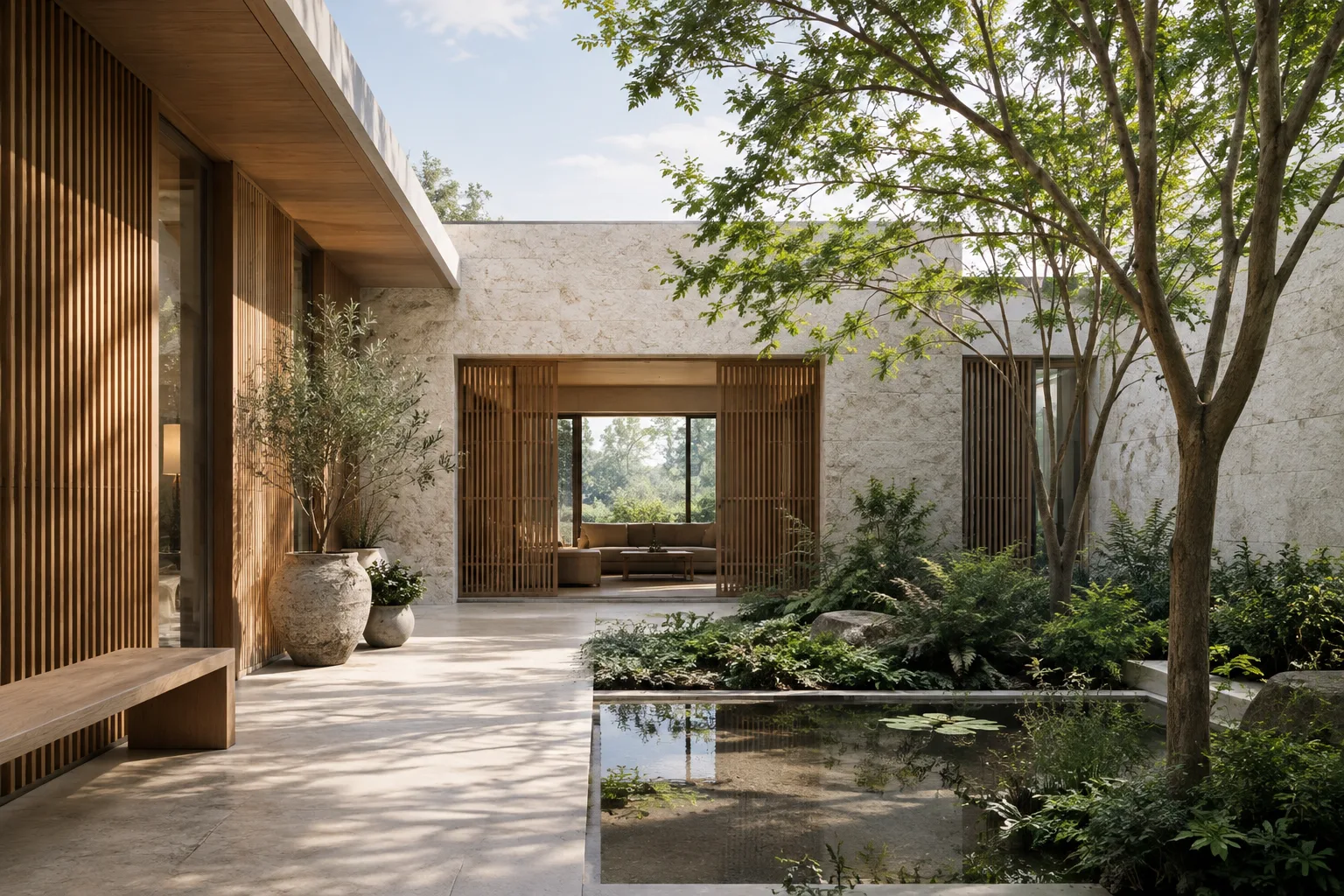
Create an architectural visualization of a compact courtyard house. Show the courtyard from a human eye-level viewpoint, with the main living room visible through large openings. Use pale stone walls, warm timber screens, and a restrained planted courtyard. Soft morning daylight, realistic material texture, calm neutral palette. Keep the existing building massing simple and legible; do not add people, signage, or decorative objects.This prompt describes a single scene: the building massing, materials, framing, and lighting are all part of the same brief. The “Do not add” section also clearly rules out unwanted elements. Don’t assume the model will ensure technical compliance with architectural dimensions or design intent; review the output as a concept image.
Specify the desired output clearly. Google’s Gemini prompt design guide explains that clear instructions, constraints, and a specified response format can help. For image generation, adapt this by stating visual goals such as framing, atmosphere, or elements that should not appear in the scene. For example, specify which area should stay in focus in an interior image and which color palette should be maintained:
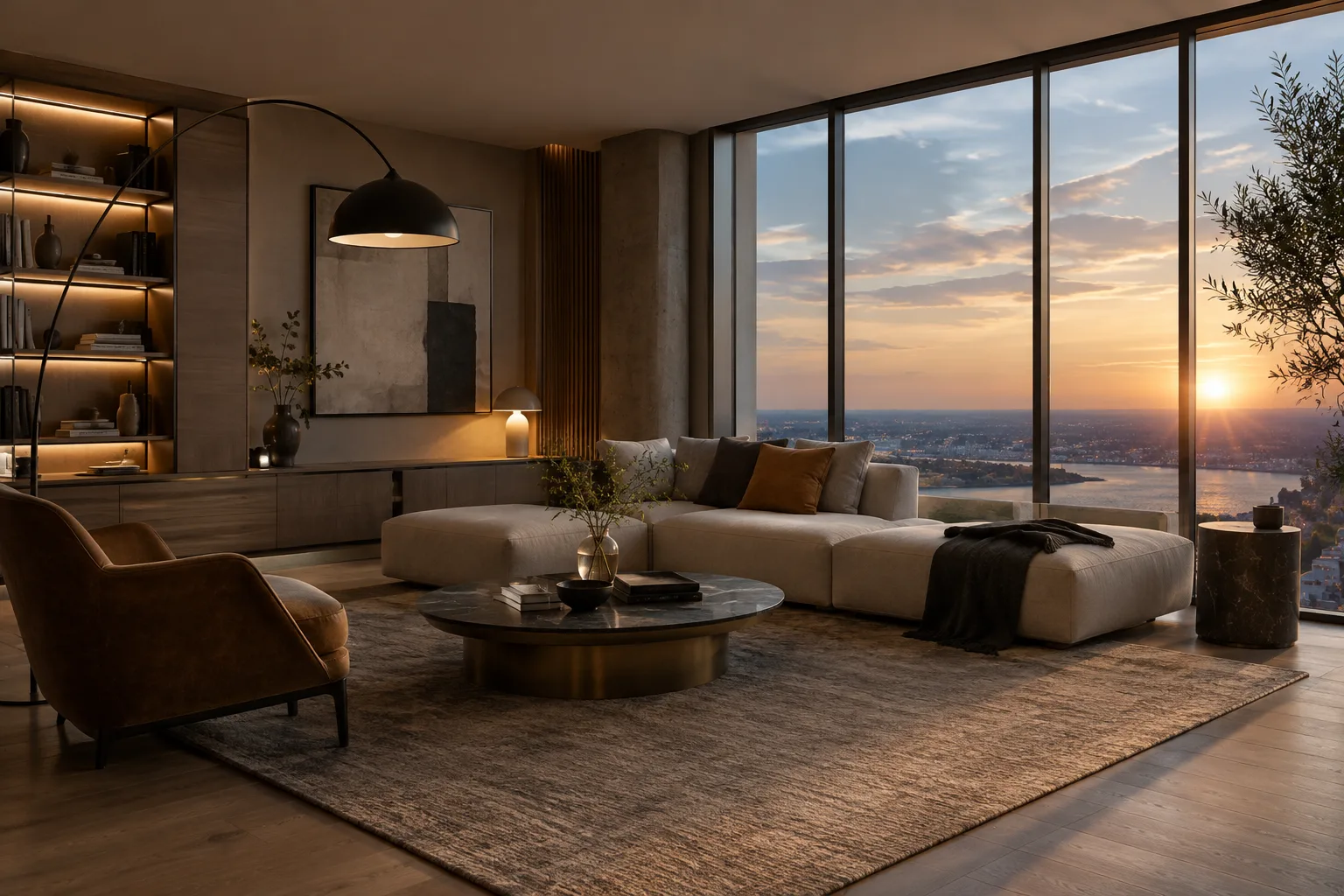
Create a quiet contemporary reading room visualization. Focus on the built-in bookshelf and the window seat; show both clearly in a single interior view. Use light oak, muted green upholstery, and warm indirect lighting. Keep the room uncluttered and use a consistent, natural color palette. Do not include text, labels, or visible brand marks.These instructions describe design options; they don’t provide a specific product, brand, or real project data. The design team should assess the colors, materials, and composition in the output.
Edit using a reference image. The source documentation gives examples of adding, removing, or changing elements in an image, as well as transforming its style or color scheme by adding text instructions. Send an image that belongs to the project and that you have the right to use, along with your text prompt. Clearly state what you want changed and include the overall composition you want to preserve:
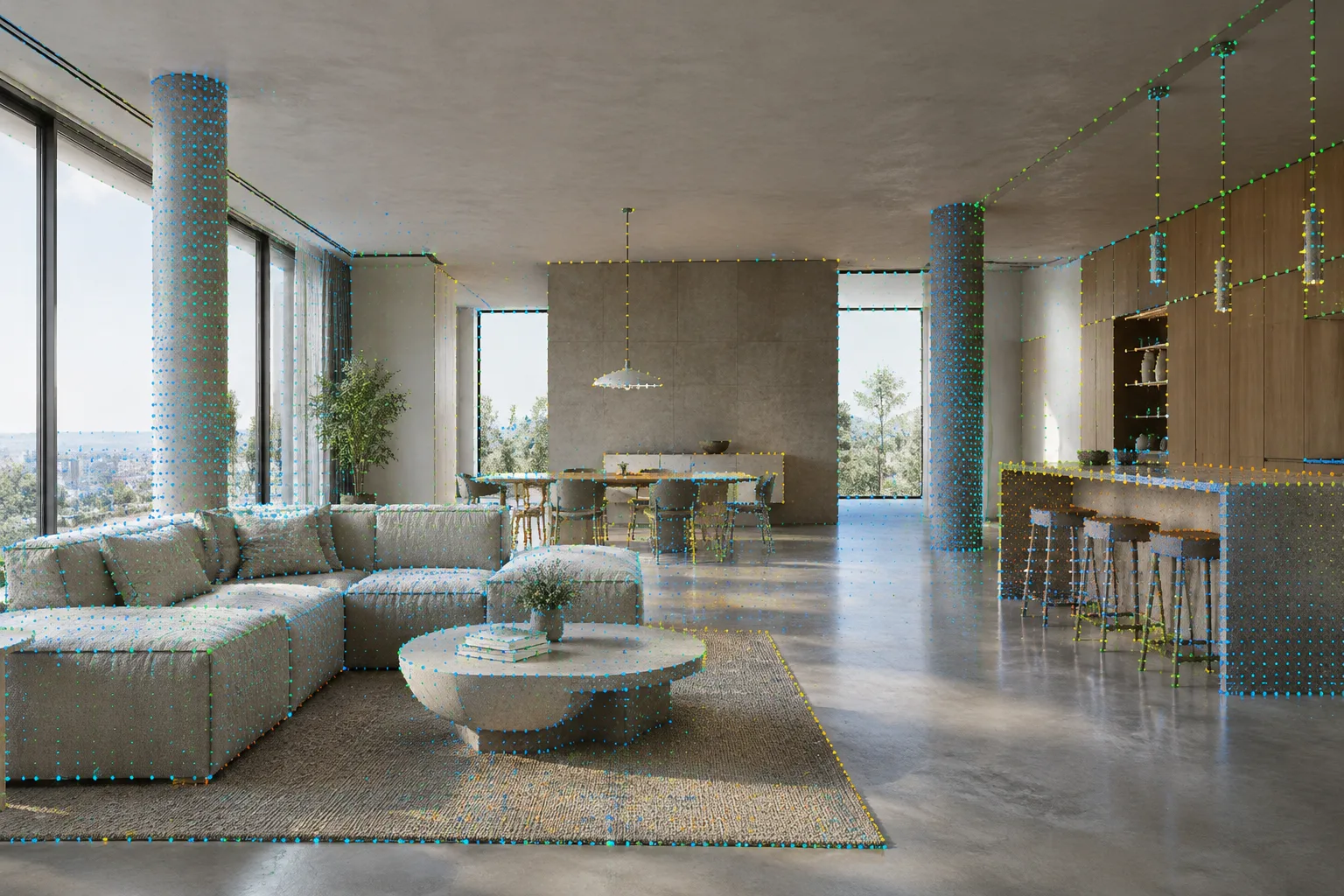
Using the provided interior image as the reference, change only the wall finish to a light, matte limestone appearance. Preserve the room layout, furniture positions, window locations, and camera viewpoint. Keep the existing daylight character and do not introduce new objects.This prompt focuses on changing a single material rather than rebuilding the entire scene. If other elements change in the result, restate more clearly in your next request what should be preserved. The sources do not guarantee that every detail in an existing image will remain unchanged.
Review the output and iterate. After the first result, prioritize one change rather than sending a long list of revisions all at once. For example, address the wall material first, then the lighting. Google’s Gemini prompt guide recommends clear and specific instructions, stating constraints, and using examples to show the desired format. Refine the prompt over several attempts if needed, and note which instruction changes the result at each iteration.
Common mistakes
Requesting too many goals at once: Changing the framing, materials, furniture, landscape, and lighting together can make it hard to tell which instruction had an effect. Start by defining the main visual goal and break revisions into stages.
Relying on vague adjectives: Words like “modern,” “stylish,” or “spacious” don’t explain how to build the scene on their own. Make the brief concrete by specifying the type of space, surfaces, lighting, and framing.
Assuming every detail in the reference image will be preserved: The source says images can be edited using text, but it doesn’t promise that all scene elements will remain unchanged. Specify critical elements as things to preserve in the prompt, then check the output.
Presenting an image as a verified project deliverable: The documentation describes image generation and editing capabilities, not validation of dimensions, regulations, material performance, or buildability. Treat the result as a concept or communication tool, and verify project decisions separately.
Its place in an architecture and visualization workflow
This approach can help architects, interior designers, students, and visualization teams explore ideas by quickly visualizing atmosphere and material alternatives in the early design stages. Requesting limited changes to a reference image can also help teams discuss alternatives. However, the sources don’t explain API access, costs, or compatibility with software used by teams; assess these separately before adopting the approach. Don’t treat generated images as a substitute for technical verification.
Next steps
Start by choosing a single concept goal and writing a short prompt. Test image generation and reference-based editing in separate attempts so you can see which approach better suits your workflow. If the team will use the prompts, saving them and selected outputs alongside project notes can help keep design decisions traceable. This is a workflow suggestion; the sources don’t describe a dedicated recording or project integration feature.
Sources and licensing
This guide was adapted into Turkish using Google’s Gemini API image generation and prompt design documentation. Both sources are licensed under CC BY 4.0. The architectural example prompts are original to this guide and are not copied from the examples in the sources.
Sources
2 sourcesSource texts are not republished; short quotes are marked, everything else is our own summary and commentary.
For architecture offices and visualization teams in Turkey, Nano Banana 2.1 could be considered a visual exploration tool for discussing material and atmosphere options in the early design stages. The ability to edit existing images with text may also support the creation of alternatives; however, the output should not be treated as technical verification or production-ready project documentation.
Before making a decision, assess API access, usage costs, and compatibility with the team’s existing workflow separately; the sources don’t explain these details. The mention of 1K, 2K, and 4K options is useful, but the technical requirements for choosing the right resolution for each task are not specified. It would therefore be more sensible to run a small test workflow to assess the quality of the results and practical costs.
Frequently asked questions
What model ID is used for Nano Banana 2.1?
The Gemini API documentation lists the model ID as `gemini-nano-banana-2.1`.
Can Nano Banana 2.1 edit an existing architectural image?
According to the documentation, you can provide an image with a text prompt to add, remove, or change elements. You must have the necessary rights to use the image.
Which resolutions does Nano Banana 2.1 support?
Google’s page mentions 1K, 2K, and 4K resolutions for the model. The source text does not explain the technical steps for selecting them.