In brief
- Gemini Omni Flash is recommended for generating short videos from text and images, as well as multi-turn editing.
- Veo 3.1 offers features such as scene extension, targeting specific frames, and built-in audio generation.
- Prompts with clear tasks, constraints, and output expectations can make the production process more controlled.
- Google’s Gemini API video documentation explains model selection, while its prompt design guide covers how to write instructions.
What will you learn in this guide?
Turning an architectural image into a short video or requesting changes to a generated scene involves more than simply describing an impressive space. A prompt should clearly explain what is happening in the scene, how the camera should move, which elements must be preserved, and what the result should look like. This guide matches the video models described in the Gemini API documentation to architectural visualization needs, provides practical prompt examples, and covers how to refine results iteratively.
Google’s documentation presents Gemini Omni Flash as a general-purpose choice for generating short videos from text and images and editing them over multiple turns. Veo 3.1 is better suited to needs such as scene extension, end-frame control, or integration with legacy workflows. These descriptions of model capabilities come from the provider’s documentation; they do not mean results will be consistent across every scene.
Requirements and model selection
This guide focuses on Gemini Omni Flash and Veo 3.1, both named in the Gemini API’s video generation documentation. Omni Flash can create short videos from text and images and also supports multi-turn conversational editing through the Interactions API. Veo 3.1 is described as supporting video generation through the generateContent API, built-in audio, scene extension, frame-specific generation, and image guidance.
The documentation does not provide details about account setup, billing, access requirements, or required hardware. Before production, check the current API access requirements and pricing separately; this guide assumes no particular subscription or local hardware requirements. Because the video documentation describes API usage, the examples are based on an API workflow. Since no menu steps or parameters are provided, this guide does not describe a specific interface path.
Choose a model based on your needs:
Consider Omni Flash for creating a short clip from text or image inputs and then refining it through conversational turns.
Consider Veo 3.1 if you need to extend a scene, guide specific frames, or use built-in audio.
If you need to analyze an existing video rather than generate one, consult the separate “Video understanding” guide referenced in the documentation.
Step by step: prompts for architectural videos
Google’s prompt design guide recommends making instructions clear and specific, and stating the task, constraints, and expected output format in the prompt. It also emphasizes that prompt development requires testing and refinement. The examples below were created specifically for architectural use; they are not copied from the source materials.
1. Describe the scene and movement first
In your initial prompt, specify the project type, the visible space, the lighting, and the desired camera movement. Rather than using many vague adjectives at once, focus on details that can be observed in the video.
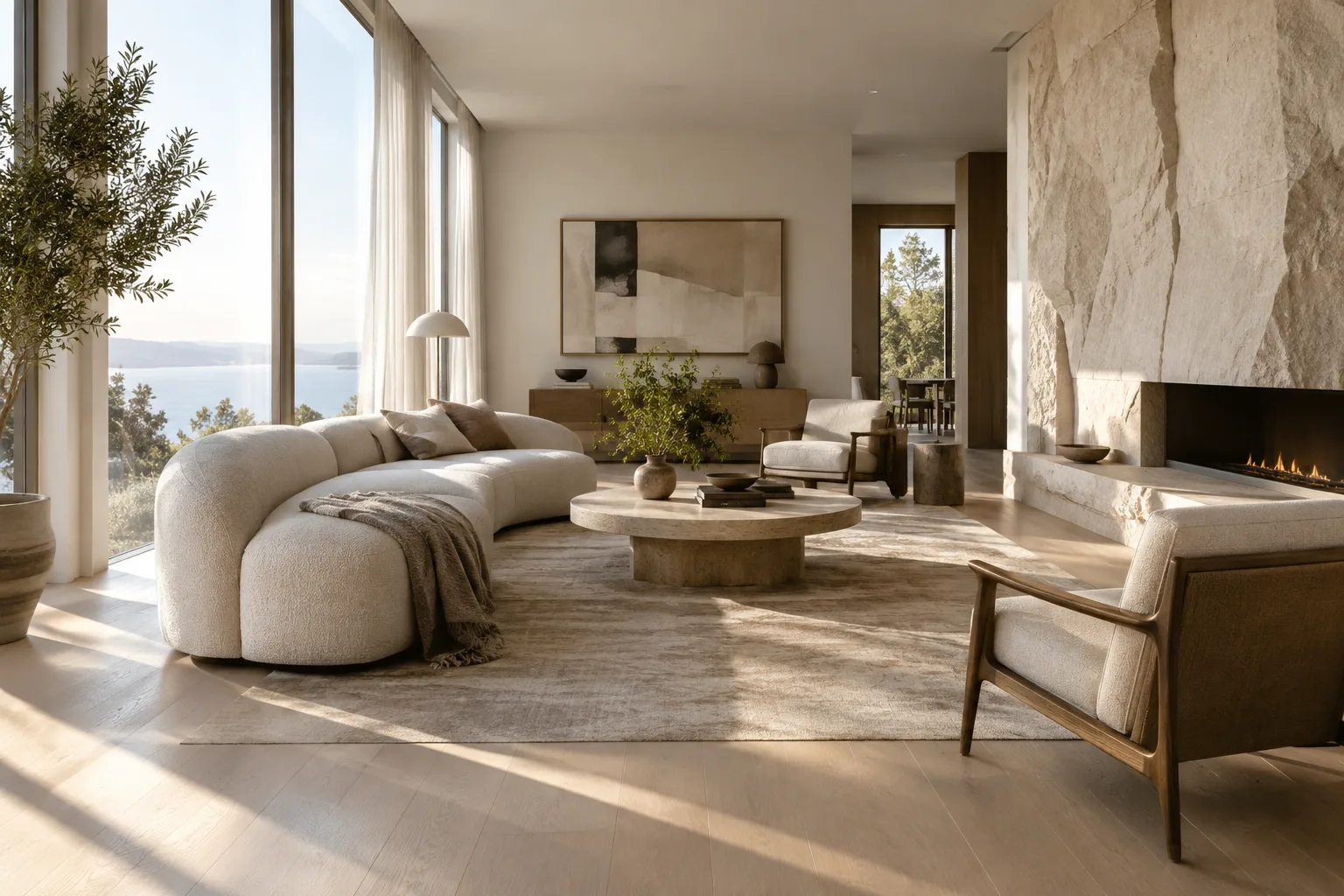
Create a short architectural video of a calm contemporary living room with pale oak flooring, a limestone feature wall, and soft morning light entering through tall windows. Show the room from the doorway as the camera slowly moves toward the seating area. Keep the furniture layout stable and the atmosphere quiet and natural.This description clearly separates the room’s features, lighting conditions, and camera movement. When reviewing the first result, check whether the room layout was preserved, the camera moved in the intended direction, and the lighting description was understood. Instead of rewriting everything from scratch in the next attempt, clarify the instruction you found problematic.
2. Use a reference image as a guidance input
Omni Flash works with text and images, while Veo 3.1 also supports image guidance. Add a suitable image as an input and state in the text which visual characteristics you want to preserve. This example is intended for using a render as a video input.
Use the provided architectural image as the visual reference for the room. Create a short video that preserves its material palette, window positions, and furniture arrangement. Show a gentle camera move from the dining area toward the kitchen, with consistent daylight and no new furniture.The preservation instructions here focus on key design decisions in the image. The model may interpret details that are not present in the reference image differently, so it can help to name critical materials and layout decisions in the text as well. The sources do not guarantee that the model will preserve every detail perfectly.
3. Refine the first result with an editing turn
Omni Flash’s support for multi-turn conversational editing lets you request a specific change after the initial generation. Describing one main change per turn makes it clearer what needs to be altered.
In the current video, replace the dark coffee table with a low, light-oak table. Keep the room layout, camera movement, window light, and all other furniture unchanged.This example asks to change only the coffee table and preserve everything else. If other elements change in the result, state more explicitly in the next turn what must remain unchanged. Although multi-turn editing is documented for Omni Flash, success is not guaranteed for every scene.
4. Define the need for scene extension separately
If you need to generate a continuation of a clip, consider Veo 3.1’s documented scene-extension feature. The sources introduce this feature but do not explain the steps or parameters to use in an interface, so the prompt below focuses on the content of the continuation.
Extend the architectural scene with a slow continuation into the adjoining courtyard. Maintain the same stone surfaces, soft daylight, and restrained visual mood. Let the view reveal the courtyard gradually, without changing the established architectural style.This example describes the visual language that should carry through into the continuation. Follow the current guidance in Veo documentation when implementing scene extension; do not assume a control name or API parameter that is not specified here.
Common mistakes
Vague descriptions of movement: Instead of relying on open-ended phrases such as “make it more cinematic,” describe the camera’s starting position and the direction it should move.
Requesting too many changes in one prompt: Changing the camera, materials, lighting, and furniture in the same turn makes the result harder to evaluate. Establish the base scene first, then request specific changes in separate turns.
Not specifying which elements to preserve: Providing an image input does not mean every design decision will automatically be preserved. State important material, layout, and lighting characteristics in the text as well.
Choosing a model without considering the need: The documentation distinguishes Omni Flash for short videos and conversational editing, and Veo 3.1 for needs such as scene extension, frame-specific generation, or built-in audio. Choosing a model that does not fit the task can lead to unnecessary attempts.
Expecting a perfect result in one attempt: Prompt design is an iterative process. Review the generation, identify what is missing or incorrect, and update the instruction with a specific goal in mind.
Next steps for architecture and visualization workflows
Architecture firms and students can use short camera moves to explore interior atmospheres, material combinations, or the sense of circulation through a space for presentation purposes. Working with image inputs may make it possible to experiment with movement based on an existing render; however, the sources do not promise that the model will preserve the design geometry and every visual detail exactly. The output should therefore be treated as a visual storytelling experiment, not as a technical drawing or definitive project document.
Before adding this to a team workflow, verify API access, current licensing and pricing conditions, and compatibility with the existing production process. The documentation does not provide pricing, local hardware requirements, or compatibility details for specific design software. Starting with a small test scene and recording which design decisions are preserved or changed in each prompt turn allows for a more measured evaluation.
Sources and licensing
This guide was adapted into Turkish using Google’s Gemini API video generation and prompt design strategy documentation. Both sources are available under the CC BY 4.0 license. The architectural prompt examples were written specifically for this guide; prompt examples from the sources were not copied.
Sources
2 sourcesSource texts are not republished; short quotes are marked, everything else is our own summary and commentary.
For architecture firms and students in Turkey, this approach may be a practical way to create short presentation videos from existing renders and experiment with different scene narratives. Clearly stating which decisions in the initial image should be preserved can make it easier to track the design intent.
However, the sources do not explain API access, pricing, licensing, or compatibility with specific design software. It is therefore worth testing the method on a small scene and verifying current terms before moving it directly into a production pipeline. It is more prudent to treat the outputs as visual storytelling alternatives, not as guarantees of technical accuracy.
Frequently asked questions
What can Gemini Omni Flash be used for in architectural video production?
According to Google’s documentation, it can generate short videos from text and images and supports multi-turn editing through the Interactions API.
What is the difference between Gemini Omni Flash and Veo 3.1?
Omni Flash is recommended for general video generation and conversational editing. Veo 3.1 is described as offering features such as scene extension, frame-specific generation, and built-in audio.
What hardware is required to generate videos with the Gemini API?
The source documentation does not provide information about required hardware. Check the current Gemini API documentation for access requirements and pricing.