In brief
- Flow realigns objects from a base curve to a target curve; the Stretch option controls extension or compression along the curve.
- FlowAlongSrf maps objects from a source surface to a target surface.
- For FlowAlongSrf, balanced parameterization on the base and target surfaces helps prevent noticeable stretching.
- In both commands, the Rigid option moves objects without deforming them.
Rhino 8’s Flow and FlowAlongSrf commands map objects created on a flat or regular base to curved or surface-shaped targets. Flow realigns objects from a base curve to a target curve, while FlowAlongSrf maps them from a base surface to a target surface. As described in McNeel’s Rhino 8 help documentation, these options are intended for modeling work that requires controlled placement of repeating components and geometry that changes shape.
When to use each command
Flow can be used when a flat form needs to follow a curved path. The command maps an object or group of objects from a base curve to a target curve. The approach described in the documentation is to create a flat shape and map it to a curve, rather than drawing directly around a complex curve.
After starting the command, select the objects to map. Then select the base curve near one end, and the target curve near its corresponding end. Selecting matching ends helps determine the direction of the mapping.
FlowUse FlowAlongSrf when a form needs to conform to a surface. After selecting the objects, select an edge near a matching corner on the base surface, followed by an edge near the corresponding corner on the target surface. With AutoAdjust enabled, if the selection locations on the base and target surfaces do not correspond, the object may map to the opposite side of the target surface.
FlowAlongSrfStep by step: mapping to a curve
Prepare the objects and base curve. Create the shape or group to be mapped in a suitable position relative to the base curve. Flow can be used to rearrange a flat form along a complex curve.
Start the Flow command and select the objects. Select the base curve near one end, and the target curve near its corresponding end. If the mapping direction is unexpected when using a target surface, you can change the surface normal with the Flip or Dir commands.
Set the deformation behavior. When Rigid is enabled, objects only change position along the curve; they are not deformed. RigidGroups determines whether groups move rigidly as a whole or their constituent objects move independently in this mode.
Check the size relationship along the curve. Stretch controls whether objects are extended or compressed along the curve. This option determines whether the relationship on the target curve is maintained relative to that on the base curve.
Limit the area of influence if needed. The Local option uses circles to define the area of influence around the base curve. Objects inside this area are mapped, while those outside remain fixed; within the boundary, the mapping effect diminishes.
Step by step: mapping to a surface and adjusting settings
Match the base and target surfaces. After selecting the objects, select an edge near a corner on the base surface, followed by the corresponding edge on the target surface. The Rhino documentation notes that balanced parameterization on the surfaces helps prevent stretching.
Review the direction mapping. When AutoAdjust is enabled, UV directions are ignored; the start point and nearby edge define the origin and U direction. When it is disabled, the mapping uses the UV directions of the base and target surfaces. This setting also affects trimmed surfaces: when enabled, the shrunken surface is used; when disabled, the underlying surface is used for mapping.
Choose whether objects should remain rigid. When Rigid is enabled, objects are positioned without being deformed. When it is disabled, their shapes can change along with their positions as they are mapped to the target surface.
Consider the structural setting. When PreserveStructure is enabled, the control-point structure of the curve or surface is preserved; if the object does not have enough control points, deformation accuracy may decrease. When disabled, Rhino rebuilds the objects as needed for accurate deformation. This option does not apply to polysurface objects.
| Setting | Suggested value | Effect |
|---|---|---|
| Flow: Rigid | Yes / No | Yes moves objects without deforming them; No deforms them while moving. |
| Flow: Stretch | Yes / No | Controls extension or compression along the curve. |
| FlowAlongSrf: AutoAdjust | Yes / No | Determines how selection locations and surface UV directions are used for mapping. |
| FlowAlongSrf: PreserveStructure | Yes / No | Determines whether the control-point structure of the curve or surface is preserved. |
The table summarizes the behavior described in the documentation; there is no single suggested value that applies to every model. If the goal is to preserve the shape, use Rigid; if the shape needs to change to fit the target, consider the deformation options.
Use in architectural and visualization workflows
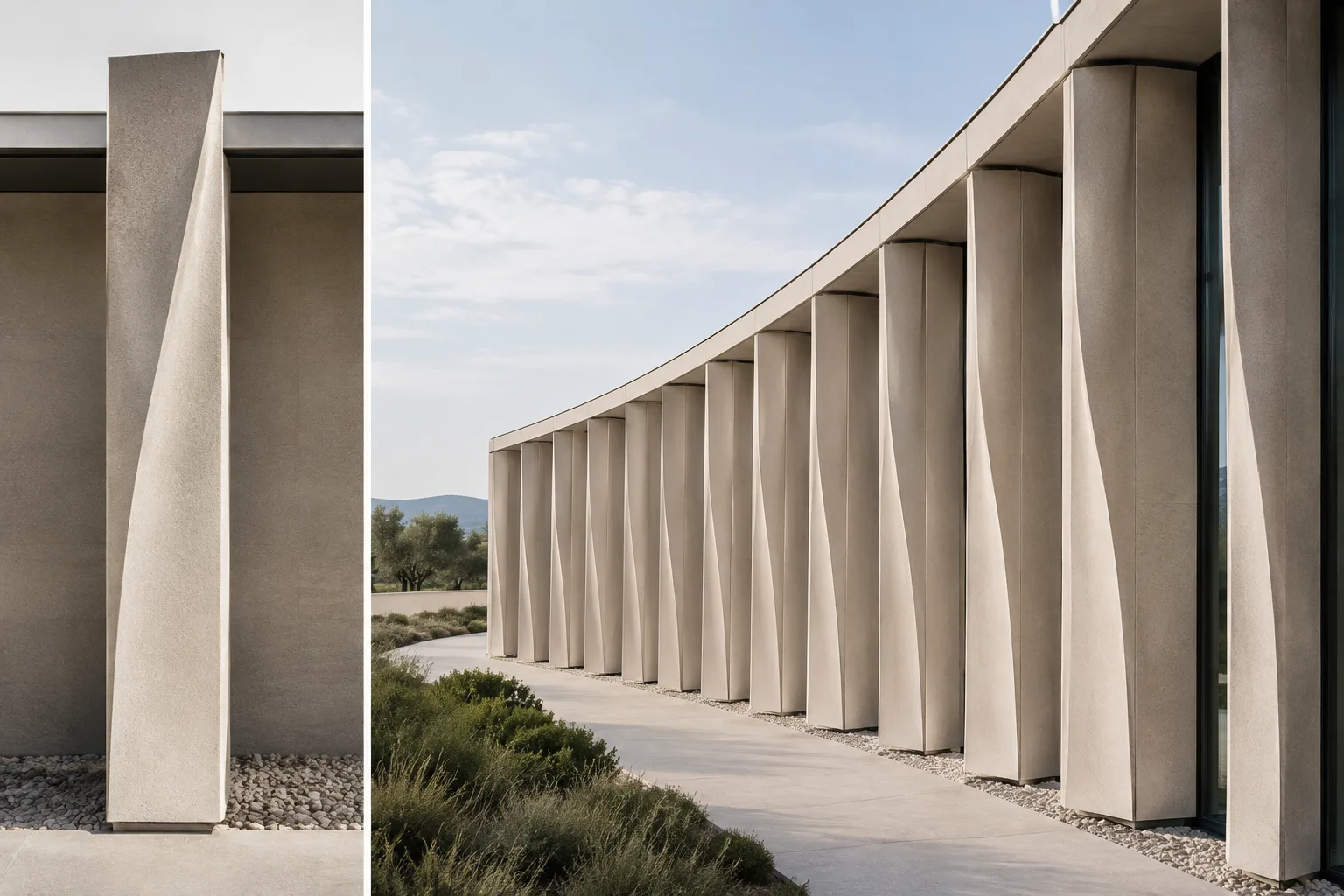
In architectural modeling, Flow can be used to arrange a form along a curved path, while FlowAlongSrf can adapt components to a curved surface. For example, mapping an array of repeating elements to target geometry or examining how a form changes across a surface are potential uses for these commands. The result depends on the base geometry, the target’s direction, and the deformation settings.
For a quick test, you can preserve the source objects by using the copy option. In both commands, Copy determines whether objects are copied. The RememberCopyOptions command sets the default behavior for this option. For surface mapping, even if History has been recorded, changes may not update the child object while grips on the parent object are off.
Common mistakes
Not matching ends or edges: In Flow, select near the corresponding ends of the curves. In FlowAlongSrf, select edges near matching corners on the surfaces.
Ignoring unbalanced surface parameterization: If the target surface is not parametrized evenly, mapped objects may show noticeable stretching. If needed, consider rebuilding the surface.
Misinterpreting the Rigid option: Rigid moves objects without changing their shape; it must be disabled if shape changes are expected. Whether groups behave as a whole also depends on the RigidGroups setting.
Forgetting the limits of PreserveStructure: Preserving the control-point structure can make deformation less accurate if there are not enough control points; the option also does not apply to polysurface objects.
Sources
2 sourcesSource texts are not republished; short quotes are marked, everything else is our own summary and commentary.
For architecture firms and visualization teams, the practical value of these commands lies in their potential to reduce the need to rebuild geometry by hand to fit a curve or surface. However, the result depends on correctly matching the base and target and setting the deformation options. Making the first test with the copy option can help preserve the source geometry.
Before incorporating these commands into a workflow, test surface parameterization, Rigid, and PreserveStructure on a small sample model. The documentation does not specify hardware requirements, licensing terms, or performance gains; therefore, any time savings and suitability should be evaluated using the model at hand.
Frequently asked questions
What does the Flow command do in Rhino 8?
Flow realigns an object or group of objects from a base curve to a target curve. Stretch controls extension or compression along the curve.
How do you map objects to a surface with FlowAlongSrf?
After selecting the objects, select an edge near a matching corner on the base surface, followed by an edge near the corresponding corner on the target surface. Balanced surface parameterization helps prevent noticeable stretching.
What is the difference between Flow and FlowAlongSrf?
Flow maps objects from a base curve to a target curve; FlowAlongSrf maps them from a base surface to a target surface, transforming them in the process.