In brief
- The Gemini API documentation describes Gemini Omni Flash as a model for video generation and conversational video editing.
- Prompts can be structured around a subject, action, scene or context, and camera preferences.
- The model can generate short videos from text and images, with results refined over multiple turns.
- Veo 3.1 Preview was discontinued in the Gemini API on 22 October 2026.
What you’ll learn in this guide
When turning an architectural scene into a video, simply asking for “a video of a modern house” may not describe the desired result clearly enough. Specifying where the scene takes place, which elements move and how the camera travels makes the request easier to understand. This guide covers how to create architectural and interior-focused video prompts for Gemini Omni Flash, then refine the output step by step through conversational editing.
Google’s Gemini API documentation presents Gemini Omni Flash for video generation and conversational video editing. The model can create short videos from text and images, and supports refining results over multiple turns. The prompts below are original examples for architectural use, created to put the techniques in this guide into practice.
Requirements and scope
This workflow requires access to Gemini Omni Flash video generation through the Gemini API. The documentation lists the model name as gemini-omni-1.1-flash. Since the product page describes video generation from text and image inputs, it may be possible to describe a scene using text alone or to combine text with a reference image. This guide does not provide steps for creating an API account or navigating menus in a particular interface; the sources do not include setup instructions of that kind.
Rather than packing every detail into one sentence, break the scene down into parts when writing a prompt:
Subject: The main building, room, furniture or other element in the frame.
Action: The movement or change that takes place in the video.
Scene and context: The location, time of day, weather and atmosphere.
Camera: The viewpoint and type of movement.
You do not have to use all of these components in every prompt. But understanding what each one describes can help you shape the request more deliberately. Camera angles and advanced preferences may not work with the same reliability in every case; the documentation also notes that results can vary depending on the prompt and how the model is used.
Step-by-step: creating an architectural video prompt
1. Define the main subject and purpose of the shot
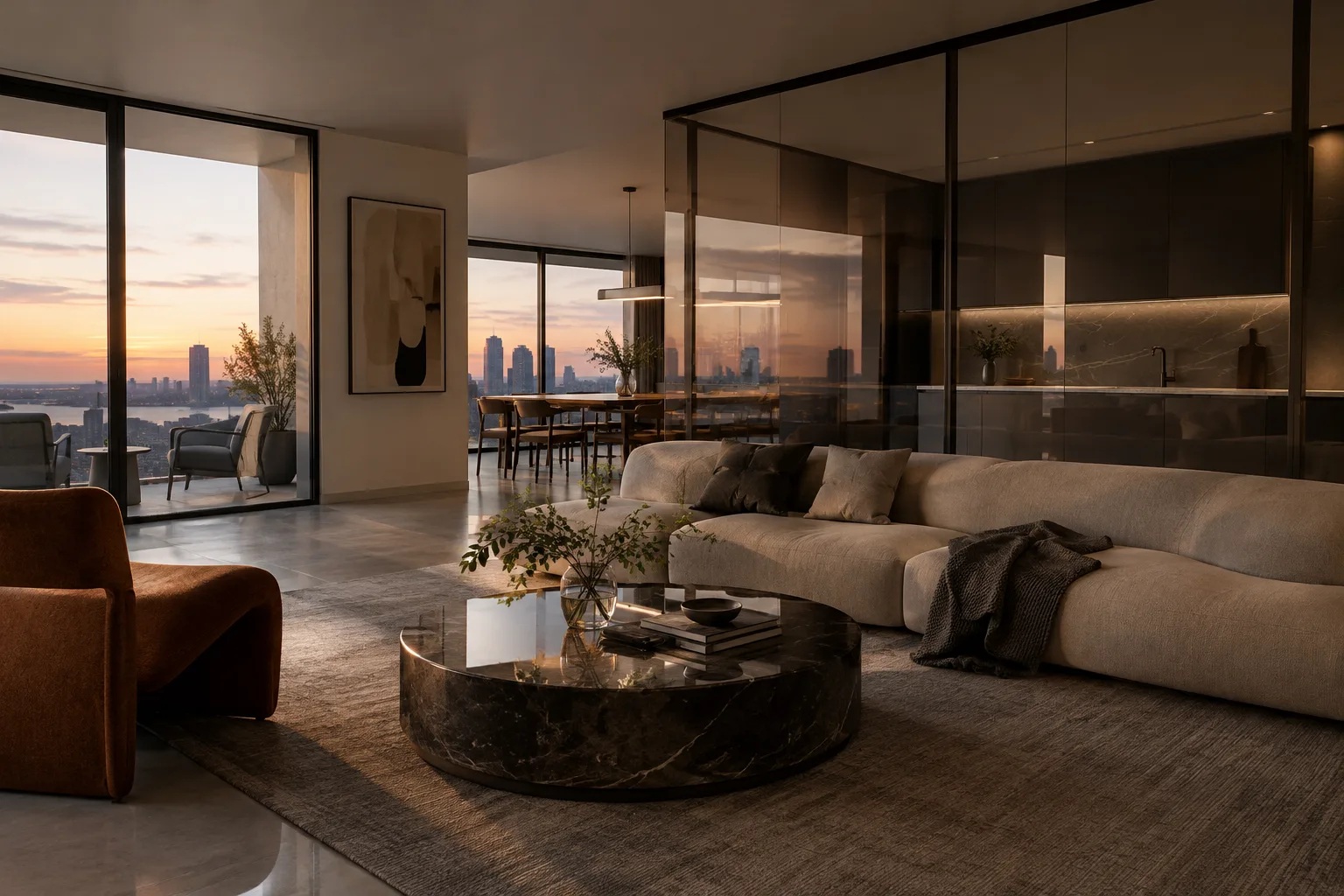
Start by deciding what the video should feature. Showing an entire interior calls for a different approach from highlighting a specific material detail. Instead of a general description such as “a bright living room,” describe the room’s architectural character and the elements you want to take priority in the frame.
A contemporary coastal living room with a sculptural timber ceiling, pale stone flooring, and a long view toward the sea. Wide establishing shot that clearly shows the room's spatial layout.In this example, the living room is the subject; the ceiling, flooring and sea view are defining elements of the scene. The request for a wide establishing shot is intended to make the overall layout visible. You can change the subject and highlighted materials to suit the purpose of the presentation.
2. Describe what should move in the video
To turn a static visual description into a video, add an action that takes place in the scene. In architectural visualization, this might be a slight movement in the curtains, leaves swaying in the breeze or light moving across a room. Rather than describing many events at once in a short clip, choose one main movement.
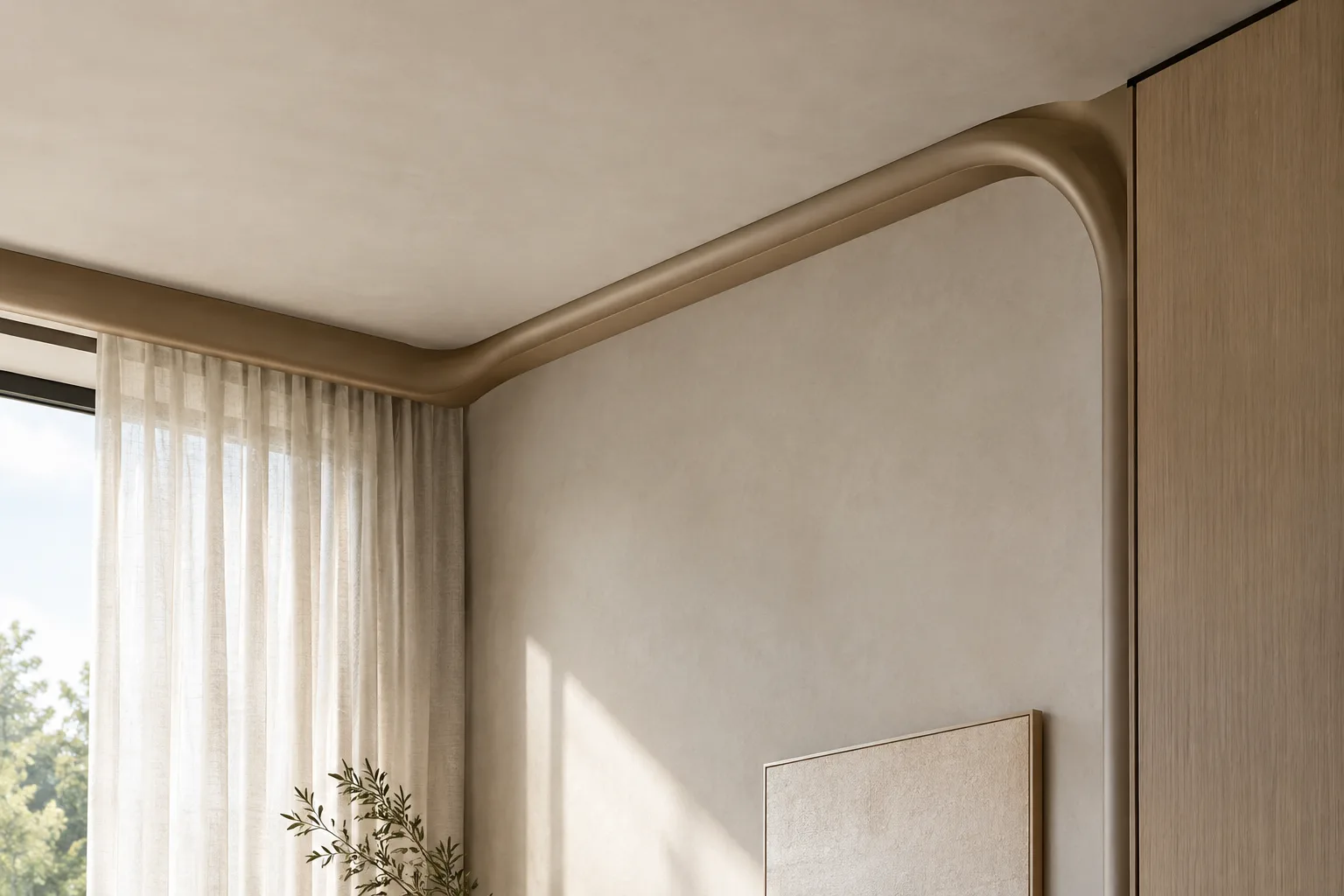
A quiet reading nook beside a large window, with sheer curtains moving gently in a light breeze and soft afternoon light shifting across the floor. Keep the furniture and room layout still.The prompt distinguishes the movement of the curtains and light from the furniture and room layout, which should remain still. Clear instructions like these specify which elements in the scene should move. The exact appearance of that movement is not guaranteed, so review the generated clip and simplify the action description if needed.
3. Establish the setting and atmosphere
Location, time and atmosphere affect how a scene is perceived. Specify this context in the prompt, whether you’re describing a residential interior, a pavilion or an urban outdoor space. Adding the time of day or weather can also help convey the lighting and feel of the surroundings.
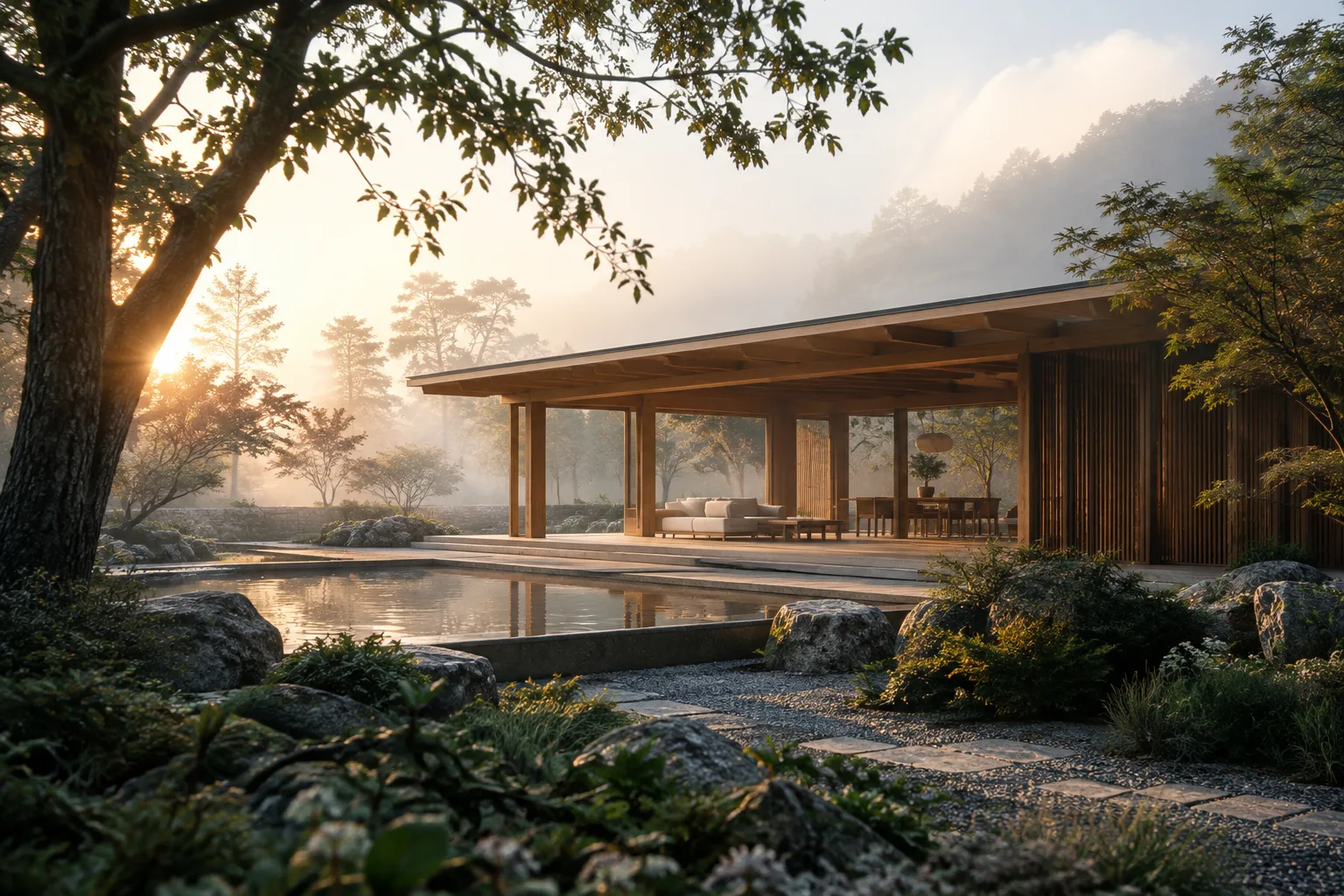
A small timber pavilion in a landscaped courtyard at early morning, with dew on the planting and a thin layer of mist between the trees. Calm architectural film mood, with the pavilion as the clear subject.Here, the pavilion remains the main subject, while the early morning, dew and mist establish the surrounding context. A phrase such as “calm architectural film mood” describes the overall atmosphere, but does not replace the defining elements of the scene. First clarify the setting and main subject, then add atmospheric details.
4. Choose the camera angle and movement
The camera angle describes the viewpoint from which the audience sees the space; the movement describes how the shot progresses. A wide shot can introduce an environment, while a bird’s-eye view shows the layout from above. A pan rotates the camera horizontally from a fixed point, whereas a dolly physically moves the camera closer or farther away. Don’t use them interchangeably.
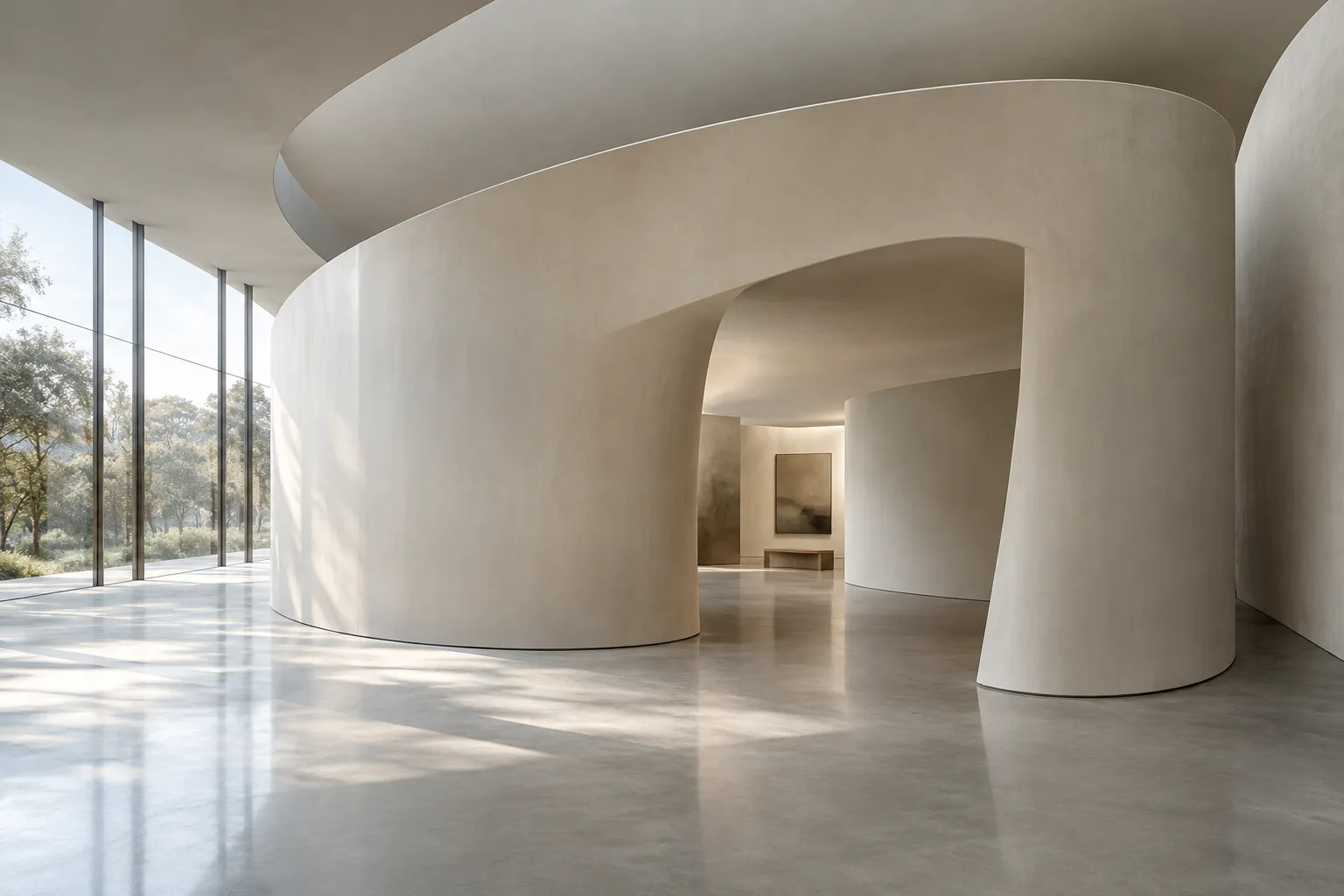
A high-angle view of a minimalist exhibition hall, followed by a slow dolly forward toward a single timber installation. Keep the camera movement smooth and the surrounding architecture visible.The prompt asks first for a high-angle view, then for a dolly move toward the installation. Adding the camera direction after describing the scene and subject helps keep the intent clear. Very specific angles or complex movements may not always produce the expected result, so start with a simple camera instruction.
5. Refine the generated clip through conversational editing
You don’t have to treat the first result as the final version. The Gemini API documentation describes multi-turn conversational editing with Gemini Omni Flash, including examples such as replacing an element or changing the perspective. You can therefore state clearly in a new turn what you want to change in the result.
Keep the same pavilion, materials, and morning atmosphere. Change the camera perspective to a lower, eye-level view and preserve the surrounding courtyard.This example distinguishes the features you want to preserve from the camera viewpoint you want to change. When requesting an edit, answer two questions: “What should stay the same?” and “What should change?” The model’s conversational editing feature lets you focus on a specific change rather than describing the entire scene from scratch with every revision; you should still review the output.
Common mistakes
Leaving the subject unclear: If you describe multiple buildings or rooms, specify which one is the main subject.
Not describing movement: A video prompt that only describes the space may not explain what should change in the scene.
Mixing up camera terms: Pan, tilt, dolly and zoom describe different movements. Choose the one that fits the shot you want.
Adding too many events to one prompt: Especially in short videos, focus on one main action rather than several unrelated movements.
Assuming every detail will be followed exactly: Results can vary with camera preferences and other advanced instructions. Review the clip and revise the prompt if needed.
Next steps: where it fits in an architectural workflow
This approach may be useful for architecture and interior design teams and visualization artists who want to turn a design idea into a short moving presentation. For example, you could create a short video test to show the atmosphere of a room, the surroundings of a pavilion or a camera move through an exhibition space. The sources do not describe integration with specific architectural software, output formats or technical workstation requirements, so compatibility with your existing pipeline should be checked separately.
Organize prompts that work under the headings subject, action, context and camera. When trying a different camera angle, keep the other scene elements as consistent as possible; this makes it easier to assess which instruction changed the result. Clarify the role of video generation in your project delivery and the access requirements before adding it to your workflow. The Gemini API documentation says Veo 3.1 Preview was discontinued on 22 October 2026 and recommends switching to Gemini Omni Flash or GA models on the Gemini Enterprise Agent Platform. So if your workflow relies on the legacy Veo 3.1 Preview, it’s important to review service continuity.
Sources and license
This guide is based on Google Cloud’s “Video generation prompt guide” (CC BY 4.0) and the Gemini API video generation documentation (CC BY 4.0). The content has been adapted into Turkish with architectural and interior design examples; the prompt examples were written specifically for this guide.
Sources
2 sourcesSource texts are not republished; short quotes are marked, everything else is our own summary and commentary.
For architecture firms, interior designers and students in Turkey, the practical value of this approach lies in how quickly it can describe a spatial concept through movement and camera language. For early presentation tests in particular, it can be useful to change a specific viewpoint without rebuilding the entire scene.
However, before adding video generation to an existing workflow, check Gemini API access, terms of use and how project data will be handled; the sources do not specify pricing or hardware requirements. You should also account for the fact that camera instructions may not produce the same result every time. It is therefore more prudent to treat the output not as a final technical representation, but as a visual study to review and guide.
Frequently asked questions
What information should an architectural video prompt for Gemini Omni Flash include?
Describe the subject, action, setting and atmosphere, as well as the desired camera angle or movement. You do not have to use every component in every prompt.
Can Gemini Omni Flash edit generated videos?
According to the Gemini API documentation, the model supports multi-turn conversational video editing. Replacing an element and changing the perspective are among the editing examples in the documentation.
Is Veo 3.1 Preview available in the Gemini API?
No. The Gemini API documentation says Veo 3.1 Preview was discontinued on 22 October 2026 and recommends switching to Gemini Omni Flash or GA models on the Gemini Enterprise Agent Platform.