In brief
- Veo prompts can describe framing, camera movement, visual style, lighting, setting, and action separately.
- Google’s guide notes that sound and dialogue can also be added to the prompt when desired.
- Veo is available through Gemini, Google Flow, and API options for developers; access may vary by product and region.
- For architectural work, treat results as concept presentations and separately verify technical accuracy and material decisions.
What will you learn in this guide?
This guide outlines steps for turning an architectural or interior design idea into a short video prompt with Veo. Rather than writing one broad description, the aim is to plan what the scene shows, how the camera moves, how the lighting and materials look, and what sounds are heard in the video. The examples were created specifically for architectural visualization and design presentations.
Google’s prompt guide says that more detail can provide greater control over generation. Camera framing and movement, visual style, lighting, characters, setting, action, and dialogue are among the elements to consider when building a prompt. In architectural scenes, the space’s function, material descriptions, and use case can take precedence over characters.
Google describes Veo as a video generation model. Options for trying it are available through Gemini and Google Flow; APIs are also available for enterprise and developer use. Since availability and the models offered may vary by product and region, check the current options in the service you’re using before getting started.
Requirements and preparation
To write a prompt, you just need to decide on the scene and its goal, as in the examples. To generate a video, you’ll need access to a Google product that offers Veo. Official pages list Gemini, Google Flow, and Gemini API options; Google Cloud documentation also explains that the models can be used through Agent Platform Media Studio or the relevant APIs. Vertex AI is also listed as an option for enterprise use. Since these sources do not clarify specific pricing, account types, or access conditions that apply in every region, don’t make assumptions about them.
Before writing your prompt, note the following decisions:
Purpose: Is it a concept presentation, a shot introducing the space, or a short scene that conveys the design atmosphere?
Camera: Do you want a fixed frame, a slow push-in, a horizontal pan, or another movement?
Visual language: Are you aiming for photorealism, a stylized look, or another approach?
Lighting and materials: Which qualities matter, such as daylight, warm lighting, stone, wood, or glass?
Sound: Do you prefer ambience, music, or silence?
Specifying these elements clearly in the prompt is no guarantee of a particular result. Review the generated video and, if needed, simplify the description and try again.
Step-by-step: writing an architectural video prompt
1. Define the scene and framing
In your first prompt, choose a single space and one main action. For example, the camera could move from a home’s entrance toward the living area. Instead of adding many spaces and different events to the same short scene, describe what the viewer will see from beginning to end.
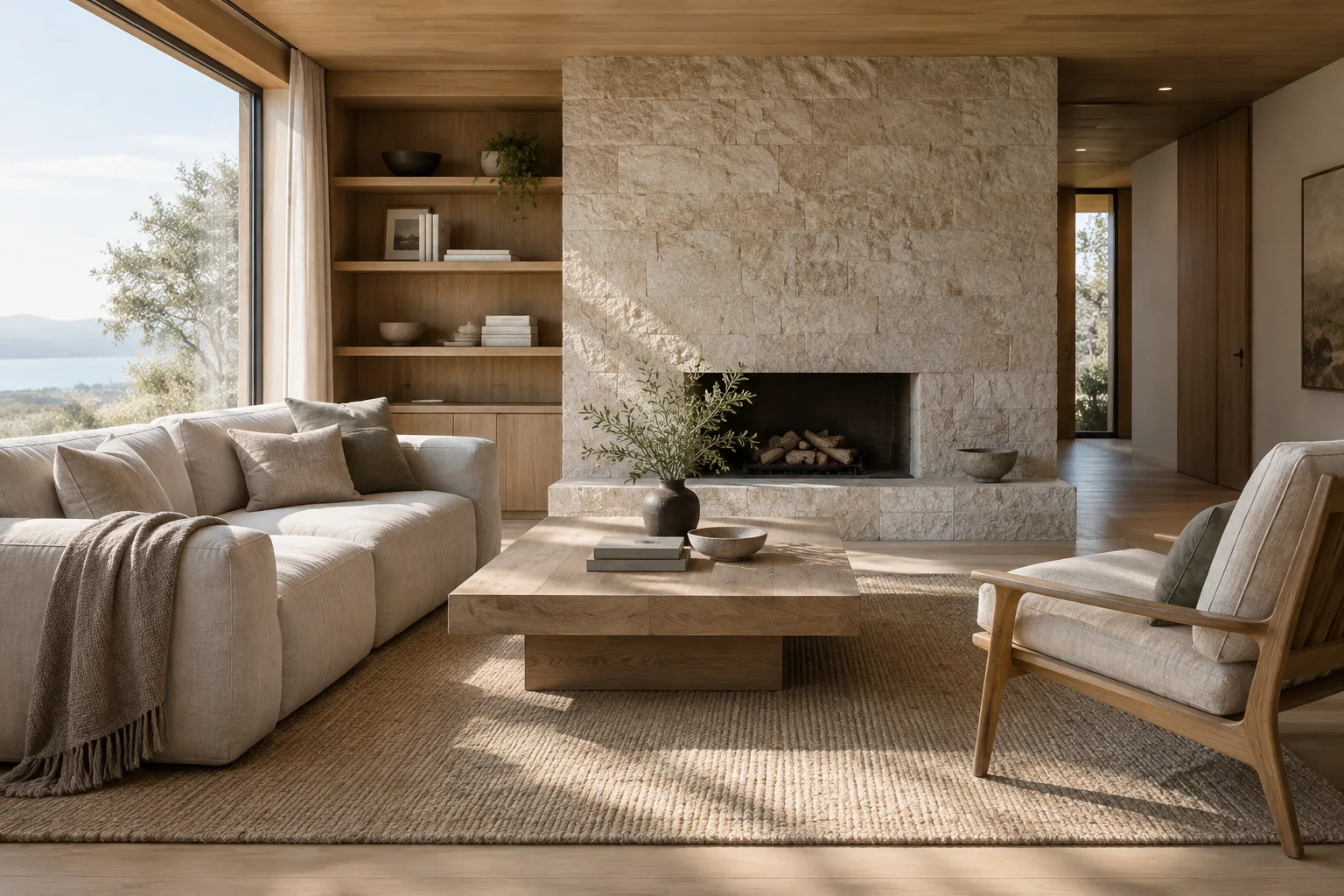
A photorealistic architectural visualization of a calm contemporary living room, viewed from the entrance. A slow, steady camera push moves toward the seating area, revealing the room in one continuous shot. Pale oak flooring, a textured stone wall, soft neutral furnishings, and large windows overlooking a quiet garden. Warm late-afternoon light falls across the floor; subtle indoor ambience, no dialogue.This example combines the space, camera movement, materials, and lighting in one description. Don’t assume the result will accurately represent the dimensions of a particular material or its appearance in a real project; review the video as a visual experiment for communicating a design idea.
2. Describe the lighting and atmosphere more specifically
Even if the space looks right in the first attempt, the lighting may not create the intended mood. In that case, make the direction and quality of light more explicit in a new prompt. Google’s guide notes that questions such as whether light is distributed evenly across the frame or concentrated in a specific area can help shape the prompt.
A cinematic interior visualization of a small reading lounge in a contemporary library. A fixed wide shot shows built-in timber shelves, a quiet seating nook, and a polished concrete floor. Soft daylight enters from a high side window, with gentle shadows and restrained reflections. The atmosphere is quiet and contemplative; only faint room ambience is audible, with no speech.This description keeps the wide framing fixed while emphasizing lighting and atmosphere. If particular colors or surface qualities matter to the project, specify them in the prompt; even so, don’t treat the colors in the output as a technical color standard or material sample.
3. Show how the space is used with a brief action
To show how a space is used, add a single, clear action to the scene. You don’t have to include people; an event such as daylight moving across a work surface or a door opening can also convey what it’s like to experience the space. Keep the action brief and easy to describe visually.
A realistic architectural film of a compact home office, seen in a medium-wide shot. The camera slowly pans from a desk beside a window toward a wall of storage. Morning light moves softly across the desk surface; a curtain shifts gently in a light breeze. Keep the room uncluttered, with muted colors and natural material textures. Quiet outdoor ambience, no dialogue.Here, the camera direction, the room’s function, and a simple movement are described together. Prompt elements such as wind or changing light may be interpreted differently in the scene; don’t add the video to a presentation for an important deliverable without reviewing it first.
4. Describe sound or start and end frames separately if needed
The Veo guide recommends specifying elements such as sound effects, ambient noise, and dialogue in the prompt. If you need a particular sound for an architectural presentation, add it in a clear sentence separate from the visual description. If you don’t want dialogue, say so. Google’s sources also describe capabilities such as generating video from first and last frames and extending existing video; don’t assume these options are offered in the same way across every product and access method.
A polished architectural visualization of a small courtyard between residential buildings. Begin with a wide view of the planted courtyard, then make a slow forward camera move toward a shaded bench. Leaves move gently in the breeze and dappled daylight falls across the paving. Natural, quiet outdoor ambience only; no music and no dialogue.This example introduces an outdoor space with a single camera move and clearly states the sound preference. If a specific opening or closing composition matters, check whether the service you’re using offers a suitable frame-based generation option.
Common mistakes
Putting everything into one prompt: Asking for too many rooms, materials, camera movements, and actions in one scene can make the result difficult to assess. Start with one space and one camera move, then add the necessary details in later attempts.
Relying on vague adjectives: General terms such as “beautiful,” “modern,” or “impressive” are no substitute for describing the framing and lighting. Explain the intended mood through visible elements, such as the direction of the light, the quality of the shadows, surface texture, or camera movement.
Treating the video as a technical verification tool: A generated scene can communicate a design idea, but the sources do not say that the resulting video verifies project dimensions, construction details, or material performance. Don’t leave technical decisions to the model’s output.
Assuming the sound will be appropriate by default: If you need sound, specify what should be heard; if you don’t, state that you don’t want dialogue or music. Review the output for both picture and sound.
Next steps
After your first video, identify which element came closest to missing the mark: the camera, lighting, description of the space, or sound. If possible, change one group of elements at a time in each new attempt and compare the results. For different presentation goals, try separate prompts for the same space with a fixed frame, a slow push-in, or a horizontal pan.
For an in-office review, it helps to define the purpose before generating: are you showing a concept alternative, exploring an atmosphere, or presenting a brief walkthrough of a space to a client? Review the video alongside project drawings and verified visual material. Since the sources don’t provide details on the service’s access conditions, licensing, or how project data is handled, review the relevant product terms separately before adding it to a corporate workflow.
Sources and licensing
Google Cloud’s “Generate videos” documentation is published under a CC BY 4.0 license; the relevant information in this guide was adapted into Turkish. Google DeepMind’s Veo product page and prompt guide were used to verify product and prompt features. The architectural prompts in this article were created specifically for this piece; example prompts from the sources were not copied.
Sources
3 sourcesSource texts are not republished; short quotes are marked, everything else is our own summary and commentary.
For architecture firms and visualization teams in Turkey, Veo is an interesting tool to explore for turning a concept’s atmosphere into a moving presentation. Short scenes can offer an additional way to communicate alongside still images, especially when presenting design alternatives to clients. However, it should be treated as a production tool with clear limitations.
The sources do not clearly specify pricing, access conditions in every region, or the account types firms will need, so costs and licensing terms should be reviewed separately before incorporating it into a workflow. There is also no verified information here about hardware requirements. Most importantly, use generated videos to communicate ideas and atmosphere rather than technical accuracy, and verify project decisions against drawings and approved visuals.
Frequently asked questions
What should an architectural video prompt for Veo 3.1 include?
Describe the framing and camera movement, the space, visual style, lighting, and any action. If you want sound, clearly specify your preferences for ambience, music, or dialogue.
Where can you use Veo?
Google’s pages list options for trying it through Gemini and Google Flow, as well as API options. Available models and regions may vary depending on the product.
Does an architectural video generated with Veo provide technical accuracy?
The sources don’t say that generated videos verify project dimensions or construction details. Treat the output as a way to communicate concepts and atmosphere.