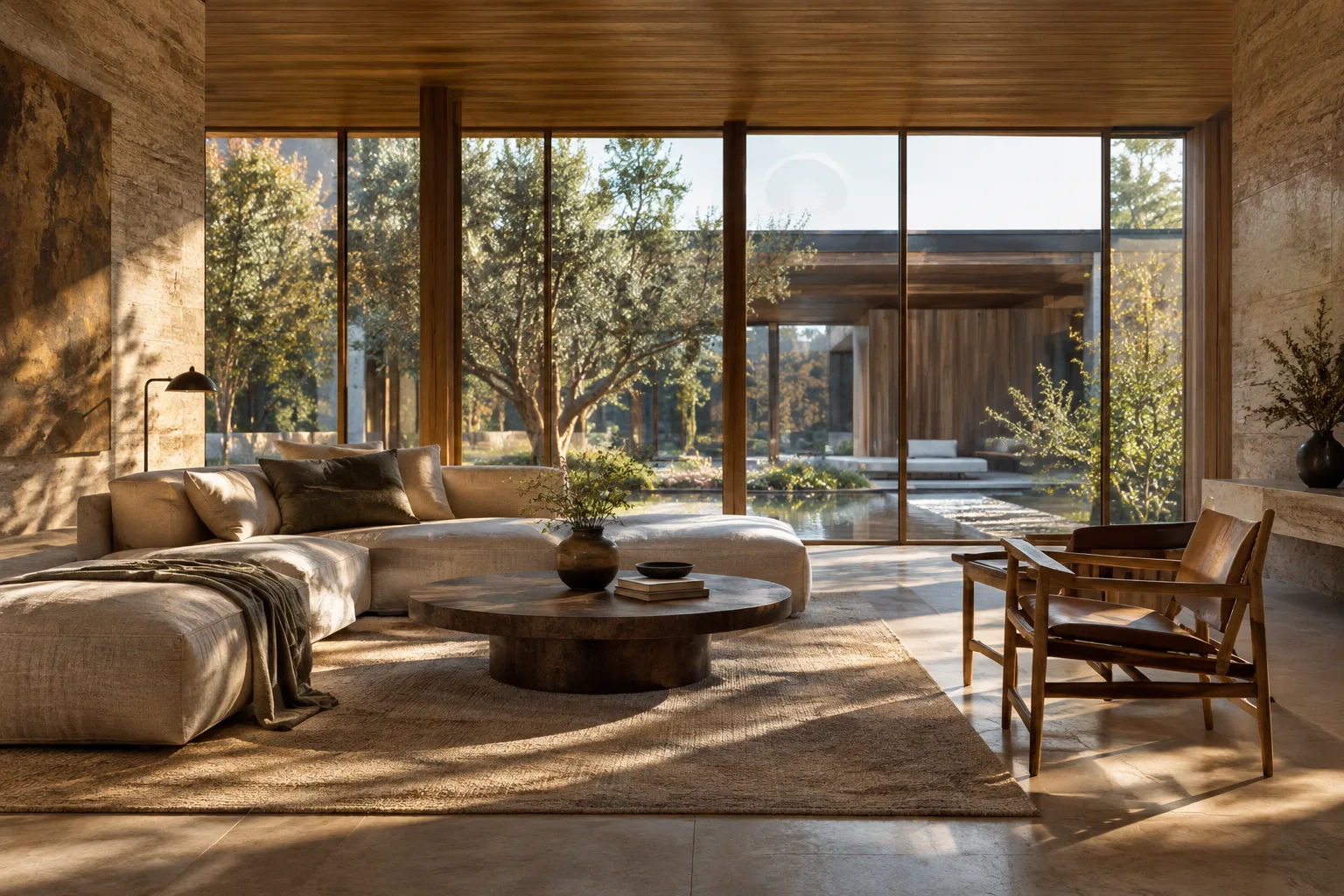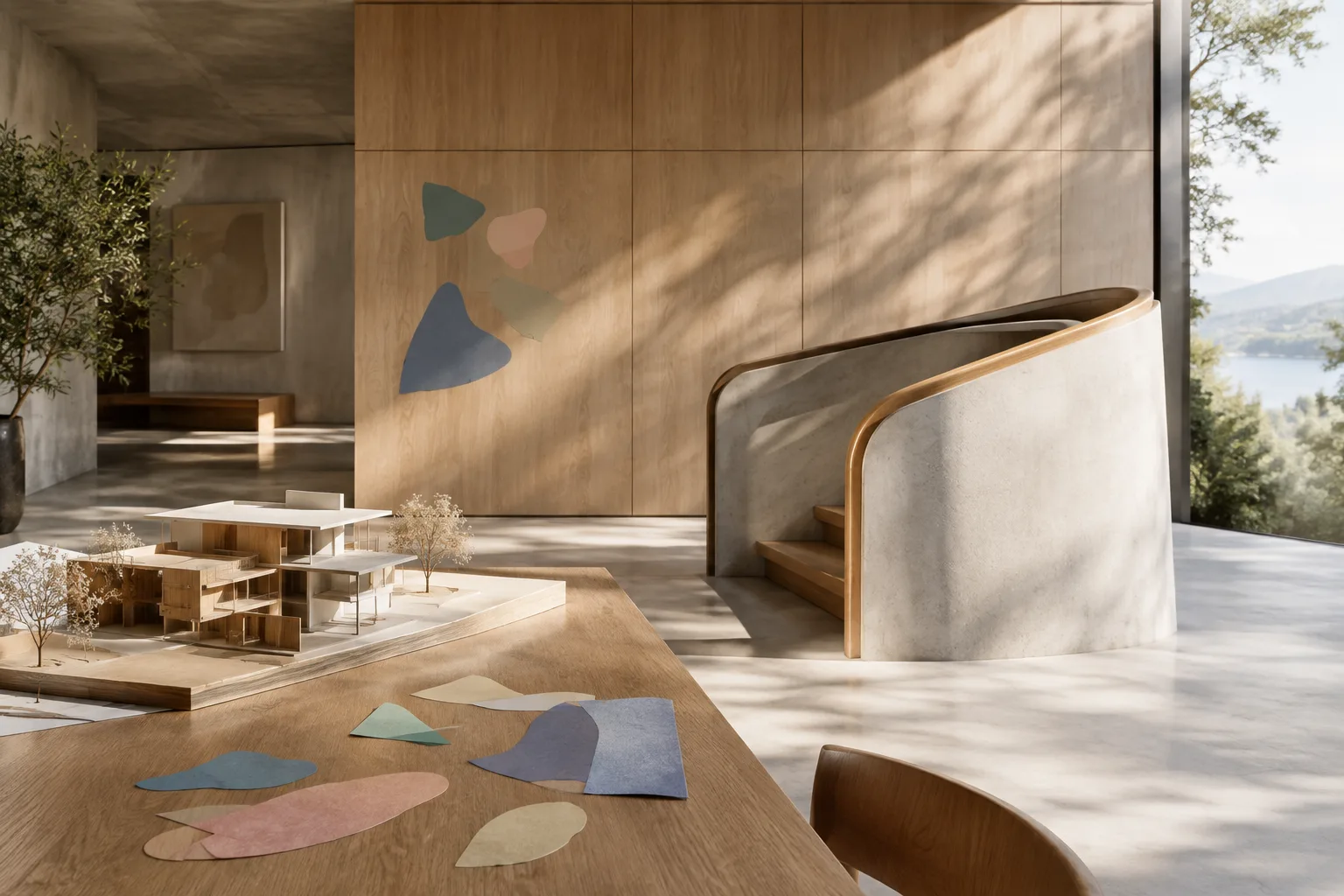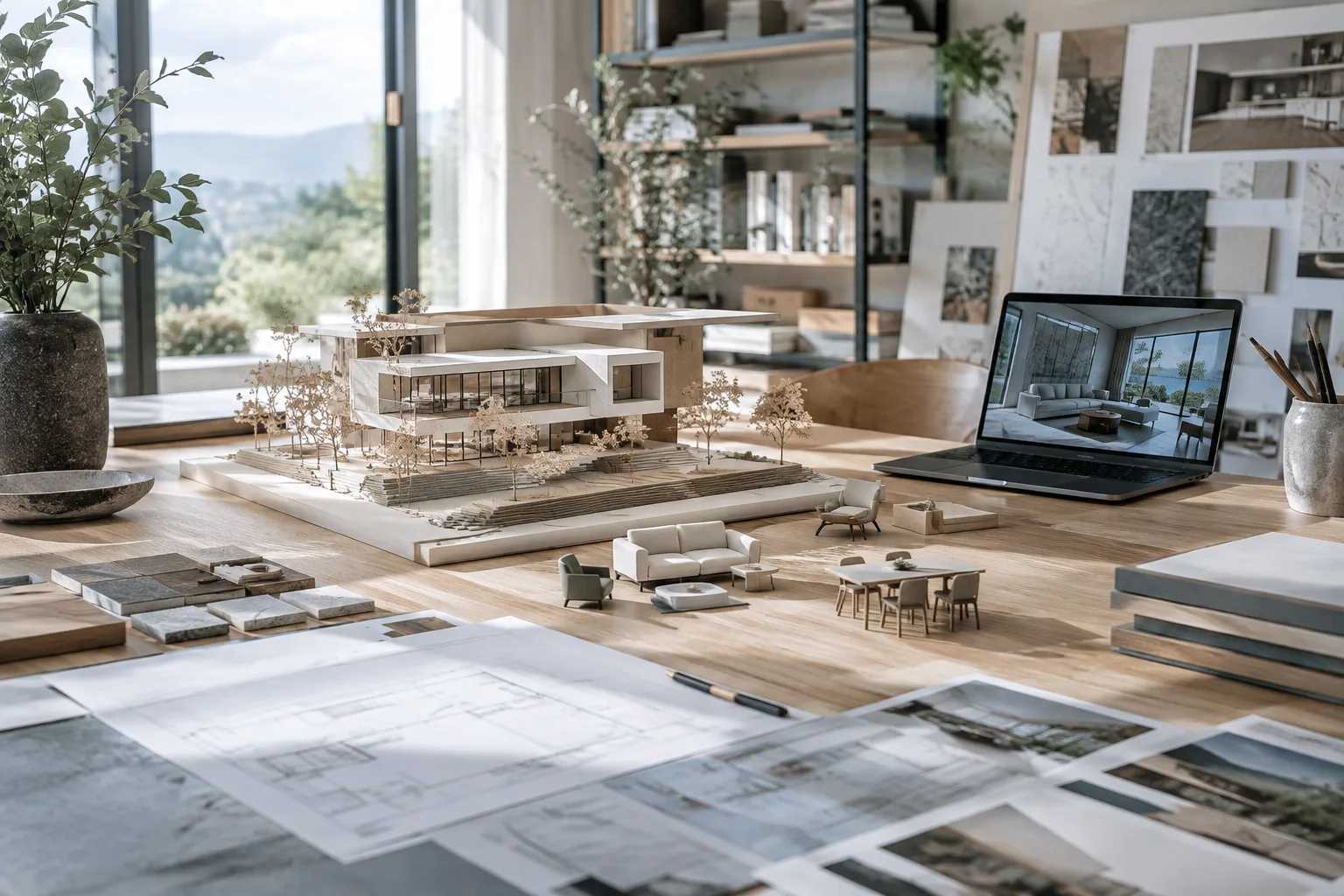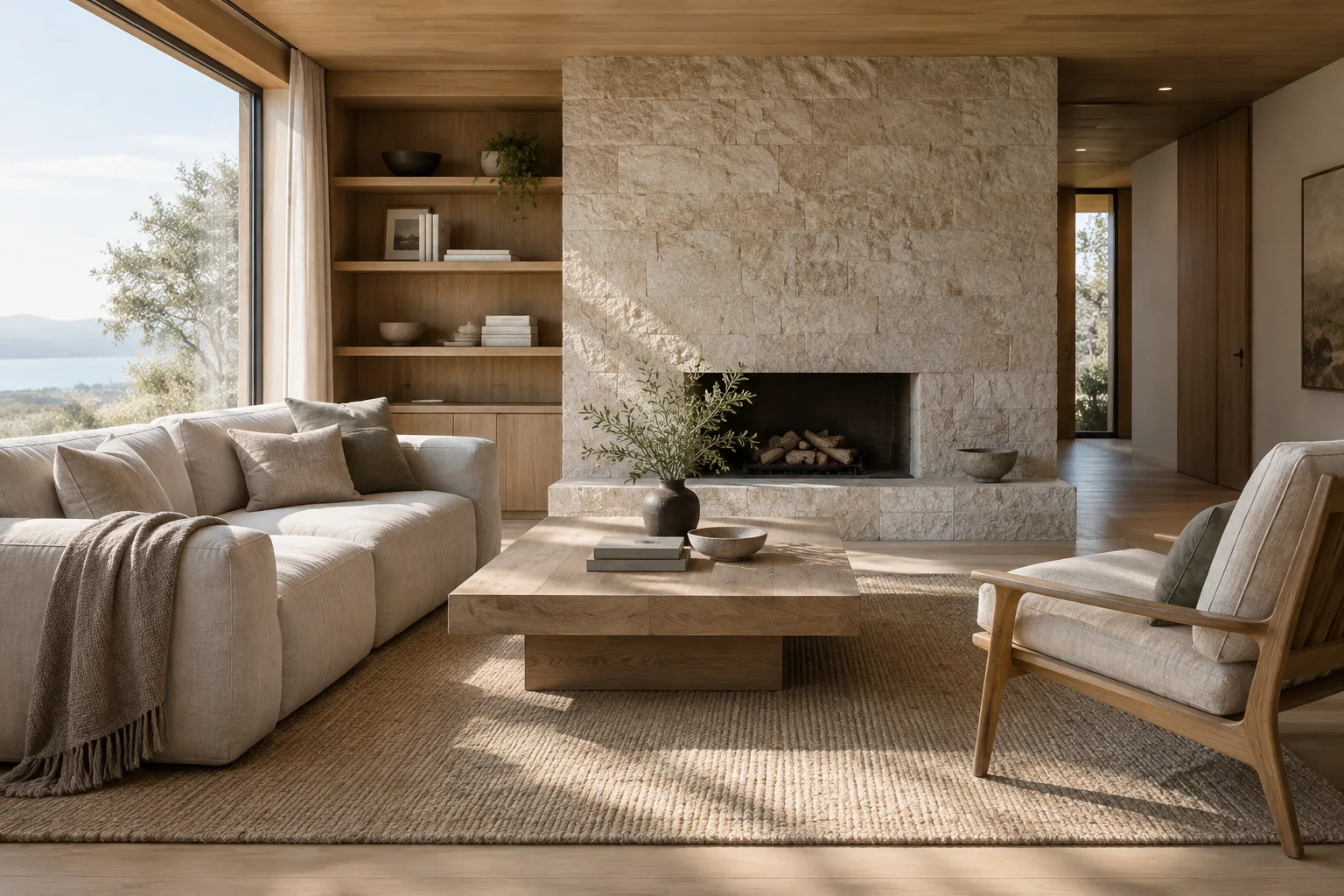
In brief
- OpenAI announced Images 2.6 for ChatGPT, Codex, and the API on 4 November 2026.
- According to OpenAI, ChatGPT and Codex access is available across all subscription tiers on desktop, mobile, and web.
- OpenAI offers GPT-Image-2.6 Flare and Sunburst options through the API.
- Clearly describing a prompt’s purpose, space, style, and key constraints makes revisions easier to track.
What will you learn in this guide?
This tutorial focuses on using Images 2.6 to describe architectural and interior design ideas visually, evaluate the first result, and request subsequent changes with greater control. In the examples, you’ll create a living room concept, change the lighting in an existing image, and use multiple reference images for different purposes.
These methods can help explore design decisions visually, but they are no substitute for technical drawings, a dimensioned model, or review by the project team. Use the generated images to discuss design alternatives and support the search for a visual direction.
Requirements and access
According to OpenAI’s announcement dated 4 November 2026, Images 2.6 is available in ChatGPT and Codex across all subscription tiers on desktop, mobile, and web. OpenAI also announced the GPT-Image-2.6 Flare and GPT-Image-2.6 Sunburst options for the API. The source does not give a specific API price; check current pricing before using it.
No specific local software version, operating system, or graphics card requirement is defined in this guide. You can access the tool through ChatGPT, Codex, or the API. The API announcement says the quality setting affects image detail and accuracy, while the complexity parameter affects the planning required to fulfill a request. The sample prompts in this guide are written for architectural and interior design scenarios.
Before you begin, decide what the image is for: exploring an atmosphere, comparing materials, or making a limited edit to an existing image. Defining the goal upfront helps you choose the necessary information without overloading the prompt with unnecessary details.
Step-by-step: creating an architectural image prompt
1. Define the space and the image’s purpose
In your initial prompt, describe the subject and intended use of the image. Then add details about the space, the design features you want to emphasize, and the visual approach. OpenAI Academy’s guide recommends starting with a few clear sentences that describe the image rather than filling the prompt with long, ornate wording. Describe decisions about materials and lighting with visible details rather than general adjectives.
Create a calm, contemporary living room concept image for a residential project. Show light-toned wood surfaces, a matte stone-textured floor, and linen-upholstered seating. Soft natural light enters through the large window on the left; keep the material textures legible and the atmosphere simple and realistic.This example describes the type of space, the main material choices, and the direction of the light. At the start, focus on a few features that convey the design idea; you can add details as you review the results.
2. Specify the framing and unwanted elements
If it matters which parts of a space are emphasized or what should not appear in the image, say so directly. Spatial terms such as foreground and background help explain relationships between elements. If you don’t want text, signage, or a logo, explicitly state that constraint too.
Create an editorial concept image for a small café interior. Place a communal table in the foreground and a simple service counter in the background; make the circulation areas clearly visible. Use soft daylight and natural wood tones; show no text, signage, or logos on the walls.Here, the positions of the table and service counter are specified, as is the requirement for visible circulation areas. Be equally clear about the features you want included and the elements you want to avoid.
3. Separate what should change from what should stay in an image edit
When working on an existing image, it’s important to define the limits of the edit. If you only want to change the lighting, say so; also list the features you expect to preserve, such as furniture layout, openings, or camera framing. This keeps the request focused on a specific change rather than a general redesign.
Change only the lighting atmosphere in the interior image I uploaded: add soft morning light coming from the left side of the window. Preserve the furniture layout, walls, openings, materials, and camera framing; do not add any new objects.OpenAI Academy recommends clearly specifying what should change and what should remain the same when editing an existing image. If the result includes another unwanted change, ask for a correction that addresses only that difference instead of describing the entire scene again.
4. Define the roles of reference images
If you’re using multiple images as references, explain what information each one should provide. For example, one image might show the existing layout, while another indicates the color and surface treatment. The source guide says it can be easier to manage references if you refer to them by upload order, describe how they relate, and keep the reference set small.
Image 1 is a photo of the existing interior; use it as a reference for the layout and openings. Image 2 is a reference only for the color and surface style. Apply Image 2’s simple, light-toned approach to Image 1; preserve Image 1’s spatial layout and the positions of its objects.In this prompt, the first image defines the layout and the second defines the style. Rather than expecting one image to serve as a reference for layout, color, and materials all at once, specify each source’s role separately. You can use directional terms such as left, right, foreground, and background to describe positions.
5. Choose API settings based on your needs
According to OpenAI’s announcement, the API’s quality control relates to image detail and accuracy, while the complexity parameter relates to how much planning the model does to fulfill a request. The company recommends starting with low complexity for most editing tasks to get faster results, and trying medium or high complexity for scenes with many elements or constraints. Choose the quality setting according to the level of visual detail required.
These settings are described in the context of API use; don’t assume that the same controls are available in the ChatGPT interface. Check the relevant options and current documentation for the access method you’re using.
6. Make revisions in stages
After reviewing the first result, choose the most important design decision to change rather than changing everything at once. For example, address the lighting first, then the color balance. OpenAI Academy’s guide explains that small, specific corrections make it easier to steer the result, and that restating the desire to keep the composition fixed can help maintain consistency.
Keep the same composition. Make the image slightly brighter, reduce color saturation, and simplify the small decorative details in the background. Do not change the furniture positions or material types.Instead of a general request to “make it better,” this revision focuses on brightness, color, and the background. Observing which prompt changes affect the result makes it easier to track the visual exploration.
Common mistakes
Vague lighting descriptions: Instead of open-ended phrases such as “beautiful lighting,” specify the direction and desired quality of the light.
Too many changes in one request: Changing lighting, materials, framing, and layout all at once can make the results harder to evaluate. Choose a priority and work from there.
Leaving out features to preserve: If the framing or furniture positions should remain fixed during an edit, say so explicitly in the prompt.
Not defining the role of each reference: If one image is for layout and another for style, make that distinction clear.
Overlooking settings for complex scenes: For API requests involving many elements or constraints, consider OpenAI’s recommendation to try medium or high complexity.
Next steps
Start by creating an image of a single space using a limited number of materials. Then choose one design decision, such as lighting, color, or layout, and try a controlled revision. When editing existing images, list separately what should change and what should be preserved.
OpenAI’s Images 2.6 announcement also mentions features such as GIF creation, image annotation, and SVG export. Their use in architectural presentations should be evaluated on a project-by-project basis; the sources do not say that these features suit every workflow in the same way.
Sources and license
This tutorial has been adapted into Turkish based on OpenAI’s Images 2.6 announcement and OpenAI Academy’s image generation guide. The sources are marked “license=free” in the provided metadata. The architectural and interior design examples were rewritten for this guide.
Sources
2 sourcesSource texts are not republished; short quotes are marked, everything else is our own summary and commentary.
For architecture firms and visualization teams, the practical value of Images 2.6 lies in helping them quickly explore concept alternatives and try specific changes to existing images. However, generated images are no substitute for technical accuracy or project decisions; review by the design team remains essential.
When planning use in Turkey, consider the access method and API costs separately; the sources do not specify a price. The announcement also gives no local hardware requirements, so no conclusions can be drawn about graphics card or workstation investments. Decide upfront how images will be used in project and company workflows, too.
Frequently asked questions
Which platforms support Images 2.6?
According to OpenAI’s announcement, it is available in ChatGPT and Codex across all subscription tiers on desktop, mobile, and web. The announcement also includes the GPT-Image-2.6 Flare and Sunburst options for the API.
How should I write a prompt for architectural image generation?
Clearly describe the space, the image’s purpose, and important decisions such as materials and lighting. When editing an existing image, specify separately what should change and what should be preserved.
What does the complexity parameter affect in the Images 2.6 API?
According to OpenAI, the parameter determines how much planning the model does to fulfill a request. The company recommends trying low complexity for most editing tasks, and medium or high complexity for scenes with many elements or constraints.