In brief
- Nano Banana 2.1 supports image generation and in-chat image editing through the Gemini API.
- The API documentation includes examples for Python, JavaScript, Java, Go and REST.
- When editing with an image input, you must have the necessary rights to use the uploaded image.
- Google says all generated images include a SynthID watermark.
What will you learn in this guide?
We’ll cover how to structure prompts for generating architectural concept images and interior ideas with Nano Banana 2.1, how to edit an existing image with text instructions, and how to refine the results. The examples focus on clearly describing the space type, materials, lighting, framing and design decisions that should be preserved. They do not guarantee that the generated result will automatically match a specific drawing or project file; treat the images as part of design development and pre-presentation ideation.
Google’s Gemini API documentation presents Nano Banana 2.1 for text-to-image generation and for editing with both text and image input. The API workflow for selecting a model and submitting input is documented. The prompt design guide recommends giving clear instructions, constraints and a desired output format, then iterating and refining the results.
Requirements and getting started
This guide is based on using the Gemini API. The sources include examples of sending requests with Python, JavaScript, Java, Go and REST. The Python example uses the Google GenAI client; the REST example shows how to add the API key to the request header. The documentation does not specify a required SDK version or account plan. It does not provide enough information to determine an exact price or access conditions.
Before getting started, check the usage rights for any image you plan to use, including reference photos. Google reminds users to have the necessary rights to uploaded images and not to create content that infringes on others’ rights. If you won’t be using image input, you can work from the text-only generation examples.
Choose a model based on the scope of the task. The documentation describes Nano Banana 2.1 as an efficient model recommended for new projects. Nano Banana 2 Lite is offered for cases where speed and cost are priorities, but it is not optimized for multiple reference inputs or sequential, multi-turn editing. Nano Banana Pro is listed separately for more complex image tasks. The prompts in this guide are written for Nano Banana 2.1.
Step by step: architectural prompts
Use the prompts as text input in your API request. Try each example on its own, then update only the features you want to change to generate a new result. This makes it easier to see how changes to materials, lighting or framing affect the image.
1. Create an exterior concept image
Start by describing the building type, its surroundings, the primary materials and the mood of the image. Use concrete visual choices rather than adjectives that conflict with one another.
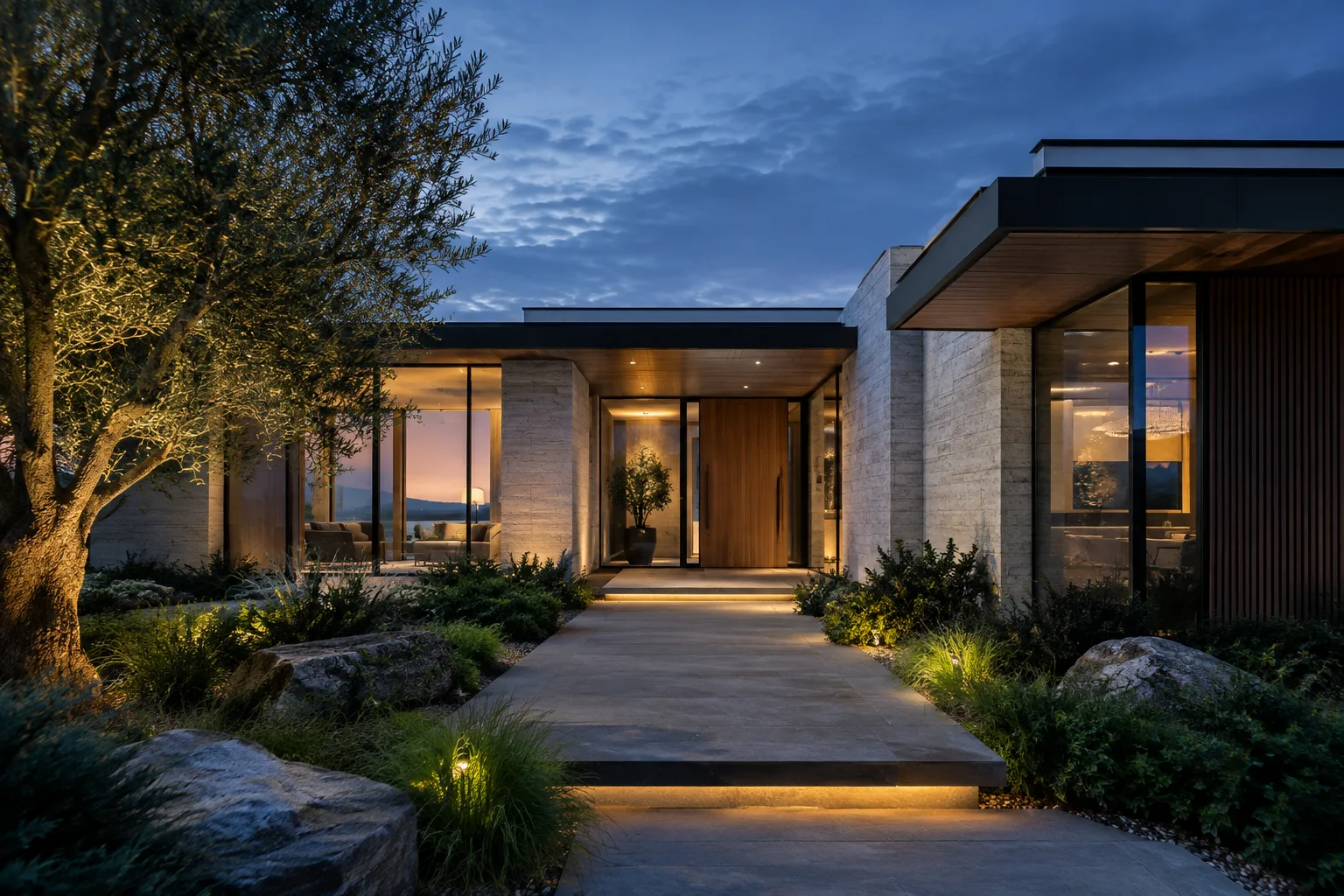
Create an architectural concept image of a single-story contemporary cultural building on the coast. Use a light stone facade, large glass surfaces and simple horizontal volumes. Show soft afternoon daylight; frame the building from pedestrian level, together with its surrounding landscape. Do not include text or signage in the image.This example defines the building type, materials, lighting and viewpoint in one request. If the massing or surroundings differ from what you expected in the first result, clearly adjust the relevant feature instead of rewriting the entire prompt.
2. Set the interior mood
For an interior image, describe the room type and main materials, as well as the direction of the light and the framing, to make the request clearer.
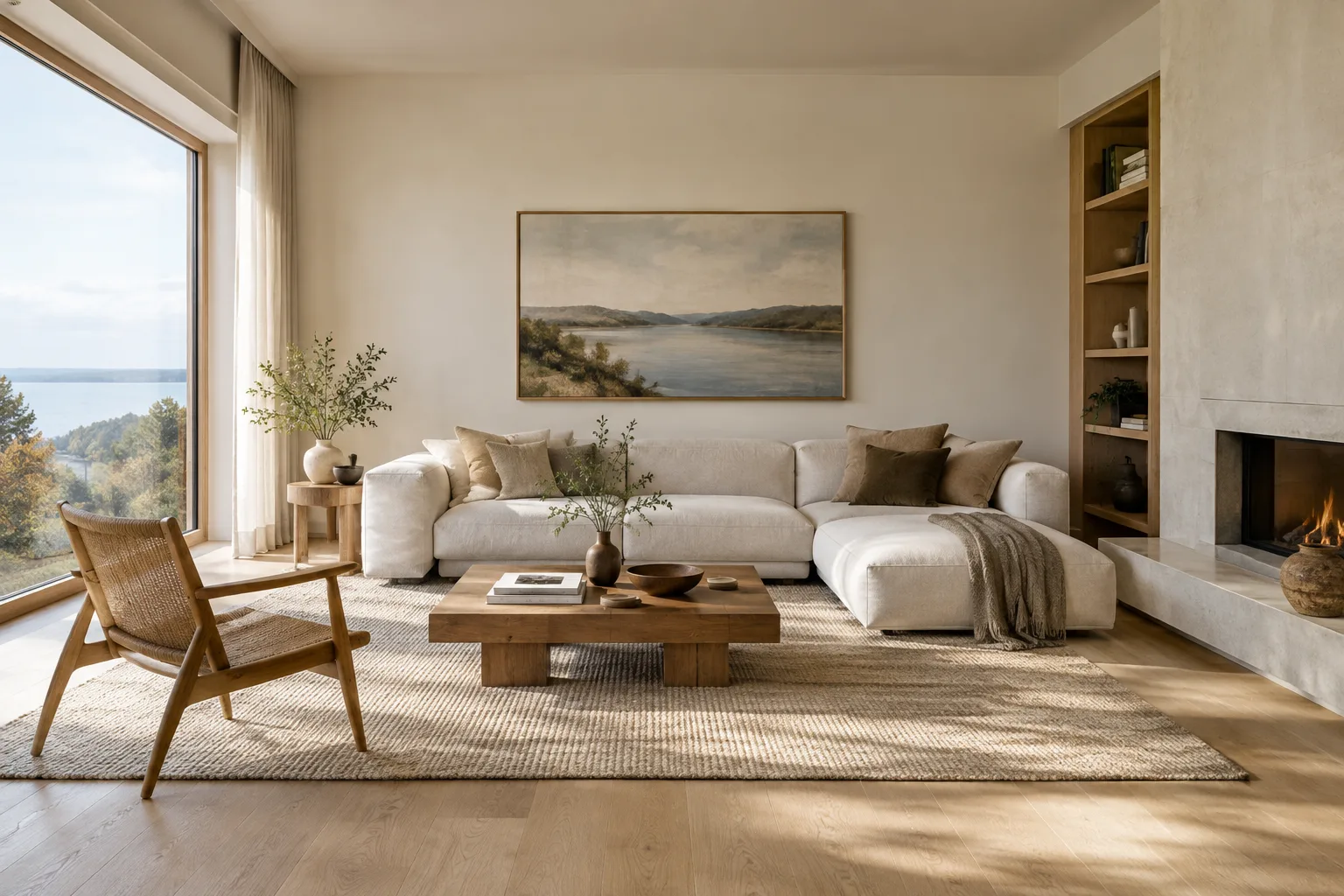
Create a photorealistic interior concept image for a minimalist residential living room. Use light oak flooring, off-white walls and seating upholstered in naturally textured linen. Show morning light coming through a large window; position the camera near the room entrance, at eye level. Keep the furniture sparse and do not add text to the walls.The material and lighting choices here are examples. If the color palette or product selection is fixed for your actual project, include those details in the prompt; don’t assume that specific products or construction details will be generated accurately.
3. Explore framing and visual style
When exploring different framings for a presentation, keep the main design description and change the camera instructions. As the prompt design guide recommends, make instructions clear and constraints easy to understand.
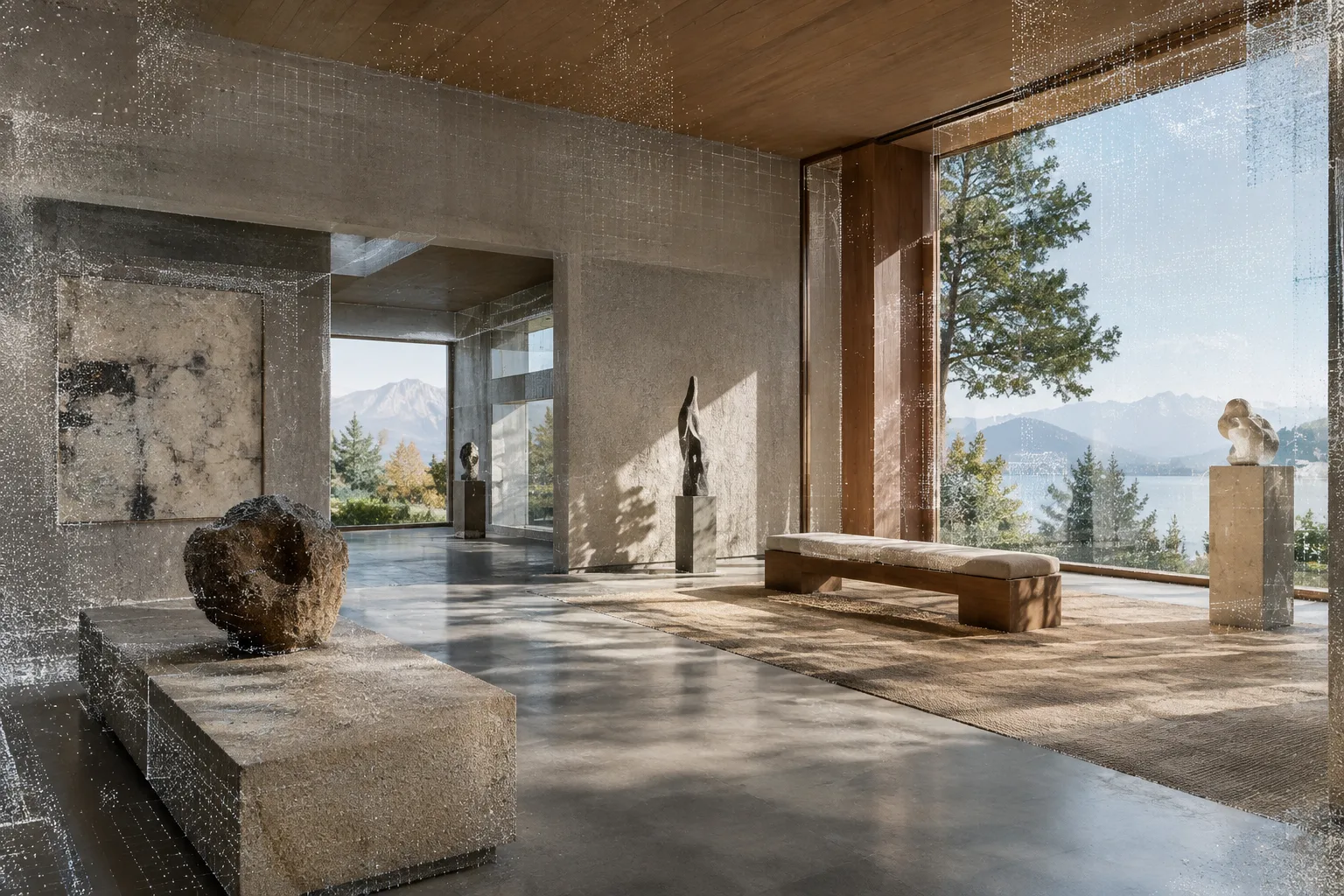
Create an architectural visualization of a contemporary library interior. Use wooden shelving, light stone flooring and natural light filtering down from the ceiling. Show the central reading area from a near-wide-angle, symmetrical viewpoint. Do not add people; include no letters, titles or signage in the image.This prompt describes the scene, material language and framing. If the result isn’t symmetrical, don’t treat that as a definitive flaw: simplify the instructions and try again. Generative image output should be refined iteratively.
4. Edit a reference image
The Gemini API documentation also shows how to edit an image by sending image data together with text. For example, you might want to change only the color mood of an existing interior image.
Preserve the layout and camera viewpoint of this interior image. Change the walls to a warmer, lighter color; show soft, balanced daylight. Do not move the furniture or add new decorative objects.Use this instruction together with image input. The documentation explains that an image can be included in the same request as text and that the resulting image can be returned as output. Since there is no guarantee that every detail will be preserved, check the result.
5. Refine the result with constraints and goals
Identify what needs improvement in the first output: materials, lighting, camera or unwanted objects? In the next prompt, address that point directly and specify which elements should be preserved.
Recreate the same contemporary residential living room concept. Keep the light oak flooring and off-white walls; make the window light softer and more clearly show the window in the frame. Do not add extra furniture, decorative text or a logo.This example alone does not automatically pass the previous image to the model. If you need to include the previous output as image input in a new request, use the API’s image-editing workflow. Sending text and an image together helps communicate the editing intent, but you should still visually check that the result matches the design decisions.
Common mistakes
Writing vague instructions: General adjectives such as beautiful, modern or striking don’t clearly describe what the space should look like. Specify the room or building type, materials, lighting and framing separately.
Packing too many goals into one prompt: Conflicting expectations around mood, materials or framing make the results harder to assess. Establish the core concept first, then test changes in small steps.
Assuming you can use any reference image: Image input does not remove your responsibility to have the rights to the source image. Check that you have the necessary rights before uploading it.
Using generation as a substitute for technical validation: The sources describe image generation and editing capabilities; they do not promise validation of architectural dimensions, project files or technical suitability. Don’t use images in place of design decisions or project documentation.
Next steps and workflow impact
For architects, interior designers and visualization teams, the practical benefit is being able to bring text-based exploration of ideas and mood alternatives into the production process. Teams looking to discuss color, materials and lighting options at an early stage can use the prompts as starting points. However, don’t assume the outputs will match drawings, models or actual products exactly; check them before presentation and have the design team review them.
API use and access conditions are important parts of the workflow. The documentation includes an example of sending a request with an API key, but does not explain pricing or specify an account plan. Teams should therefore confirm their own access and cost conditions before getting started. Google also says all generated images include a SynthID watermark; keep this in mind when presenting and using the images. The sources do not specify computer or graphics card requirements, so this guide cannot provide a specific hardware recommendation.
For your next test, choose one space, use the same prompt and change only one variable, then compare the results. The iterative approach emphasized in the prompt design resources can help you see which descriptions communicate the intended visual style most effectively.
Sources and licensing
This guide draws on Google AI for Developers’ Gemini API image generation and editing guide and its prompt design strategies pages. Both sources are licensed under CC BY 4.0; their content has been adapted into Turkish and reworked with architectural and interior design examples.
Sources
2 sourcesSource texts are not republished; short quotes are marked, everything else is our own summary and commentary.
For architecture and visualization teams in Turkey, this approach can be especially useful for quickly discussing mood and material alternatives during early concept design. However, it’s important not to use generated images in place of measurements, product selection or project validation, and to have the design team review the outputs.
API access and usage costs are issues that teams should verify in advance. Since the sources do not specify pricing or special hardware requirements, check the latest access conditions before making an investment decision. The SynthID watermark should also be factored into delivery and presentation workflows.
Frequently asked questions
What do I need to generate architectural images with Nano Banana 2.1?
According to Google’s Gemini API documentation, you can submit requests through the API. Examples are provided for Python, JavaScript, Java, Go and REST. The sources do not specify a required SDK version or account plan.
Can Nano Banana 2.1 edit an existing interior image?
The Gemini API documentation describes a workflow for sending text and image input together to add or remove elements, change the style or adjust colors in an image.
Do images generated with Nano Banana have a watermark?
According to Google’s documentation, all generated images include a SynthID watermark.