In brief
- Gemini Omni and Veo can use an image as the starting frame of a video.
- Documentation lists duration options of 3–10 seconds for Gemini Omni 1.1 Flash Preview.
- Prompts can be structured around the subject, motion, setting, and camera for greater control.
- Using the REST API requires a Google Cloud project, the Agent Platform API, and authentication.
What will you learn in this guide?
When turning an architectural image into a short video, the goal is not just to add motion to the scene, but also to preserve the legibility of the design. This guide covers using an existing image as the starting frame, prompting for motion with small, clear instructions, choosing a camera approach, and understanding the basic settings in the API example. The examples are prepared for residential interiors, façades, and landscape visualizations.
According to Google’s documentation, Gemini Omni and Veo can generate video from an existing image. This capability is available through Gemini Enterprise Agent Platform Media Studio or the video generation API. Since results may vary with each prompt, it can be helpful to keep initial tests short and focused on a single motion idea.
Requirements: account, model, and image
To work through Media Studio or the API, you need a Google Cloud account and a selected or newly created Google Cloud project. If you choose the API method, the Agent Platform API must be enabled, and requests must be authenticated. The documentation also says that anyone using the REST example in a local development environment needs to install the Google Cloud CLI and authenticate through the CLI. It notes that no additional authentication setup is required when accessing the service through the console.
Models documented for image-to-video generation include gemini-omni-1.1-flash-preview and various Veo 3.0 and Veo 3.1 models. The steps below are based on the Gemini Omni API example, which clearly explains image input and settings. In the API request, the input image is specified using a Cloud Storage URI; the example MIME type is image/png. Before getting started, make sure the image you plan to use is accessible to the project and that the request specifies the correct location.
The API example lists integer duration values from 3 to 10 seconds and aspect ratio options of 16:9 or 9:16. If no resolution is specified, the output defaults to 720p; the documentation lists 360p, 720p, 1080p, and 4K as options for gemini-omni-1.1-flash-preview. If you use a different model, check its supported settings separately. The sources do not provide pricing information.
Step by step: writing a video prompt for an architectural image
Choose a single goal. Decide which quality of the image you want to bring to life: for example, changing daylight in an interior, a slow camera move along a façade, or leaves gently moving in a courtyard. Use one main action rather than describing several major events in the same prompt.
Name the subject and context. The prompt guide defines the subject, action, and scene context as separate components. In an architectural project, the subject might be a room, façade, staircase, or courtyard. Briefly describe the materials, time of day, and quality of light to establish the context. Asking the model to add new architectural elements that are not in the image may conflict with the goal of preserving the design.
Describe motion with restraint. For an initial test, request a small movement, such as light slowly moving across a wall or curtains and plants shifting gently. The source guide emphasizes that the action describes what happens in the video. So instead of using general phrases like “make it cinematic,” specify what moves and how.
Choose the camera behavior. You can use descriptions such as a static shot, a slow horizontal pan, or a dolly. Camera movement affects how the space in the image is perceived, so avoid combining several camera moves in the same prompt. Google notes that support for some advanced camera angles is not officially guaranteed and that results may vary in reliability.
The examples below were created for architectural use in this guide; they are not prompts copied directly from the source.
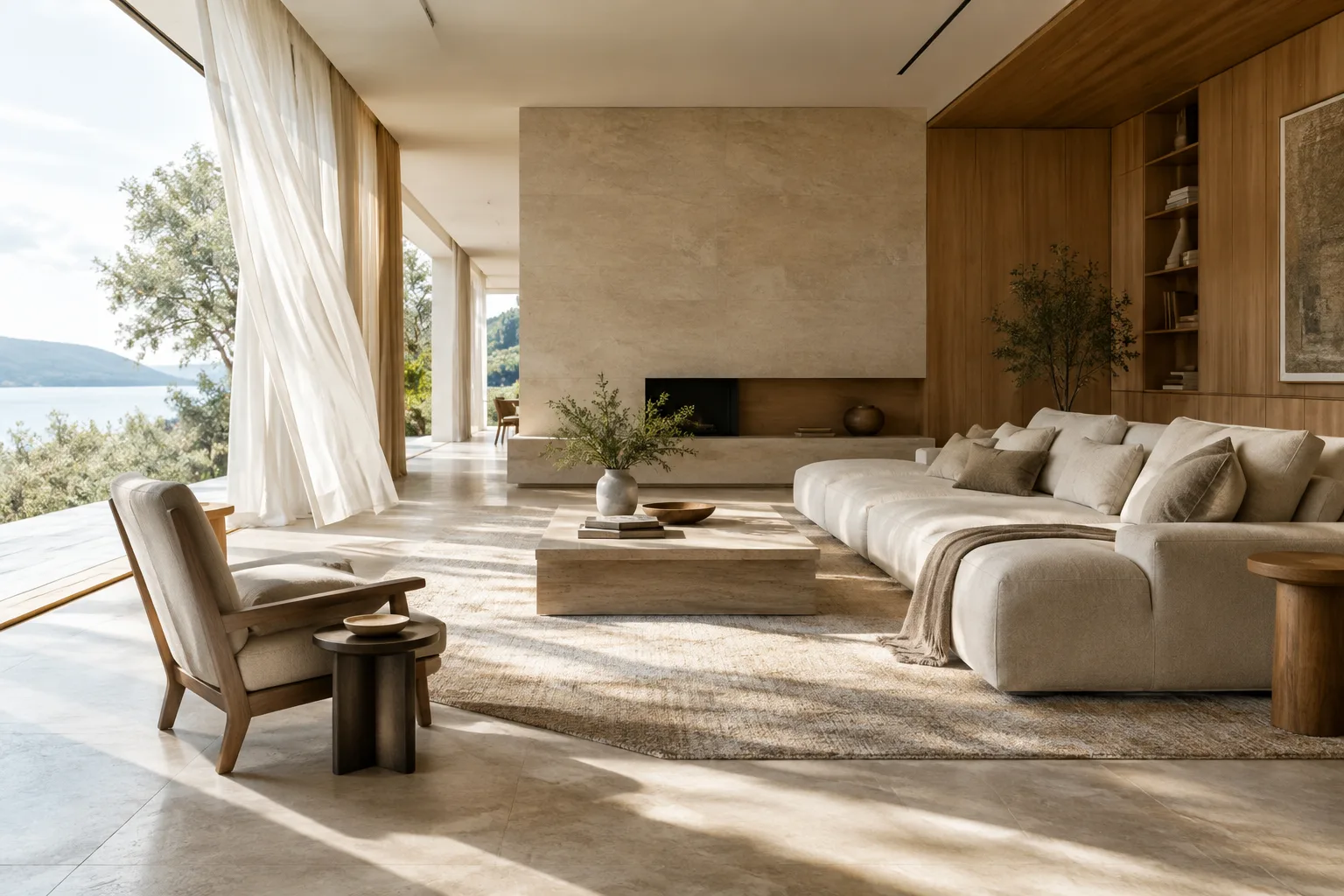
A calm architectural interior visualization of a contemporary living room, soft morning daylight slowly moving across the pale stone floor, sheer curtains gently shifting in a light breeze, preserve the room layout and materials, static wide shot, subtle natural motionIn this prompt, the main change is daylight moving across the floor; curtain movement is secondary and subtle. The static wide shot focuses on showing the overall layout of the interior.
A contemporary timber house seen from the garden, leaves on nearby trees moving gently in the breeze, soft overcast daylight, preserve the façade design and proportions, slow truck right along the garden edge, restrained architectural visualizationIn this façade example, the camera slowly moves to the right while the tree leaves move gently. Asking the model to preserve the façade proportions emphasizes the image’s role in presenting the design; the result should still be checked.
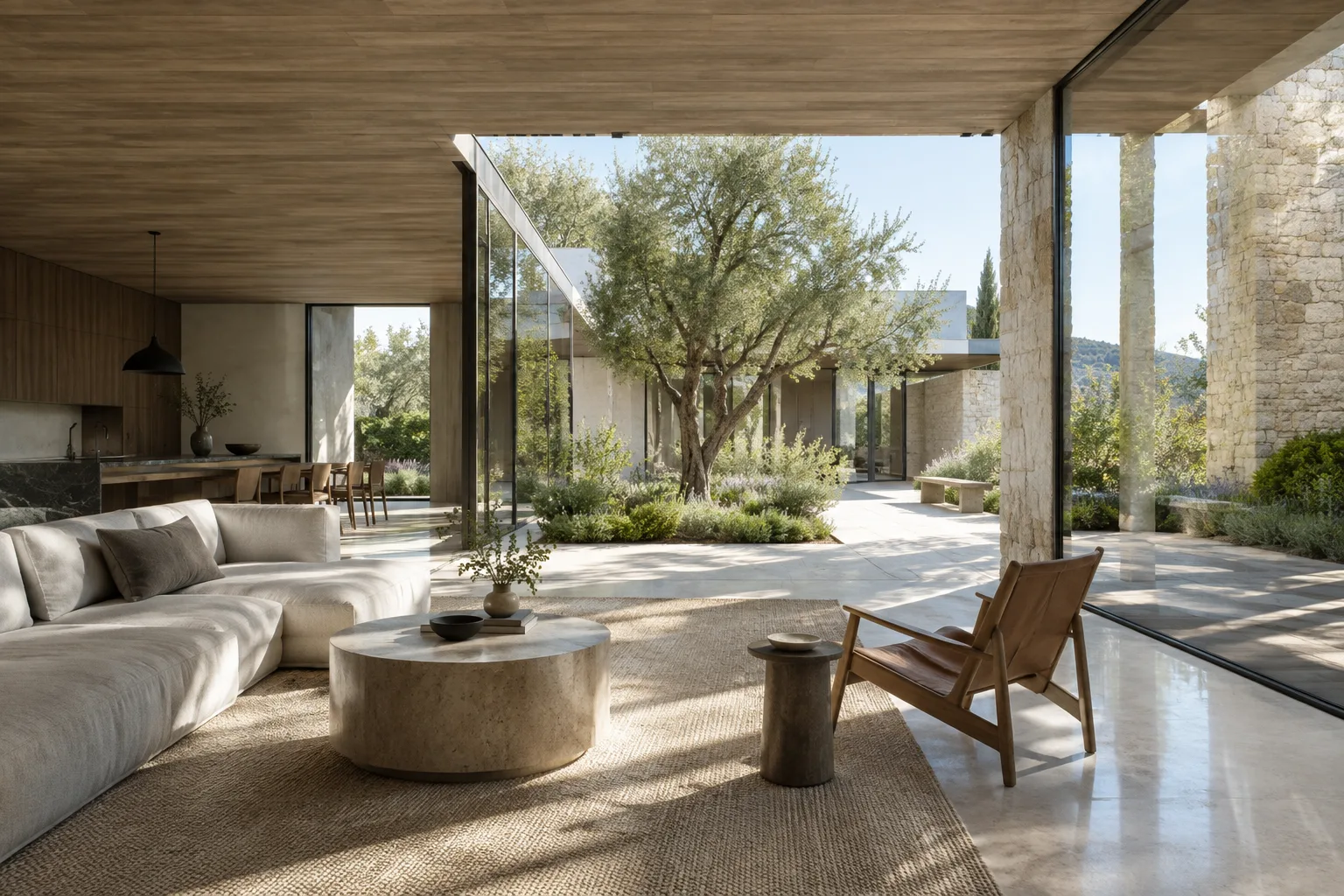
A quiet courtyard in a contemporary residential project at golden hour, subtle movement in ornamental grasses, warm light changing gently on the paving, preserve the original landscape composition, static wide shot, realistic restrained motionThe courtyard prompt describes limited movement in the landscape and a change in light. A static camera can be tested when you want the composition to remain more prominent than the motion.
Send the image and settings together. In the API example, the request includes an image input as well as the text prompt, and the task is specified as
image_to_video. You can also include the aspect ratio, resolution, and duration in the request. For a quick test, you might choose 16:9 and a short duration; these are example settings, not necessarily the right choices for every project.Wait for the process to finish and review the result. The documentation says video generation can take more than a minute. Once a synchronous request completes, the output is returned in the response; for asynchronous requests running in the background, you query the result later using the interaction ID. Asynchronous requests are retained for up to 14 days.
Common mistakes
Requesting too much motion: Describing changes in light, camera movement, human activity, and weather events all at once can make the result difficult to evaluate. First generate a version with a single movement; if it works, add another element in a second attempt.
Leaving the camera direction vague: Instead of saying “move the camera,” choose a specific movement such as a static shot, pan, or dolly. Advanced camera angles may not work with the same reliability in every use case.
Not checking duration and resolution: The API example gives a duration range of 3–10 seconds. Before submitting a request, verify the resolutions and aspect ratios accepted by the model; the documentation says the default is 720p when no resolution is specified.
Treating the result as a design document: Video generation animates an image, but the sources do not guarantee architectural accuracy or that design elements will remain unchanged in every frame. Review the generated clip as a visual communication draft, not as a technical drawing or definitive project record.
Use in architecture and visualization workflows
This method can be tested by architecture firms, interior designers, and visualization artists who want to create a short presentation clip from a static interior or façade image. A moving draft that conveys light, atmosphere, or a sense of space can be useful in design discussions. However, the available sources do not guarantee the accuracy of the output in a professional presentation or that architectural details will be preserved in every scene. Compare the result with the project visuals and regenerate it if needed.
Two practical considerations stand out in the workflow: setup requirements such as a cloud project and API access, and the duration, resolution, and aspect ratio settings supported by the model. The sources do not explain pricing or local hardware requirements; rather than speculate, check the current service terms and project settings before generating a video. The API example, which sends the image input through Cloud Storage, also shows that the file location is part of the process.
Next steps
For your first test, use the same image and settings and change only the motion description in the prompt. This lets you compare whether the camera movement or the lighting description has a greater effect on the result. Then test the version you prefer with different duration or aspect ratio settings. If you are using REST, keep in mind the difference between a synchronous request, which returns the result immediately, and an asynchronous request, where the interaction ID is queried later.
Sources and license
This guide was adapted into Turkish using Google Cloud’s official guides titled “Video generation prompt guide” and “Generate videos from an image.” Both sources are available under the CC BY 4.0 license. The architectural prompts were created specifically for this article.
Sources
2 sourcesSource texts are not republished; short quotes are marked, everything else is our own summary and commentary.
Turning an architectural image into a short clip offers a practical way to explore how to convey atmosphere, particularly in concept presentations. However, the sources do not guarantee that the design decisions in the image will be preserved exactly in every frame, so it is best to treat the output as a controlled visual communication draft rather than as project validation.
Offices and students in Turkey should account for requirements such as a Google Cloud project, API access, and storing the image file in the cloud before getting started. Since the sources do not explain pricing or local hardware requirements, avoid making assumptions about costs and check the service terms before generating a video.
Frequently asked questions
Can Gemini Omni generate a video from an architectural image?
Yes. According to Google Cloud documentation, Gemini Omni and Veo can use an existing image as the first frame of a video.
What durations does Gemini Omni support for image-to-video generation?
The API example specifies integer duration values from 3 to 10 seconds.
What do you need to generate a video with the Gemini Omni API?
You need a Google Cloud account and project, the Agent Platform API enabled, and authentication. The example request passes the image using a Cloud Storage URI.