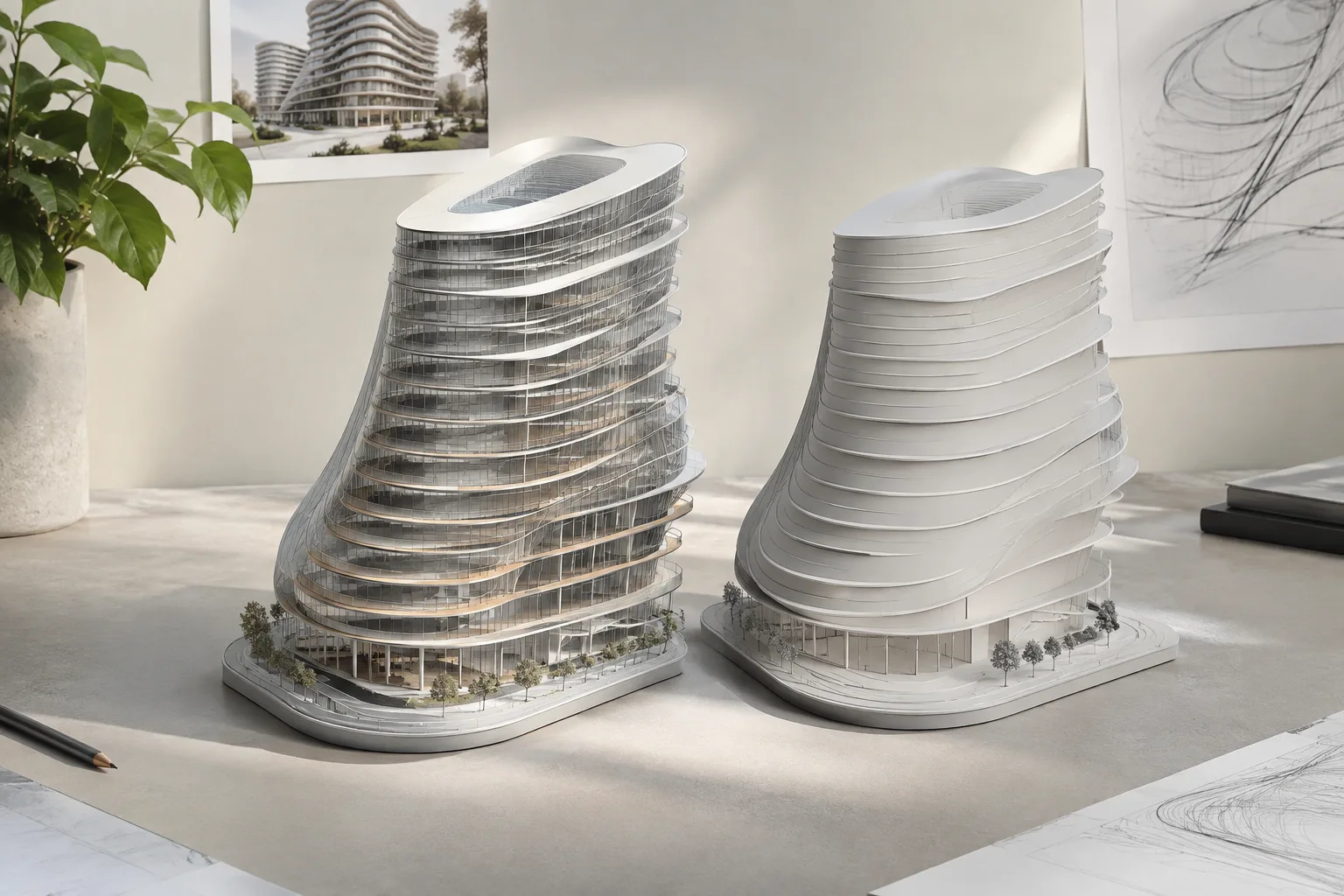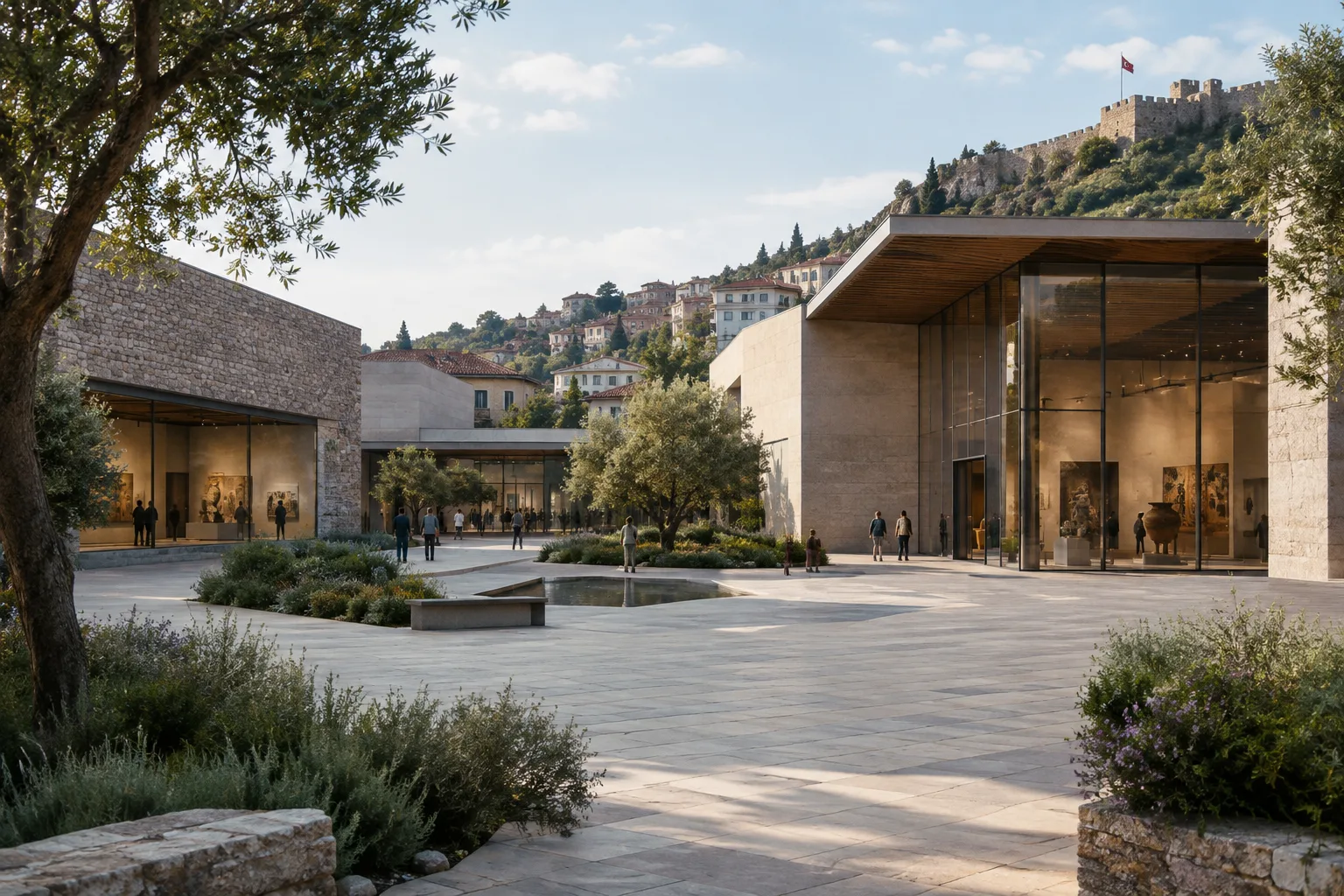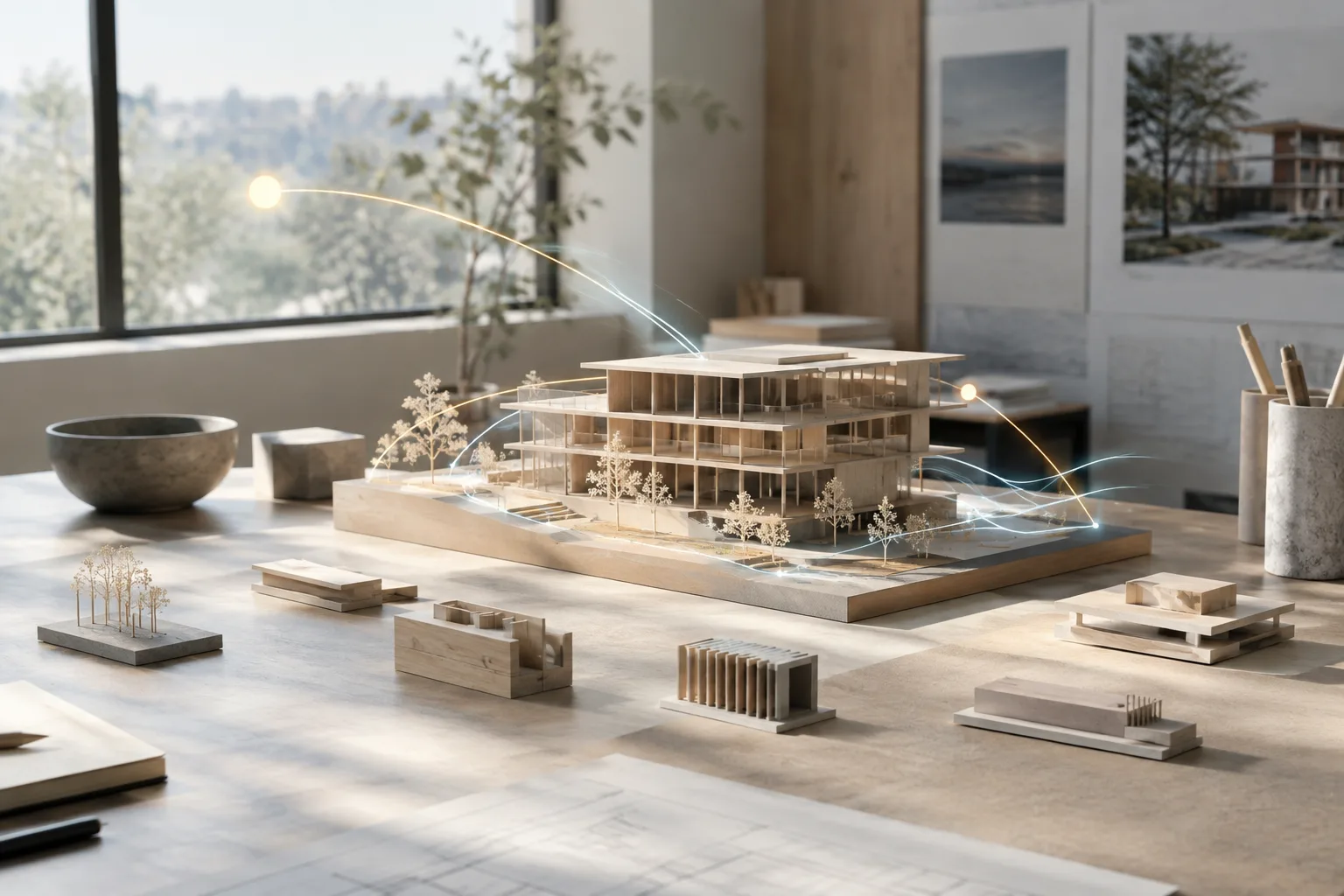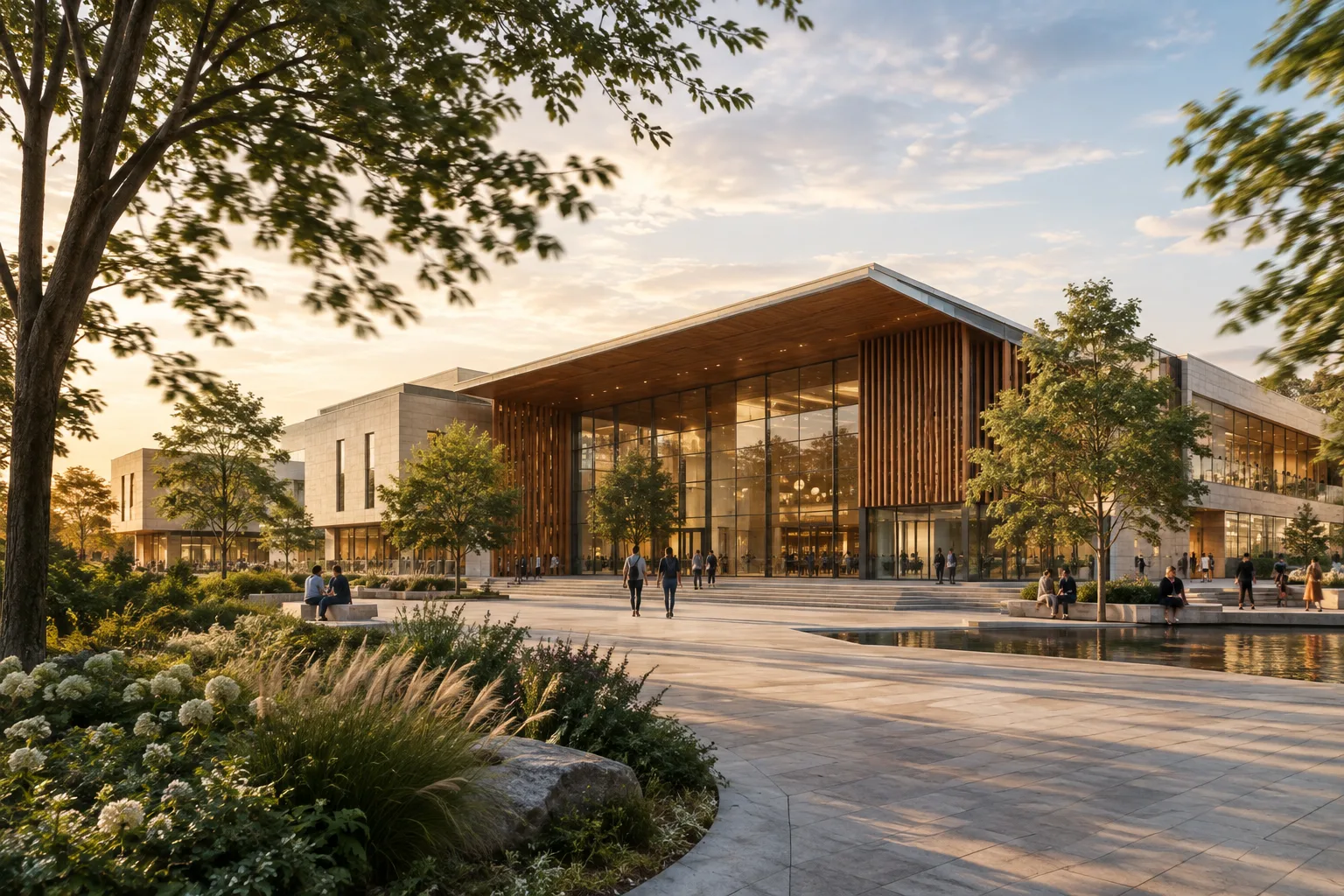
In brief
- Prompts can be made more directive by breaking them into components such as subject, action, and scene context.
- Camera angles and movement describe how an architectural scene is presented to the viewer.
- Gemini Omni 1.2 Flash can generate or edit videos 3–15 seconds long at 360p, 720p, 1080p, or 4K.
- Video generation is available through Agent Platform Media Studio or the relevant APIs.
What will you learn in this guide?
An architectural video prompt is more than simply saying, “Show a modern house.” Describing separately what should appear in the image, what should happen, what atmosphere the space should convey, and where the camera should look from and how it should move makes the request clearer. In this guide, you’ll learn how to bring these components together to prepare prompts for interior, facade, and architectural presentation videos.
Google’s guide covers topics such as subject, action, scene or context, camera angles, and camera movement for Gemini Omni Flash and Veo. You don’t have to use all of them in every prompt; choose them based on the project’s needs. It’s also important to distinguish the prompt structure from production options such as video duration and resolution: the prompt describes the scene, while the model settings determine the technical output.
Requirements and technical options
You can generate videos with Gemini Omni or Veo models in Media Studio on the Gemini Enterprise Agent Platform, or through the relevant APIs. The sources don’t specify an account type or pricing, so you’ll need to check access and cost conditions with the service you use. Google recommends consulting its deployment and endpoint information for the locations where the models are available.
The duration and resolution details in this guide apply specifically to gemini-omni-1.2-flash: the model can generate videos 3–15 seconds long or edit existing videos, and supports resolutions of 360p, 720p, 1080p, and 4K. Don’t assume that the technical specifications of other model options are the same.
For the same model, you can specify generation_config.seed to target repeatable video outputs. You can also add custom metadata labels to organize requests and track billing costs. These are API settings, not prompt text; the examples below are intended to be used as prompts only.
Steps for preparing an architectural video prompt
1. Define the subject and setting
First, choose the main subject of the video, such as a residential living room, a courtyard, or a facade. Then describe the space using a few concrete characteristics. Details such as materials, lighting conditions, and visible surroundings can make a general scene description more specific. Rather than simply listing objects, a prompt can also describe how those elements come together as a cohesive space.
A contemporary house courtyard with pale stone paving, a timber screen, and a reflecting pool. Late-afternoon sunlight reaches the planted edge of the courtyard, creating a calm residential atmosphere.This first example establishes a static description of the setting. Without adding a specific event or camera movement yet, it clarifies where the video takes place and what atmosphere it should convey.
2. Describe the action in the video
Unlike a still image, a video includes an action that unfolds over time. Choose one clear event, such as a door opening, light moving across surfaces, or leaves shifting gently. If you include multiple events, specify the order in which they happen. This way, instead of leaving movement in the scene to a general expectation of “liveliness,” the prompt describes an observable change.
A quiet architectural interior at dawn. A narrow band of sunlight slowly moves across the timber floor while sheer curtains shift gently in a light breeze.The actions here create a progression over time through the movement of light and curtains, without changing how the interior is used. Subtle movement can help convey the atmosphere of a space in architectural presentations.
3. Specify the camera angle
A camera angle describes the viewpoint from which the scene is seen. A wide shot can introduce a space in relation to its surroundings, while a bird’s-eye view can provide a plan-like reading. A low angle can help emphasize the height of a building or feature. The guide notes that some advanced camera angles aren’t officially supported and results may vary. So don’t treat complex angle descriptions as settings that guarantee a precise result.
Wide establishing shot of a contemporary public library atrium, showing the full height of the timber structure, the central stair, and the surrounding reading areas.The wide-shot description aims to show the overall layout of the atrium rather than focus on a single piece of furniture or detail. If spatial coherence is important to the intended image, it can help to specify the angle near the beginning of the prompt.
4. Add camera movement
When describing camera movement, first consider how you want the framing to change. You can specify a horizontal change in the viewing direction as a pan, and an upward or downward movement as a tilt. Moving the camera physically forward or backward through a space is a dolly move; changing the focal length of the lens while the camera stays in place to make the image larger or smaller is described as a zoom. Since these terms refer to different movements, choose the one that matches the intended effect.
A slow dolly-in through a contemporary gallery toward a sculptural stair. Keep the camera level as the stair and the surrounding concrete walls gradually fill more of the frame.In this description, the camera moves toward the stair while staying level. Describing the direction of movement along with how you want the framing to hold can help communicate the overall intent of the shot.
5. Combine prompt components into one description
In the final step, bring the subject, action, context, and camera choices together in a single prompt. Make sure every element serves the same video. For example, describing both the time of day and the camera’s path in a facade shot can make the production goal more specific. Rather than describing too many movements and events for a short video, choose a few elements that support the main narrative.
A contemporary cultural center beside a landscaped public plaza on an overcast morning. Visitors walk slowly toward the entrance as leaves move in a light breeze. Begin with a wide view of the full facade, then make a gentle pan to the right, keeping the building in frame.This example describes the building, its surroundings, people’s movement, the weather, and the camera movement together. Making a prompt longer doesn’t guarantee a better result on its own; each sentence should express a decision relevant to the scene.
Common mistakes
Choosing a vague subject: Broad phrases such as “a beautiful building” don’t explain which features of the building or space matter. Describe the main subject and distinctive elements of its surroundings.
Requesting too many actions at once: Trying to fit too many events into a short video can make the narrative feel unfocused. Start with one main movement; if you need multiple actions, specify their order.
Mixing up camera movements: Pan and tilt change the direction of the framing, dolly describes a change in the camera’s position in the space, and zoom describes a change in magnification using the lens. Use the term that matches the desired movement.
Assuming unsupported angles will work precisely: According to the guide, some advanced camera angles aren’t officially supported, and results may vary in reliability. Don’t make these descriptions a critical delivery requirement.
Applying duration and resolution details to every model: The 3–15 second duration and listed resolution options are specified for Gemini Omni 1.2 Flash. Check the information for your selected model separately.
Next steps in architecture and visualization workflows
Architects and interior designers can use this approach to turn a project concept into a short moving narrative. Visualization teams can also describe the same scene with different camera angles or movements to create presentation alternatives. In addition to text-to-video generation, the sources list capabilities for generating videos from a first frame, first and last frames, or references, as well as extending, editing, and upscaling videos. Check the documentation for the selected service to see which model supports these options and under what conditions.
Use short, single-purpose prompts for your first attempts. If the problem is with the scene itself, revise the subject or context; if the movement is unclear, change the action or camera description. When you need to compare the same generation, consider the seed setting documented for Gemini Omni 1.2 Flash. For office workflows, also check access, pricing, and available locations; the sources don’t provide definitive terms on these points. Hardware requirements aren’t explained in the available information either.
Sources and license
This guide has been adapted into Turkish based on Google Cloud’s “Video generation prompt guide” and “Generate videos with Agent Platform” pages. Both sources are published under the CC BY 4.0 license.
Sources
2 sourcesSource texts are not republished; short quotes are marked, everything else is our own summary and commentary.
For architecture offices and visualization teams in Turkey, the practical value of this approach is that it teaches them to describe a scene in a clearer, more controlled way. Teams looking to convey a space’s atmosphere or a camera route in a short video can use these components as a starting point.
However, the sources don’t clarify access, pricing, or availability by location, so these should be checked before adding the service to a workflow. Hardware requirements are also not explained in the available information. Whether the output is suitable for a project presentation should be evaluated separately, taking the selected model and production conditions into account.
Frequently asked questions
How many seconds of video can Gemini Omni 1.2 Flash generate?
According to Google’s documentation, Gemini Omni 1.2 Flash can generate videos 3–15 seconds long or edit existing videos.
How do you describe camera movement in an architectural video prompt?
Pan and tilt change the direction of the framing; dolly changes the camera’s position, while zoom describes a change in the lens’s focal length.
Which video resolution options does Google list?
For Gemini Omni 1.2 Flash, the listed resolution options are 360p, 720p, 1080p, and 4K.