In brief
- The Gemini API model endpoint for Nano Banana 2.1 is listed as gemini-nano-banana-2.1.
- The model supports both text-to-image generation and an editing workflow using image and text inputs.
- Google reports improvements in image quality, text generation, and multi-turn consistency.
- Generated images include a SynthID watermark; users are responsible for having the necessary rights to any images they upload.
What you'll learn in this guide
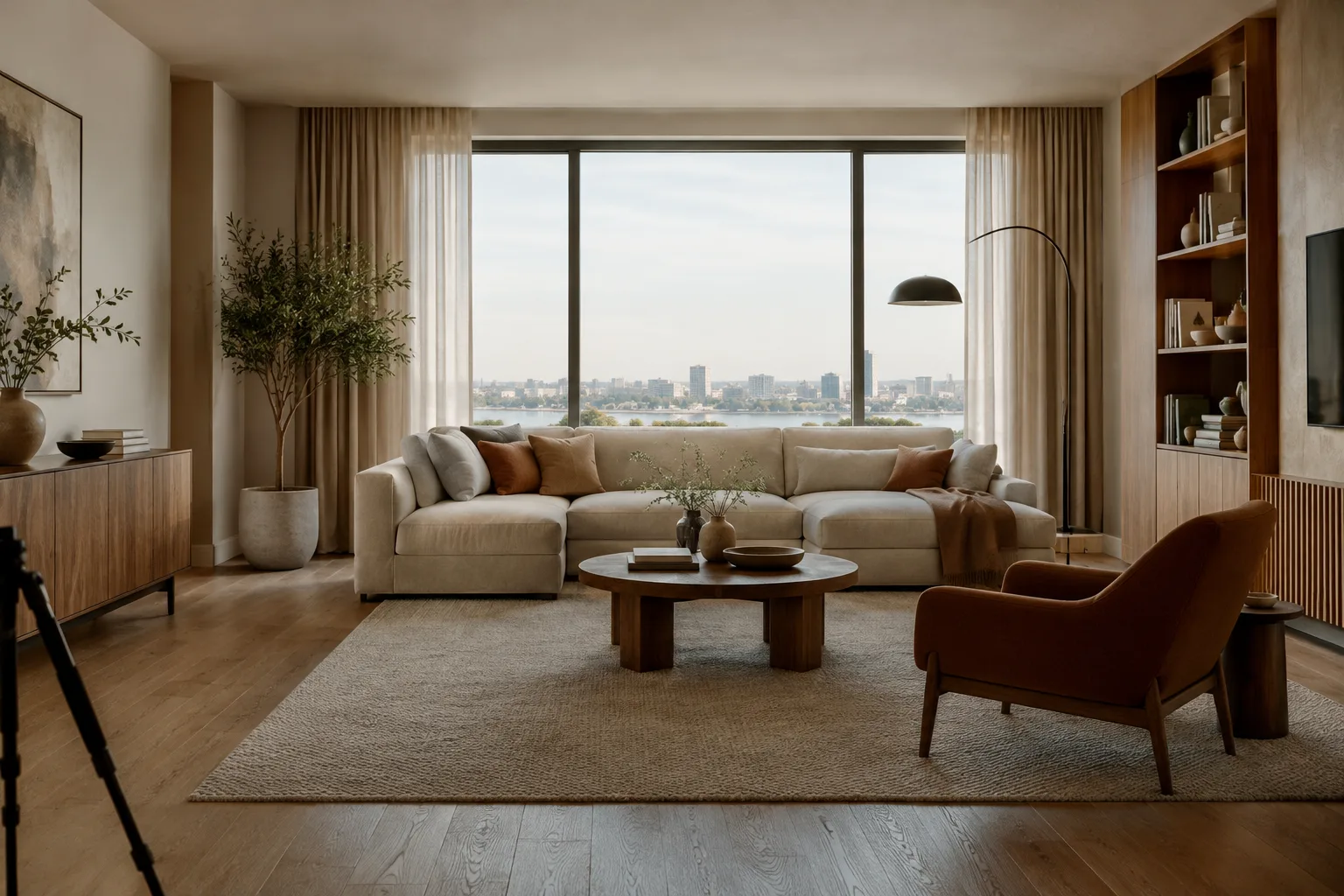
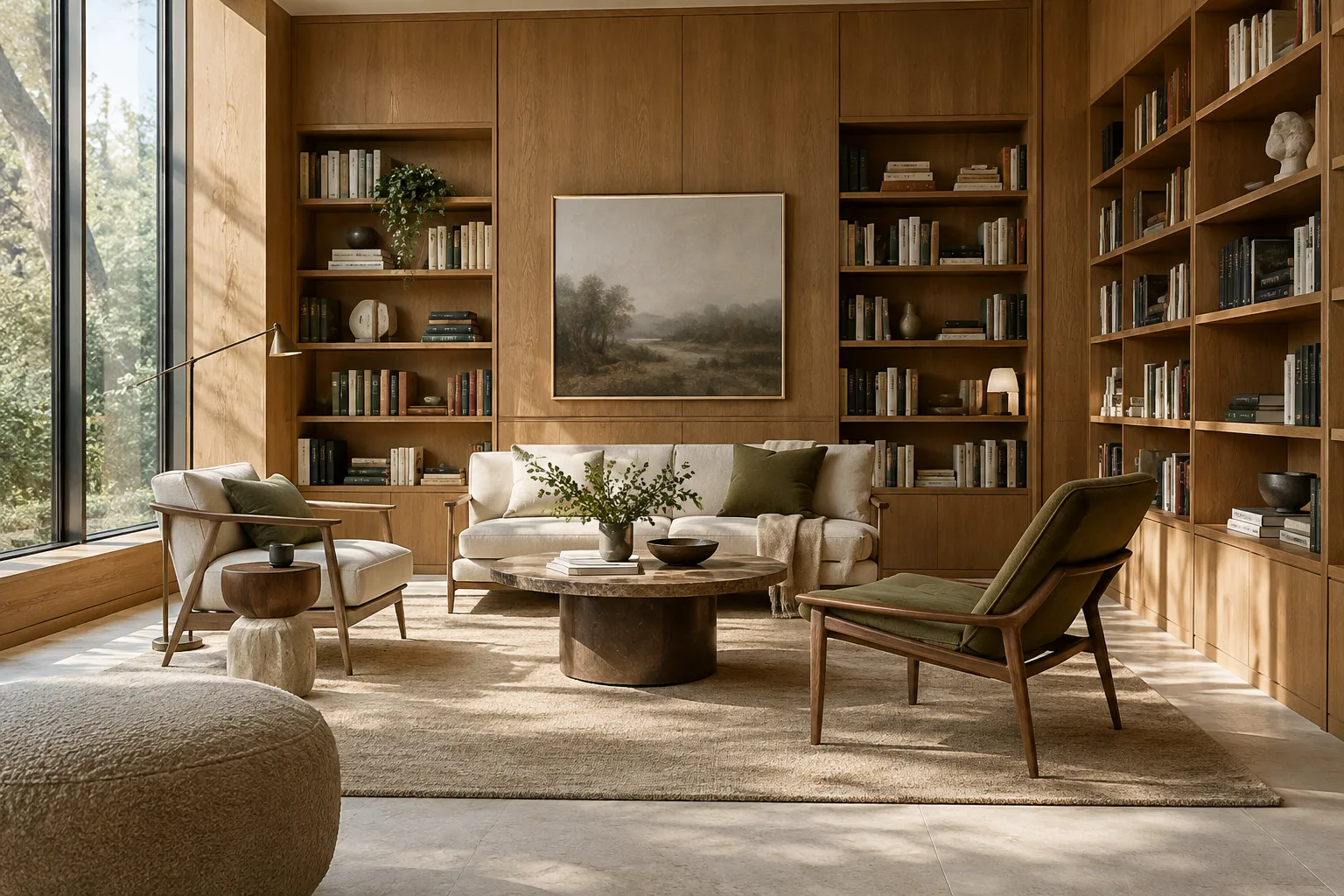
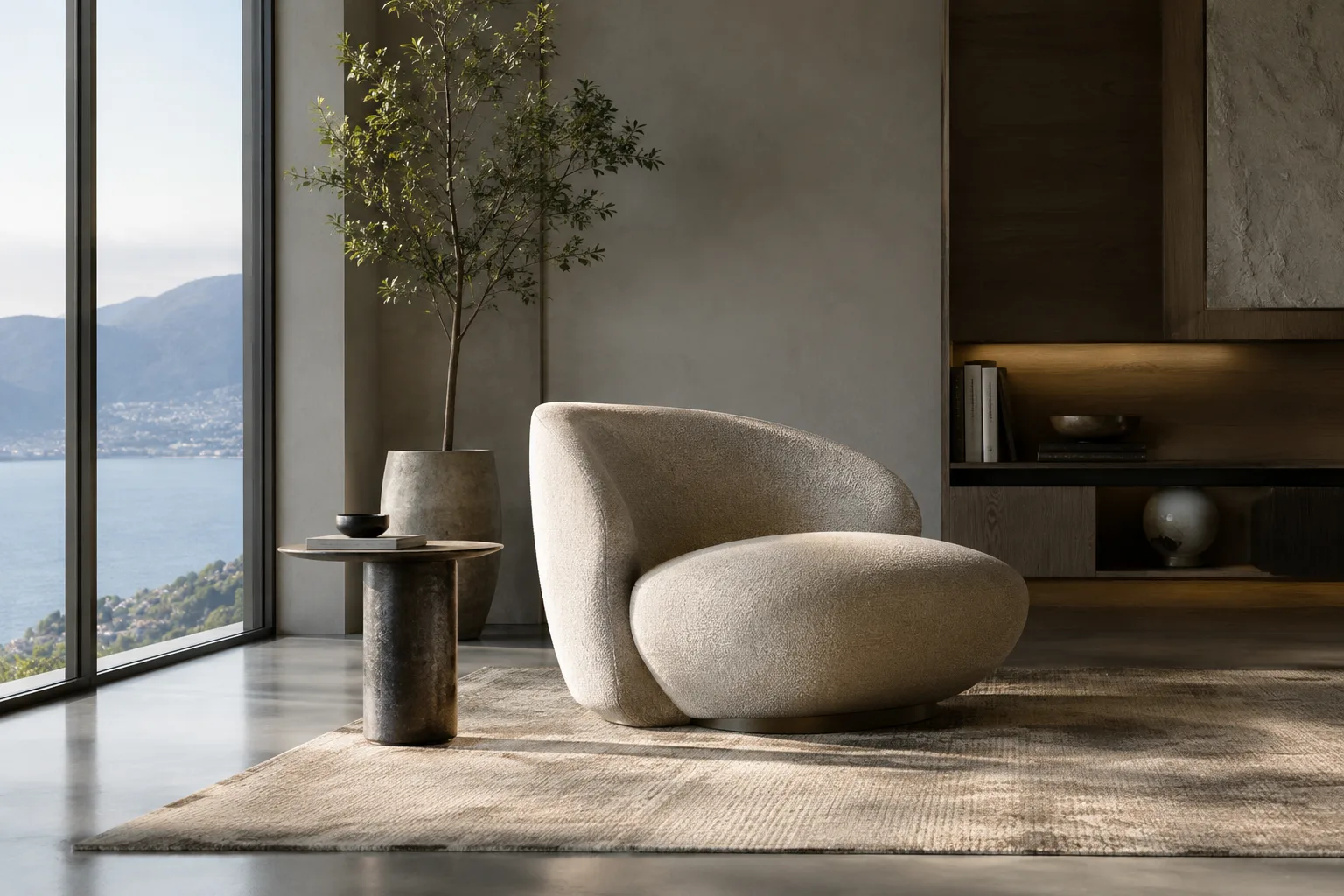
Nano Banana 2.1 is one of the models available for image generation and editing in the Gemini API. Google’s documentation describes improvements to image quality, typography, multi-turn consistency, and grounding in Google Search. The model can work at 1K, 2K, and 4K resolutions. This guide explains how to generate architectural and interior concept images with text prompts, then provide an existing image as input and request a specific change.
The goal is to explore a design idea visually and develop alternatives. Generated results should not be treated as technical drawings, dimensioned models, or construction documents. They can instead serve as sketches and communication tools to help discuss design decisions.
Requirements and model selection
The examples are based on the Python workflow in the Gemini API documentation. The source uses the Google GenAI Python SDK, PIL for working with image files, and base64 for encoded image data. It shows creating an API client with genai.Client(). The REST example uses an API key named GEMINI_API_KEY in the request header. Since the documentation does not specify a particular SDK version, hardware requirements, or pricing, no assumptions should be made about them.
When selecting the model, make sure to enter the correct API name: Nano Banana 2.1’s model ID is gemini-nano-banana-2.1. Google recommends Nano Banana 2.1 for new projects. The source says the model can generate images at 1K, 2K, and 4K resolutions, but does not describe a parameter or interface step for selecting a particular resolution.
If you plan to work with an image, make sure you have the rights to use it. Google reminds users that they must have the necessary rights to any images they upload. The documentation also explicitly states that generated images include a SynthID watermark.
Step-by-step architectural image generation
Set a single design goal. For your first attempt, choose a space type, an atmosphere, and a few key materials. For example, a small café interior might feature daylight, light-colored wood, and natural stone. Rather than combining many conflicting directions, state clearly what should stand out in the image.
Create an architectural concept image of a compact neighborhood café interior. Show a calm seating area, pale oak furniture, a light stone counter, and soft daylight entering from the street-facing windows. Keep the composition focused on the relationship between the counter and the seating area. Use realistic materials and natural shadows.This prompt describes the space’s function and the key relationships in the image. After reviewing the first result, it is usually easier to work in a controlled way by choosing one element to change rather than describing the entire scene again from scratch.
Describe the visual priorities and point of view. An architectural idea is more than a list of materials. You can also describe which part of the image should stand out, how people will relate to the space, and how the scene should read. Since the source does not document camera parameters or a specific framing command, this guide uses natural language rather than technical camera settings.
Create a concept image of a small apartment living room with a clear view from the entrance toward the main window. Show a compact dining table near the kitchen and a quiet reading corner beside the window. Use warm neutral materials and keep the room uncluttered.This prompt emphasizes the spatial view from the entrance toward the window and the relationship between the two activity areas. When reviewing the result, consider whether the layout communicates the design intent; do not assume functional accuracy based on the image alone.
Provide an existing image as input and request an edit. The Gemini API documentation shows an image-editing workflow that combines text and an image as inputs. This can be used to request changes to the color, materials, or a specific element in a concept image. The prompt below is written for use with an existing interior image.
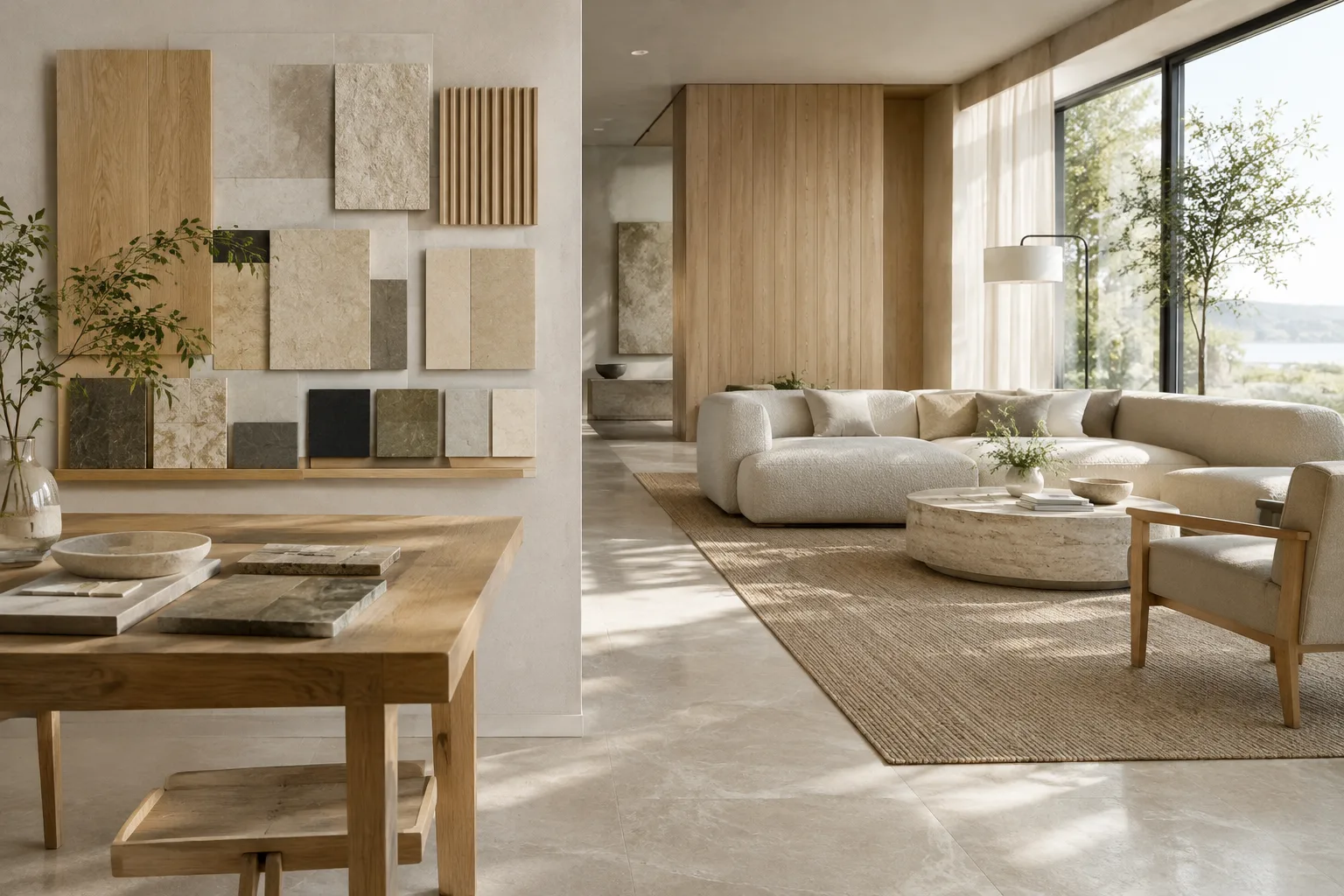
Using the provided interior image as the reference, change the wall finish to light natural stone. Keep the room layout, furniture positions, window openings, and overall composition unchanged. Preserve the existing daylight direction and make the new surface fit the scene.When adding the image to an API request, you need to send the image data along with the text. The official example shows reading an image file, converting it to base64, and specifying the image type. File-transfer details may vary depending on the language and API workflow; Google also refers users to its image-understanding documentation for different image types and larger uploads.
Break edits into small iterations. Multi-turn consistency is one of the improvements highlighted in the model documentation for Nano Banana 2.1. This may be useful when making successive edits, but each result should still be checked. Addressing the material first and lighting in a later turn makes it easier to understand the effect of each change.
Keep the current room layout and material palette. Adjust only the daylight so the interior feels softer and more evenly lit. Preserve the existing furniture, openings, and composition.This example clearly states the intention to preserve the previous image and change only one quality. Since there is no guarantee that the model will follow instructions perfectly every time, compare the new result with the previous version and clarify the request if necessary.
Common pitfalls
Requesting too many changes at once: Changing the layout, materials, lighting, and atmosphere in a single prompt can make it difficult to tell which instruction affected the result. Start with the main design goal, then try changes in separate iterations.
Failing to say what should stay the same in an existing image: Explicitly stating which parts of the layout, openings, or furniture must remain unchanged defines the scope of an edit. The output still needs to be checked.
Confusing the result with technical accuracy: Image generation does not verify dimensions or construction details. Assess design suggestions separately against project drawings and the necessary technical checks.
Uploading images with unclear usage rights: Make sure you have the necessary rights to use an image as a reference. Google’s documentation also warns against generating content that could infringe on rights.
Overlooking text in the image: Although typography improvements are noted for the model, you should not assume that all text in an image will be correct. Check any text intended for a presentation separately.
Where does it fit in an architecture and visualization workflow?
Architects, interior designers, and visualization teams can try Nano Banana 2.1 for early concept exploration, discussing material alternatives, and exploring visual directions based on an existing reference image. The ability to edit using text and image inputs makes it possible to explore different material or atmosphere options when a starting image is available. However, the sources do not describe direct integration with specific 3D software, scene-file transfer, or the creation of dimensioned models.
Before moving into production, verify API access, terms of use, and current pricing separately; the source does not provide pricing here. Hardware requirements are also not specified, so no definitive conclusions can be drawn about local computer specifications. Decisions about sharing client and office data in project images should also be considered in line with team policies.
Next steps
Start by generating an image from a text prompt for a single design idea. Then use an image as input and request just one change to the material or lighting. Compare the two results side by side and note which descriptions communicate the design intent more effectively. If you are using the API, follow Google’s image-generation and image-editing examples; for complex text-and-image outputs, also bear in mind that a single convenience feature may not cover every part of the output.
Sources and license
This guide has been adapted into Turkish based on information in Google’s Gemini API image-generation and model-list documentation. Both sources are licensed under CC BY 4.0.
Sources
2 sourcesSource texts are not republished; short quotes are marked, everything else is our own summary and commentary.
For architecture firms and students in Turkey, Nano Banana 2.1 offers a space for visual experimentation that can speed up early-stage ideation and the exploration of alternative material descriptions. In particular, requesting individual changes to an existing image could make it easier to discuss options in design meetings.
At the same time, API use and costs should be assessed separately based on how often teams expect to use the tool; the source does not specify pricing or hardware requirements. Positioning generated images as concept communication rather than technical or construction documents is essential for using the output responsibly.
Frequently asked questions
What is Nano Banana 2.1’s model name in the Gemini API?
The model name is listed as gemini-nano-banana-2.1.
Can Nano Banana 2.1 edit an existing interior image?
The Gemini API documentation shows how to provide an image together with a text prompt to request adding, removing, or changing an element, or adjusting colors.
What resolutions can Nano Banana 2.1 generate images at?
Google’s documentation lists 1K, 2K, and 4K resolutions.