In brief
- Nano Banana 2.1 is among the models available in the Gemini API for image generation and conversational editing.
- The official guide lists 1K, 2K and 4K resolution options for Nano Banana 2.1.
- You can include an existing image with a text prompt to request edits.
- Google says generated images include a SynthID mark.
What you’ll learn in this guide
This tutorial outlines a workflow for creating architectural concept images and requesting edits to existing visuals using Nano Banana through the Gemini API. The goal is to describe the atmosphere, material palette and framing of an interior in text, then request changes based on the initial image if needed. The example prompts here are written specifically for architecture and interior design; they do not guarantee a particular result or accurate dimensions.
Google’s documentation uses the name Nano Banana for a family of models that enable image creation and interaction with images through Gemini. Nano Banana 2.1 is described as the current primary option for generation at 1K, 2K and 4K resolutions, as well as multi-turn editing. The older Imagen model is no longer available in the Gemini API; Google recommends switching to Nano Banana models for image generation.
Requirements and model selection
You need access to the Gemini API to start this workflow. In the official REST example, the request is sent to https://generativelanguage.googleapis.com/v1beta/interactions using an API key named GEMINI_API_KEY. The documentation also includes examples for Python, JavaScript, Java, Go and REST. This guide does not require a specific operating system, graphics card or local software version; the sources do not specify any such hardware requirements.
You need to specify the model name in the API request. The guide recommends gemini-nano-banana-2.1 as an efficient primary option for image generation and conversational editing. Nano Banana 2 Lite is positioned for tasks where speed and cost are priorities; it is noted that the model is not optimized for multiple reference inputs or successive edits. Nano Banana 2 is the previous-generation high-efficiency option, while Nano Banana Pro is offered for more complex image tasks. Review the model descriptions to find the right fit; don’t assume that every model has identical capabilities.
Step-by-step architectural image generation
Define the image’s purpose. An atmospheric image for a presentation board and a material variation of an existing design are different needs. For the first, describe the space type, framing, lighting and desired visual style; for the second, clearly state which elements should remain unchanged.
Make the initial prompt specific. Rather than using a broad description such as “a beautiful interior,” describe the space, viewing direction, material character and lighting together. The example below starts an atmospheric exploration for a residential living area:
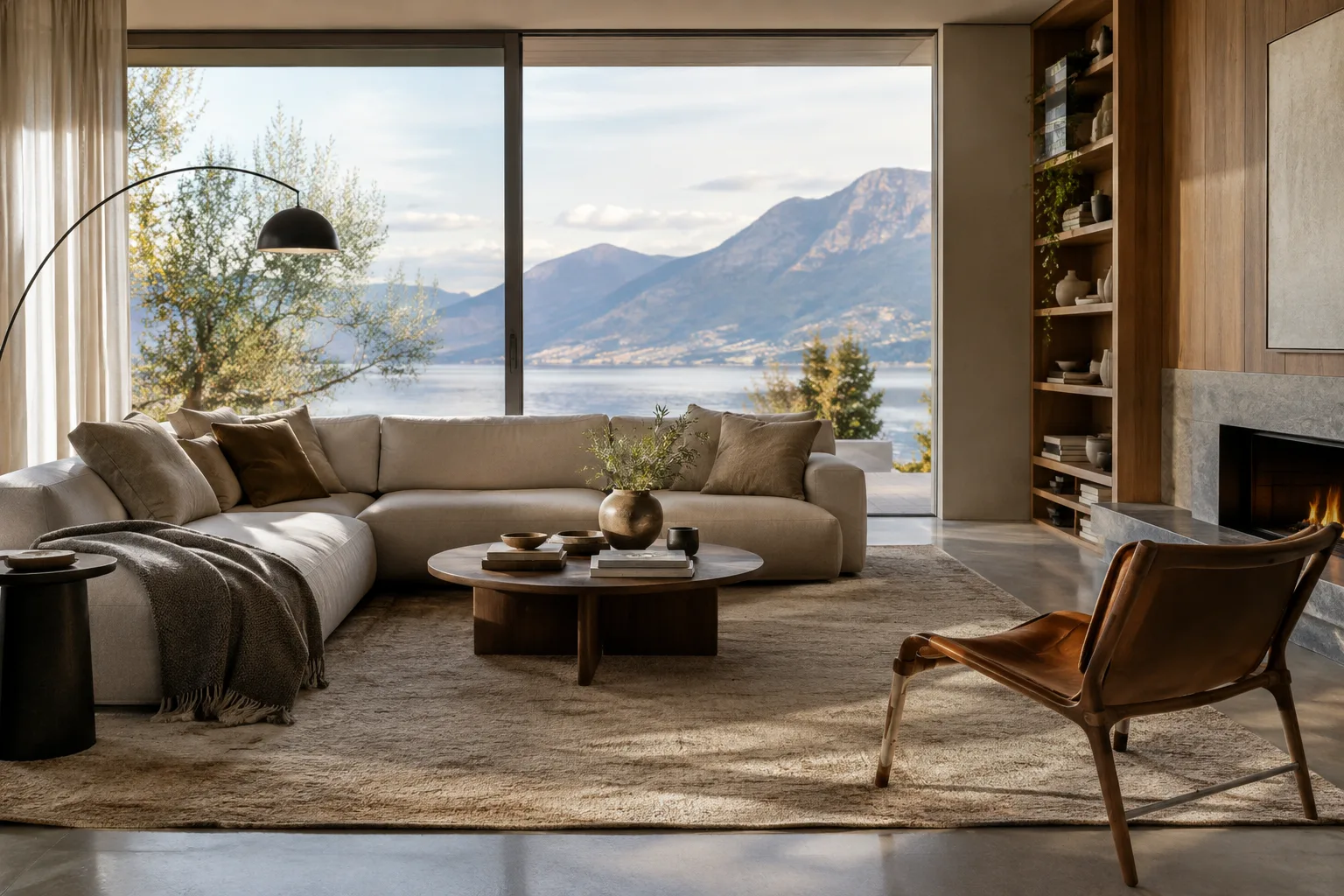
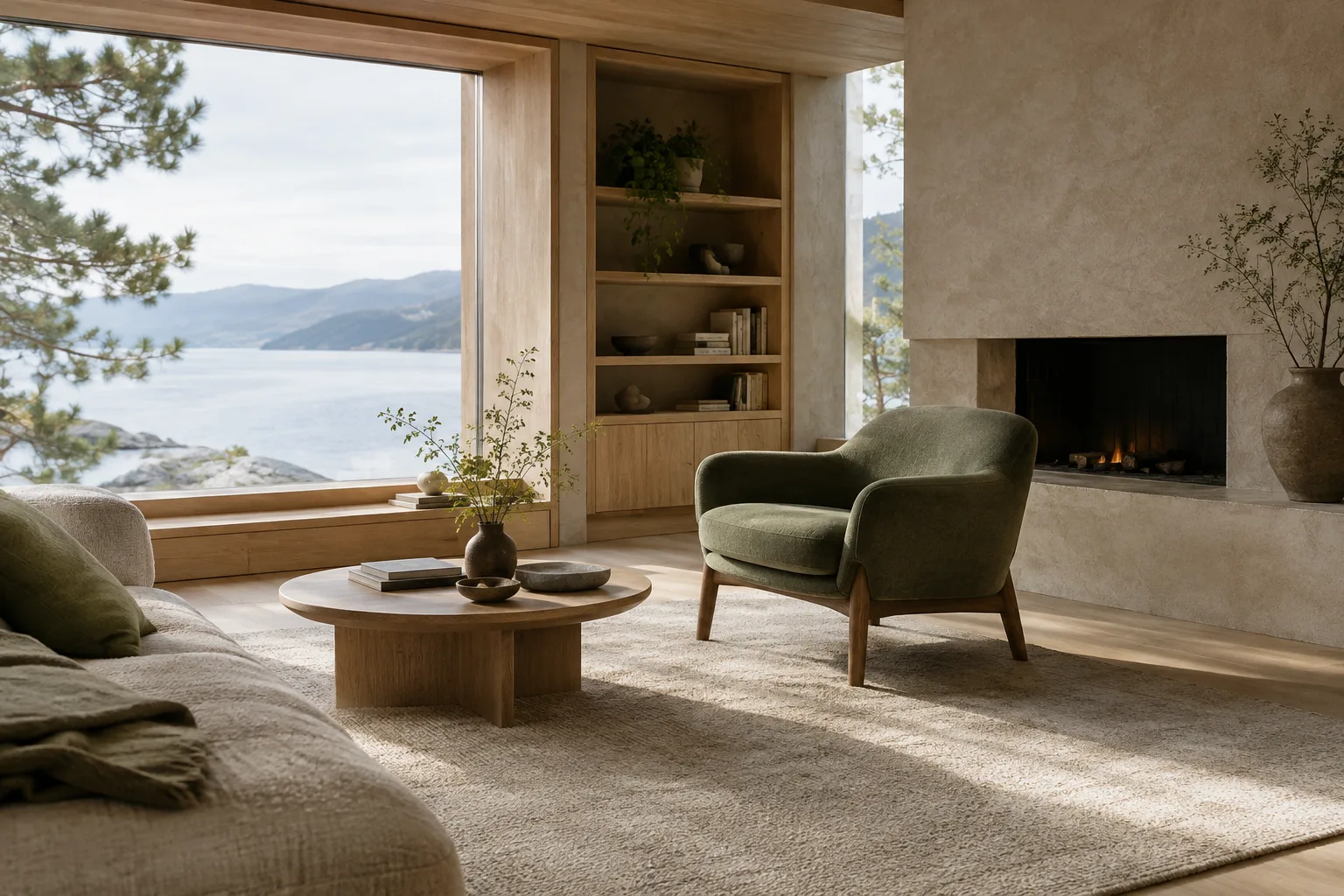
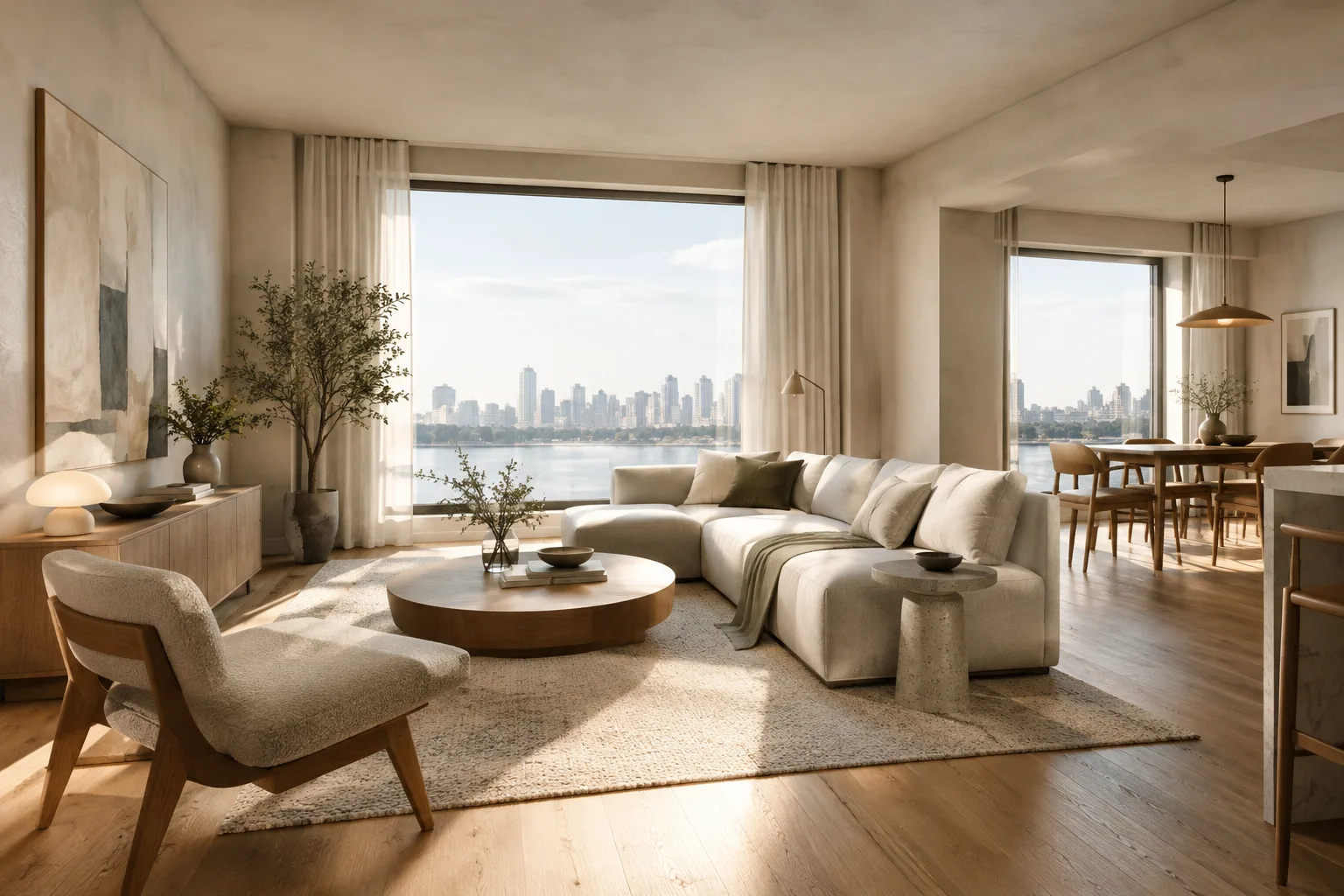
Create an architectural visualization of a calm contemporary apartment living room in Istanbul, viewed from the entrance at eye level. Use pale oak flooring, warm off-white plaster walls, a deep green upholstered sofa, and a large window with soft overcast daylight. Keep the layout believable, the furniture understated, and the materials tactile. Wide landscape composition, realistic architectural photography.This prompt describes the space, location, eye-level view, key materials and lighting. Treat the first output as a draft to help establish a direction, not as a final project image. If the composition is off, clarify one element in a new round rather than rewriting the entire prompt from scratch.
Request an interior variation. When comparing alternative atmospheres for the same space, specify exactly what should change. In the example below, the layout stays the same while the materials and lighting change:
Create a second interior concept for the same apartment living room. Keep the camera position and overall room layout consistent, but replace the green sofa with a muted rust-colored sofa, use light travertine on the coffee table, and introduce warmer late-afternoon sunlight. Preserve a quiet, residential atmosphere and avoid decorative clutter.Instructions such as “keep the same camera position” or “preserve the layout” describe the intended result; they do not guarantee that the model will preserve every detail exactly. Check important project decisions and dimensions separately in the design file.
Work with an existing image. The official guide explains how to provide an image along with text to request additions, removals or changes to elements, as well as style and color adjustments. Include the image data and the appropriate MIME type in the API request. You can use a draft render, collage or another image for which you have usage rights as a reference.
Edit the provided interior image. Keep the room geometry, camera view, window positions, and existing furniture arrangement unchanged. Change the wall finish to warm lime plaster and the floor to natural oak. Keep the original daylight direction and make the material changes subtle and realistic.This prompt aims to change only the specified surfaces in the reference image. If the geometry or framing changes in the output, restate the elements that must remain unchanged more explicitly in the next request. Asking for one main change per round makes the result easier to evaluate.
Save and review the output. In the Gemini API examples, the generated image data is retrieved from the response and saved to a file. With complex responses that combine text and images, convenience accessors may not return every part; in that case, inspect the response steps separately. Google says that generated images include a SynthID watermark.
Common mistakes
Packing too many goals into one prompt: If lighting, materials, camera, decor and intended use all change at once, it can be difficult to tell which instruction affected the result. Establish the main composition first, then request controlled changes.
Being vague about the reference image’s role: Including an image alone is not enough. State separately in the text what should be preserved and what should change.
Choosing a model that doesn’t fit the task: Nano Banana 2 Lite is described as an option for tasks where speed and cost are priorities; the documentation specifically notes that it is not optimized for multiple references or successive edits. Check the model description in advance if you plan to work with multiple images.
Treating the image as technical project data: The sources do not say that a generated image can replace a dimensioned model, drawing or construction detail. Verify design decisions and dimensions in the project documents.
Uploading images without checking usage rights: Google advises users to ensure they have the necessary rights to use uploaded images and to avoid content that could infringe on others’ rights.
Where it fits in architecture and visualization workflows
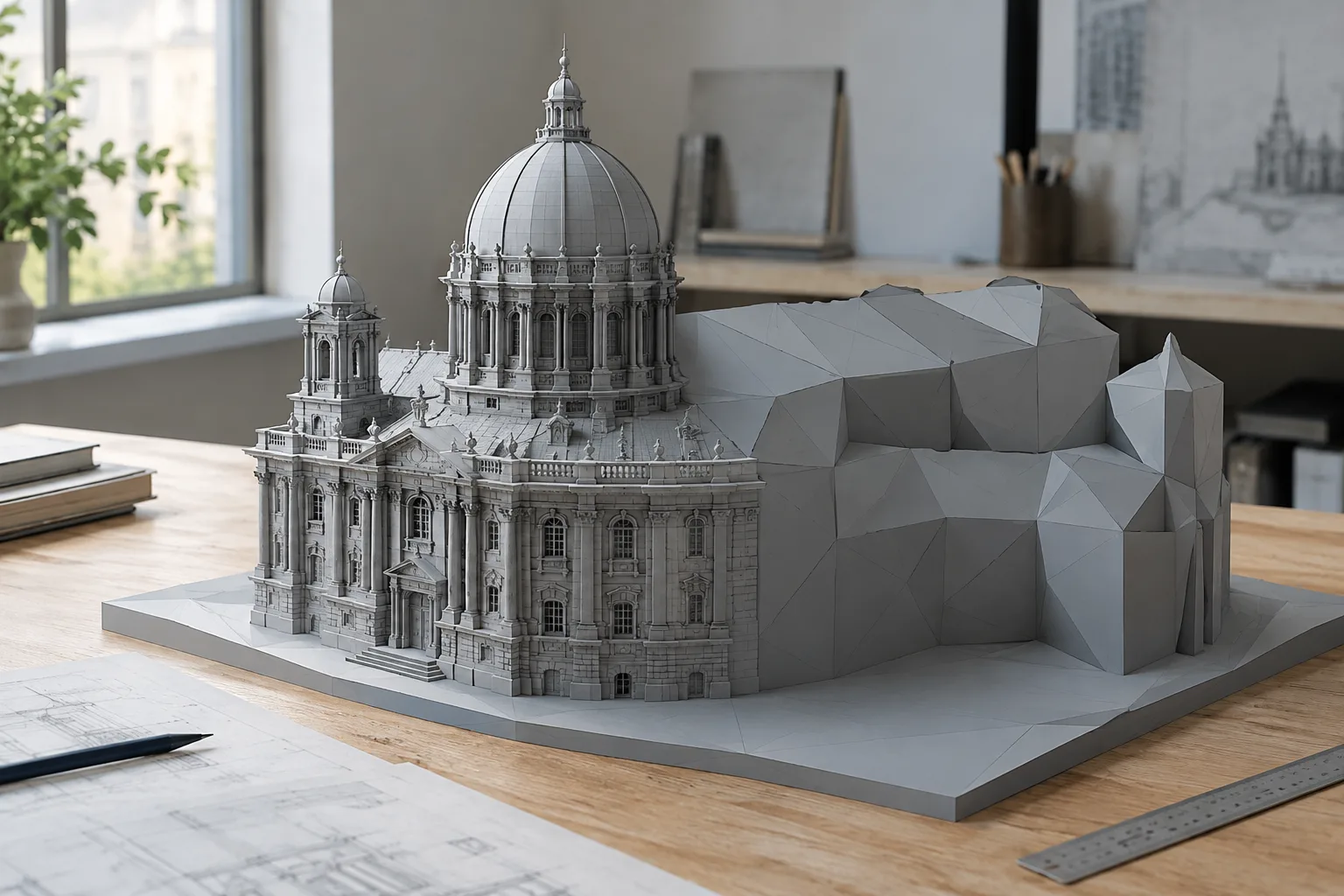
This approach can help architects, interior designers and visualization teams exploring atmosphere and material direction, especially in the early concept stage. Transforming a draft image with text can be useful for comparing color or surface options. However, the use case described in the sources is image generation and editing through the Gemini API; no direct transfer to a particular 3D application or modeling workflow is promised.
Offices should decide in advance how API access, model selection, image rights and the use of outputs in projects will be handled. The resolution options listed for Nano Banana 2.1 can be assessed against presentation needs; since the sources do not provide pricing, API costs should not be assumed. The documentation also does not specify local hardware requirements for image generation. Design accuracy, geometry and technical details should be checked with separate tools.
Next steps
Start by preparing two prompts for different atmospheres in the same room, changing just one variable—such as lighting or materials—to compare the results. Then add an image you have the rights to use as a reference and describe what should stay and what should change in separate sentences. Before using the API, check the official documentation for current model names, the selected model’s reference-image and editing capabilities, and the terms of use. Follow the current model and request format in the Nano Banana documentation rather than examples for the older Imagen workflow.
Sources and licensing
This tutorial is a Turkish adaptation of Google’s Gemini API image generation guide and Imagen migration information. The Imagen migration page (K1) is licensed under CC BY 4.0. The provided text does not specify the license for the Nano Banana image generation guide (K2), so no licensing claim is made for that source. The example prompts were written specifically for architectural and interior design scenarios.
Sources
2 sourcesSource texts are not republished; short quotes are marked, everything else is our own summary and commentary.
For offices and students in Turkey, this approach can be a practical aid when exploring alternatives for atmosphere and materials, especially in the early design stages. The ability to edit an existing image makes it possible to explore a direction from a draft rather than starting from scratch.
However, the sources do not specify API costs, so pricing and licensing terms should be checked separately before use. Although the resolution options for Nano Banana 2.1 are listed, an image is not a substitute for dimensioned project data. It is important to verify geometry and technical decisions, respect the rights associated with uploaded images, and review the selected model’s reference-image editing capabilities.
Frequently asked questions
Can you generate architectural images with Nano Banana 2.1?
The Gemini API’s image generation capabilities support creating images from text. Generating concept images with architectural and interior design prompts can be one application of these capabilities.
Can you edit an existing interior image with Nano Banana?
Yes. The official guide explains how to edit an image using text instructions, including requests to add, remove or change elements, and to adjust style and color.
Which resolutions does Nano Banana 2.1 support?
Google’s guide describes image generation with Nano Banana 2.1 at 1K, 2K and 4K resolutions.