In brief
- Nano Banana is the name used for Gemini’s native image generation and editing capabilities.
- The Gemini API model ID for Nano Banana 2.1 is listed as gemini-nano-banana-2.1.
- The API supports both generating images from text prompts and editing uploaded images with text instructions.
- The official documentation mentions 1K, 2K, and 4K resolutions for Nano Banana 2.1, but does not provide pricing information.
What will you learn in this guide?
This hands-on guide is for anyone looking to create concept images for architectural and interior design projects or experiment with editing an existing image. Nano Banana is the name for Google’s native image generation capabilities in Gemini. The Gemini API documentation presents Nano Banana 2.1 as the current model, with the model ID gemini-nano-banana-2.1.
The steps cover generating an image from a text prompt through the API and editing a reference image using text instructions. The examples are based on clearly describing architecturally relevant details in the prompt, such as space type, materials, lighting, and framing. It’s important to treat the result as a visual concept rather than a drawing, dimensioned model, or construction document: the sources do not say that the model technically validates architectural drawings.
Requirements and model selection
You need access to the Gemini API. Google’s image generation guide includes examples for Python, JavaScript, Java, Go, and REST. The Python example uses the google.genai client, while the REST example adds an API key to the request header. Since the documentation excerpt does not specify the SDK installation command, package version, or pricing, check the current API documentation for those details.
For new projects, the documentation recommends Nano Banana 2.1. The model description mentions efficiency, text generation, multi-turn consistency, and Google Search grounding, as well as 1K, 2K, and 4K resolutions. The source does not explain which parameter or menu path to use to select these resolutions. The examples below therefore show how to structure prompts, not how to select a resolution.
Google’s documentation says image generation can be initiated in the Gemini API with a text input. The output_image field in the API response returns the final generated image block. To edit an image, you can include both text and an image in the prompt. Make sure you have the rights to use any images you upload.
Step by step: preparing a prompt for an architectural image
1. Define the image’s purpose and scene
Rather than simply asking for “a modern interior,” describe the type and purpose of the space, along with the visual character you want. Then add materials, lighting, and framing. Google’s prompt design guide recommends clear, specific instructions and specifying any necessary constraints. The example below brings these details together in a single prompt for a residential living space.
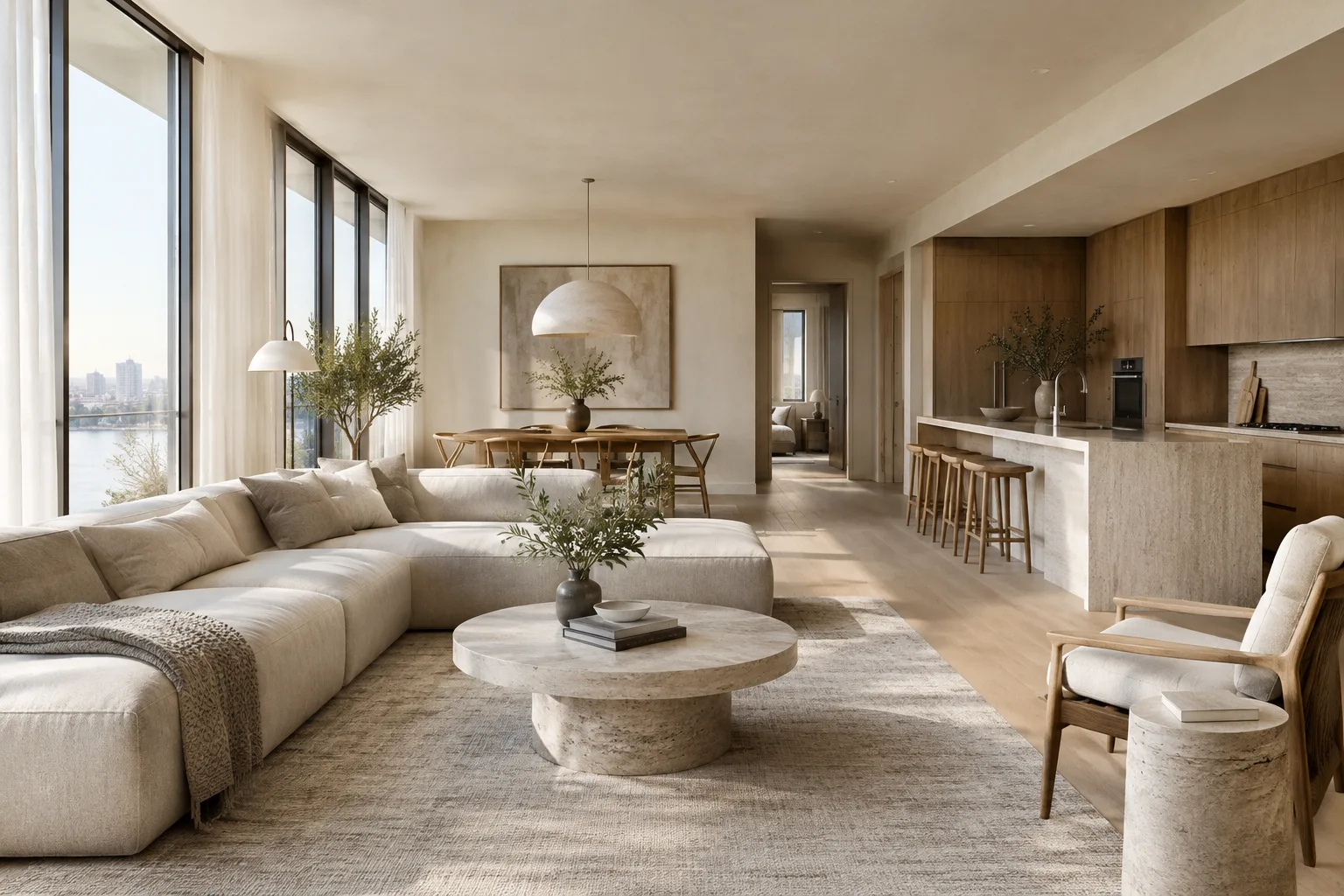
Create a photorealistic architectural visualization of a calm contemporary living room in a compact urban apartment. Use pale oak flooring, warm off-white plaster walls, a low modular sofa in natural linen, and a restrained palette of stone and muted green. Soft morning daylight enters from a large side window. Show the room from eye level in a wide, balanced composition. Keep the architecture simple and the materials clearly readable.This is an image generation prompt; it does not mean the model has validated a particular plan or dimension. The first result helps establish the overall atmosphere of the space. In subsequent iterations, keeping the main characteristics of the scene while changing one variable at a time makes it easier to assess the differences.
2. Specify materials and lighting clearly
The second example focuses on the surface language and daylight character of an interior. Instead of relying on general adjectives such as “luxurious” or “natural,” specify which materials go where. The constraints and clarity principles in the prompt design guide also provide a more controlled starting point for visual descriptions.
Create a photorealistic interior visualization of a small boutique hotel lobby. Use honed travertine on the reception desk, dark stained oak wall panels, a terrazzo floor with subtle aggregate, and brushed metal details. Let diffuse afternoon daylight enter from the glazed entrance, with soft shadow transitions and a quiet, welcoming atmosphere. Frame the reception area at eye level; keep the materials distinct and avoid decorative clutter.This prompt describes the framing, time of day, key surfaces, and unwanted visual clutter together. These are creative directions added to the prompt to help visualize design decisions; the source does not present them as a dedicated material control feature.
3. Edit a reference image with text
If you have a photograph of a space or a concept image that you have the rights to use, you can add it to the API input alongside text instructions. The official guide explains that an existing image can be reworked using text prompts. This makes it possible to transform the overall appearance of a scene or change how specific surfaces and colors are perceived. The prompt below is an editing example that explicitly asks to preserve the reference image’s layout.
Edit the provided interior image. Keep the room layout, camera viewpoint, window positions, and furniture placement unchanged. Change the floor finish to pale natural oak and the wall color to warm off-white. Preserve the existing daylight direction and create a restrained, realistic architectural visualization. Do not add furniture or decorative objects.During editing, list the elements to preserve separately from the surfaces you want to change. There is no guarantee that the model will follow every instruction perfectly on each try, so compare the result with the reference image. Rather than requesting several changes at once, try adjusting the materials first, then the color or atmosphere. This makes it easier to see which instruction affected the result.
4. Iterate in small steps
Gemini can work conversationally with images and text, and the documentation also describes iterative image editing. Rather than treating the first result as final, specify a single adjustment in your next prompt. For example, a limited request to soften the lighting or change the color of a particular surface gives you a more measurable test than describing the entire scene again.
Keep the current room composition and all furniture in place. Make the daylight softer and reduce the contrast of the shadows. Keep the existing oak floor and warm off-white walls unchanged.In follow-up prompts like these, explicitly name the elements that should not change. This clarifies which image features are expected to remain unchanged. Still, evaluate the outputs as alternatives for visual research and presentation, not as technical validations that replace design decisions.
Common mistakes
Relying on vague descriptions: Prompts such as “a stylish interior” don’t make your expectations for materials and lighting clear. Be specific about the scene, surfaces, and framing.
Changing everything in one prompt: Changing the layout, lighting, and materials at the same time can make the result difficult to evaluate. Break changes into stages.
Ignoring rights to reference images: Google reminds users to have the necessary rights to uploaded images. Check that you have permission to use them.
Confusing model names: The API model ID for Nano Banana 2.1 is
gemini-nano-banana-2.1. The documentation also lists earlier-generation options, but recommends 2.1 for new projects.Treating the output as a technical document: The sources do not mention features for checking dimensions, structural systems, or code compliance. Keep the image within the scope of concept evaluation.
Next steps
Try the same prompt with a few different material or lighting descriptions, then compare the results side by side. Focus on one design variable in each editing round and separately list the features you want to preserve. Teams generating images through the API can review how to save the image returned in the output_image field in the official examples; the documentation also notes that more complex text and image outputs may require additional steps.
The official page states that generated images include a SynthID watermark. Before using an image commercially or in a client presentation, also review usage rights and your project team’s approval process. Since the source text does not explain pricing or API usage costs, plan your budget using current pricing information.
Sources and licensing
This guide has been adapted into Turkish using Google AI for Developers’ “Nano Banana image generation” and “Prompt design strategies” guides, and includes original prompt examples for architectural and interior design workflows. Both sources are licensed under CC BY 4.0.
Sources
2 sourcesSource texts are not republished; short quotes are marked, everything else is our own summary and commentary.
For architecture firms and students in Turkey, Nano Banana 2.1 can be considered a visual tool for quickly exploring material and atmosphere alternatives during the early concept stage. Editing an existing image with text can be especially useful for exploring ideas, but the output should not be treated as a dimensioned drawing or technical validation.
API access and cost are among the points teams should review before adding the tool to their workflow. Since the sources provide no pricing or hardware requirements, budget and technical suitability should be verified separately. Teams should also check usage rights for uploaded references, obtain client approval, and confirm that changes to an image have not compromised the design intent.
Frequently asked questions
What is the Gemini API model ID for Nano Banana 2.1?
The model ID is listed as `gemini-nano-banana-2.1`. The official documentation recommends Nano Banana 2.1 for new projects.
Can Nano Banana 2.1 edit an existing interior image?
The Gemini API supports working with an image provided alongside text instructions. This method can be used to change the image’s content, style, or color appearance.
Is pricing and resolution information available for Nano Banana 2.1?
The documentation mentions 1K, 2K, and 4K resolutions, but the source text does not specify API pricing.