In brief
- Nano Banana 2.1 is available in the Gemini API for image generation and conversational editing.
- The model ID for API use is gemini-nano-banana-2.1.
- Along with a text prompt, you can also provide an image as input to the model.
- Google reminds users to have the necessary rights to uploaded images and to follow its content policies.
What you’ll learn in this guide
Nano Banana is the name of Google’s image-generation capabilities within Gemini. The Gemini API documentation describes Nano Banana 2.1 as its primary high-efficiency model for image generation and conversational editing. This guide covers the basic steps for using the model in an architectural visualization workflow: requesting a new image with a text prompt, providing an existing image as a reference, and refining the result with follow-up instructions.
This doesn’t replace design decisions. The model can help produce quick visual explorations of massing, materials, lighting, and atmosphere, or visualize a presentation concept. The source does not say that the model edits CAD/BIM files or produces dimensionally accurate technical output, so don’t treat the resulting image as a verified representation of project geometry or technical documentation.
What you need: software, model, and access
The workflow runs through the Gemini API. The source identifies gemini-nano-banana-2.1 as the API model ID for Nano Banana 2.1. Google’s examples cover Python, JavaScript, Java, Go, and REST. The source does not specify a particular software version or the pricing terms for API access, so don’t assume these; check current access and cost information through your API account.
In the Python example, a genai client is created from the google package, and a text input is passed to the interactions.create call along with the model name. The image output is retrieved from the output_image field and written to a file. In the REST example, the request is sent to the Gemini API endpoint, with GEMINI_API_KEY used for authentication. These steps, given as examples in the source, explain the basic approach to working with the API; no installation commands or account menus not included in the documentation have been added here.
For image editing, you can submit a text instruction and an image together in the same request. The documentation shows image data being sent in Base64 format, with the MIME type specified. You must have the necessary rights to use any image you upload.
Step by step: generate a new architectural image
Describe the scene. Clearly specify the building type, viewpoint, key materials, lighting, and surroundings in your prompt. Describe what should appear in the image instead of relying on a single broad adjective.
Start with a prompt. The following is an original example written for architectural visualization:
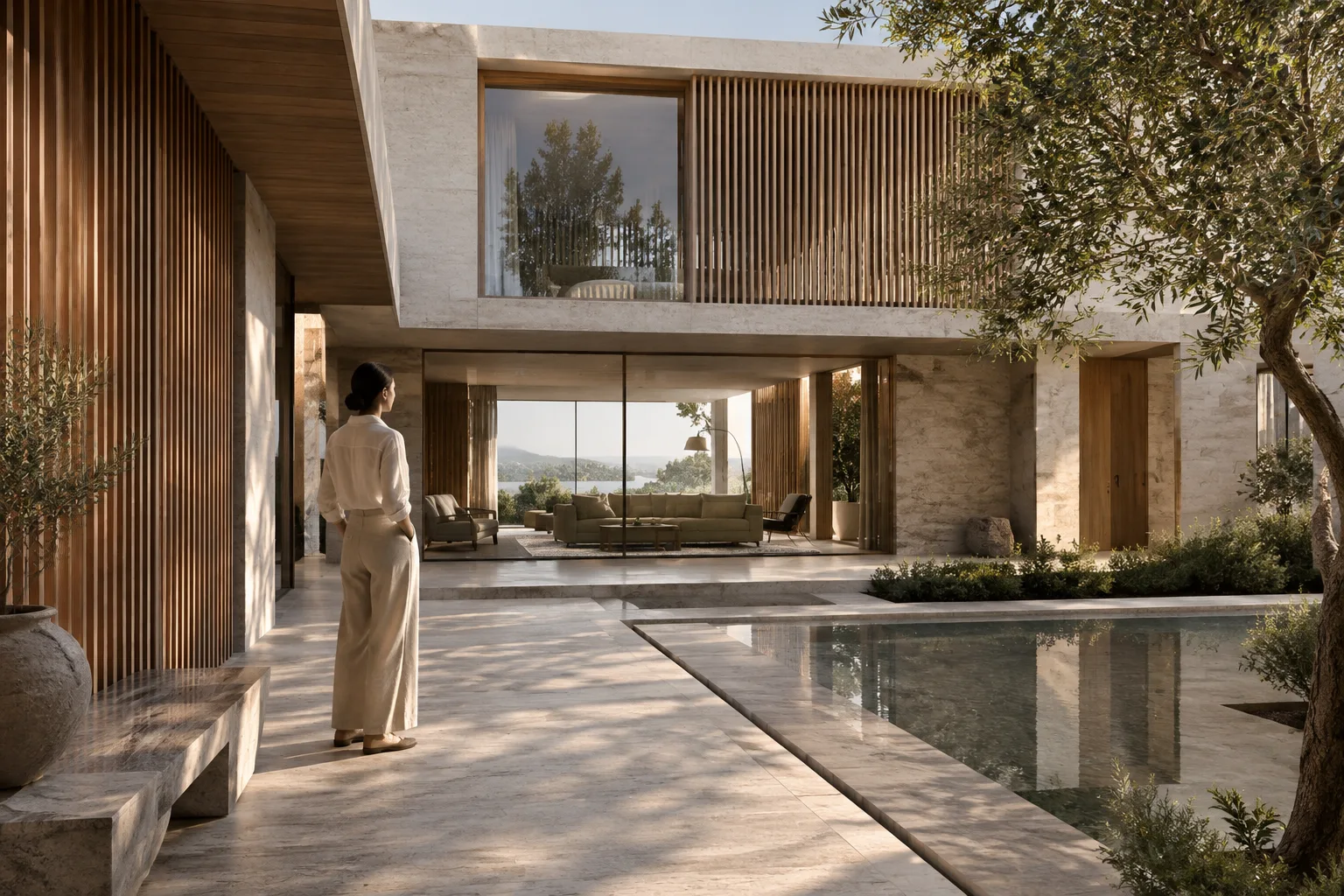
Create a photorealistic architectural visualization of a compact contemporary courtyard house, viewed from eye level across the garden. Use pale limestone walls, a dark timber screen, large clear glazing, restrained planting and soft overcast daylight. Keep the composition calm and make the building the main subject.The material and lighting descriptions tell the model what direction you want the image to take. Treat the first output as a visual draft to evaluate, not as a definitive design decision.
Review the output and describe one change. For example, rather than rewriting the whole scene, ask to adjust the density of the planting or the quality of the daylight. Google says the model supports multi-turn conversational editing, allowing you to work through successive instructions on the same image.
Keep the architecture, camera position and materials unchanged. Make the courtyard planting less dense, with more visible ground surface, and soften the daylight slightly.This prompt clearly limits what should change and separately identifies what should remain unchanged. That makes the scope of the revision easier to understand. However, the source does not guarantee that every element will remain exactly the same in each output.
Edit an existing image using it as a reference
You can include a sketch, design image, or another image you have the right to edit in an API request alongside a text prompt. In Google’s example, the image is sent as Base64 data with its MIME type; the output can again be retrieved from the output_image field. This approach uses an existing image as a starting point rather than describing a scene from scratch.
Describe the change you want to make to the reference image. The prompt below is written to preserve the main design features while requesting a specific change in atmosphere:
Use the provided architectural image as the reference. Preserve the building form, openings and camera view. Change the scene to a warm late-afternoon atmosphere with gentle interior light visible through the glazing. Do not add people or signage.This instruction requests a change to the lighting atmosphere while preserving the reference image’s form and framing. Specifying both what should change and what should remain unchanged in the same prompt makes the editing goal clear. However, the source does not present exact preservation of every image detail as a guaranteed feature.
Evaluate the result again. Compare the areas that changed with those you asked to preserve. If the requested edit isn’t clear enough, describe just the relevant point more specifically in the next turn. Generated images and edits should be reviewed by the design team; they should not be treated as standalone evidence of dimensions, material performance, or code compliance.
Common mistakes
Relying on vague adjectives: Instead of using broad terms such as “beautiful,” “modern,” or “realistic” on their own, describe the building type, materials, lighting, and viewpoint.
Asking for too many revisions in one prompt: Requesting many changes at once can make it harder to determine which instruction affected the result. Focus on the highest-priority change in each iteration.
Assuming the reference will be preserved: Providing an image as input doesn’t mean all geometry or details will necessarily remain unchanged. Compare the result with the source image.
Uploading images without checking rights: Google reminds users to have the necessary rights to uploaded images and not to generate content that infringes on others’ rights.
Treating the generated image as technical output: The source does not say the model produces BIM/CAD geometry or technical drawings. Use the image for ideation and presentation.
Next steps for architectural and interior design workflows
Architects, interior designers, and archviz teams can try Nano Banana 2.1 to quickly explore different atmospheres, material qualities, or presentation directions. Editing with a reference image lets you work from an existing idea, while text-to-image generation helps visualize a scene description. The practical value depends on how much the output supports design decisions.
API access, usage costs, and image rights are all factors to consider in an office workflow. The source does not provide pricing or specific hardware requirements, so no definite assumptions should be made about them. Using an image-generation model does not replace the modeling or verification stages in architectural software. As a next step, the team could run controlled tests using the same reference, have the design team review the generated images, and check the API terms of use.
Source and license
This guide was prepared by adapting information from Google’s Gemini API image generation documentation into Turkish. The source is licensed under CC BY 4.0. The example prompts were written specifically for architectural use in this guide.
Sources
1 sourceSource texts are not republished; short quotes are marked, everything else is our own summary and commentary.
For architecture and visualization offices in Turkey, one of Nano Banana 2.1’s most practical strengths is the ability to generate new images from text and edit existing images through conversation. It could support team discussions, especially in the early stages when exploring atmosphere and presentation direction; however, it does not replace a technical model or dimensioned drawings.
Before making a decision, offices should assess API access, usage costs, and rights to uploaded images. The source does not specify pricing or hardware requirements, so actual terms should be checked before integrating the tool into a workflow. Reviewing outputs with the design team should also be part of the process.
Frequently asked questions
What model ID is used for Nano Banana 2.1?
The Gemini API documentation lists gemini-nano-banana-2.1 as the model ID.
Can Nano Banana 2.1 edit an existing image?
Yes. You can provide an image as input to the Gemini API alongside a text instruction; the model supports prompts for editing images.
What hardware is required for Nano Banana 2.1?
The source documentation does not specify any particular hardware requirements.