In brief
- Google’s guide recommends including the subject, composition, action, setting, style, and editing instructions in prompts.
- According to Google’s guide, you can use natural-language instructions to edit specific parts of an existing image in Gemini; for example, you can change the color of a piece of furniture.
- Combining elements from multiple images into a new composition is one of the use cases described in the source.
- Google notes that text in images may be inaccurate and that the requested aspect ratio may not always be preserved.
What will you learn in this guide?
A good prompt for architectural image generation is more than just saying, “Draw a modern interior.” Describing what the image should show, how the framing should be composed, where the space is located, and what aesthetic approach to follow can help you make more controlled iterations. Google’s guide to image generation and editing also recommends building prompts from these kinds of components.
In this tutorial, we cover a workflow for visualizing an interior concept with Gemini, refining the first result through conversation, requesting specific changes to an existing image, and combining different references. The example prompts were created specifically for architecture and interior design work; you can copy them and use them as a starting point. Generated images should be treated as concept exploration, not as technical drawings, dimensioned models, or verified material decisions.
Requirements and preparation
Google’s published guide states that image generation and editing features are available through the Gemini app, AI Studio, and Vertex AI. This tutorial does not specify a version number, price, or special hardware requirements; current details on these are not provided in the source. Check that the interface you plan to use supports image generation and editing existing images.
Before you begin, describe your goal in one sentence. For example: “A calm, sunlit living area concept for a small apartment.” Then separate the elements you want to keep from the details you want to change. If you’re editing an image, add it to the conversation; if you’re generating one from scratch, specify the type of space, framing, lighting, and design language in your prompt.
You can use these six categories to build an effective prompt:
Subject: What space or object should be shown?
Composition: Do you want a wide angle, a close-up, or another framing?
Action: What is happening in the space—for example, is someone using the table, or are the curtains moving?
Setting: What environment or context does the image take place in?
Style: Are you aiming for photorealism, an illustrative look, or a particular atmosphere?
Editing instructions: Exactly what should change in the existing image?
You don’t have to include all six categories in every prompt. But stating the important decisions clearly makes it easier to identify what’s missing when you evaluate the result.
Step by step: Generate and edit an interior image
1. Define the space and framing
For your first attempt, choose a single type of space and a clear camera description. The prompt below is a starting point for image generation:
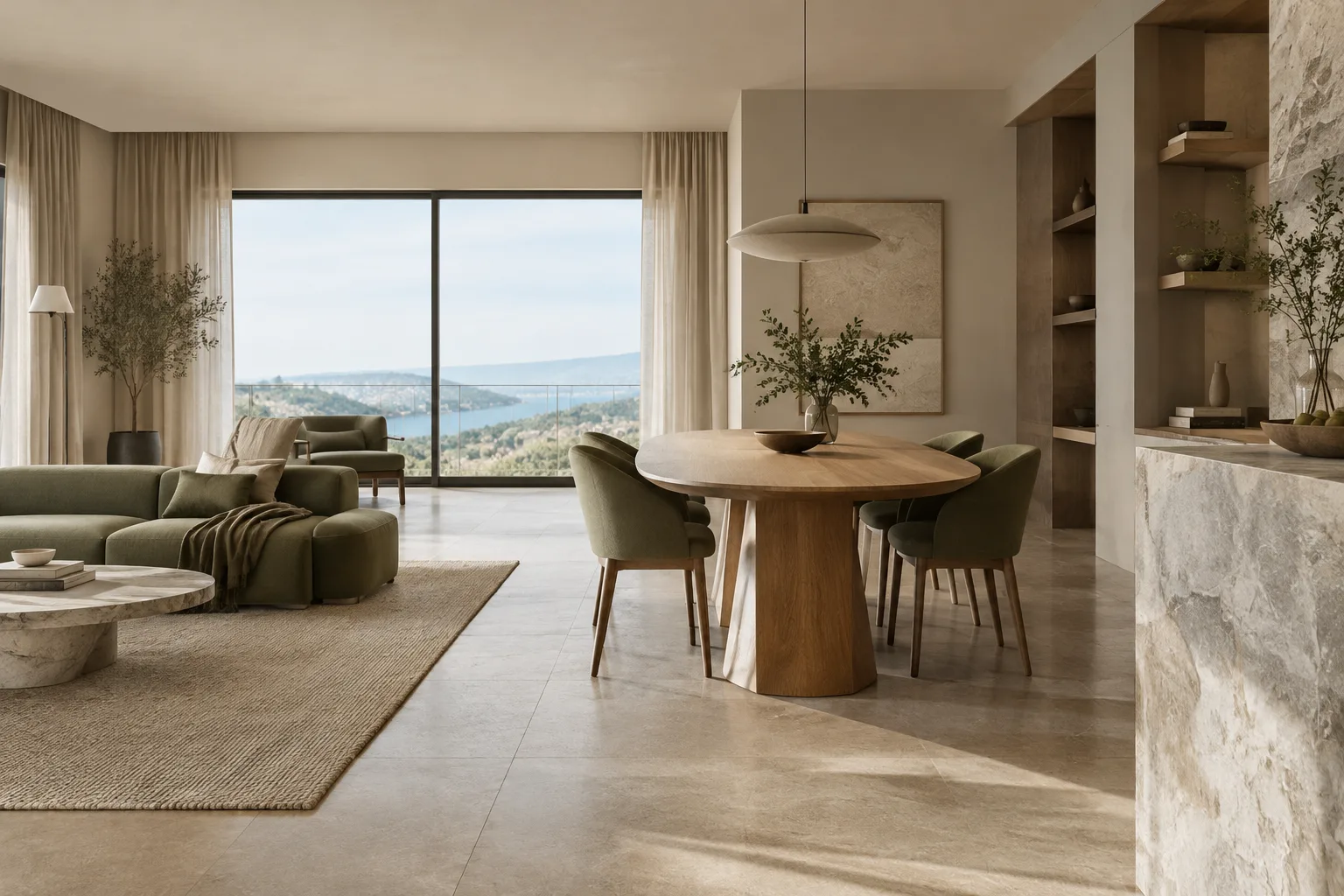
Create a photorealistic architectural visualization of a compact apartment living room in Istanbul, viewed from the entrance with a wide interior composition. Include a low oak coffee table, a neutral fabric sofa, built-in shelving, and soft daylight from a large window. Use warm natural materials and a calm contemporary interior design style. Keep the room uncluttered and make the spatial layout easy to read.This prompt describes the space, viewpoint, key furniture, lighting, and design approach separately. If something is wrong in the first result, don’t rewrite the entire prompt. Identify what information is missing and clarify only that in your next request.
2. Guide the overall mood of the image
After the first image, you can work on the lighting or material feel. Google’s guide also describes requests to change the style and appearance of an existing image. For example:
Keep the room layout and furniture placement unchanged. Make the daylight softer and more overcast, shift the color palette toward pale stone and muted green, and emphasize the natural texture of the wood. Preserve a realistic architectural visualization style.The key is to specify what you want to change while also stating what you want to preserve. However, there’s no guarantee that every detail of the image will remain unchanged; review the result and narrow your request if needed.
3. Target one element for editing
If you want to change just one piece of furniture or surface in an image, use a short, direct editing request:
Change only the sofa upholstery to a deep olive green fabric. Keep the sofa shape, room layout, lighting, camera angle, and all other objects unchanged.Google lists making changes to specific image elements through direct, clear requests among its use cases. Still, saying “only” doesn’t guarantee that every other detail will remain exactly the same; check the result, especially the furniture shape, surrounding surfaces, and lighting.
4. Make multiple changes in sequence
Instead of asking for many changes in a single prompt, break the edits into smaller steps. First adjust a material or color; then address another detail, such as accessories or lighting. For example, after the first change, you could use this prompt:
Add a small stack of design books to the coffee table. Do not change the table, sofa, room layout, window, or lighting.This makes it easier to track how each request affects the image. If you don’t get the result you want, returning to the last successful image and giving a clearer editing instruction can also make the process more manageable.
5. Combine two ideas in one image
Google’s guide also describes combining subjects and settings from separate images to create a new composition. For an architectural presentation, you could first prepare two separate concept images, then use them together in the same conversation and make a request like this:
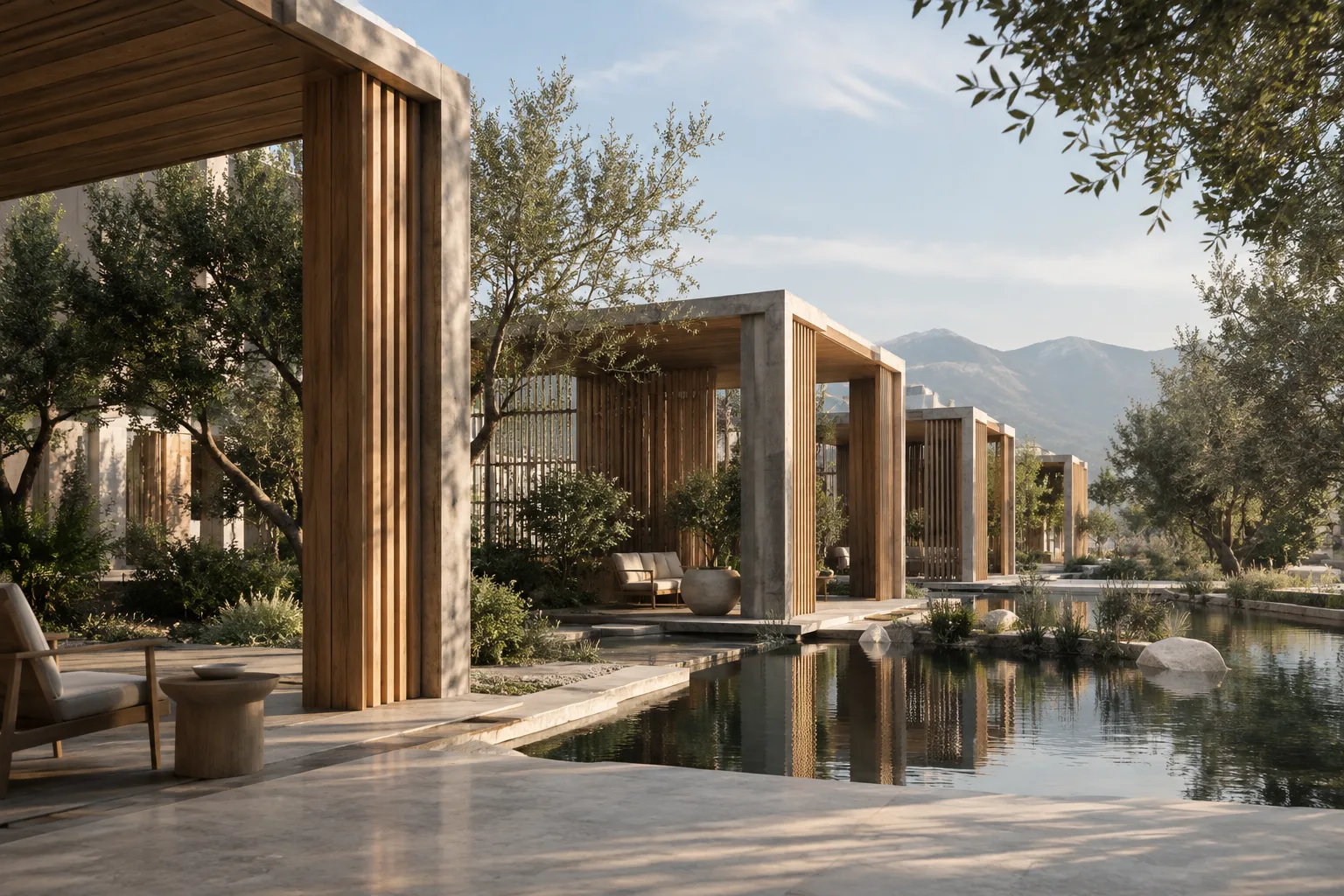
Combine the uploaded images into one coherent architectural concept image. Use the timber pavilion from the first image in the garden setting of the second image. Preserve the pavilion's recognizable form, match the lighting to the garden, and create a believable visual composition.This approach can help you explore design alternatives visually. Don’t assume that the resulting composite accurately represents the project geometry or material properties; treat it as a tool for developing ideas.
6. Review the result and narrow the prompt
After receiving the image, first review the overall composition, then the materials, colors, and smaller details. If there’s a problem with just one element, make a new editing request that describes only that element. If there are several issues, address them by priority rather than all at once. This makes the relationship between the prompt and the result easier to understand.
Common mistakes
Being too vague: Phrases like “a stylish living room” provide very little information about the subject. Specify the type of space, framing, key elements, and desired atmosphere.
Packing too many decisions into one prompt: Asking for changes to color, furniture, lighting, camera, and decor all at once can make it difficult to tell which request shaped the result. Break the changes into stages.
Assuming text will come out correctly: Review any letters and words in the image before presenting it; errors can remain in areas with dense typography. If accurate spelling matters, don’t treat generated text as an approved source.
Assuming the aspect ratio is guaranteed: Even if you specify dimensions in the prompt, the output may not preserve the same ratio. Check the image dimensions and crop before placing it in a presentation layout.
Expecting the visual style to stay consistent across attempts: Results can vary aesthetically. Verify material, color, and form decisions that are important to the project identity, and don’t treat a preferred output as a final presentation image without review.
Next steps: Using it in office and student workflows
Architects, interior designers, and visualization artists can use this approach during concept exploration, to generate alternative atmospheres, or to test different stylistic and color interpretations of a reference. Students can compare the same spatial concept using different framing and material descriptions. A generated image does not, by itself, validate a design decision; project tools and expert review are needed to check dimensions, details, regulations, and suitability for implementation.
In an office workflow, first decide which images are for concept exploration only and which materials will be presented to clients. Keeping prompts and selected results in project notes can help you trace design decisions later. Before uploading images from real projects, also review the terms of the service you’re using and your office’s data-sharing policy; the source guide does not make a detailed commitment on these matters.
Source and license
Adapted into Turkish based on Google’s guide “Tips for getting the best image generation and editing in the Gemini app.” Source license information: free to use. The architectural prompt examples in this tutorial are original, written for this article rather than copied from the guide.
Sources
1 sourceSource texts are not republished; short quotes are marked, everything else is our own summary and commentary.
For architecture and visualization teams in Turkey, this approach can help bring alternative atmospheres and materials into the conversation quickly, especially in the early design stages. Students can also practice writing prompts by comparing the same spatial concept using different descriptions.
However, the results shouldn’t be treated as dimensioned models or construction details. The source does not specify pricing or hardware requirements, so teams should check the current terms of the interface they use and their policies for uploading project images. Variations in text, aspect ratio, and visual style also make review essential before presenting the images.
Frequently asked questions
What should I include in a prompt when generating architectural images with Gemini?
Clearly describe details such as the subject, framing, action, setting, and style. When editing an existing image, also specify which element should change and which elements you want to preserve.
Can Gemini edit an existing interior image?
Google’s guide lists natural-language instructions for editing specific parts of existing images among the supported use cases. You should check whether the result preserves the other details.
Will text and aspect ratio in Gemini images come out correctly?
Google notes that there may be problems with text in images and with preserving the requested aspect ratio. Check text and image dimensions separately.