In brief
- Nano Banana 2.1’s model ID in the Gemini API is gemini-nano-banana-2.1.
- The model supports text-to-image generation and editing with text and image inputs.
- Google says the model can generate images at 1K, 2K, and 4K resolutions.
- According to Google’s documentation, all generated images include a SynthID watermark.
What will you learn in this guide?
This guide covers the basic steps for generating architectural concept images with Nano Banana 2.1 through the Gemini API. The examples range from describing a space in text to requesting changes to an existing image, and are intended for design development and early visualization work. The prompts do not provide verified information about a specific project or real place; they describe only the desired visual result.
Google’s documentation describes Nano Banana 2.1 as an efficiency-focused model for image generation and conversational editing. The company says it delivers improvements over the previous Nano Banana 2 in image quality, text generation, consistency across multiple turns, and grounding with Google Search, and supports 1K, 2K, and 4K resolutions. These are the developer’s claims; results may vary depending on the prompt and inputs.
Requirements
These examples are intended for use with the Gemini API. Google’s documentation includes image generation examples using Python, JavaScript, Java, Go, and REST. The explanation below follows the flow of the Python example; the prompts can also be used with another API client.
You’ll need Gemini API access and an API key to get started. Use gemini-nano-banana-2.1 as the model ID. The source shows a client being created with the google-genai library for Python, with the text input passed to an interactions.create call. Don’t assume an installation command, interface menu, or account requirement that isn’t specified here; check the API documentation for current technical details.
To edit an existing image, you need to pass the file to the API as an image input. Google reminds users that they must have the necessary rights to use uploaded images. Check permissions before using an image belonging to someone else.
Step-by-step image generation and editing
1. Describe the scene and scope
In your first prompt, describe the type of space, its key spatial features, materials, lighting, and framing. Clear, specific instructions provide a more controlled starting point than a vague request. The text below is a new example for text-to-image generation:
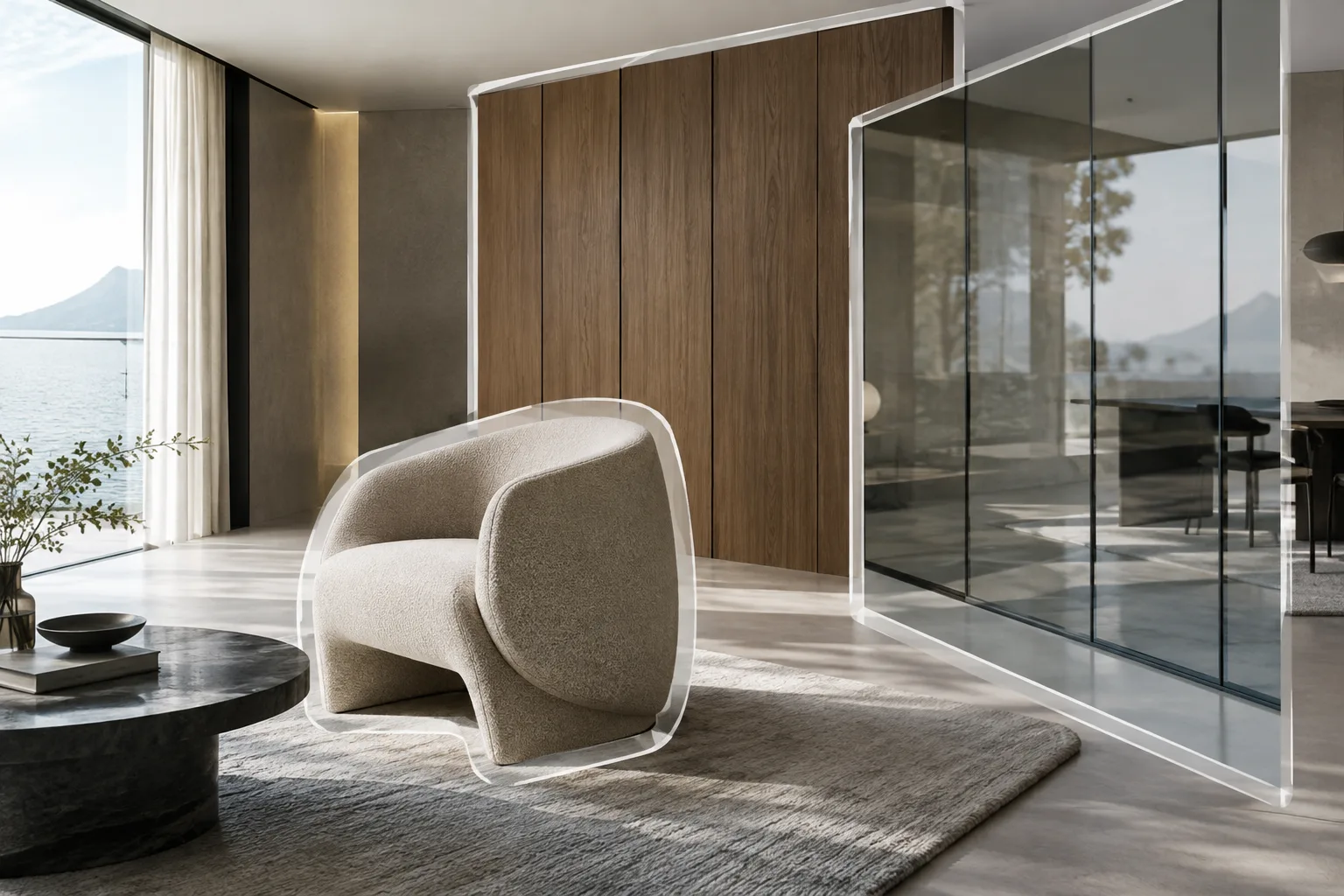
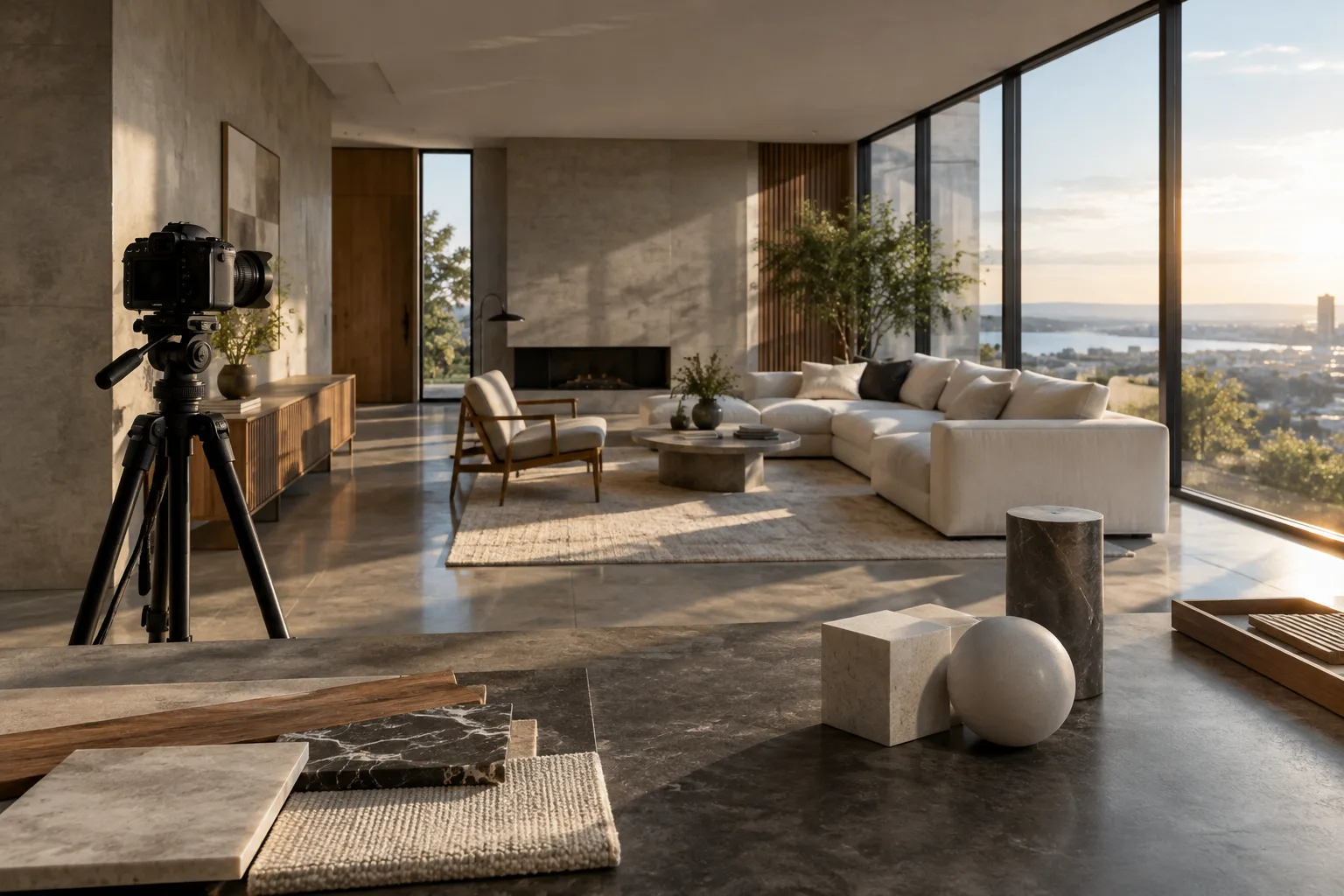
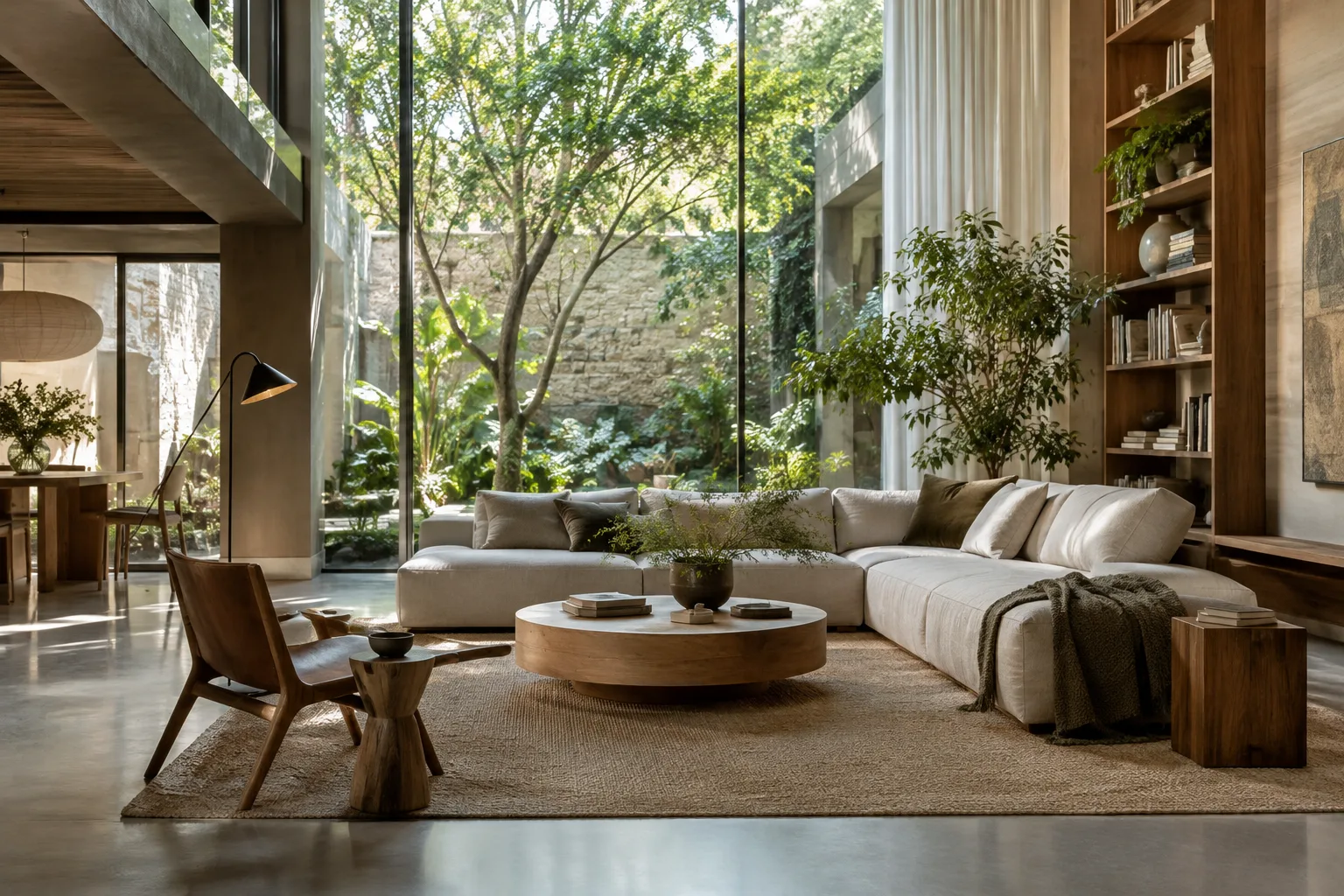
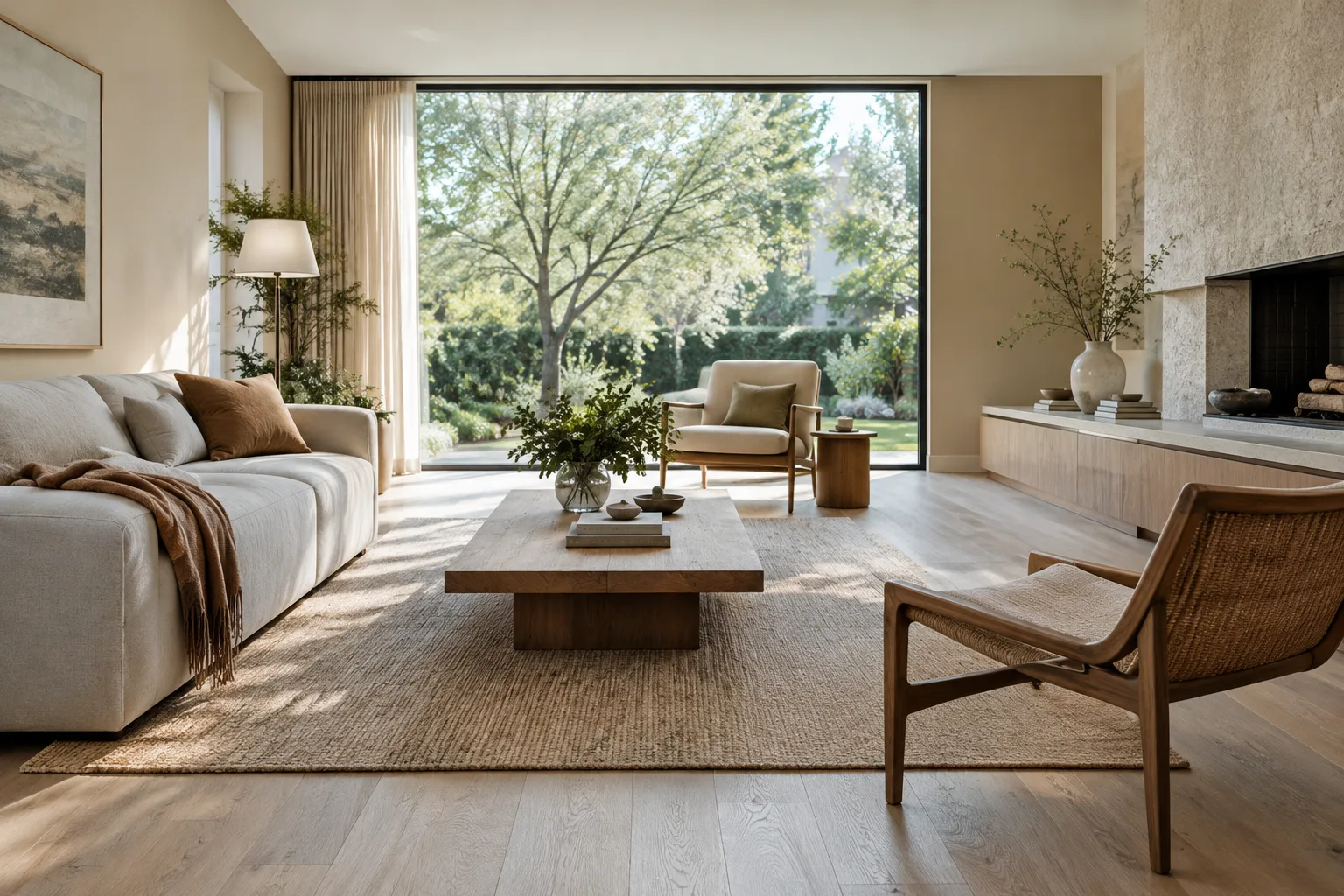
Fotogerçekçi bir çağdaş konut iç mekânı görselleştir. Açık planlı oturma alanında açık meşe zemin, mat kırık beyaz duvarlar ve sade, alçak profilli mobilyalar kullan. Büyük pencerelerden gelen yumuşak sabah ışığını göster. Kamera göz hizasında, geniş ama doğal perspektifte olsun. Kadrajda yalnızca oturma alanı ve pencere duvarı yer alsın. Malzemelerin dokusu gerçekçi, kompozisyon sakin ve mimari sunum için temiz olsun. Görselde yazı veya işaret bulunmasın.This description specifies the space, material palette, time of day for the lighting, and general camera position. After reviewing the first result, clarify only the elements that need changing in a separate turn instead of describing the entire scene again.
2. Target a single design variable
To explore material alternatives while keeping the first image’s overall composition, keep the editing request narrow. Include the image as an image input to the API alongside the text, and use the following prompt as the editing instruction:
Bu görseldeki plan düzenini, kamera açısını ve mobilya yerleşimini koru. Yalnızca zemin kaplamasını açık meşeden açık gri taş yüzeye dönüştür. Taşın ölçeği ve derzleri gerçekçi görünsün. Duvarları, pencereleri, ışığı ve diğer malzemeleri değiştirme.This example limits the scope to a single material change. Although the source documentation supports multi-turn editing, it does not guarantee that framing or every architectural detail will remain perfectly intact in every iteration. Check the result against your project criteria.
3. Use a separate turn for lighting and atmosphere
Once you’ve settled on the material choices, changing the lighting conditions can help you compare design decisions. Provide the same image as input and describe only the atmosphere this time:
Mekânın geometrisini, kamera konumunu, mobilyaları ve malzemeleri koru. Aydınlatmayı bulutlu bir öğleden sonranın yumuşak, dağılmış gün ışığına dönüştür. Sert gölgeleri azalt; pencere yönünden gelen doğal ışık hissini koru. Yeni ışık kaynağı, eşya veya mimari eleman ekleme.Listing the features that must remain unchanged at the end of the instruction defines the scope of the edit. Treat the generated image as an option for visual exploration and presentation, not as a technical drawing or lighting calculation.
4. Move from an interior concept to an exterior
When generating a new scene from text, you can specify the intended use and framing in the same prompt. For example, for a small-scale residential facade:
Fotogerçekçi bir mimari dış cephe konsept görseli oluştur: iki katlı, yalın geometrili bir konut; açık renk mineral sıva, doğal ahşap güneş kırıcılar ve geniş ama dengeli pencere açıklıkları. Yapıyı insan göz hizasına yakın, üç çeyrek açıdan göster. Ön planda sade bir bahçe ve alçak bitkilendirme bulunsun. Yumuşak gün ışığı, ölçülü malzeme dokuları ve sakin bir atmosfer kullan. Görselde yazı, tabela veya logo olmasın.This prompt does not claim that the design complies with a specific regulation, zoning condition, or real project. Before using the proportions and building elements shown in the image as design decisions, verify them separately against project data.
5. Keep revisions small and measurable
If the first result doesn’t meet expectations, identify the issue before rewriting the prompt: is it the framing, material, lighting, or elements in the scene? Google’s prompt guide recommends making instructions clear and specific, and describing constraints and the desired response format in the prompt. The following example focuses on a single element in the image:
Mevcut görseldeki duvar rengini sıcak beyaz yerine nötr açık gri yap. Kadrajı, pencere konumunu, zemin dokusunu, mobilyaları ve ışık yönünü koru. Başka hiçbir öğeyi ekleme veya kaldırma.Asking for several changes at once can make it difficult to tell which instruction affected the result. Break changes into stages, compare each output with the previous attempt, and remove unnecessary details from the prompt. Prompt design is an iterative process; the first description is a starting point for refinement, not a guarantee of a definitive result.
Common mistakes
Leaving the request vague: Phrases like “make a better interior” don’t define a target for materials, lighting, or framing. Specify what should be generated and which features should be preserved.
Changing too many things in one turn: Changing the lighting, materials, furniture, and camera angle together makes the result harder to evaluate. Choose one primary variable for each editing turn.
Treating the image as technical verification: The sources do not state that a generated image is an architectural calculation or a project compliance check. Review dimensions, construction systems, and project requirements separately.
Ignoring rights to input images: Google requires users to have the rights to use uploaded images. Check usage rights before sending a reference image to the API.
Assuming resolution and cost: The documentation mentions 1K, 2K, and 4K resolution options, but does not specify the cost of every use or the best option for a particular job. Check current API pricing and terms of use before generating images. According to Google’s documentation, all generated images include a SynthID watermark.
Where does it fit into an architecture and visualization workflow?
Architects, interior designers, students, and visualization teams can consider this approach for generating early concept alternatives, discussing material moods, or trying creative edits to an existing image. Working with text and image inputs makes it possible to start with a written scene description or bring a reference image into an editing workflow.
Using the API makes access and cost tracking part of the workflow. Since the source provides no specific hardware requirements, it’s not possible to make a definitive recommendation about local computer specifications. Offices and students should review design decisions and usage rights before presenting images as final project documents, and verify API terms and pricing in the current documentation.
Next steps
Try the same scene description with different lighting, material, or framing requests, changing only one primary variable per attempt. If you use input images, document permissions. Consult the Gemini API image generation documentation for how to retrieve generated image data from the API response and how to handle steps in complex outputs that contain both text and images.
Sources and license
This guide has been adapted into Turkish using Google’s Gemini API image generation and editing documentation and its prompt design guide. Both sources are licensed under CC BY 4.0. The sample architectural prompts are new text written for this guide, not copies of examples from the sources.
Sources
2 sourcesSource texts are not republished; short quotes are marked, everything else is our own summary and commentary.
Nano Banana 2.1 offers an API workflow that offices and students can try when discussing interior and facade alternatives at the concept stage. The ability to edit a reference image using text could make visual exploration more focused.
Before regular use in Turkey, check API pricing and terms of use carefully; the source provides no definitive pricing or local hardware requirements. It’s therefore more prudent to treat the tool as a controlled concept aid, not a replacement for technical project verification or final rendering. Image rights and the SynthID watermark should also be considered during delivery.
Frequently asked questions
What is Nano Banana 2.1’s model ID in the Gemini API?
The model ID is gemini-nano-banana-2.1. The documentation includes examples for Python, JavaScript, Java, Go, and REST.
Can Nano Banana 2.1 edit an existing architectural image?
Yes. The Gemini API documentation explains that you can provide an image alongside a text input and request that elements be added, removed, or changed, or that the style and colors be adjusted.
Do images generated with Nano Banana 2.1 have a watermark?
According to Google’s documentation, all generated images include a SynthID watermark.