In brief
- Google’s Imagen models are no longer available in the Gemini API; you need to switch to Nano Banana models for image generation.
- Google’s documentation recommends Nano Banana 2.1 for new projects, using the API model name gemini-nano-banana-2.1.
- Nano Banana 2.1 offers 1K, 2K, and 4K resolution options.
- You must have the necessary usage rights before using uploaded reference images.
What will you learn in this guide?
Nano Banana refers to Gemini’s image generation and editing capabilities. This guide covers the basic steps for creating architectural concepts or interior images through the Gemini API, how to write prompts, and how to use an existing image as a reference. The sample prompts were written specifically for architecture and interior design work.
The first step is choosing a model that suits your needs. Google’s API documentation recommends Nano Banana 2.1 for new projects. The model is available in the API as gemini-nano-banana-2.1; the documentation lists 1K, 2K, and 4K resolution options for image generation and conversational editing. These options may be worth considering for teams looking to create different image variations. However, generated images should not be treated as a substitute for technical drawings or project validation.
Requirements: model, access, and image
Google’s examples show image generation using Python, JavaScript, Java, Go, and REST. The Nano Banana 2.1 examples use the interactions flow. In the REST example, the API key is added to the x-goog-api-key request header; the example shows this value being read from an environment variable named GEMINI_API_KEY. The sources do not provide API pricing, so research costs separately before using the service regularly.
For text-to-image generation, send the model name and a text prompt describing the image. In the documentation examples, the image data in the response can be accessed through output_image; the Python example decodes this data from Base64 and writes it to a PNG file. The client and code structure may vary depending on the programming language you choose.
To edit an existing image, send it along with a text instruction. In Google’s example, the image is first converted to Base64 and added to the input along with its MIME type. Make sure you have the necessary usage rights for any uploaded sketch, photograph, or other image. Google also reminds users to comply with its generative AI service usage policies.
Architectural image generation, step by step
Define the purpose of the image. Are you exploring a residential facade, an interior atmosphere, or material options? Start by describing the scene’s function and core design idea in your prompt. Rather than packing many different goals into one request, define the primary visual objective first.
Describe the space, framing, and materials. Here’s a sample prompt that clearly specifies the building type, viewpoint, lighting, and material preferences:
Create a photorealistic architectural visualization of a compact urban courtyard house, viewed from the garden at eye level. Show the two-storey volume, a shaded entrance, a small planted courtyard, and a clear relationship between indoor and outdoor spaces. Use pale stone, warm timber, and restrained greenery in soft overcast daylight. Keep the composition calm and realistic, with no people and no signage.This example first describes the building type and viewpoint, then specifies the spatial relationship, materials, and lighting. Review the result after generation, and add only the missing visual quality to your next instruction. For instance, you could ask for the entrance area to take precedence over the garden in the framing.
Set the interior mood with a limited number of variables. You can describe the room, fixed elements, materials, and lighting in a single prompt:
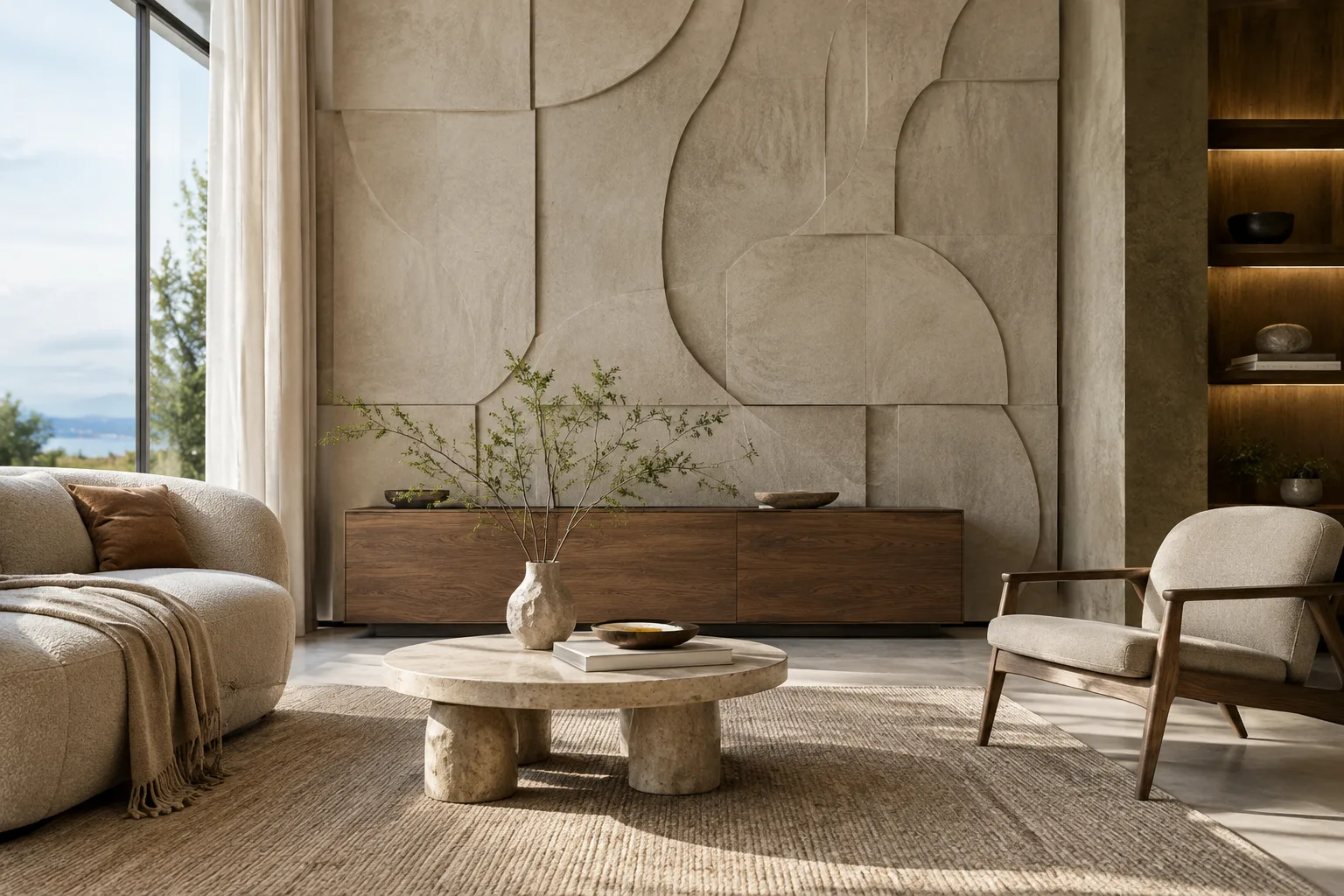
Create a photorealistic interior visualization of a quiet apartment living room with a built-in timber bookshelf, a low sofa, and a large window overlooking a leafy courtyard. Use light oak, warm white plaster, a muted natural-fibre rug, and soft morning daylight. Show the room from a corner viewpoint so the seating area and window are both visible. Avoid decorative clutter and visible text.Here, the key elements and appearance of the interior are clearly defined. If the design direction is not yet settled, change only one thing in a new round, such as the timber tone or the quality of the light. That makes it easier to compare which description affected the result.
Add a reference image to your editing request. When submitting your own sketch or another image you have the right to use, specify separately what should stay the same and what should change:
Use the supplied interior image as the reference. Preserve the room layout, window positions, camera viewpoint, and built-in elements. Change only the floor finish to pale oak and make the daylight softer. Keep the result photorealistic and do not add furniture or decorative objects.This example asks the model to preserve the framing, layout, and fixed elements while changing the flooring and daylight. Google’s documentation says you can add or remove elements, change styles, and adjust colors by pairing an image with a text instruction. However, it does not guarantee that geometry or dimensions will remain unchanged during every edit, so check the result carefully.
Review the result and narrow down your next instruction. Compare the materials, openings, furniture, and composition with your design intent. If there’s a problem, describe the relevant element clearly in your next request—for example, ask the model to preserve the framing and change only the wall color. Although the documentation includes features for multi-turn editing and visual consistency, every output still needs to be reviewed.
Common mistakes
Requesting conflicting goals in one prompt: Describing a room as both minimalist and heavily decorated can make the result ambiguous. Focus on the primary design decision first.
Not specifying what to preserve in a reference image: In an editing request, clearly state which elements must remain fixed, such as the framing, layout, or specific features.
Treating the image as a technical drawing: The documentation describes image generation and editing; it does not define a function for validating dimensions or project compliance. Treat the output as concept work, and check project decisions separately against the relevant documentation.
Confusing older Imagen API information with current Nano Banana examples: Google says Imagen models have been discontinued in the Gemini API. The Imagen migration guide says to use
client.models.generate_contentinstead ofclient.models.generate_images. The Nano Banana 2.1 examples, however, show theinteractionsflow; do not treat these two API approaches as the same migration step.Ignoring the rights to reference images: Confirm that you have the necessary usage rights before sending an image to the API.
Impact on architecture, interior design, and archviz workflows
Nano Banana 2.1 may be useful for concept variations, material mood, and text-guided changes to reference images. Architects and interior designers exploring visual directions can compare different atmospheres, while archviz teams can try changing specific elements in an existing image. The sources do not describe direct integration with any particular CAD, BIM, or rendering software; the examples focus on image generation and editing through the Gemini API.
Before introducing it into an office workflow, clarify API access, usage costs, and how outputs will be reviewed. The sources provide neither pricing information nor specific computer hardware requirements, so do not make assumptions about these. Make visual accuracy, project data privacy, and reference image usage rights part of your workflow.
Next steps
Start with a single space and a limited number of design decisions. Prepare different material or lighting descriptions for the same framing, then try changing just one element in a reference image you have the rights to use. Treat the result as a visual option for team review, not as a measure of technical accuracy.
If you have an integration built around earlier Imagen API examples, review the current approach in the migration guide. It recommends using client.models.generate_content instead of the Imagen call client.models.generate_images. The Nano Banana 2.1 examples, meanwhile, show the interactions approach. For new development, check the documentation for your chosen model alongside the API flow you plan to use.
Sources and licensing
This guide was adapted into English from Google’s “Generate images using Imagen” and “Nano Banana image generation” documentation. Both sources carry CC BY 4.0 license information. The sample prompts for architecture and interiors were written specifically for this guide.
Sources
2 sourcesSource texts are not republished; short quotes are marked, everything else is our own summary and commentary.
For architecture and interior design offices in Turkey, Nano Banana 2.1 could be a useful tool for exploring material and atmosphere options at the concept stage. Asking for limited changes to a reference image may also help with early-stage presentations.
However, the sources do not provide API pricing; confirm costs and access conditions before regular use. No specific hardware requirements are listed either, so you cannot conclude that a computer upgrade is necessary. Images should not replace technical validation or project documentation, and offices should check privacy and usage rights as part of their processes.
Frequently asked questions
What resolutions does Nano Banana 2.1 support?
Google’s documentation lists 1K, 2K, and 4K resolution options for Nano Banana 2.1.
Are Imagen models still available in the Gemini API?
No. Google says Imagen models have been discontinued in the Gemini API and are no longer available; it recommends switching to Nano Banana models for image generation.
Can you edit an existing architectural image with Nano Banana?
You can request edits by sending an image to the API along with a text instruction. You need to have the necessary usage rights for the reference image.