In brief
- The Nano Banana 2.1 model ID in the Gemini API is listed as gemini-nano-banana-2.1.
- The model is described as a high-efficiency image generation and conversational editing model recommended for new projects.
- It supports both text-to-image generation and editing with image input.
- The source mentions 1K, 2K, and 4K resolutions; no pricing information is provided.
What will you learn in this guide?
This tutorial focuses on using Nano Banana 2.1 to develop ideas for architecture, interior design, and visualization. We’ll cover how to create an architectural concept image from a text description, provide an existing image as a reference and change specific aspects of it, and refine results through additional text instructions. The aim isn’t to promise a flawless project image from a single prompt, but to enable more controlled experimentation during visual research and early design stages.
The Gemini API documentation describes Nano Banana 2.1 as a high-efficiency primary model for image generation and conversational editing. It includes improvements in image quality, text generation, multi-turn consistency, and Google Search grounding. The source mentions 1K, 2K, and 4K resolution options. This information helps clarify the model’s role in the design process, but it does not mean that a generated image is a dimensioned drawing, a technical project, or verified building information.
Requirements: model, API, and image input
The examples are designed to work through the Gemini API. The model ID in the documentation is gemini-nano-banana-2.1. To send an API request, you’ll need the client setup shown in the source or a REST request; the REST example uses the x-goog-api-key header for authentication. So you’ll need an API key before you start. Since the source text doesn’t provide pricing, it isn’t possible to give a cost figure here; check the current API terms separately before generating images.
A text instruction may be enough to generate an image from scratch. For editing, an image is submitted along with the text. The source documentation describes use cases such as adding, removing, or replacing elements, transforming a style, and adjusting color grading. It also specifically reminds users to ensure they have the necessary rights to any reference image they upload.
The documentation doesn’t specify local hardware requirements. This guide therefore doesn’t require a particular graphics card, workstation, or desktop application version; the workflow is described through the API. As for model selection, the source recommends Nano Banana 2.1 for new projects. Nano Banana 2 Lite is described as designed for tasks where speed and cost are the priority, while Nano Banana Pro is a premium option for more complex visual tasks. The examples in this guide use 2.1.
Step-by-step architectural prompt workflow
1. Start by describing the main idea of the scene
For your first attempt, choose a single type of space, a primary material direction, and a lighting character. Clearly describe what space should be shown and the atmosphere you want the image to convey. This clarifies your intent for the scene in text; it doesn’t mean every design decision in the result will be under exact control.
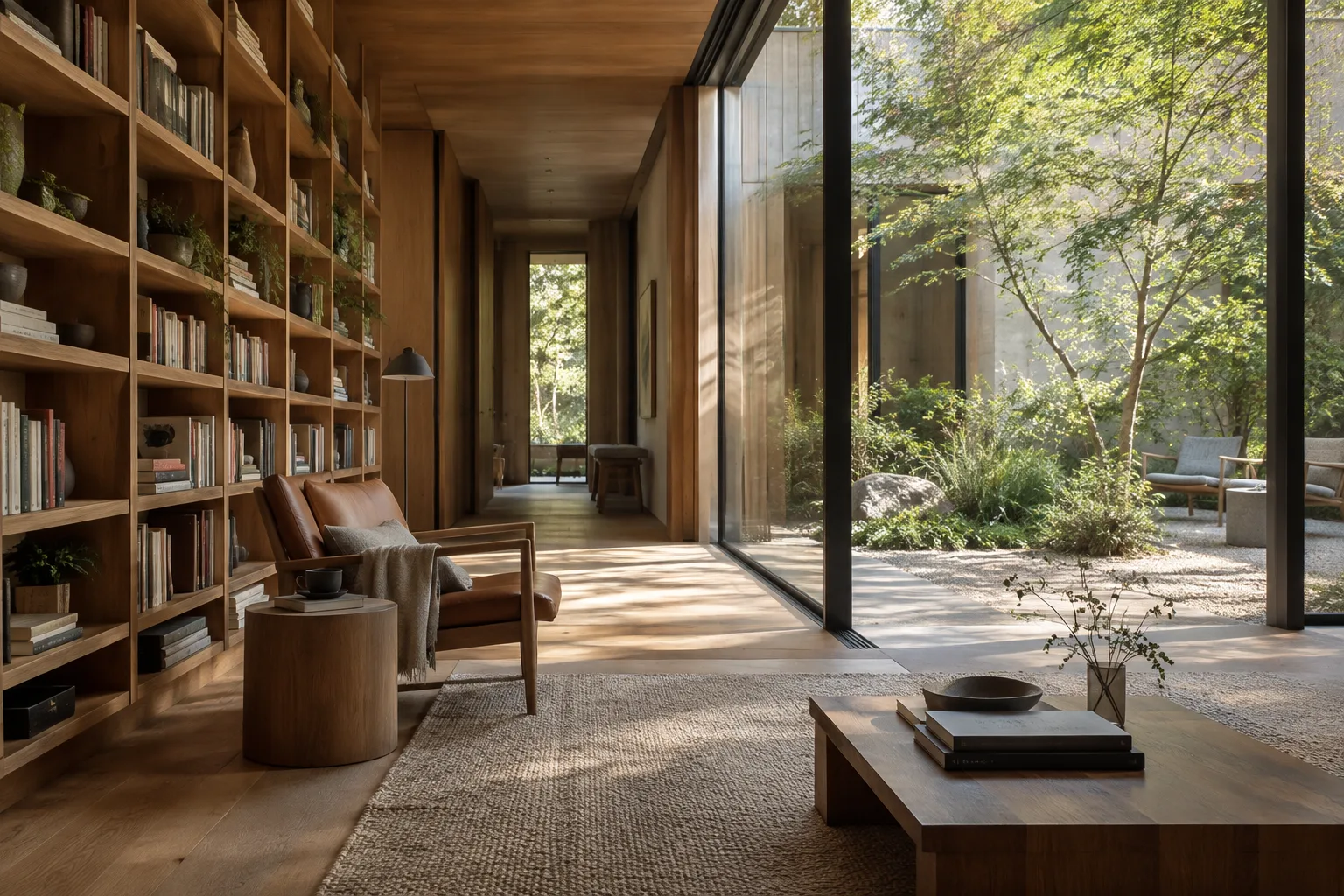
Create an architectural concept image of a small contemporary library beside a quiet urban courtyard. Show a clear view of the reading area, pale timber surfaces, a restrained palette, soft daylight, realistic materials, and a calm atmosphere. Keep the composition focused on the relationship between the interior and the courtyard.This prompt is designed to explore an interior and its relationship to a courtyard in one image. Treat the first result as a concept study for assessing material and atmosphere options, not as a final presentation image.
2. Define the visual style and framing
If you want to explore the same spatial idea in a different presentation style, add the visual approach and framing you have in mind to the prompt. The goal isn’t to pile on unnecessary adjectives, but to explain what should stand out in the image. Use the result as a reference for discussing options, rather than a substitute for design decisions.
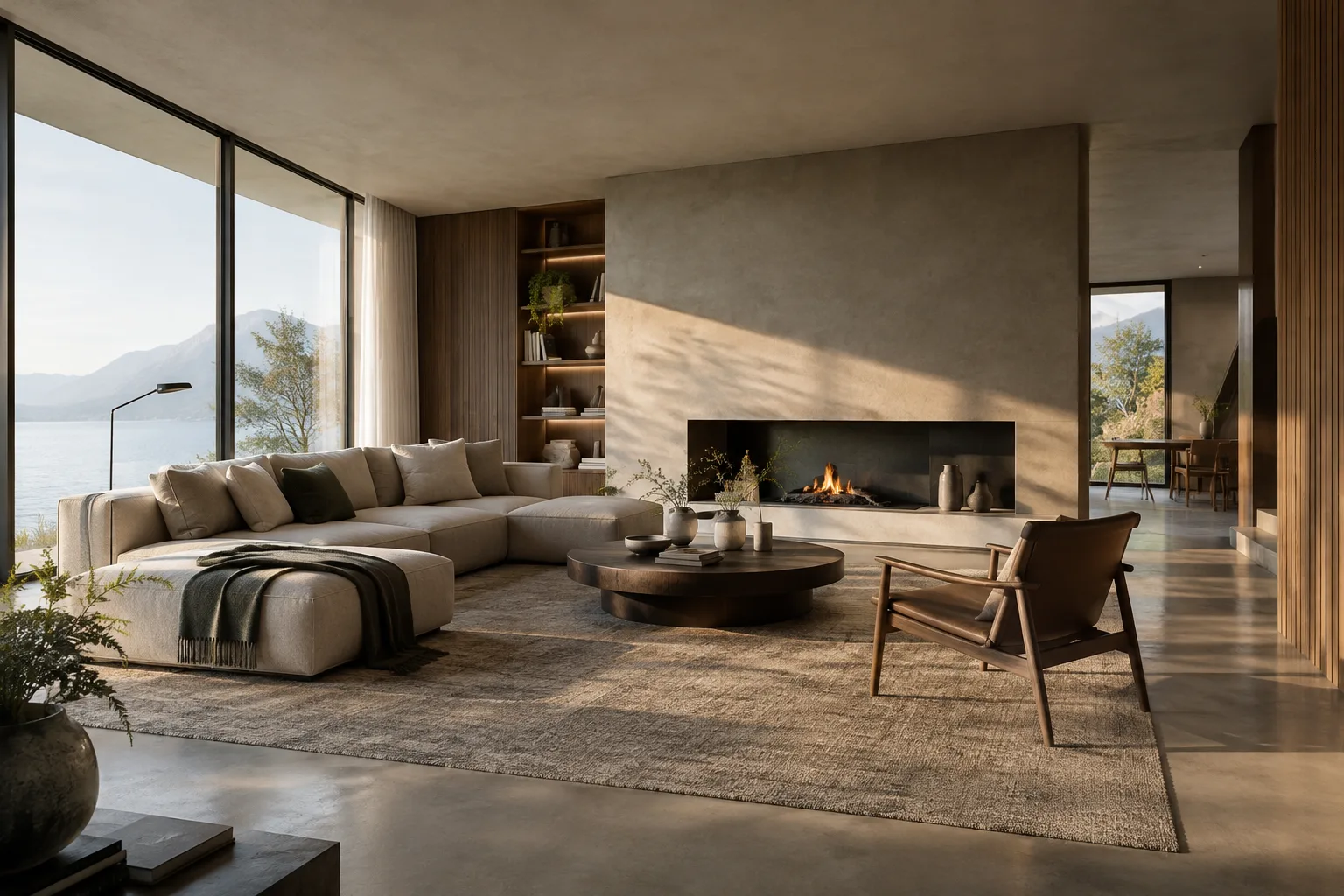
Create a photorealistic interior visualization of a compact apartment living room. Use a wide, eye-level view that shows the seating area, a large window, and the connection to the dining space. Combine warm wood, muted natural colors, and soft overcast daylight. Keep furniture forms simple and the room uncluttered.This example defines the room type, viewpoint, areas to show, color direction, and lighting together. This kind of description helps communicate the desired visual qualities through a prompt. Still, don’t treat the model’s output as proof of actual dimensions or a workable furniture layout.
3. Edit a reference image with text
If you have a sketch, concept image, or other reference that you have the right to edit, you can add it to the API input and describe the requested changes in text. According to the source, this workflow supports adding, removing, or replacing elements, as well as style and color adjustments. Keeping the instruction focused makes it easier to specify which quality you want to change.
Using the provided interior image as a reference, change the wall finish to light natural timber and adjust the color grading toward a softer, warmer palette. Keep the room layout and the position of the main furniture visually consistent with the reference.This prompt aims to change the material and color character of the reference image. The source says that editing with image input is supported, but doesn’t guarantee that every detail will remain exactly the same. Check the result and, if necessary, try again with a clearer description of the editing goal.
4. Iterate on the result with a new instruction
Gemini’s image generation and editing can proceed conversationally over multiple turns. After the first result, choose a single aspect you want to change and give a new instruction. For example, focus on the lighting, color direction, or spatial relationship you want to emphasize. Asking for many changes in the same turn can make it harder to tell which instruction affected the result.
Refine the current image by making the daylight softer and bringing more attention to the transition between the living area and the balcony. Retain the existing material palette and keep the overall composition calm.This example illustrates iterative editing of an existing image. Keeping a note of the change made in each new turn makes it easier to compare alternatives as a team. If you’re exploring several design options, track which prompt produced each image.
Common mistakes
The first mistake is trying to combine too many goals in one prompt. When the space type, atmosphere, materials, framing, and different alternatives are all packed together, it can become unclear what matters most. Describe the basic scene first, then make focused editing requests as needed.
The second mistake is using the image output as a substitute for technical validation. The source for this guide describes Nano Banana 2.1 as an image generation and editing model; it doesn’t specify features such as dimensioned project drawings, code compliance checks, or construction accuracy. Use the generated image for concept communication and visual research.
The third mistake is uploading a reference image without checking the rights to use it. The source reminds users to ensure they have the necessary rights to uploaded images and to avoid content that infringes on others’ rights. It also states that all generated images contain a SynthID watermark; keep this in mind during delivery and publication.
Finally, don’t assume the same model is right for every project. The source recommends Nano Banana 2.1 for new projects, while describing the Lite and Pro options as serving different priorities. Consider factors such as speed, cost, and task complexity alongside your intended use. Since the documentation doesn’t include pricing figures, check current API pricing separately when making budget decisions.
Next steps: adapting the workflow for offices and students
Start by identifying a few visual goals for a project: the space’s function, the desired atmosphere, and the material or color quality to explore. Then create a separate prompt for each goal and compare the results. When editing with a reference, verify that you have the rights to use the image; with each new instruction, note which quality you’re changing. This helps bring visual experiments into early design discussions with the project team in a more organized way.
For architecture and interior design firms, this approach can quickly open up different visual directions for discussion during concept research. Students can compare material and atmosphere options before preparing a presentation. However, API access, terms of use, and the undisclosed pricing should be assessed before incorporating the tool into a workflow. Since the source gives no local hardware requirements, it isn’t possible to recommend a specific computer. The design team should review and verify images before using them to inform real project decisions.
Source and license
This tutorial has been adapted from the model information and usage descriptions in Google’s Gemini API image generation documentation. The source is licensed under CC BY 4.0; the content has been adapted into Turkish and rewritten in the context of architectural image generation.
Sources
1 sourceSource texts are not republished; short quotes are marked, everything else is our own summary and commentary.
Nano Banana 2.1 could be a useful tool for offices and students in Turkey, particularly during early design stages, to explore alternatives in atmosphere, color, and materials. The ability to edit a reference image with text can support the idea development process, but the results shouldn’t be used as technical drawings or construction verification.
Before getting started, it’s important to check API access, pricing, and usage rights for images. The source doesn’t provide pricing or specify local hardware requirements, so it isn’t possible to draw firm conclusions about costs or computer investments. The fact that generated images contain a SynthID watermark should also be considered in delivery and publication plans.
Frequently asked questions
Can Nano Banana 2.1 be used to generate architectural images?
Yes. The Gemini API documentation describes Nano Banana 2.1 as an image generation and editing model. This guide includes example prompts for architectural concepts and interior visualizations.
Can existing images be edited with Nano Banana 2.1?
Yes. According to the source, you can provide text along with an image input to add, remove, or replace elements, and make style and color adjustments.
What are Nano Banana 2.1’s price and computer requirements?
The cited documentation doesn’t specify pricing or local computer hardware requirements. Check API access and current pricing separately before use.