In brief
- Nano Banana 2’s model ID in the Gemini API is gemini-3.1-flash-image.
- The model can generate images from text prompts; text and image inputs can also be combined for editing.
- Google highlights Nano Banana 2’s ability to work with multiple reference images and maintain consistency.
- According to Google’s documentation, all generated images contain a SynthID watermark.
What you’ll learn in this guide
Nano Banana is the name Google uses for Gemini’s native image-generation capabilities. This guide looks at how to write prompts for architectural concepts and interior visuals with Nano Banana 2, and how to describe spaces, materials, lighting, and camera choices more systematically. We also cover editing an existing image with a text prompt and refining results through iteration.
The four prompts below are original examples created for architectural use; they do not guarantee a specific result. Google’s prompt design guide also describes prompt writing as a process of experimentation and refinement based on observed results. Treat these examples as starting points, then update the descriptions to suit the image you get.
Requirements and model selection
Image generation is available through the Gemini API. Google’s documentation lists gemini-3.1-flash-image as the Nano Banana 2 model ID; API examples use this model for image generation and editing requests. Google AI Studio offers options for creating an API key and testing prompts. For the software version in this guide, we use the Gemini API model ID; the sources do not specify a 3D application that must run locally or any hardware requirements.
Several models are listed under the Nano Banana name: Nano Banana 2 Lite (gemini-3.1-flash-lite-image), Nano Banana 2 (gemini-3.1-flash-image), Nano Banana Pro (gemini-3-pro-image), and the previous-generation Nano Banana (gemini-2.5-flash-image). Google positions Nano Banana 2 for versatile use, 4K generation, world knowledge, text rendering, and working with multiple reference images. The Pro model is described as intended for the most complex image tasks, while Lite is aimed at use cases where speed and cost are priorities. These are the manufacturer’s own model descriptions; you should test your choice with actual project inputs.
In an API workflow, you can generate an image from a text prompt or provide an image input alongside text for editing. Google specifically notes that you must have the rights to use uploaded images. The sources for this guide do not explain API costs, access conditions, or local hardware requirements for every use case, so check the latest API documentation before starting a project.
Four prompts for architectural images
When writing a prompt, first describe the type and purpose of the image, then the space, materials, lighting, and camera approach. Rather than cramming many interacting instructions into one sentence, clearly listing the key attributes makes for a more understandable starting point. The examples below are in English and ready to paste.
Residential interior concept: Describe the type of space, materials, and quality of light together. This defines the image’s main idea in a single prompt.
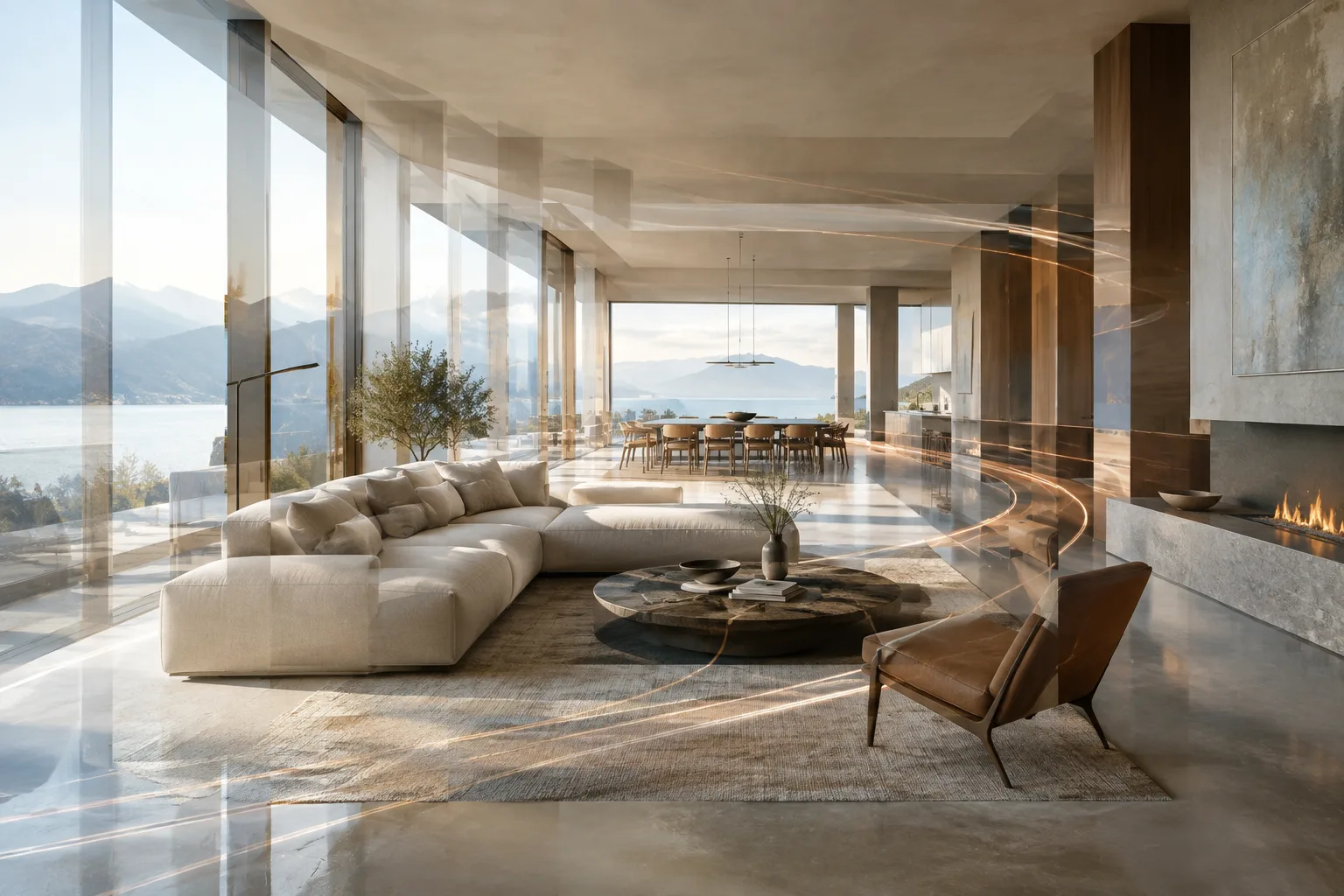
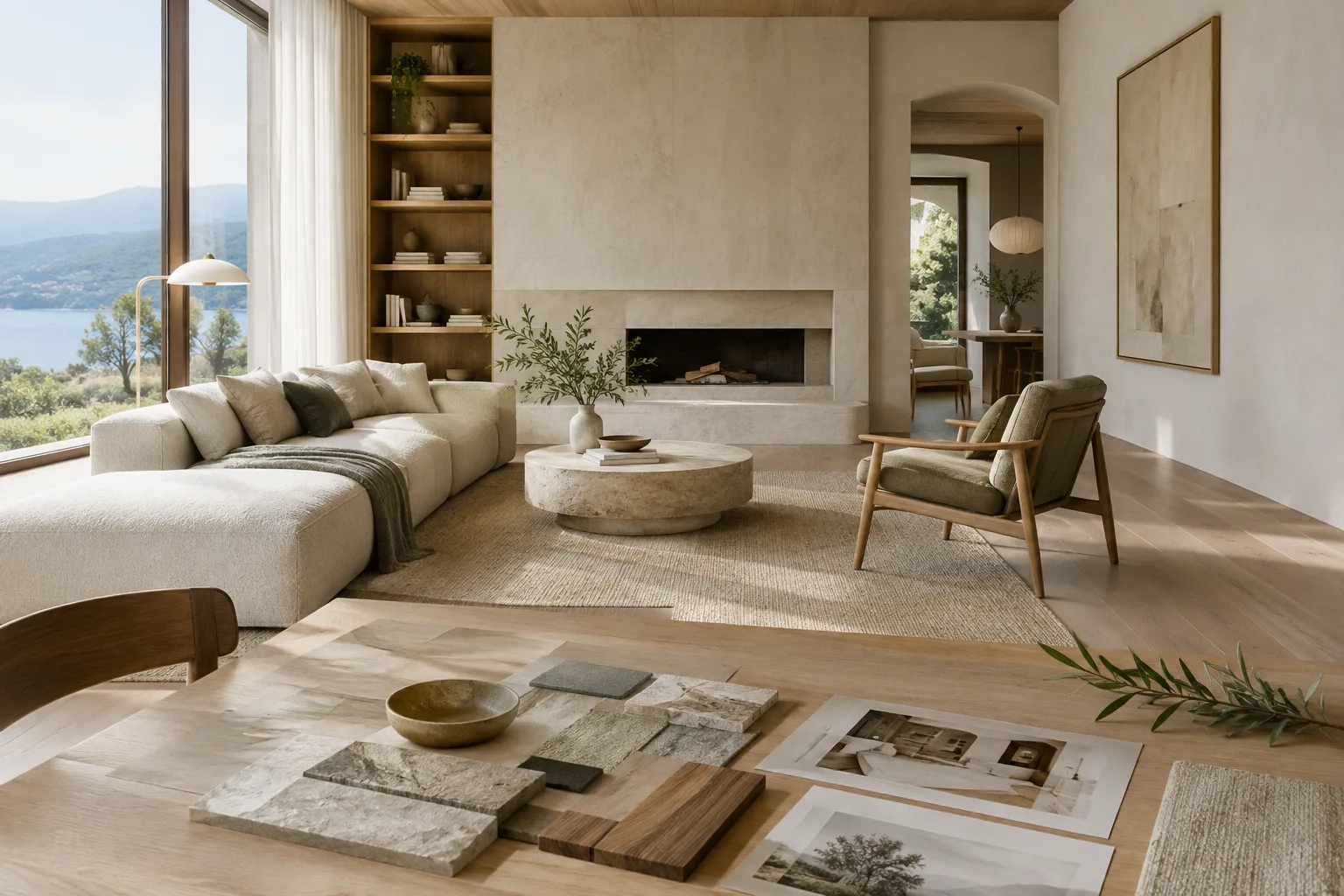
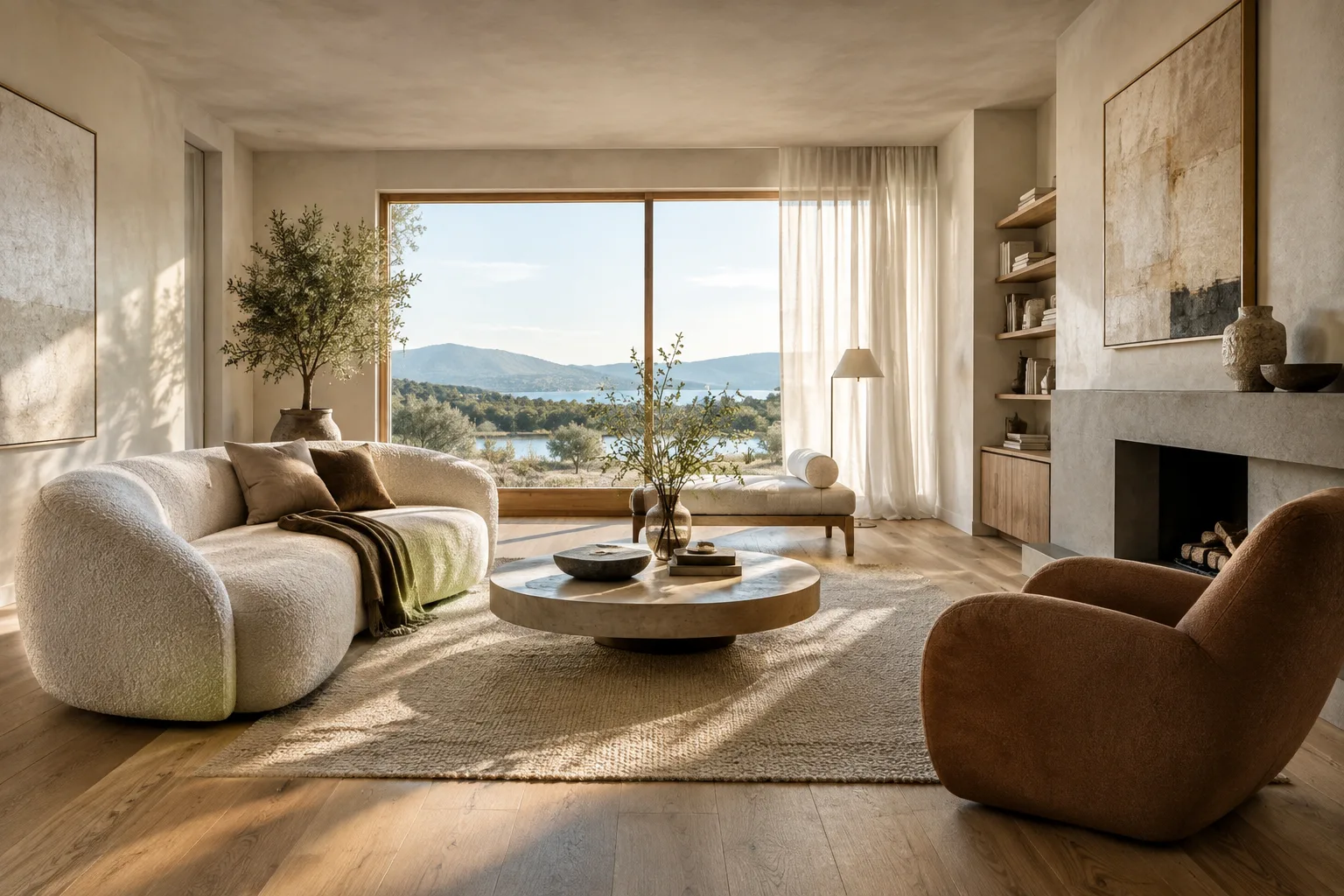
Create a photorealistic architectural visualization of a calm contemporary living room in a compact urban apartment. Use warm oak flooring, pale mineral plaster walls, a deep green sofa, and a simple stone coffee table. Soft morning light enters from a large side window, creating gentle natural shadows. Eye-level camera, wide interior composition, realistic material textures, restrained styling. Show no people, no signage, no text.Facade material study: The aim here is to focus on materials and daylight while describing the same building. The image can be used to explore design alternatives, but it is not a substitute for technical facade detailing.
Create a photorealistic exterior architectural study of a small public library with a clear, simple facade composition. Combine light brick, exposed timber fins, and large areas of clear glazing. Overcast daylight, soft shadows, eye-level three-quarter view, a few mature trees nearby, realistic scale and material texture. Keep the architecture calm and buildable. No people, no signs, no readable text.Editing an existing render: Use this prompt with the image you want to edit as an input. Specify what should change, and separately state what needs to stay the same.
Edit the provided interior image by changing the wall finish to pale warm-gray plaster and replacing the rug with a muted terracotta wool rug. Preserve the room layout, camera viewpoint, window positions, furniture placement, and overall lighting. Keep the result photorealistic and do not add new furniture, people, or text.Creating an atmosphere from multiple references: Nano Banana 2 is described as supporting consistency and working with multiple reference images. Clearly state in the prompt which qualities each reference should guide.
Create a photorealistic boutique hotel lobby concept. Use the first reference image for the warm color palette, the second for the curved reception desk form, and the third for the lighting mood. Combine these directions in a new, coherent interior with natural stone, dark timber, and soft indirect lighting. Wide eye-level view, realistic materials, uncluttered composition. Do not reproduce logos or readable text.Common mistakes
Leaving the request vague: Short descriptions such as “make a modern interior” provide little direction about the type of space, materials, or lighting. Clarify the scene you want and its key attributes. Google’s guide emphasizes that clear, specific instructions help tailor the model’s behavior.
Failing to distinguish what should change from what should stay: When editing an image, simply saying “make it warmer” could affect elements you want to keep. As in the editing example, describe the new material and separately ask to preserve the layout, camera, or furniture placement.
Asking for every detail at once: Too many conditions can make results harder to evaluate. First establish the main space and visual language; then make another attempt with a clearer prompt targeting what you observed was missing. Treat prompt design as an iterative process.
Overlooking rights to reference images: Before uploading an image, verify that you have the necessary usage rights. Google also notes that its prohibited-use policy must be followed. Keep in mind that generated images contain a SynthID watermark when preparing deliverables and archives.
Next steps: where it fits in an architectural workflow
Architects and interior designers can experiment with these prompts for early-stage atmosphere studies, exploring material alternatives, and developing visual ideas before presentations. Archviz artists can test prompts for making targeted changes to existing renders. However, the sources do not explain how to transfer generated images into a CAD/BIM model or ensure geometric accuracy. Treat the output as a visual study, not as a measured project drawing or a verified 3D model.
For your first attempt, choose a single goal, such as lighting atmosphere or facade material. Review the result against that goal, then clearly specify in the next prompt what you want to change and what should remain the same. If you use multiple references, describe the role of each image separately. This makes it easier to track which prompt change affected the result.
Before adding it to an office workflow, check the latest documentation for API access, usage costs, and the conditions for using the outputs in your project; the provided sources do not give Turkey-specific pricing or licensing terms. Review the relevant permissions before uploading confidential or client-provided images. After generation, have the team check whether the image accurately represents the design decisions.
Sources and licensing
This guide was prepared by adapting information from Google’s Gemini API image-generation, prompt-design, and API documentation into Turkish. The sources are licensed under CC BY 4.0. The prompt examples were written originally for architectural use; the sample prompts in the sources have not been copied.
Sources
3 sourcesSource texts are not republished; short quotes are marked, everything else is our own summary and commentary.
For architecture offices and students in Turkey, Nano Banana 2 is worth trying for quickly exploring conceptual atmospheres and material alternatives. In particular, editing an existing image with text and working with multiple references could be useful during early design reviews; however, generated images should not be treated as technically validated project deliverables.
Before making a decision, it’s important to check current API access and usage costs and verify usage rights for client images. The sources do not explain Turkey-specific pricing, licensing terms, or local hardware requirements. The best starting point is therefore a small pilot workflow to assess image quality and fit with the team’s processes.
Frequently asked questions
What is Nano Banana 2’s model ID in the Gemini API?
Google’s documentation lists gemini-3.1-flash-image as the model ID for Nano Banana 2.
Can Nano Banana 2 edit an existing architectural image?
Yes. The Gemini API documentation includes examples of editing an image—such as changing it or adding and removing elements—by supplying an image input alongside a text prompt.
Do images generated with Nano Banana contain a watermark?
According to Google’s documentation, all images generated with Nano Banana contain a SynthID watermark.