In brief
- The Gemini API documentation recommends Gemini Omni Flash as the default model for video generation.
- The model can create short videos from text and images; editing can continue over multiple turns through the Interactions API.
- A good prompt should specify a clear task, explicit constraints and the desired output format.
- Veo 3.1 Preview versions are scheduled to be discontinued on 22 October 2026; API users should consider migrating.
What you'll learn in this guide
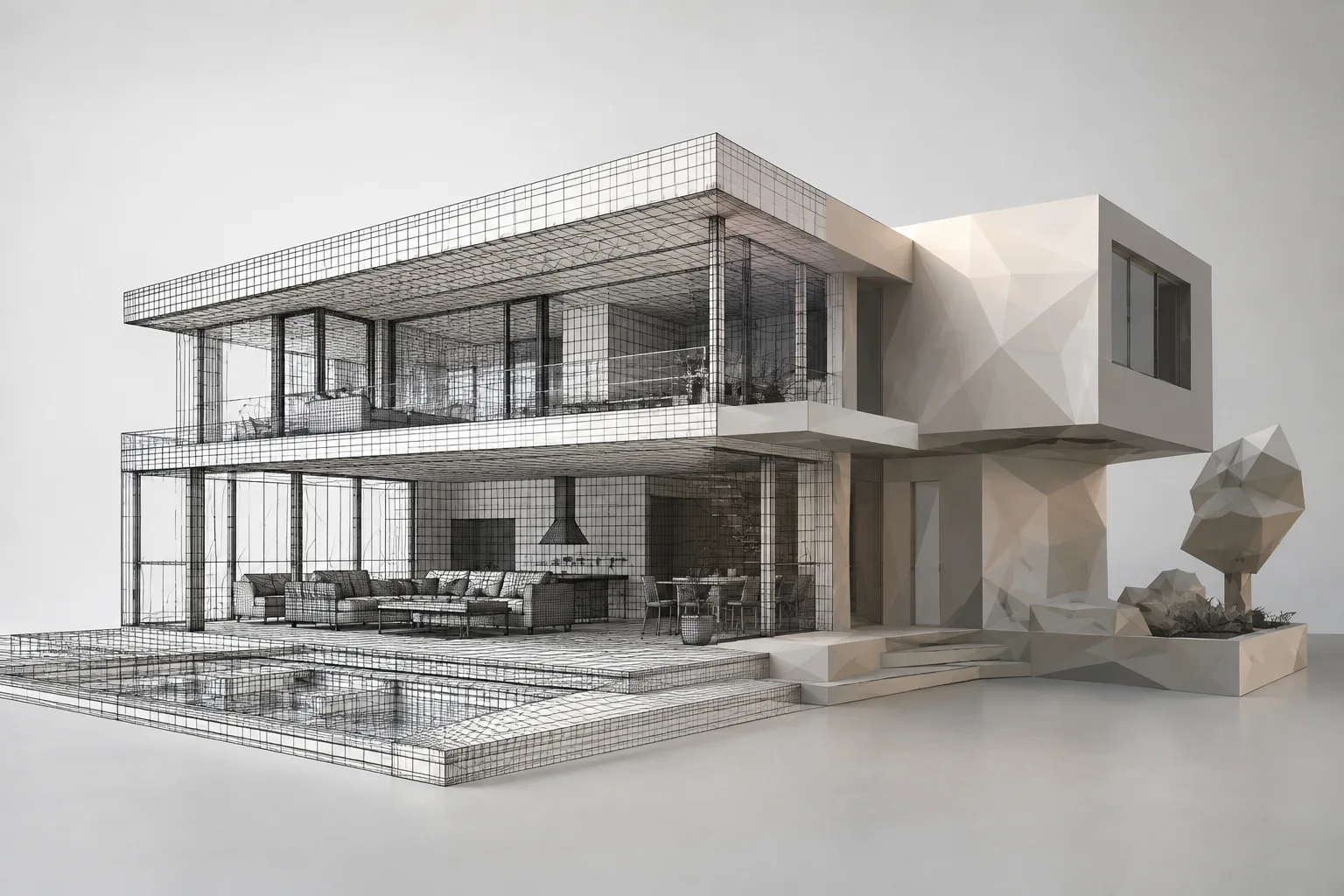
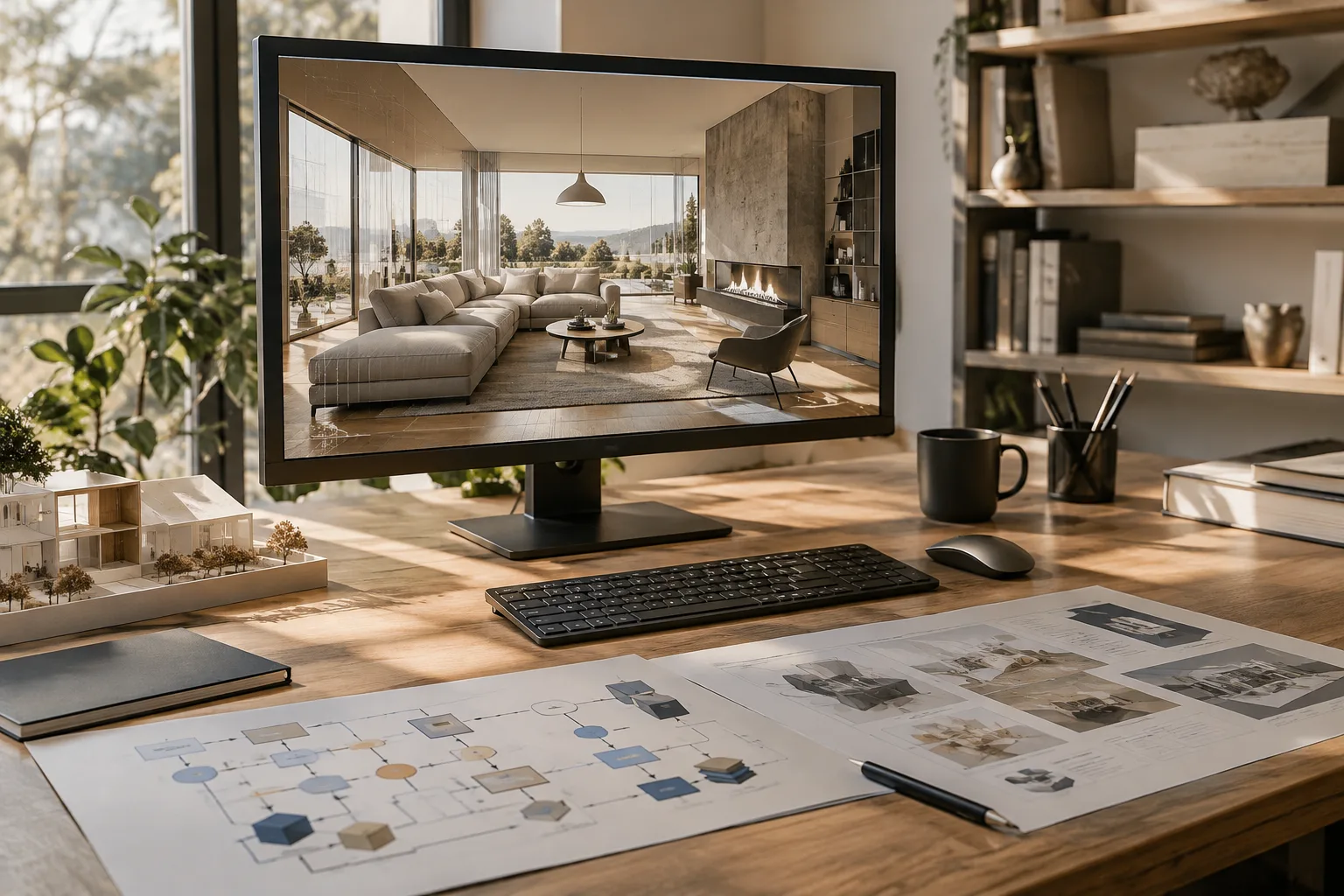
This guide explains how to prepare prompts to turn an architectural image into a short video concept and improve the generated result with follow-up prompts. The aim is not to promise that a particular camera move or visual result will be achieved, but to make the request clearer, more specific and easier to evaluate. Google's Gemini API documentation identifies Gemini Omni Flash as the default option for video generation. The model can create short videos from text prompts and images, and also supports refining results in a multi-turn conversation with the Interactions API.
The examples in this guide were written specifically for architectural and interior visualization scenarios. You can copy the prompt text directly and adapt it to your project. When using an image, provide it as input in your API workflow; the documentation states that the model can work with text and images.
Requirements and getting started
This workflow is intended for the Gemini API and Gemini Omni Flash. The source documentation attributes video generation and multi-turn editing capabilities to the model, but does not specify an account type, subscription fee, hardware requirement or usage quota. Before getting started, check current API access and the terms that apply to your account. The steps here do not assume an unspecified software version, menu path or parameter.
Decide whether to use an architectural reference image as input or describe the space in text. When writing the prompt, it helps to clarify the area to be shown, the elements that must remain unchanged, the desired mood and the change the video should depict. These are editorial suggestions for prompt design, not model settings specified by the source.
Gemini's prompt design guide recommends making instructions clear and specific, stating constraints and describing the desired response format. It also emphasizes that prompt design is iterative: initial prompts should be treated as drafts to test and refine. Using multiple examples is another recommended approach in the guide; for architectural video, the examples below start with a single task and then revise the result.
Step-by-step: writing an architectural video prompt
Describe the scene in one sentence. Start by stating what the project is and which part the video should emphasize. Instead of a broad request such as “create a building video,” specify the space's function, the visible area and the change you want. This makes the task clearer to the model.
Identify the reference image and elements to preserve. If you provide an image, say in the prompt that it is a visual reference for the scene. Clearly list the features you want to retain, such as façade openings, furniture layout or material appearance. These requests do not guarantee a particular result; they help narrow the scope of the instructions.
Describe the movement and mood. State what you want to change in the video—for example, the effect of daylight shifting in an interior or a courtyard being shown from a different angle. Rather than listing several goals at once, pick one main objective for the first attempt. Do not assume the model will reproduce a specific movement exactly; review the output.
Add constraints and evaluate the result. Specify unwanted changes, elements to preserve and the scope of the requested video. After the first output, describe just one change in a new turn instead of rewriting everything from scratch. The documentation states that Gemini Omni Flash supports multi-turn conversational editing, including requests to replace an element or change the perspective.
The prompt below is a starter example for requesting an interior video with a visual reference. Replace the bracketed sections with project details and provide the image separately as input.
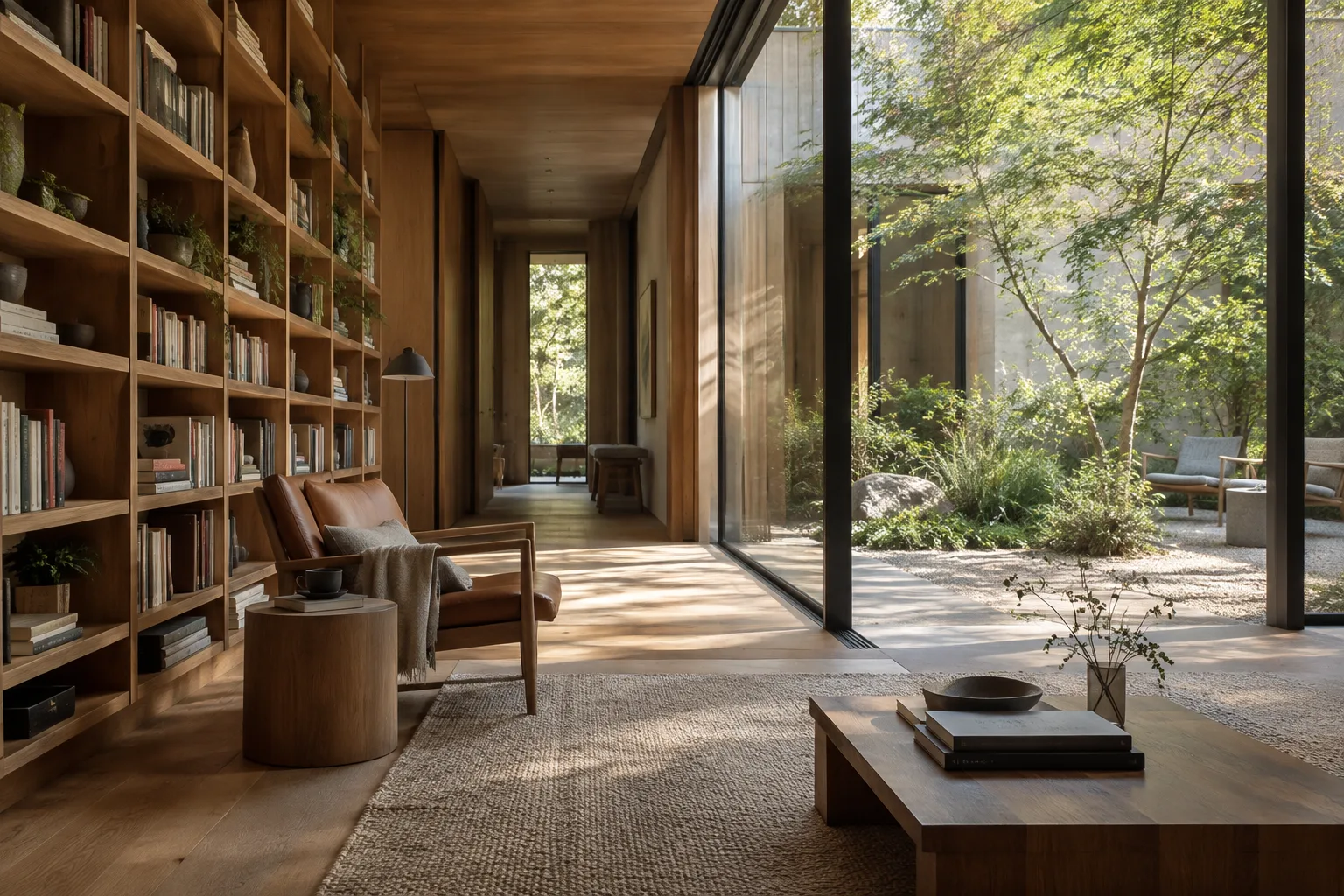
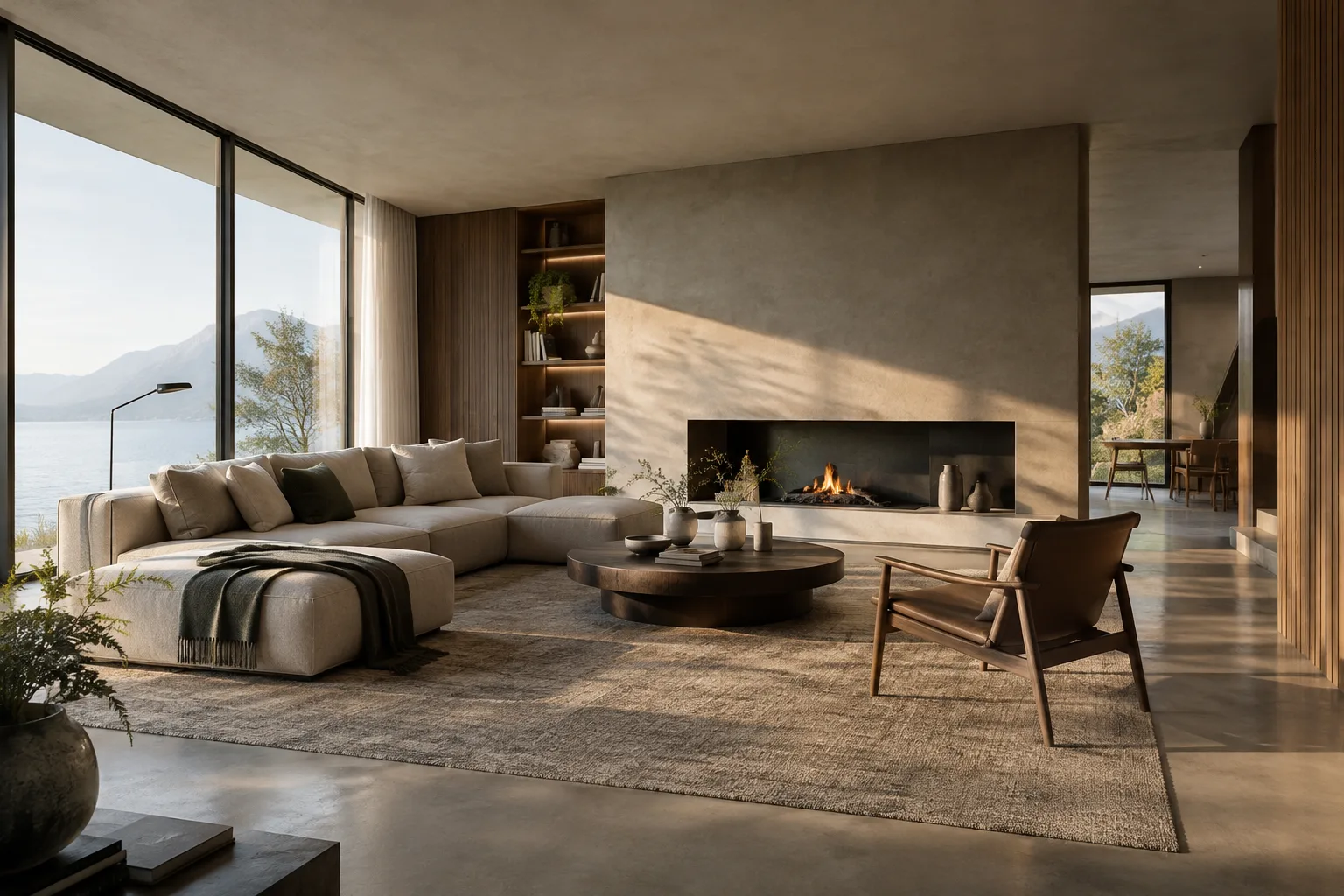
Create a short architectural video using the provided interior image as the visual reference. Show [room type] with a calm, gradual change in daylight. Preserve the visible layout, furniture positions, materials, and architectural openings. Keep the atmosphere restrained and realistic. Do not introduce new furniture, people, or major design changes. Focus on the transition of light across the room.This prompt focuses on one main change and clearly lists the visual features to preserve. “Create a short architectural video” defines the task, while the “do not introduce” sentences set boundaries. If the first result includes an unwanted change, mention only that element in the next turn.
The second example is for describing an exterior scene in text, without a visual reference. Fill in the project details and use the prompt for an initial generation attempt.
Create a short video of [building type] in [setting]. Emphasize the relationship between the building, its entrance, and the surrounding public space. Keep the architectural form and material palette consistent throughout the video. Use a quiet, overcast atmosphere. Do not add signage, extra buildings, or people unless requested.In this example, the user fills in the building type and setting. The prompt defines which relationship the scene should emphasize and what kinds of additions are unwanted. For a real project, replace general descriptions with details from your own project if you know the materials or site characteristics precisely.
The third example can be used to review the initial output and request a single change. This kind of prompt is suited to a multi-turn editing workflow; check the result to see whether the requested change was made.
Revise the previous video by changing only the viewpoint to emphasize [specific architectural feature]. Keep the building form, materials, lighting mood, and surrounding context consistent with the previous result. Do not change the design or add new elements.Here, “only” and “keep” make the scope of the edit more explicit. A perspective change is one of the multi-turn editing examples in the source documentation; however, this prompt does not guarantee that a particular camera move will be technically achieved.
Common mistakes
The first mistake is asking for too many competing objectives in one prompt. If you request a design change, a different mood, new furniture and a completely different setting all at once, it may be unclear which element takes priority. Limit the first attempt to one main goal, then update the prompt after reviewing the output.
The second mistake is failing to state which elements should be preserved. Rather than assuming every feature of a reference image will remain unchanged automatically, specify the form, layout or materials that should not change. The third mistake is completely rewriting the prompt without evaluating the result. In an iterative workflow, changing one thing per turn makes it easier to see which instruction made a difference.
Finally, don't treat a prompt example as a fixed recipe. Google's guide presents prompt templates as starting points and recommends experimenting for each use case. Don't use generated video as a substitute for project accuracy, technical drawings or design decisions; evaluate it as a visual communication tool.
Next steps and workflow implications
For architecture, interior design and archviz teams, this approach offers a way to create short video tests from a still image and develop alternatives through conversational editing. Combining text and image inputs may be practical, especially for concept presentations or mood exploration. The source materials do not specify how long generation takes, video resolution or commercial-use terms, so verify these separately before planning production or delivery.
For your next attempt, create different mood descriptions using the same reference; change only one main variable in each prompt and compare the outputs with your project team. If your current workflow uses Veo 3.1 Preview, pay attention to the timeline: the Gemini API documentation says Preview versions will be discontinued on 22 October 2026 and recommends migrating to Gemini Omni Flash or generally available models in Gemini Enterprise Agent Platform to avoid disruption. This warning applies to Preview versions; the source does not state a separate discontinuation date for other configurations.
Sources and license
This guide was adapted into Turkish using Google's Gemini API video generation and prompt design guides. Both sources are identified as CC BY 4.0-licensed content. The architectural prompt examples were written specifically for this guide.
Sources
2 sourcesSource texts are not republished; short quotes are marked, everything else is our own summary and commentary.
For architecture firms and students in Turkey, one of the most useful applications may be quickly creating animated narrative tests from existing visualizations and discussing alternative moods before a presentation. Multi-turn editing offers a way to request targeted revisions instead of describing every variation from scratch.
However, the sources do not explain the cost of API access, account terms or technical output specifications; these should be verified before adding the tool to a workflow. The consistency of architectural forms and materials should also be checked in every result. For teams using Veo 3.1 Preview, planning a migration should be a priority given the stated discontinuation date.
Frequently asked questions
Can you generate architectural videos with Gemini Omni Flash?
According to the Gemini API documentation, Gemini Omni Flash can generate short videos from text prompts and images. To use an architectural image as a reference, provide it as input in your API workflow.
Can Gemini Omni Flash videos be improved through editing turns?
Yes. The documentation states that multi-turn conversational editing is supported through the Interactions API. For example, you can request an element or perspective change to a previous result.
When will Veo 3.1 Preview be discontinued?
According to the Gemini API documentation, Veo 3.1 Preview versions will be discontinued on 22 October 2026. The documentation recommends migrating to Gemini Omni Flash or generally available models in Gemini Enterprise Agent Platform to avoid disruption.