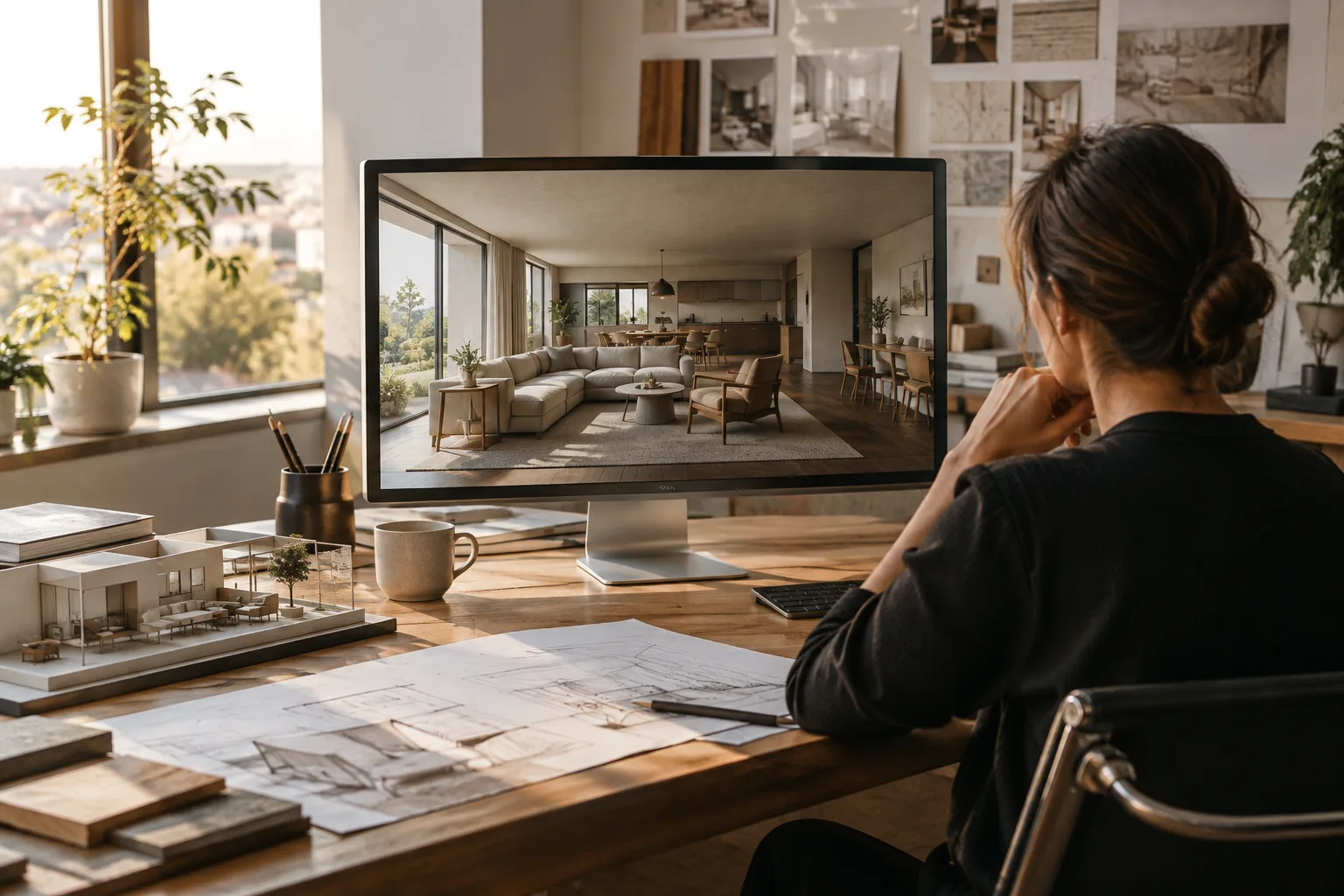
In brief
- The Gemini API documentation recommends Gemini Omni Flash as the default option for video generation.
- The model lets you create short video drafts from text and image inputs.
- Veo 3.1 is presented as an alternative for needs such as native audio, video extension and frame-specific guidance.
- The sources do not specify pricing, account requirements or a required software version.
What will you learn in this guide?
This guide explains how to describe video-generation tasks for architectural presentations and interior design projects using Gemini Omni Flash. The goal is not to write one generic prompt and accept the result as-is, but to clearly define the scene, movement and output format, then review the result and refine it in subsequent rounds. The examples show how to describe an architectural scene; they do not guarantee a specific model output or that project elements will be preserved exactly.
The workflow described in the Gemini API documentation involves starting a short video draft from a written description or image input, then refining it step by step with follow-up instructions. The first result does not have to be the final file: a team can review the scene and specify what it wants to change in the next interaction. Google recommends Gemini Omni Flash as the starting model for general video generation. Veo 3.1 is described as a separate option for specific requirements such as native audio, video extension, frame-specific generation or integration with existing pipelines.
These features are not a ready-made production recipe for architectural visualization; they are tools that can help turn a design idea into a moving draft. If project geometry, materials and spatial decisions need to be preserved, compare the generated video with the design file and assess its accuracy separately.
Requirements and model selection
This workflow is based on the Gemini API video-generation documentation and prompt design guide. The sources do not specify an operating system, local application, account type, price, quota or version requirement. Before starting production, verify access and cost conditions, the account to be used and API implementation details separately; do not assume a menu path or technical parameter that is not specified here.
Choose a model based on the desired result:
Consider Gemini Omni Flash for creating a short video draft from text or images and refining it over several rounds.
If you have a specific requirement such as native audio, extending an existing video or frame-specific generation, review the capabilities documented for Veo 3.1.
If you have an existing video that needs to be analyzed, refer to the video understanding guide, which is separate from the generation guide.
When using an architectural image as a reference, state clearly in the prompt which aspects of the image you want to preserve. The sources do not say that specific camera instructions or perfect preservation of design elements are guaranteed. Treat the result as a proposal to review, not as a definitive visualization that replaces the design file.
Step-by-step prompt writing
Choose a single use case. For example, are you creating a short animated study that conveys the atmosphere of an interior, or a draft that presents a facade from a different viewpoint? Choose the primary task rather than giving several unrelated objectives in one prompt. Google’s prompt guide recommends making instructions clear and specific.
Describe the scene concretely. Write in natural language about the type of space, visible design elements and desired movement. Instead of ambiguous phrases such as “a beautiful interior video,” specify which area should be shown and what the video should emphasize. If you have a reference image, define its role in the prompt as well.
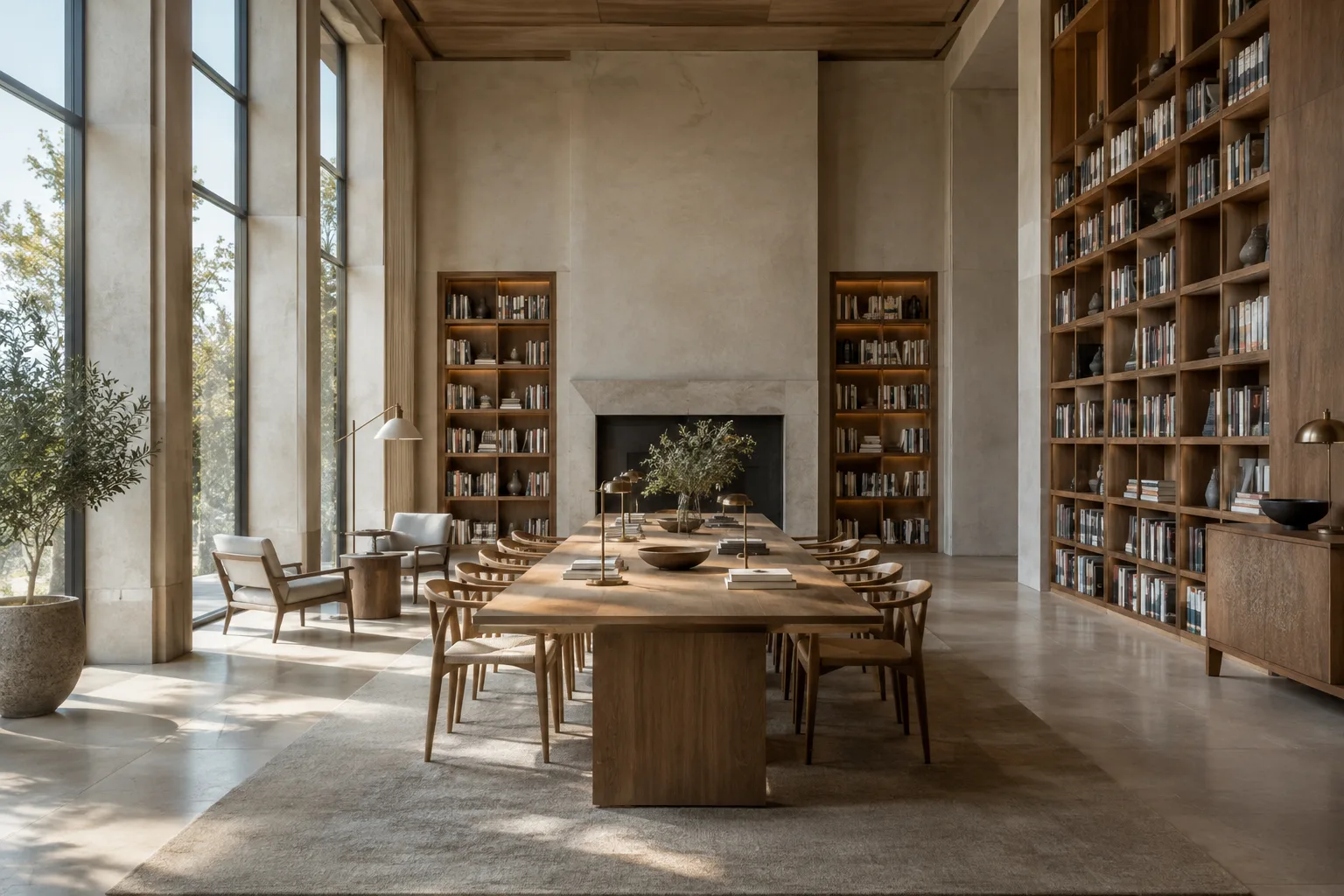
Create a short architectural visualization video of a quiet contemporary reading room. Begin with a wide view of the room, then move slowly toward the central reading table. Preserve the visible room layout and material palette of the reference image. Use soft daylight and a calm, restrained atmosphere.This example asks for a short draft using a text description of the space and a reference image. The instruction to “preserve” is a request in the prompt; it should not be treated as a technical feature guaranteed by the source. Compare the result with the design reference and note any differences you consider important.
Add constraints and priorities. For a presentation, is it more important to keep the scene calm, ensure a particular element is visible, or make the output short and specific in format? The prompt design guide recommends describing the desired format and constraints clearly. For visual generation, write expectations about the scene that are observable and actionable.
Create a short video concept for a small apartment kitchen using the supplied image as visual reference. Keep the camera movement gentle and the kitchen as the main subject. Do not introduce additional furniture or change the apparent room arrangement. Present the result as a quiet daylight scene.This prompt prioritizes a small apartment kitchen and gentle camera movement. The instructions not to add furniture or change the layout are requests; do not assume every detail will be preserved exactly in the output.
Review the first result and make targeted revisions. The documented multi-turn workflow for Gemini Omni Flash lets you refine the output with new instructions instead of treating the first result as final. Ask for one main change per round, such as slowing the movement or shifting the scene’s focus. Requesting several changes at once can make it harder to tell which instruction affected the result.
Revise the previous video concept. Keep the same room and overall visual direction, but make the camera movement slower and give more attention to the long view across the interior. Do not add new design elements.This follow-up prompt asks to keep the overall direction of the previous draft while changing the movement and framing priorities. According to the source, editing can continue across multiple interactions; it does not specify that a particular revision will always produce the intended result.
Reconsider the model for specialized video needs. If the project requires audio, or you want to extend a video or generate based on a specific frame, review the Veo 3.1 documentation. Gemini Omni Flash and Veo 3.1 are not described as serving the same use cases; choose according to the needs of the task.
Common mistakes
Writing vague prompts: Instead of instructions such as “make it more impressive,” specify which visual quality you want to change.
Asking for too much at once: Establish the scene and basic movement in the first round, then add changes in a controlled way in later rounds.
Treating a reference image as a guarantee: An image is a supported input type in the source; it is not presented as a guarantee that specific project geometry will be preserved flawlessly.
Confusing model capabilities: For needs such as audio, video extension and frame-specific generation, check the features the sources list for Veo 3.1.
Assuming access and cost: The documentation does not explain pricing or account requirements in the material covered here. Verify current conditions before including the tool in a project budget.
Implications for architecture and visualization workflows
Architects, interior designers and visualization teams can experiment with Gemini Omni Flash to create early-stage mood studies or communicate a presentation idea in motion. Working with text and image inputs makes it possible to describe a short video concept based on a fixed reference frame. The multi-turn workflow also lets users continue refining their direction after reviewing the first result.
However, there is no basis for saying that a video generated by the model automatically guarantees project accuracy. Before using it, check the spatial layout, material appearance and presentation purpose. Particularly when an image represents design decisions, teams should review the generated result side by side with the source image and note any discrepancies.
For firms and students, this approach can be treated as an experiment in creating a moving draft that opens up a design idea for discussion. Before adding it to an existing production process, however, research API access, cost and compatibility with the workflow; the sources do not provide details on these topics. Hardware requirements are also not explained in the documentation provided, so it is not possible to recommend a specific computer or graphics card.
Next steps
Start by choosing a single interior or exterior scene and describing it in text; use an image as a reference if you have one. After the first attempt, change only one element in your next request and compare the results against the design intent. This makes it easier to see which instructions affect the output.
When you need more specific constraints, apply the prompt guide’s recommendations on clarity, format and examples. For specialized goals such as audio or video extension, consult the relevant Veo 3.1 documentation. Verify access and cost conditions separately before using the workflow on a real project.
Sources and licensing
This guide was adapted into Turkish using Google’s Gemini API video-generation and prompt design documentation. Both pages are licensed under CC BY 4.0. The prompt examples are original and were written for architectural and interior workflows; they are not copied from the sources.
Sources
2 sourcesSource texts are not republished; short quotes are marked, everything else is our own summary and commentary.
For architecture firms and visualization teams in Turkey, Gemini Omni Flash can be considered a tool for turning a design idea into a short moving draft and discussing alternatives before a presentation. Its ability to work with text and image inputs may make it easier to move from a still frame to an idea for motion.
However, the sources do not explain API access, pricing or account requirements, so current conditions should be checked separately when planning a budget and usage. It is best to treat generated video as a visual proposal that needs review, not as proof of project accuracy.
Frequently asked questions
Can Gemini Omni Flash generate architectural videos?
According to the Gemini API documentation, the model can generate short videos from text and image inputs. Prompts describing architectural scenes and visual references can be used in this workflow.
How do you edit a video with Gemini Omni Flash?
The model supports multi-turn conversational editing through the Interactions API. You can review the first result and specify the desired changes in follow-up instructions.
What is the difference between Gemini Omni Flash and Veo 3.1?
Gemini Omni Flash is presented as the default option for general video generation. Veo 3.1 is described for needs such as native audio, video extension and frame-specific generation.