In brief
- Gemini Omni Flash is designed to generate short videos from text and images and edit results over multiple turns.
- Veo 3.1 offers native audio, video extension, frame-specific generation, and image-based guidance.
- A clear task, explicit constraints, and a specified output format are core elements of prompt design.
- Google’s guide recommends adding examples and iteratively refining prompts based on results.
What will you learn in this guide?
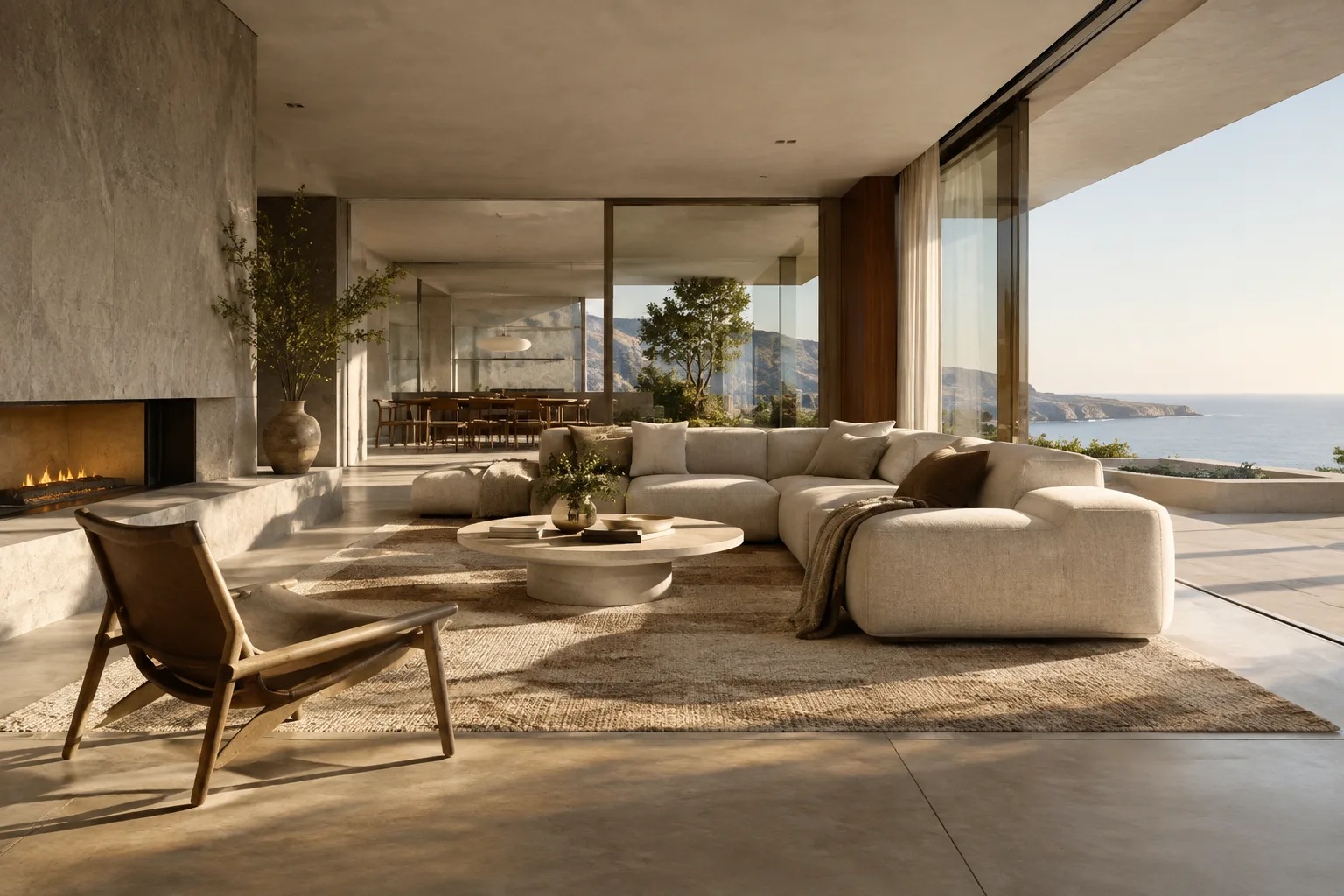
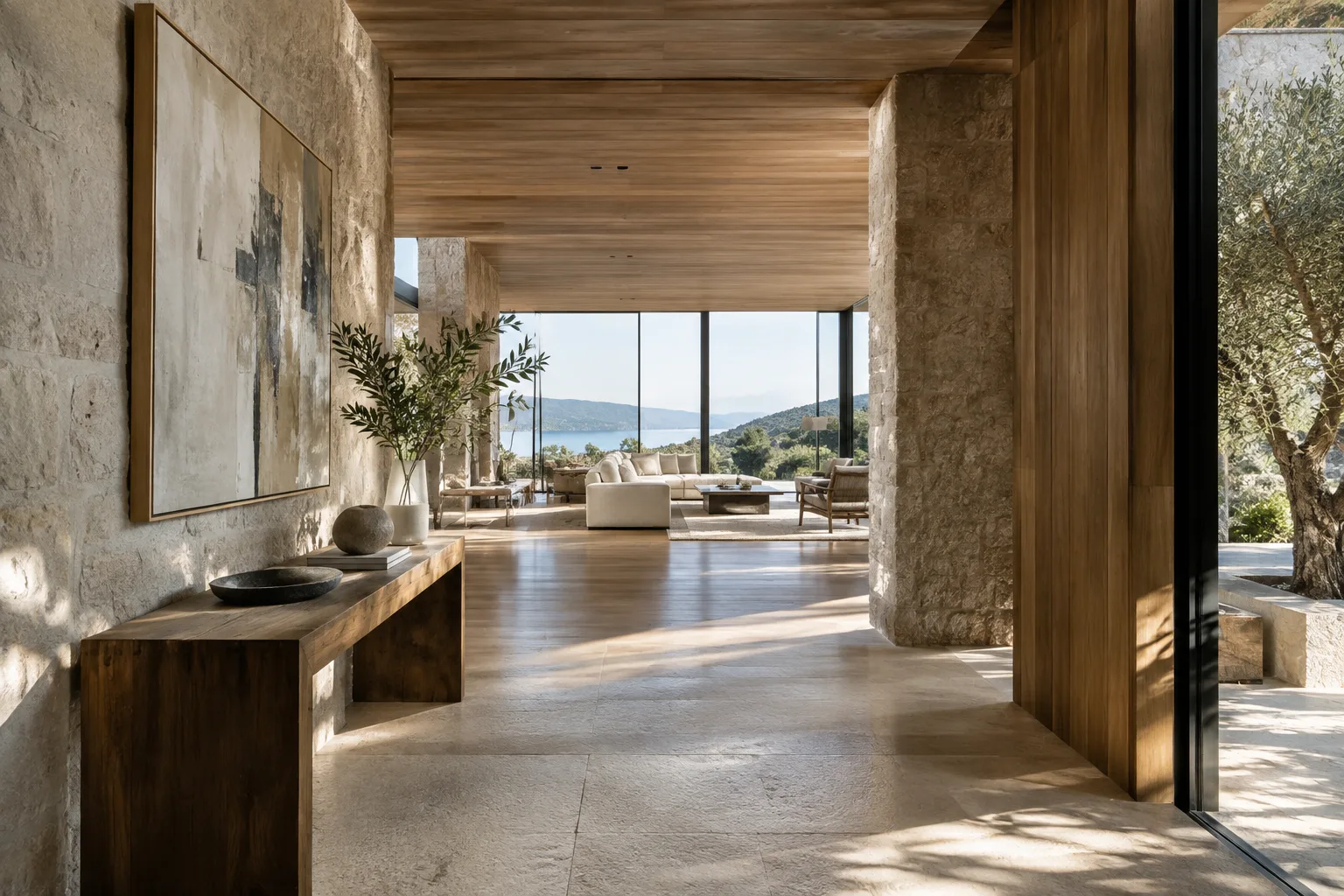
We’ll cover how to structure a prompt when turning an architectural scene into a short video concept, how to choose between Gemini Omni Flash and Veo 3.1 for your workflow, and how to refine your description after reviewing the first result. The examples focus on architectural visualization scenarios, such as showing an interior in daylight, moving the camera along a façade, and preserving the perception of materials.
The prompts here are original drafts, not copies of the examples in the source material. They’re based on the documented principles of clear instructions, constraints, input types, and iteration. Since the quality of the output depends on the model, inputs, and attempts, treat these prompts as starting points rather than guarantees of a particular result.
Requirements and model selection
This workflow is based on video-generation models in the Gemini API. The source material presents Gemini Omni Flash and Veo 3.1 as options for different needs. Gemini Omni Flash is recommended as a general starting model for generating short videos from text and images and editing them conversationally over multiple turns. The source also notes its support for image, audio, and video inputs at the same time, as well as strengths such as scene consistency and character continuity.
Consider Veo 3.1 when you need to extend a scene, generate a specific frame, or include native audio. The model offers image-based guidance and frame-specific generation through the generateContent API. Multi-turn editing with Gemini Omni Flash is described through the Interactions API. This guide does not provide information on enabling API access, pricing, hardware requirements, or account conditions; verify these details in the relevant up-to-date sources before getting started.
Before you begin, decide what scene you want to generate. If you have an image to use, write the instruction so that it treats the image as a video input. If you’re not providing an image, clearly describe the space, lighting, camera movement, and desired result in text. The sources support these inputs but don’t specify a particular duration, resolution, or frame rate, so don’t add undocumented technical values to your prompt.
Step-by-step prompt writing
Start with a single main task. Say what you want the model to generate in the first sentence. Instead of a broad instruction like “Create an interior video,” specify the space to be shown and the purpose of the video. Then add scene details.
Create a short architectural visualization video showing a bright residential kitchen. The camera slowly moves past the kitchen island to reveal the entire space. Set a calm morning mood; do not show people in the frame.This draft states the task, space, camera movement, and scene constraint separately. Rather than leaving the model to decide, clearly specify which aspects of the scene matter.
Explain what to do with the visual input. If you attach a reference image, describe its role in the prompt: should the model preserve the layout, or use it only for the sense of materials and lighting? The sources say Gemini Omni Flash can use images as inputs for video generation, and Veo 3.1 offers image-based guidance. The following prompt is written for a workflow that includes an image.
Use the interior image I attached as a reference for the spatial layout of the scene. The camera slowly moves from the seating area toward the window. Preserve the furniture arrangement and material character shown in the image; keep the lighting soft and natural.Don’t assume every detail of an image will be preserved exactly. Review the first output; if the layout or perception of materials differs from what you expected, clearly state what needs to be corrected in the next turn.
Describe movement concretely. For camera movement, specify the direction and the relationship between the start and end of the shot. Instead of relying on an open-ended adjective like “cinematic,” describe what the viewer should see as the camera moves through the frame.
Create an architectural video showing the entrance of a contemporary museum from outside. The camera slowly approaches the entrance and tracks right along the glass façade to reveal the interior foyer. Keep the building’s massing legible in the frame; make the movement calm and continuous.This example describes the camera movement and the architectural feature to be revealed. If the generated movement is interpreted differently, correct only the relevant part in your next instruction so you can more easily evaluate the effect of the change on the scene.
Add constraints and specify the output format. Stating what you don’t want the model to include and describing the result in a specific way are among the core prompt strategies in the source guide. For an architectural presentation, for example, you might ask the model not to add people to the frame, not to change the building’s form, or to limit the video to a particular scene.
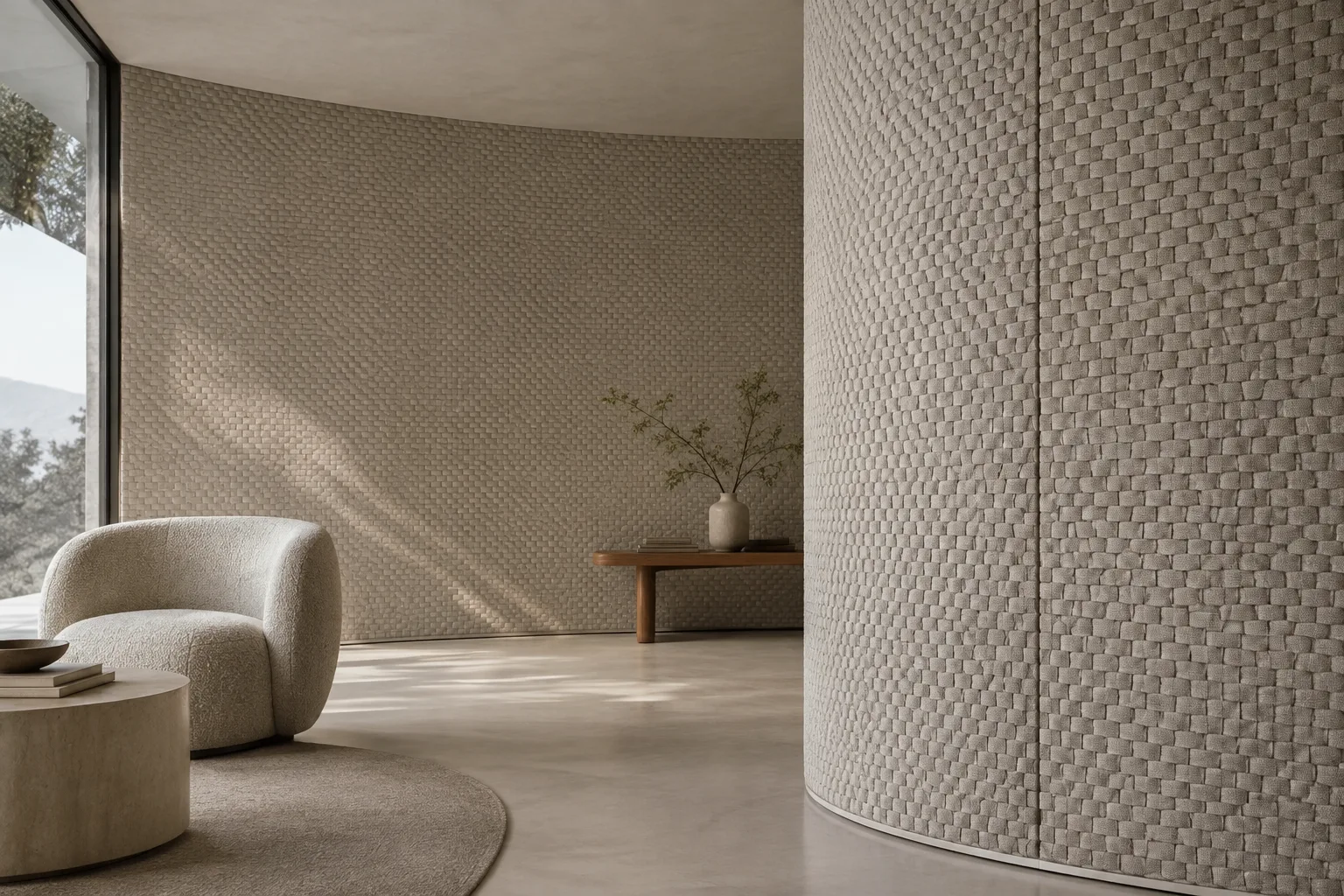
Create a moving architectural presentation video from the façade image I attached. The camera slowly tracks along the façade. Do not change the building’s main form or window arrangement; do not add floors, signage, or people. Focus on the façade material and the effect of daylight on its surface.List constraints in order of priority. Avoid conflicting instructions: asking for both a stationary camera and a push-in, for example, can make the desired result ambiguous.
Review the result and revise it in a new turn. Gemini Omni Flash supports multi-turn conversational editing through the Interactions API. Identify the problem in the first output, then clearly describe what to correct instead of rewriting the entire prompt from scratch.
The camera movement in the previous video is right, but the window arrangement differs from the reference image. Keep the camera movement and focus on matching the spacing of the windows to the image in the new generation.This kind of follow-up instruction separates the qualities to preserve from those to change. Google’s prompt-design guide treats prompting as an iterative process and recommends reviewing results and refining descriptions for the intended use.
Common mistakes
Relying on vague adjectives: Words such as “beautiful,” “impressive,” or “realistic” don’t replace a scene description on their own. Also specify the space, lighting conditions, movement, and focal point.
Packing everything into one sentence: Separate the task, the image’s role, camera movement, and constraints in a readable way. A longer prompt doesn’t automatically mean a better result; what matters is that the instruction is clear and consistent.
Treating the first result as final: Review the model’s output and note problems separately. Correcting one feature at a time in the next turn makes it easier to track what each instruction changes.
Choosing a model without considering the task: Gemini Omni Flash may be considered for multi-turn editing and general video generation; Veo 3.1 may be considered for needs such as video extension, frame-specific generation, or native audio. Don’t conflate their features, and check the latest API documentation before choosing.
Next steps for architecture and visualization workflows
For architecture firms, this approach may be useful for turning an idea for a space or façade into a short animated presentation draft. Interior designers can describe material and lighting perception separately in their prompts, while visualization artists can do the same for camera movement and scene continuity. Students can compare different movement or atmosphere descriptions using the same reference.
However, the sources don’t provide information about direct integration with specific 3D software, project-file transfer, output resolution, or pricing. So don’t assume video generation is an automatic extension of your existing modeling and rendering process. Separately verify the API you’ll use, licensing and cost conditions, whether reference images are suitable for use, and whether the results meet your design requirements. Video generation may offer an alternative for presentations, but it doesn’t replace architectural measurements, construction details, or technical validation.
Sources and license
This guide was adapted into Turkish using Google’s Gemini API video-generation documentation and prompt-design guide. Both sources are licensed under CC BY 4.0. The architectural prompt examples are original and based on techniques described in the documentation.
Sources
2 sourcesSource texts are not republished; short quotes are marked, everything else is our own summary and commentary.
For architecture firms and visualization teams in Turkey, the practical value of this approach is that it lets them quickly test a short presentation concept using text and image inputs. Teams looking to explore alternative camera movements or moods can compare results by changing prompts in small steps.
However, the sources don’t explain costs, API access, or output conditions, so these should be clarified before adding the tools to a regular workflow. The sources also provide no information about hardware requirements. It’s best to treat generated videos as presentation drafts that need review, not as proof of design accuracy, and to separately test their compatibility with existing software workflows.
Frequently asked questions
Should I use Gemini Omni Flash or Veo 3.1 for architectural video generation?
Gemini Omni Flash is recommended for general video generation and multi-turn editing. Veo 3.1 may be considered when you need scene extension, frame-specific generation, or native audio.
Can Gemini Omni Flash generate video from an image?
Yes. The source states that Gemini Omni Flash can generate short videos from text and images.
What video features does Veo 3.1 support?
Veo 3.1 offers native audio, video extension, frame-specific generation, and image-based guidance.