In brief
- Gemini Omni Flash is available through the Gemini API for short video generation and conversational video editing.
- The model works with text and image prompts; the examples in this guide are tailored to architectural scenes.
- The provider gives examples of multi-turn editing, including replacing an element and changing perspective.
- The source does not specify duration, resolution, pricing, or account requirements; check these details before use.
What you'll learn in this guide
This guide focuses on turning architectural or interior design ideas into prompts for short videos with Gemini Omni Flash, then refining the first result through conversational editing. Google's Gemini API video guide describes the model as a tool for generating short videos from text prompts and images. It also notes that results can be improved over multiple turns, with replacing an element and changing perspective given as examples of this editing approach.
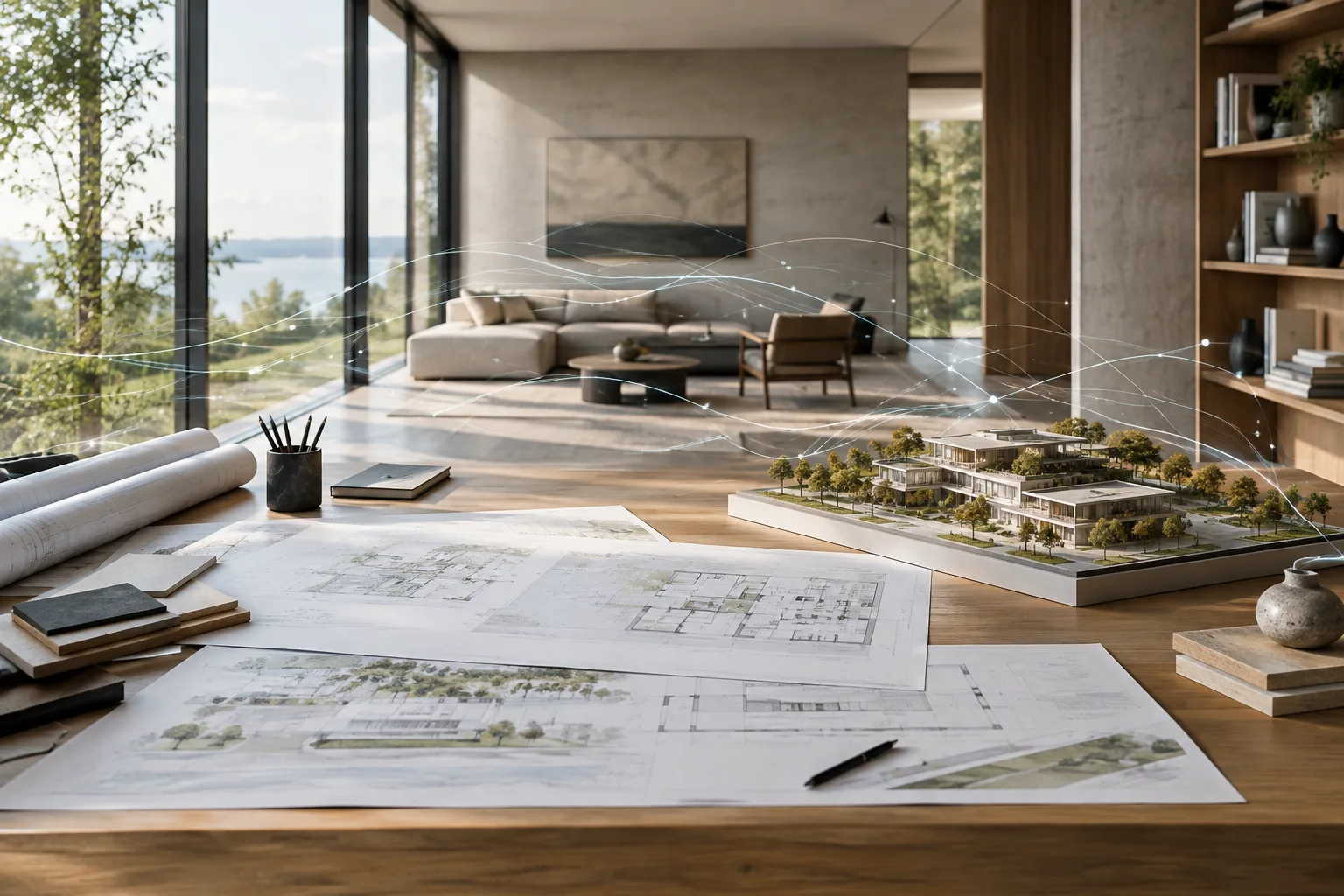
The goal is not to promise a particular camera move or render aesthetic. The examples show how to describe an architectural scene clearly, use a visual reference, and request just one change in each editing turn. Treat generated video as visual material for developing ideas and presentations—not as a verified representation of a design or construction project.
Requirements and model selection
This workflow requires access to Gemini Omni Flash through the Gemini API. Google's video guide says the model uses the Interactions API for multi-turn editing. The supplied source does not explain how to set up account access, pricing, video duration, output resolution, or usage limits. Before starting an office or academic project, check API access and current costs separately.
The guide introduces two video models for different needs. Gemini Omni Flash is recommended as the default video generation model, with short video generation from text and images and multi-turn editing highlighted as key use cases. Veo 3.1 is mentioned when naturally accompanying audio, video extension, generation based on specific frames, or integration with older workflows is needed. This guide focuses on Omni Flash, so don't assume that features belonging to Veo are available in Omni Flash.
Before you begin, prepare your scene concept and any visual reference you plan to use. In your prompt, specify which qualities of the reference matter—for example, its materials, spatial layout, or lighting. The source does not describe the interface for uploading images or the accepted image formats, so specific menu steps or file requirements cannot be provided.
Step by step: preparing a prompt for an architectural video
Describe the scene's essentials. Start with a simple description of the space type, visible architectural elements, and overall mood. Rather than requesting many changes in your first attempt, establish one clear scene concept.
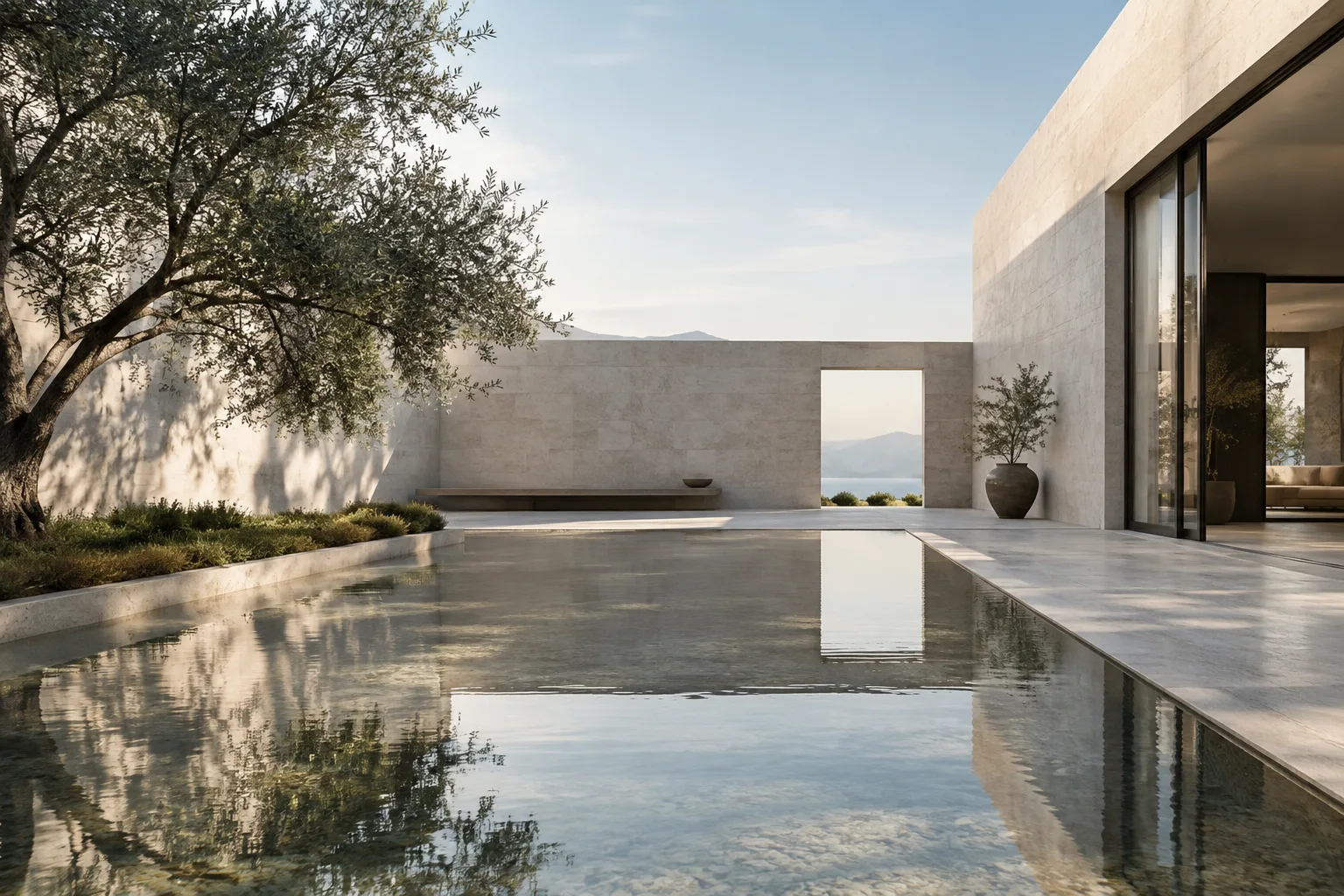
Create a short architectural video of a quiet contemporary courtyard, with pale stone walls, a shallow reflecting pool, and soft morning light. Keep the design calm and uncluttered.This example describes the space and visual mood in text. Asking for a “short video” aligns with a use case in the model's guide; the prompt does not specify a particular duration or aspect ratio.
Work with a visual reference. If you have an interior image or architectural concept image, explain in your prompt that it is a reference and specify which qualities you want to preserve. Gemini Omni Flash is described as generating video from text and images, but the source does not guarantee that every detail of a reference will be preserved exactly.
Use the provided interior image as a visual reference. Create a short video of the lounge, preserving its warm timber surfaces, low seating, and overall quiet atmosphere.Check how to add the image in the Gemini API workflow you're using. Rather than making a vague request such as “preserve everything exactly,” name a few qualities that matter to you. This also clarifies what to look for when evaluating the result.
Describe movement or change clearly. Add a sentence describing what you want to change over time in the video. For example, you could describe the movement of light, the surface of the water, or a person in the frame. This does not imply a special control parameter supported by the model; it's simply a way to explain the scene's intent in natural language.
Create a short video of this small gallery interior. Let a visitor walk slowly past the exhibition wall while the room remains visually calm and the artwork stays the focus.If the movement is concentrated in the wrong place in the first output, adjust that point in the next turn instead of describing the whole scene from scratch. Setting priorities between movement, space, and focus makes it easier to assess the result for a design presentation.
Request one change per editing turn. Gemini Omni Flash's multi-turn conversational editing feature is designed to refine generated video through follow-up prompts. Google gives replacing an element as one example of this use.
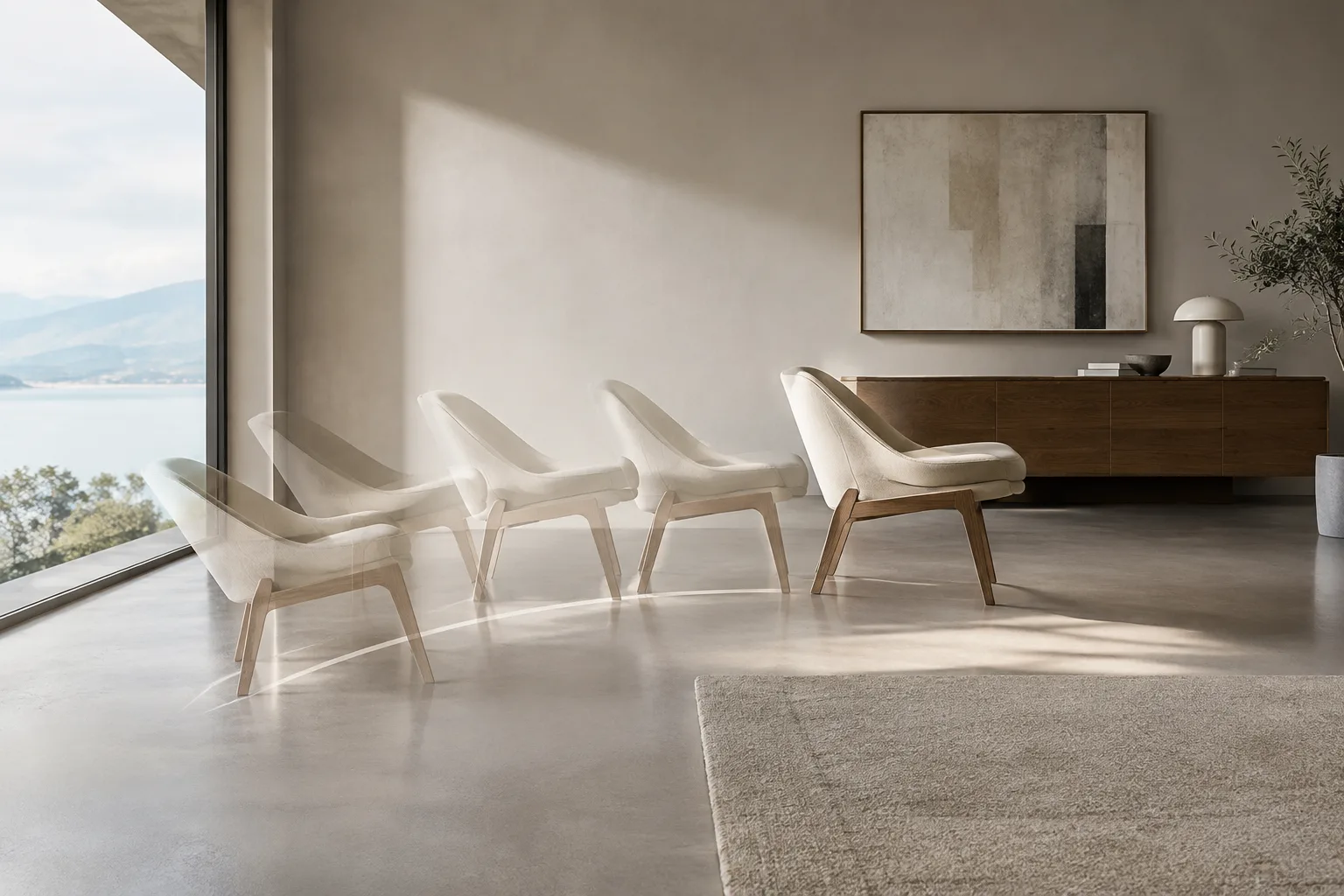
In the current video, replace the central lounge chair with a simple timber bench. Keep the rest of the room unchanged.This prompt targets only the furniture. Instead of making a vague request such as “make the space better,” specify what should change and what you want to keep. Still, the word “unchanged” does not guarantee that every detail will remain exactly the same.
Request a perspective change in a separate turn. The source guide gives changing perspective as an example of multi-turn editing. Try asking for a new viewpoint separately, rather than combining it with other design changes in the same prompt.
Create a new perspective for the current architectural video, showing the courtyard from closer to the entrance. Preserve the same architectural character and materials.When comparing the result with the original video, focus on the design language of the scene and the viewpoint you requested. The source does not specify camera paths, lenses, focal lengths, or framing parameters, so don't present these as supported technical controls.
Common pitfalls
Packing too many goals into one prompt: Asking for a material change, new furniture, different lighting, and a new perspective all at once makes it harder to tell what affected the result. Establish the basic scene first, then try changes in separate turns.
Assuming the limits of a visual reference: Although the model can work with images, the source does not say that every architectural dimension or detail will be preserved exactly. Treat the visual output as concept material, not as a technical drawing or construction decision.
Confusing model features: Audio, video extension, and generation based on specific frames are mentioned in the guide for Veo 3.1. Match the model to your needs instead of requesting these as if they were Omni Flash features.
Assuming output requirements that aren't specified: The source does not give video duration, resolution, pricing, or account requirements. Don't guess; check the latest Gemini API documentation before using the service.
Using it in architecture and visualization workflows
Omni Flash may be worth considering for architects, interior designers, and visualization teams looking to turn an interior concept into a moving presentation. For example, generating an atmospheric study from a reference image or requesting element and perspective changes conversationally within the same scene may help with early-stage idea sharing. However, the source does not promise a direct connection to BIM/CAD data, geometric accuracy, or compatibility with any specific 3D software.
Before adding it to an office workflow, check licensing, API costs, account access, and the terms for using project images. The supplied guide does not explain these conditions in detail. Nor can this document establish hardware requirements; no additional claims about local hardware demands can be made. For student work and client presentations, be clear that the generated video is a visual communication of design intent, not a design decision.
Next steps
For your first attempt, use a single scene and one reference. Evaluate the output against your original design goals, then try another turn that changes only one element or the perspective. This makes it easier to track how each request affects the result.
Analyzing an existing video is a different need from generating a new one. Google's guide points to a separate “Video understanding” guide for examining existing video content. Likewise, if audio generation, video extension, or integration with older workflows matters, consider Veo 3.1, which the guide associates with those capabilities.
Source and license
This guide has been adapted into Turkish based on Google's Gemini API video generation guide. Unless otherwise specified on the source page, the video generation guide is available under the CC BY 4.0 license. The example architectural prompts were created specifically for this article.
Sources
1 sourceSource texts are not republished; short quotes are marked, everything else is our own summary and commentary.
For architecture and visualization teams, the practical value is the ability to turn a concept image into a short moving presentation and iterate on the result conversationally. It may be useful for early-stage mood studies and developing presentation ideas; however, the sources do not promise geometric accuracy or integration with 3D software.
For offices and students in Turkey, it's important to verify API access, usage costs, and the terms for using project images before making a decision. The source does not detail this information. Since output duration, resolution, and hardware requirements are not specified, production planning should not rely on assumptions about them.
Frequently asked questions
Can Gemini Omni Flash generate videos from architectural images?
The Gemini API guide says Gemini Omni Flash can generate short videos from text prompts and images. It does not guarantee that specific architectural dimensions or details will be preserved.
How do you edit a video generated with Gemini Omni Flash?
According to the guide, results can be refined through multi-turn conversational editing via the Interactions API. Replacing an element and changing perspective are among the examples provided.
What's the difference between Gemini Omni Flash and Veo 3.1?
Google recommends Omni Flash for default video generation and conversational editing. Veo 3.1 is highlighted when audio, video extension, frame-based generation, or integration with older workflows is needed.