In brief
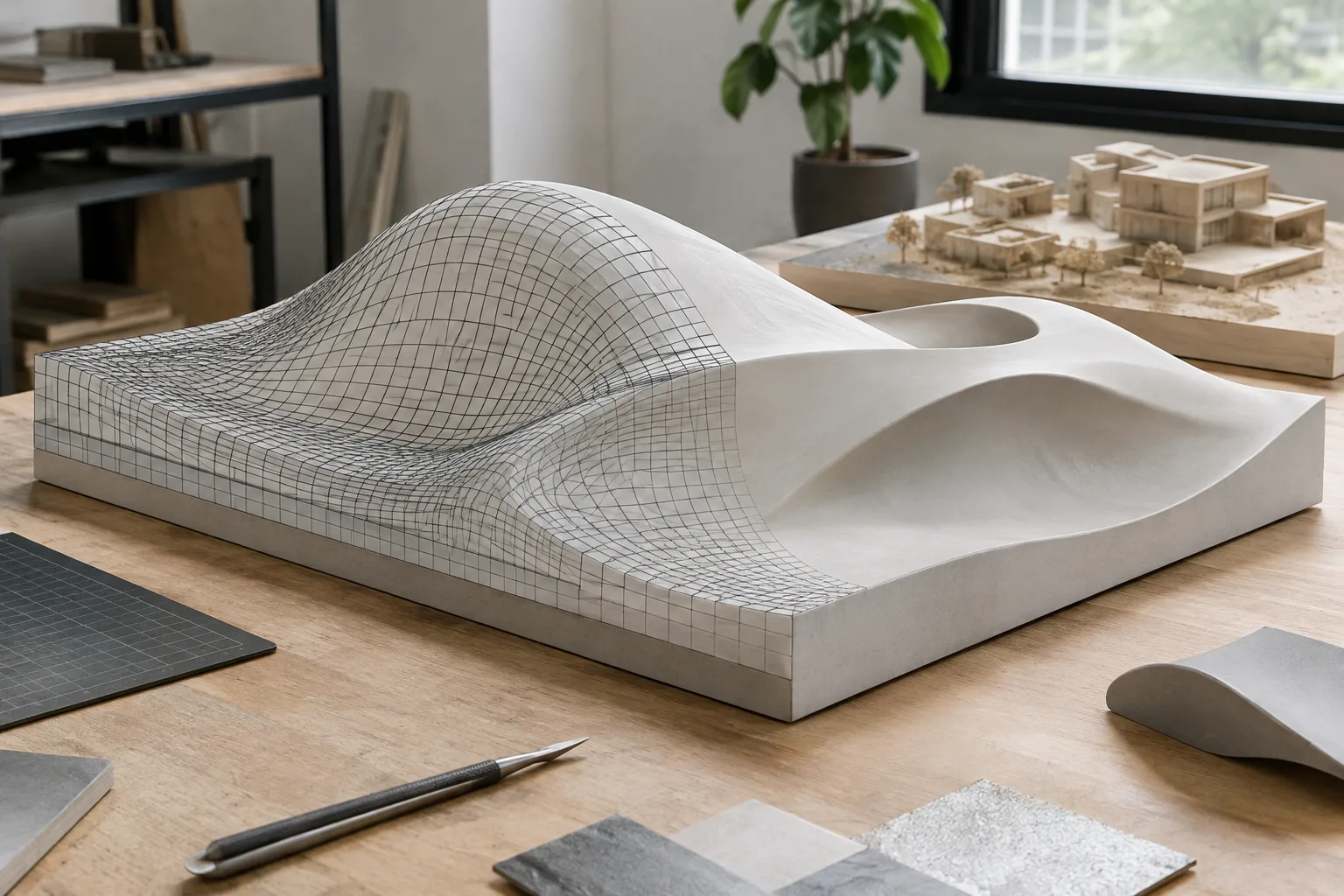
- Voxel Remesh rebuilds a mesh with uniform topology; smaller voxel sizes increase detail and face count.
- Remesh does not account for geometry generated by modifiers, shape keys, or rigs.
- Quad Remesh can create topology suitable for subdivision, but it does not clean up intersecting geometry.
- Models that will be deformed may require manual retopology instead of automatic remeshing.
What will you learn in this guide?
In Blender, Remesh is one way to rebuild a mesh’s topology while keeping its shape roughly the same. It can be useful for making a simple model denser for sculpting, or simplifying messy, overly dense geometry created by scans or sculpting. However, not every remeshed result is ready for animation or deformation.
This guide covers when to use Voxel Remesh, how voxel size affects the result, and which tasks Quad Remesh is better suited for. It also explains why manual retopology may be necessary when clean edge flow is required for deformation.
Requirements and important limitations
The Blender Remesh tools will be used. The referenced Blender Manual pages show the “latest” version; because they do not specify a particular Blender version number, no version number is given here. The manuals also do not provide information about account requirements.
Remesh operates on the object’s original mesh data. It does not account for geometry generated by modifiers, shape keys, or rigs; objects using a Multiresolution Modifier cannot be remeshed. Before proceeding, make sure the object’s base geometry is correct.
Remesh should not be thought of solely as a way to reduce polygon count. For simplifying a mesh whose geometry is already clean, the Blender Manual recommends Decimate Geometry. Do not expect automatic remeshing to create the topology flow required for animation or other deformations.
1. Define the intended use
First, clarify what the mesh is being prepared for:
If you want to clean up irregular or overly dense geometry for sculpting, or make a simple mesh denser, consider Voxel Remesh.
Voxel Remesh is one option when you need a simplified representation mesh for 3D printing or physics simulations.
Consider Quad mode if you plan to use a Subdivision Surface Modifier or Multiresolution Modifier.
If the model will be deformed, do not treat automatic remeshing as the final topology; plan for manual retopology.
Voxel Remesh rebuilds the mesh based on a virtual 3D grid. This produces regular topology and prevents interpenetrating, self-intersecting geometry from remaining in the resulting mesh. Quad Remesh uses the Quadriflow algorithm; although it can produce better results, it is slower and does not clean up intersecting geometry.
2. Run Voxel Remesh
In Sculpt Mode, find the Remesh section in the top tool settings or in the Remesh section of the Tool tab in the sidebar. You can also use the Ctrl-R shortcut. In Object Mode, the Remesh panel is in the Data tab of the Properties editor.
Before running the operation, check that the correct object is selected and, if needed, that you have a copy of the source. Since Remesh rebuilds the original mesh data, checking only the visible modifier result is not enough. The operation can also affect data layers associated with the source mesh.
3. Set the voxel size for your goal
Voxel Size determines the level of detail in the new mesh. A smaller voxel size preserves finer details, but results in denser topology. A larger size creates a lighter but coarser mesh. Choose a setting based on the model’s intended use and the details that need to be preserved.
In Sculpt Mode, the R shortcut lets you set voxel size in the 3D Viewport. According to the manual, this opens an interactive grid that indicates the resulting voxel size. Moving the cursor closer to the grid’s center decreases the value; moving it farther away increases it. Shift helps you adjust the size in smaller increments.
Another option, Sample Voxel Size, lets you set the voxel size by selecting an area of the mesh that corresponds to the desired polygon density after remeshing. The goal is not to choose the smallest possible value on the first try, but to strike a suitable balance between the required detail and the resulting mesh density.
4. Review the other voxel settings
Adaptivity reduces the final face count by simplifying geometry in areas where detail is not needed. The trade-off is that these areas may become triangulated. When Adaptivity is greater than zero, Fix Poles is disabled; do not assume that you can use both settings together.
Fix Poles attempts to reduce the number of poles to improve topology flow, and can affect performance. Preserve Volume attempts to retain the original mesh volume, but can slow down the process on complex models. The Paint Mask, Face Sets, and Color Attributes options are provided to reproject the corresponding data onto the new mesh.
Once you have set the options, run Voxel Remesh and inspect the model from different angles. Check its silhouette, any small details that need to be preserved, and the surface layout. If the result does not have the desired density, review the voxel size and run the operation again; remember that smaller values produce denser topology.
5. Switch to Quad Remesh or manual retopology
Quad Remesh may be preferable for a model that will be used with Subdivision Surface or Multiresolution. In the Quad Remesh window, you can specify the level of detail using Ratio, Edge Length, or Faces. Options are also available for preserving mesh symmetry, sharp features, and attributes. Different Seed values can produce different quad layouts on the mesh.
Quad Remesh is not a solution for every task: it is not suitable for cleaning up intersecting geometry, and the manual considers Voxel Remesh more suitable for 3D printing or cleaning up sculpts. For models that need to deform, create a new mesh and place it over the original surface, then adjust it manually to fit the shape.
In this process, the Retopology view in the 3D Viewport lets you see the source and new meshes together. The Poly Build tool can add, modify, or remove faces; Snapping helps align new vertices to the original mesh.
Common mistakes
Making the voxel size too small: More detail is preserved, but the mesh becomes denser. This density may be unnecessary if the project does not require it.
Treating Voxel Remesh as animation topology: Regular grid topology does not replace the edge flow required for deformation.
Expecting Quad Remesh to clean up intersecting surfaces: This method does not fix intersecting geometry.
Assuming Remesh will work on the result of a modifier or rig: The operation works on the original mesh data and ignores geometry generated from these sources.
Looking only at face count: Intended use, details to preserve, and topology flow also play a role in choosing a method.
What changes in architecture, interiors, and archviz workflows?
Cleaning up a model with scan-derived, sculpted, or dense geometry can provide a more regular starting point for sculpting, 3D printing, or physics simulations. However, the same method is not suitable for every mesh used in an architectural scene. A non-deforming part that needs cleanup has different topology requirements from an object that will be animated.
Voxel Remesh requires a choice between detail and density. It is therefore important to check the resulting mesh in the target software or workflow and avoid unnecessary density. The manuals do not specify particular hardware, licensing conditions, or a Blender version number, so no additional requirements should be assumed in these areas.
Next steps
In your next test, compare the same source at different voxel sizes and assess surface detail and density based on your intended use. If you are targeting Subdivision or Multiresolution, explore Quad mode; if you need deformation, look into retopology tools. If the geometry is already clean and you only need to reduce the face count, consider Decimate Geometry.
Sources and license
This guide was adapted into Turkish based on the “Remeshing” and Sculpt Mode “Remesh” pages in the Blender Manual. Both sources are published under the CC BY-SA 4.0 license.
Sources
2 sourcesSource texts are not republished; short quotes are marked, everything else is our own summary and commentary.
For architecture and visualization teams in Turkey, Voxel Remesh is a practical option, particularly for cleaning up messy scan- or sculpt-derived geometry and preparing models for printing or simulation. However, it should not be treated as producing topology that is automatically ready for animation or deformation.
Before adding it to a workflow, test different voxel sizes on actual scene assets and check the balance between density and detail. The sources do not specify a particular version, license purchase terms, or hardware requirements; teams should also assess compatibility with their own Blender installations and project requirements.
Frequently asked questions
What is Blender Voxel Remesh used for?
It rebuilds a mesh with uniform topology. It is suitable for tasks such as cleaning up messy geometry, preparing a mesh for sculpting, and creating a simplified representation mesh for 3D printing or physics simulations.
How do you set voxel size in Blender?
In Sculpt Mode, use the R shortcut to adjust it with the interactive grid in the 3D Viewport. A smaller voxel size increases detail and mesh density; Shift helps with finer adjustments.
Does Voxel Remesh create topology suitable for animation?
Generally, no. The Blender Manual states that topology on models intended for deformation should follow the flow of the geometry, which may require manual retopology.