In brief
- Ingredients to Video in Flow can guide a scene’s appearance using multiple reference images.
- Frames to Video can create a transition between start and end images.
- Extend can continue a scene based on the final second of the previous clip.
- Insert can add new elements to a scene; the source says object removal is coming soon.
What will you learn in this guide?
Learn how to create more controlled video prompts for architectural or interior scenes with Veo 3.1 and Flow. The examples focus on maintaining a space’s appearance using references, transitioning between two compositions, extending a clip, and adding a new element to a scene. The goal is to describe camera movement, lighting, materials, and sound clearly instead of simply asking for “a beautiful interior video.”
Google’s product page describes Veo 3.1 as a video model that can generate audio. Google’s Flow announcement says the model offers stronger prompt adherence and improved audiovisual quality. According to the company, Flow also supports generated audio in certain features.
Requirements and scope
The examples are built around Flow and Veo 3.1. Google says Veo 3.1 is available to try in Flow, as well as in the Gemini app and for developers through the Gemini API and Vertex AI. This guide does not describe interface steps or menu paths, as the sources do not verify them.
The sources do not explain account requirements, pricing, hardware requirements, supported image formats, or generation limits. Check access and current terms through the relevant Google service before using it. The prompts below are examples written for this guide for architectural workflows; they are not copied from the sources.
When writing a prompt, make the following details clear: the type of space and its materials, the quality of the light, camera movement, elements that must remain unchanged in the frame, and the desired audio. To help movement look natural, also describe which parts of the scene should change and which should stay fixed.
Practical prompt examples
1. Slow camera movement in a single space
A calm architectural video inside a contemporary living room with pale oak flooring, a softly textured limestone wall, and a low modular sofa. Begin with a wide view from the entrance and make a slow, steady camera move toward the seating area. Keep the room layout, furniture positions, material colors, and window proportions consistent throughout. Late afternoon daylight enters from the left and creates soft, realistic shadows. Audio: quiet room tone and faint city ambience outside; no speech.This prompt describes the direction and speed of the camera along with the features of the space that must remain unchanged. That helps prevent the requested movement from being confused with a change to the scene design. If the result does not maintain the continuity of the furniture or materials, restate those details more explicitly.
2. Guiding the appearance with reference images
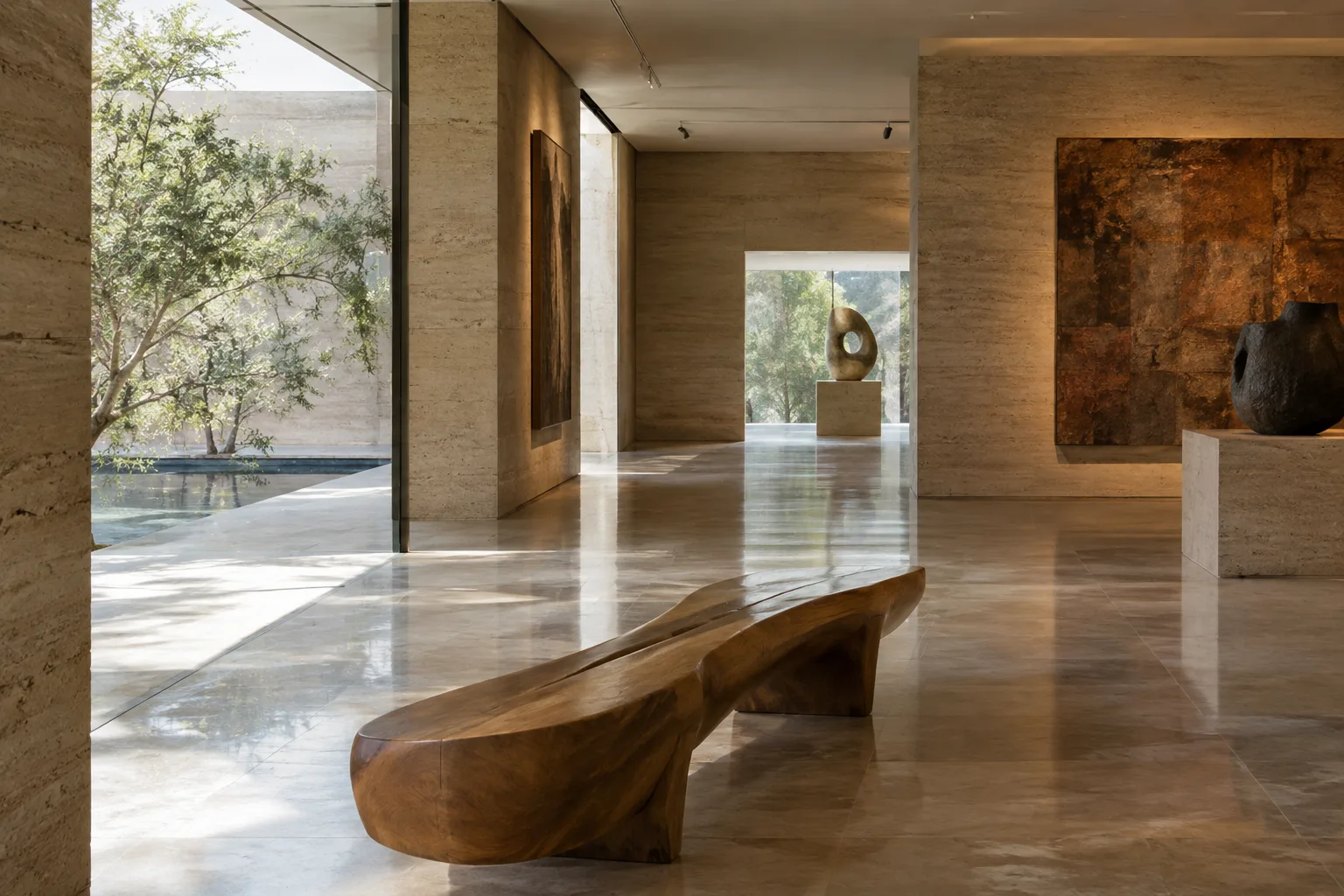
Create a restrained architectural video of a small gallery interior using the supplied reference images to guide the room's objects, materials, and visual style. Show a slow lateral camera move along the main wall. Preserve the artwork positions, wall finish, floor tone, and overall spatial character shown in the references. Use soft, even daylight and subtle room ambience. No people and no spoken dialogue.Ingredients to Video in Flow can use multiple reference images to guide characters, objects, and style. In architectural presentations, this approach may suit scenes where you want the same furniture, material language, or artworks to appear consistently across different shots. This guide does not assume a particular format or upload method for references; follow Flow’s current instructions for the feature.
3. Transitioning between start and end frames
Create a smooth architectural transition between the supplied starting and ending images of the same interior. Move the camera gently forward from the entry toward the central courtyard, keeping the architecture and material palette coherent as the view changes. Let daylight shift subtly across the floor, without changing the room layout. Audio: quiet indoor ambience with a faint breeze from the courtyard; no speech.Frames to Video is designed to create a video between a supplied start image and end image. The prompt explains the expected camera and lighting transition between the two frames. The sources do not say that this feature will produce a perfect match in every case, so it is important to review the result and simplify the transition prompt if necessary.
4. Continuing a clip
Continue the architectural shot from the final moment of the existing clip. Keep the same interior, camera direction, daylight, and material appearance. Continue the slow forward movement toward the courtyard, then settle into a wider view that reveals more of the space. Maintain calm indoor ambience and faint outdoor sounds; no speech.Extend continues a scene based on the final second of the previous clip. Google says the feature can be used to create longer, continuous shots, and that videos can exceed one minute. In this example, the previous shot’s camera direction, lighting, and spatial features are restated to support continuity.
5. Adding a new element to a scene
Add a single tall potted indoor tree beside the window in the existing architectural scene. Match the scene's perspective, daylight direction, scale, and visual style. Create natural contact shadows on the floor and subtle lighting consistent with the room. Do not alter the furniture, walls, or camera composition. Preserve the existing ambient audio.In its announcement, Google introduced Insert for adding new elements to a scene; the company says it can also handle details such as shadows and scene lighting. This example includes explicit constraints so the added plant fits the scale and lighting of the existing scene. Review the result, particularly the contact shadows and composition.
Common mistakes
Vague camera directions: Instead of “move the camera,” specify a particular movement, such as a slow push-in or a move along the wall.
Conflicting goals: Asking for both a fixed frame and a wide camera turn in the same prompt can make the result ambiguous. Choose the primary movement.
Not specifying spatial features: If furniture placement, materials, and lighting must be preserved, state that clearly; don’t rely on a general style label alone.
Forgetting audio: If audio is needed, specify ambient sound or whether there should be speech. Veo 3.1 can generate audio, but the desired content should be described in the prompt.
Not repeating context in an extended clip: Extend is based on the final second of the previous clip, but still describe the movement you want to continue and the scene features that must not change.
Next steps
Start by testing a single camera movement and a small number of scene constraints. You can then review spatial consistency, shadows, material appearance, and any audio separately. If you’re using reference images, consider Ingredients to Video; if you need a transition between two specific compositions, consider Frames to Video. Extend can be used to continue a clip, while Insert can add a new element to an existing scene. Google’s sources describe object removal as “coming soon,” so don’t make it a required part of your workflow without first confirming it is currently available.
For architectural and interior presentations, these features may be useful to teams and visualization artists who want to explain design decisions through a moving scene. However, the results do not automatically replace approved project visuals: check materials, geometry, and spatial continuity visually. Since the sources do not specify account, pricing, or hardware requirements, research these separately before incorporating the tools into your workflow.
Sources and license
This guide has been adapted into Turkish based on the Veo 3.1 information on Google DeepMind’s Veo product page and the feature details in Google’s “Introducing Veo 3.1 and advanced capabilities in Flow” announcement. Both sources are provided under a free license. The example prompts were written specifically for this guide.
Sources
2 sourcesSource texts are not republished; short quotes are marked, everything else is our own summary and commentary.
For architectural firms and visualization teams in Turkey, the most practical aspect is the ability to guide a single design scene with references and create a moving narrative between start and end frames. This could be useful for conveying the feel of a space in a presentation, but the sources do not say that the results guarantee project accuracy. Generated videos should therefore be treated as visual storytelling that needs to be reviewed, not as design documents.
Students can start experimenting with short, simple prompts; firms should verify access requirements and current pricing before incorporating the tools into their workflow. The sources do not provide account, hardware, or cost requirements, so no definitive conclusions can be drawn about them. Material continuity, shadows, and audio should also be reviewed before delivery.
Frequently asked questions
Which Flow features can be used to create architectural videos with Veo 3.1?
The sources describe Ingredients to Video, Frames to Video, Extend, and Insert in Flow. These features are intended, respectively, to guide a scene with references, create a video between two frames, continue a clip, and add elements to a scene.
Can Veo 3.1 add audio to architectural videos?
Google says Veo 3.1 can generate audio and that audio has been added to some existing Flow features. You can also describe expectations such as ambient sound or speech in the prompt.
What are Veo 3.1’s pricing and hardware requirements?
The sources used do not specify pricing, account requirements, or hardware requirements. Check current access and terms through the relevant Google service.