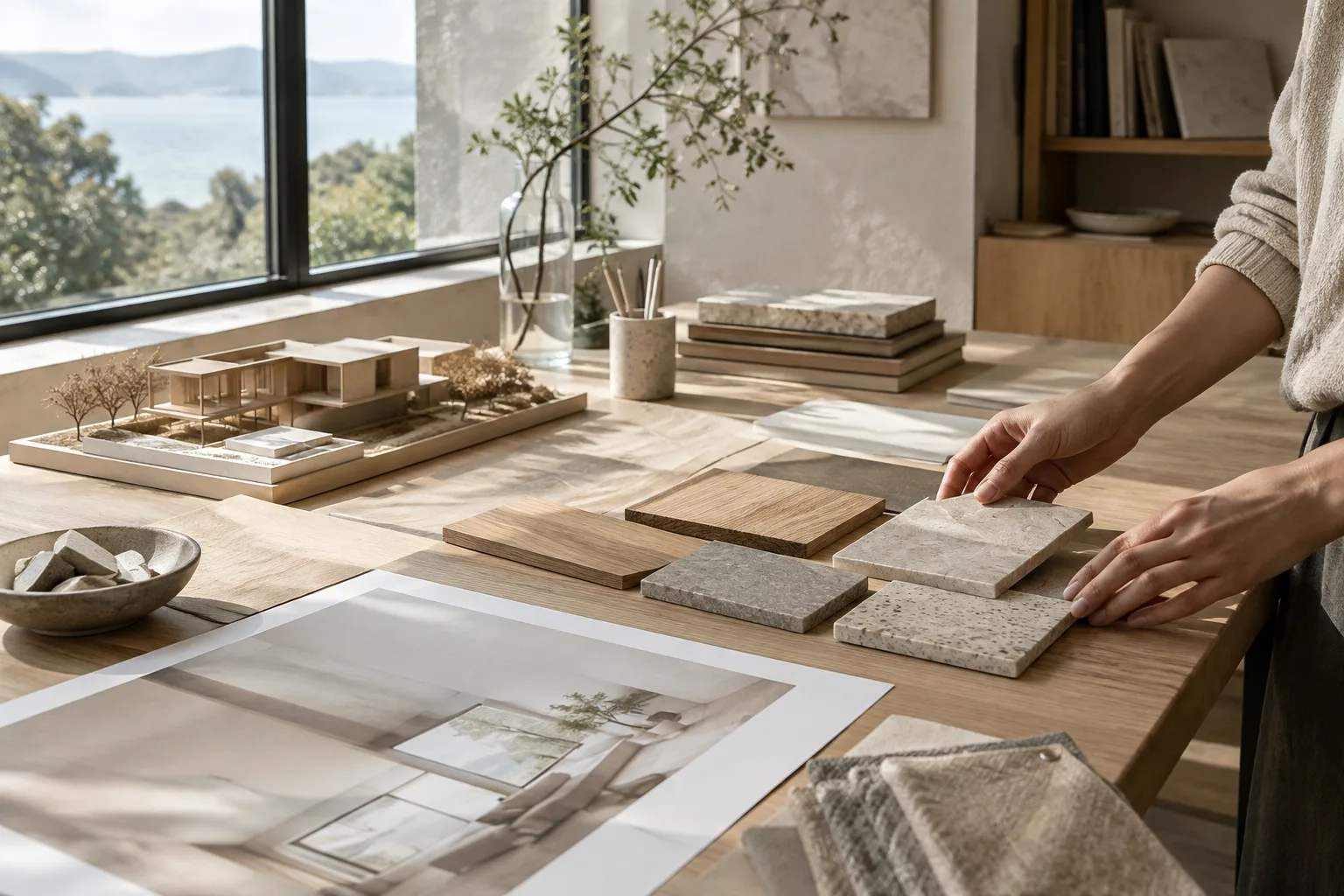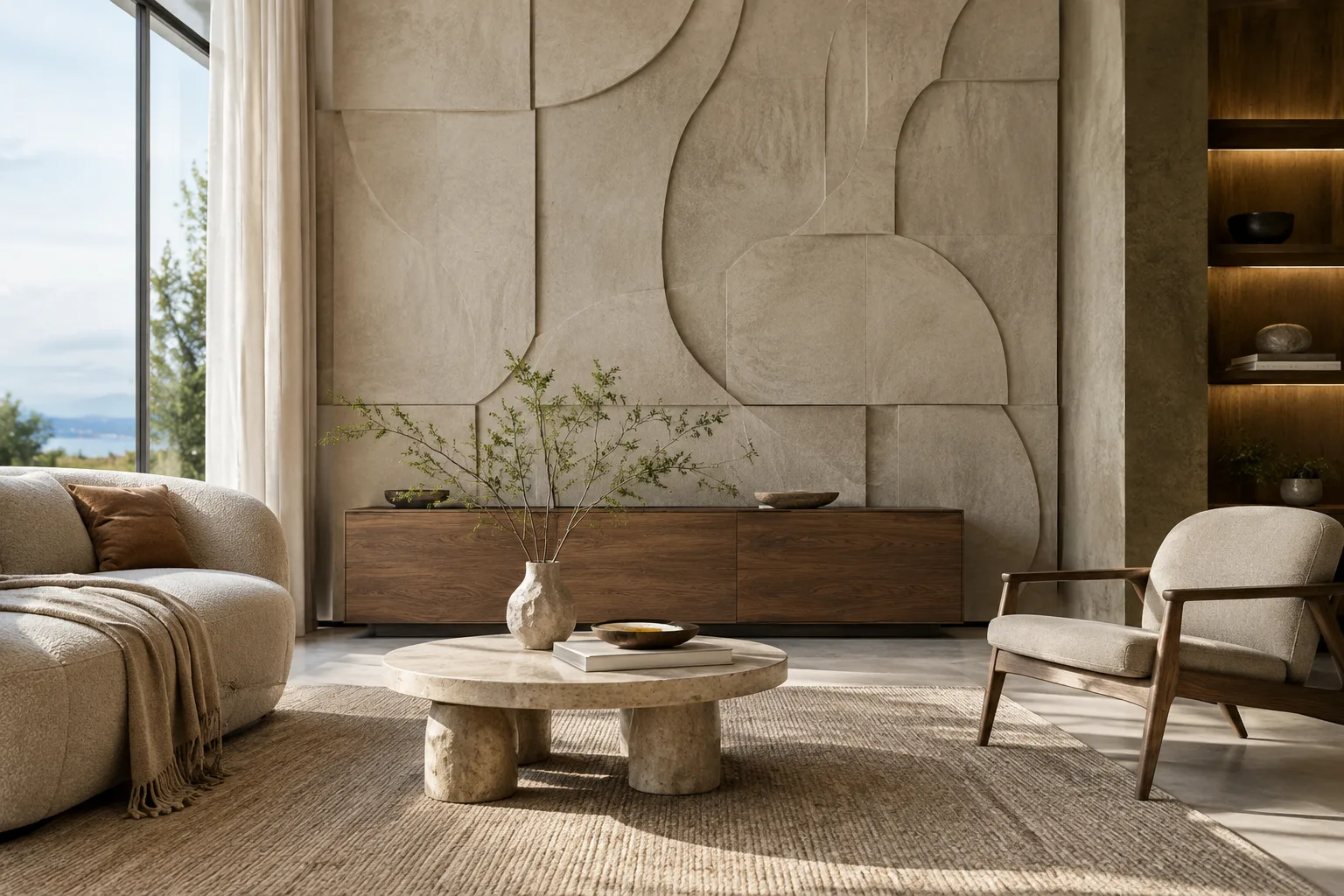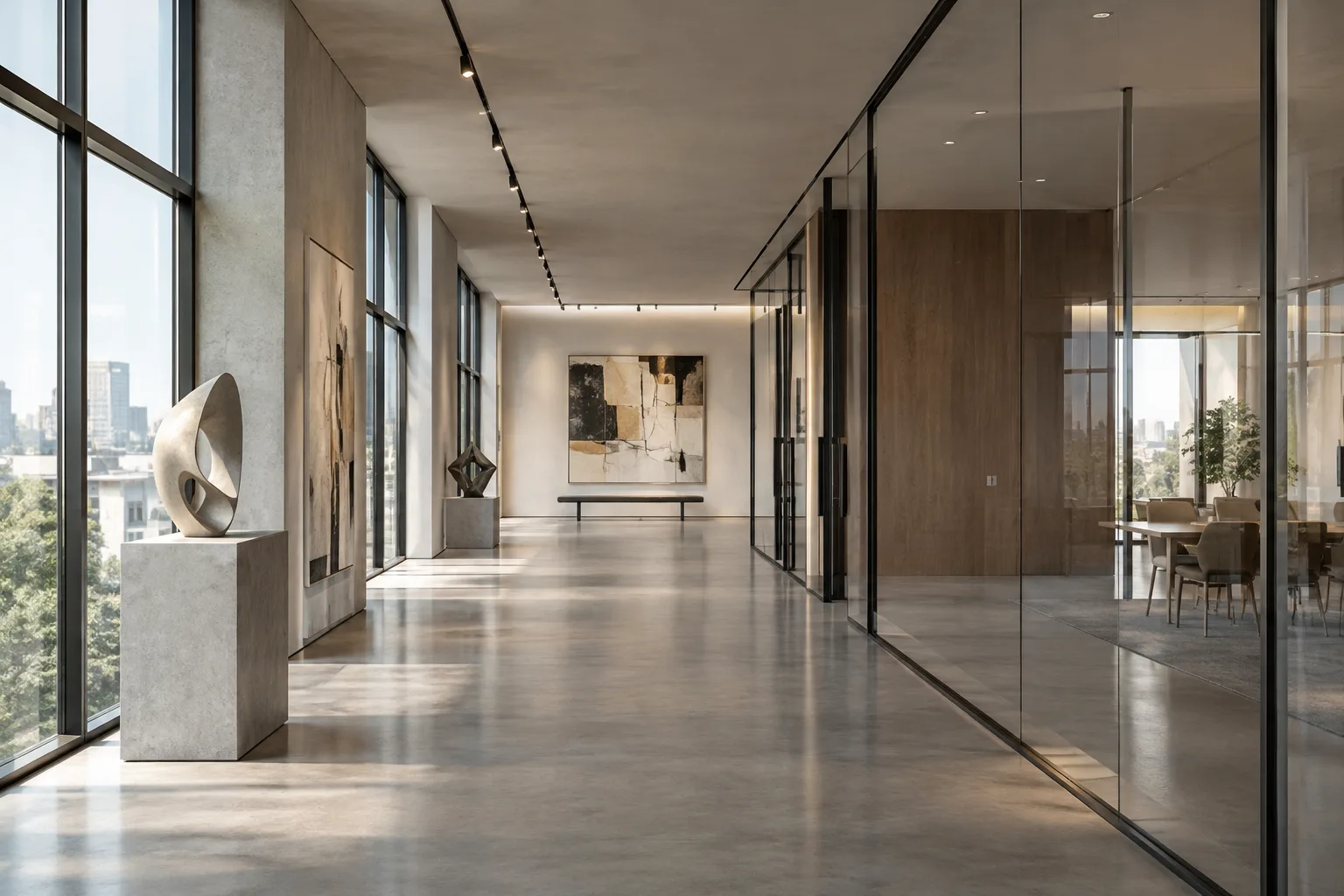
In brief
- Gemini Omni Flash and Veo support video generation from text prompts.
- A prompt can be structured around the subject, motion, scene or context, and camera directions.
- Gemini Omni Flash is positioned for creating short videos from text and images, as well as making edits through multiple rounds of conversation.
- Veo 3.1 offers native audio, video extension, frame-specific generation, and image guidance.
What will you learn in this guide?
Simply writing “a modern house” in an architectural video prompt may not be enough to explain how the scene should look or how the camera should behave. Google’s video generation guide recommends breaking an idea into components such as the subject, action, scene or context, and camera. In this guide, we’ll adapt the same approach to interior and exterior visualizations.
The goal isn’t to find a magic prompt that guarantees a specific result, but to make the scene description clear and controllable. The English-language prompt examples below were written specifically for this guide. Each is designed to work on its own; choose one that suits your scene and adapt it to your project.
Requirements and model selection
Google’s Gemini API documentation lists Gemini Omni Flash and Veo for video generation. According to the documentation, Gemini Omni Flash is geared toward creating short videos from text and images, as well as making edits through multi-turn conversations. Requests such as changing an element in a scene or adjusting the perspective are given as examples of iterative editing.
Veo 3.1, meanwhile, is described as offering native audio generation, video extension, frame-specific generation, and image guidance. The guide says Veo 3.1 can be chosen when specific capabilities are needed, while Gemini Omni Flash is recommended as the default video generation option. The right choice depends on the workflow you need.
The sources don’t specify the required subscription type, usage fees, computer hardware, or account setup conditions. Before starting a project, check the service’s current access and pricing information separately. The examples below focus on prompt writing; they don’t describe a specific interface menu or API call.
How to structure an architectural video prompt
Write your prompt with the following components in mind. You don’t need to use every component every time; choose the ones your scene requires.
Subject: Specify the space or object at the center of the video. Instead of “an interior,” add distinguishing details, such as “a living area with an open kitchen and a timber ceiling.”
Action: What changes or moves in the video? Choose one clear action, such as light moving across a wall or the camera slowly advancing down a corridor.
Scene and context: Describe whether it’s an interior or exterior, the time of day, the weather, and the atmosphere. Details such as morning light, wet paving after rain, or a sunlit courtyard can help establish the mood.
Camera angle and movement: Specify a viewpoint, such as a wide angle, eye level, or an overhead view, and a camera direction, such as a static shot, horizontal pan, or dolly movement. The guide notes that some advanced camera angles aren’t officially supported, and results may vary.
In your first attempt, it’s easier to evaluate the result if you choose one main movement rather than packing several into the same prompt. The examples below are starting points.
1. Static wide shot of an interior
Wide establishing shot of a calm contemporary living room with a timber ceiling, pale stone floor, and a large window. Soft morning light falls across the room. Static camera, realistic architectural visualization, no people.This prompt specifies a particular living area as the subject, morning light as the context, and a static wide shot as the camera direction. The material and lighting descriptions define the scene’s visual character; since no camera movement is specified, the focus remains on the overall appearance of the space.
2. Slow camera move through a corridor
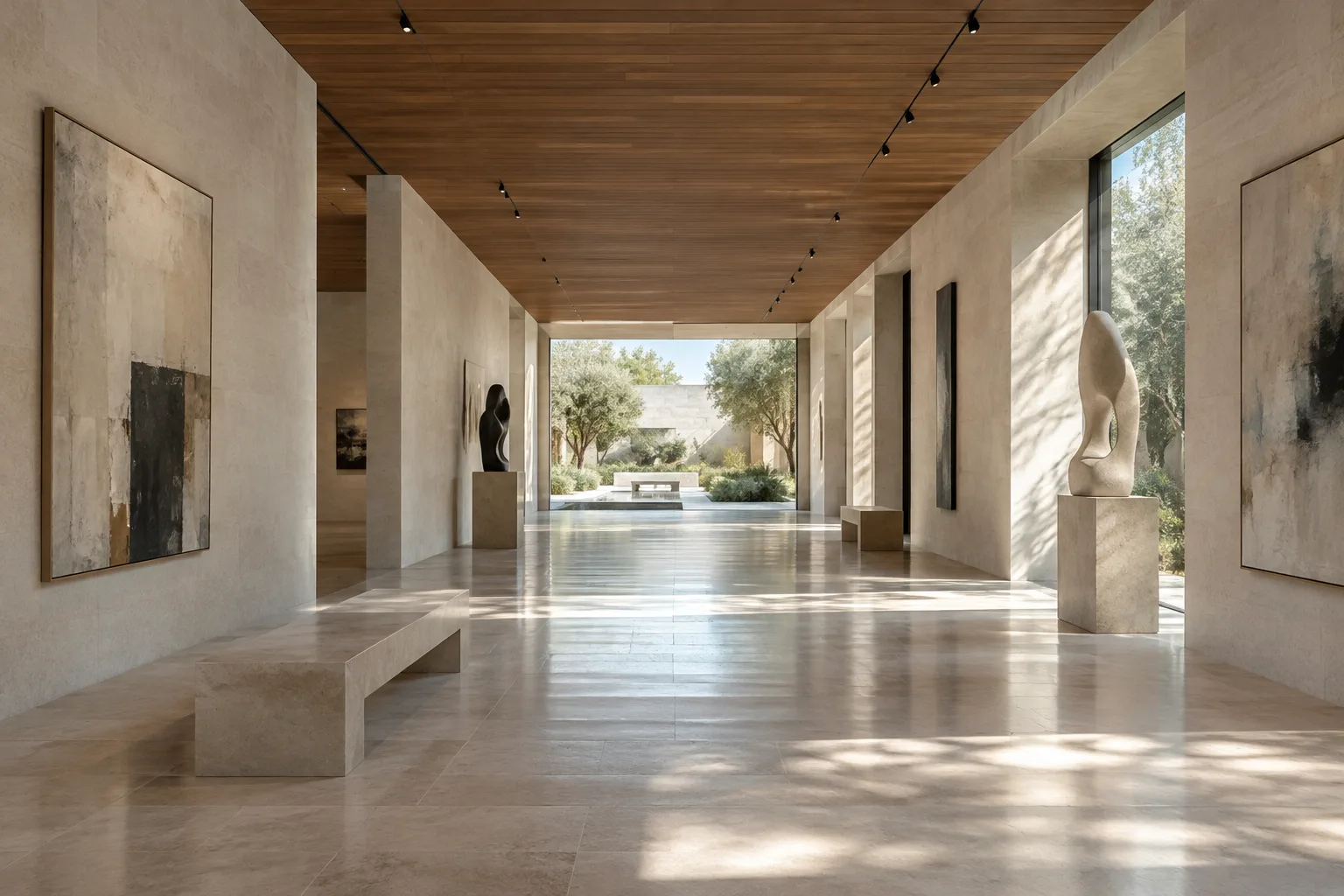
A long gallery corridor in a contemporary art museum, with warm limestone walls and a polished concrete floor. The camera slowly dollies forward at eye level toward a bright courtyard. Soft daylight, quiet atmosphere.Here, “dollies forward” describes the camera physically moving ahead. The eye-level view and the direction toward the courtyard make the movement clear. The prompt uses a single forward motion instead of combining different camera movements along the corridor.
3. Horizontal pan across an exterior facade
A small contemporary house beside a green garden on an overcast afternoon. Slow pan right across the facade, revealing timber cladding, deep window frames, and the entrance. Wide shot, gentle wind moving the garden plants.In this example, the facade is the subject, while the garden and overcast weather provide the context. The horizontal pan describes the frame turning to the right. The plants moving in the wind add a small action; the camera direction and movement within the scene are described separately.
4. Courtyard layout from an overhead view
Bird's-eye view of a compact residential courtyard with a rectangular reflecting pool, stone paving, planted beds, and a timber pergola. Slow, steady camera movement above the courtyard in clear afternoon light.A bird’s-eye view is an angle that helps show how elements in the courtyard are arranged in relation to each other. The source guide gives this angle as an example; even so, keep in mind that the result may depend on the prompt and use case.
5. Moving in toward a material detail
Close-up of a pale stone wall meeting a dark timber door frame in a quiet interior. Slow dolly in toward the junction, soft side light revealing the surface texture, realistic architectural detail.This example focuses not on the entire space, but on the junction between the wall and the door frame. The close-up and slow move toward it are directions intended to highlight the relationship between the materials. In real projects, check separately that the detail is consistent with the design.
Common mistakes
Leaving the subject and action unclear: General requests such as “create an impressive video” don’t provide enough detail to define the scene. Name the space and clearly state what happens in the video.
Giving conflicting camera directions: Asking for a static shot, a fast pan, and forward movement at the same time can make the camera’s behavior unclear. Start with one movement; if needed, request a change in a subsequent editing round.
Overcomplicating the scene description: Instead of adding many objects, events, and atmospheric details, choose the most important ones. Also consider that transformations that take a long time may not fit the clip’s duration.
Assuming every camera angle is equally reliable: According to the guide, some advanced angles aren’t officially supported, and results may vary in reliability. For your first attempt, use clear directions such as a wide shot, eye level, a static shot, or a simple pan.
How can this fit into an architecture and visualization workflow?
Interior designers, architecture firms, and visualization artists can use this approach to turn a spatial idea into moving presentation drafts. Separating the subject, action, and camera directions can be useful, particularly when you want to communicate the spatial relationships through camera movement rather than a single image. However, the sources don’t guarantee that the model’s output will directly match project drawings or design decisions. Treat generated images as visual drafts to check, not as proof of design accuracy.
When choosing a model, match its capabilities to your needs: explore Gemini Omni Flash for short video generation from text and images or multi-turn editing; consider Veo 3.1 when you need video extension, frame-specific generation, image guidance, or native audio. The sources don’t provide details about licensing, fees, hardware requirements, or compatibility with existing pipelines. Before settling on an office workflow, verify these points against the service’s current terms.
Next steps
Choose a scene from your project and start by describing the subject and context. Then create a first attempt using just one camera angle and one movement. When reviewing the result, decide what you want to change: the framing, the lighting, or an element in the space? Gemini Omni Flash is described as supporting this kind of step-by-step request through multi-turn editing. For more specific needs, such as video extension or frame-specific guidance, review Veo 3.1’s documented capabilities.
Sources and license
This guide is adapted into Turkish from Google Cloud’s “Video generation prompt guide” and the Gemini API documentation, “Video generation in the Gemini API.” Both sources are licensed under CC BY 4.0. The architectural prompts are original examples written for this guide.
Sources
2 sourcesSource texts are not republished; short quotes are marked, everything else is our own summary and commentary.
For architecture firms and visualization teams, the practical value of this approach lies in breaking a scene down into small, manageable decisions. Trying different camera directions in the same space can make it easier to discuss a presentation concept; however, don’t assume the results will match the design exactly.
Offices and students in Turkey should verify usage costs, access conditions, and compatibility with their existing workflow before getting started. The sources don’t specify hardware requirements or pricing, so it isn’t possible to recommend a particular computer investment or license model. The most cautious approach is to treat generated videos as drafts to review, not as final project deliverables.
Frequently asked questions
What is the difference between Gemini Omni Flash and Veo 3.1?
Google highlights Gemini Omni Flash for short video generation and multi-turn editing. Veo 3.1 is described as offering native audio, video extension, frame-specific generation, and image guidance.
What information should an architectural video prompt include?
The core components are the subject, action, scene or context, and camera directions. You don’t have to include all of them in every prompt.
What video features does Veo 3.1 support?
According to the documentation, Veo 3.1 offers native audio, video extension, frame-specific generation, and image-based guidance.