In brief
- Gemini Omni Flash is presented for workflows that generate short videos and refine results over multiple turns.
- Veo 3.1 offers native audio, video extension, frame-specific generation, and image guidance.
- A video prompt can be broken down into elements such as subject, action, setting or context, camera angle, and camera movement.
- The sources do not explain pricing, account requirements, or generation limits.
What you'll learn in this guide
To turn an architectural image into a moving scene, you can go beyond a general description like “a video of a modern house” and explain separately what appears in the image and how the camera should behave. Google’s video prompt guide treats the subject, action, setting or context, camera angle, and camera movement as the core elements of a prompt. You don’t need to include all of them in every prompt, but understanding what each describes can help you express your intent more clearly.
The examples in this tutorial are original prompts tailored to architectural visualization and interior presentations. They do not guarantee a particular result or promise that a specific camera control will work. According to the guide, some advanced camera angles are not officially supported, and reliability can vary by use case.
Requirements and choosing a model
For video generation, you can use the model options described in Google’s Gemini API or Vertex AI video prompt guide. The sources do not explain account setup, pricing, quotas, or specific subscription requirements; check the relevant product documentation separately for access conditions.
Google’s Gemini API documentation recommends Gemini Omni Flash for workflows that generate short videos from text and images and refine results over multiple turns. The documentation mentions the Interactions API for this multi-turn editing. Veo 3.1 is associated with needs such as video generation with native audio, video extension, frame-specific generation, and image guidance; the documentation shows the generateContent API for these features. Choose based on what you need: consider Omni Flash if your goal is to refine a previous result within a conversation, and Veo 3.1 if you need video extension or frame-specific generation.
How to build an architectural prompt step by step
Define the main subject. Describe the architectural element at the center of the scene: for example, a single-story home, a small café, or a courtyard museum. Add qualities you want to see, such as materials or form. Instead of a general phrase like “an interior,” specify which space you want to show.
Decide on the action. Will the video show a static space, or tell a story of change? The guide defines action as movement, interaction, or transformation over time. For an architectural presentation, you might describe daylight moving across a room or the camera traveling down a corridor. The guide also notes that clip length should be considered when describing a process that takes a long time in a single clip.
Describe the space and atmosphere. Explain where the interior or exterior scene takes place, the time of day, and the mood. Details such as “a living area with large windows, morning light, and soft reflections on the floor” make the context more concrete. If your prompt is accumulating unnecessary detail, remove anything that does not support the main idea.
Choose a camera angle and movement. A wide angle can establish a space in its surroundings; eye level can offer a more neutral perspective. Specify the movement separately: for example, a static shot, a slow pan, or a dolly in. A pan rotates the camera horizontally; a tilt rotates it vertically; a dolly physically moves the camera closer or farther away. These are different movements. Starting with one clear direction, such as “the camera moves closer,” is easier to understand than stacking several movements together.
Example 1: Introducing a home in a wide shot
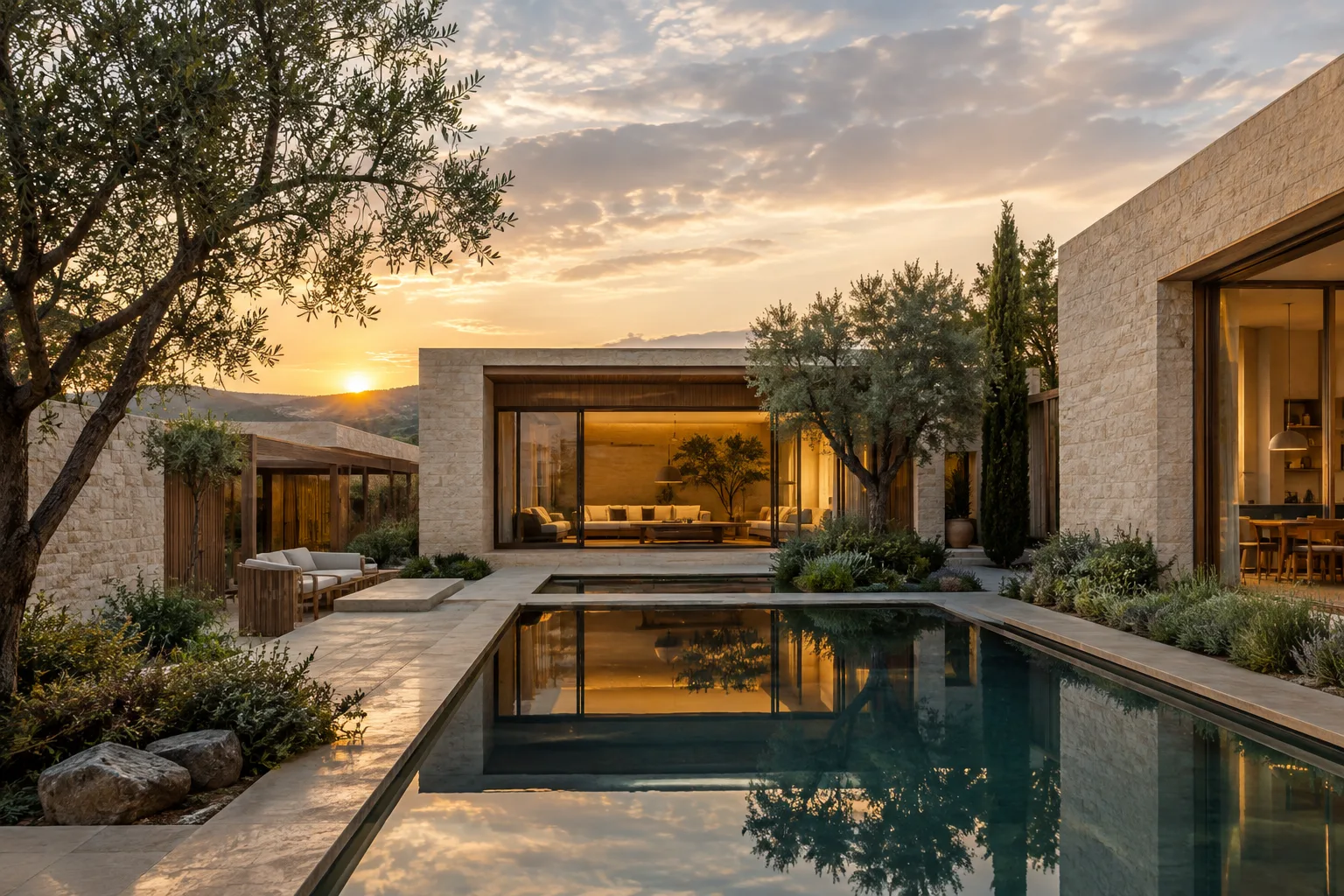
Wide establishing shot of a compact courtyard house at golden hour. Warm sunlight falls across pale stone walls and a shaded terrace. The camera makes a slow, steady dolly in toward the entrance.Here, the subject is a courtyard house; the context is golden hour and sunlight; the camera angle is a wide shot; and the movement is a slow dolly in. Try these elements together first and assess the result. If needed, change just one element in a subsequent attempt.
Example 2: Showing materials in an interior
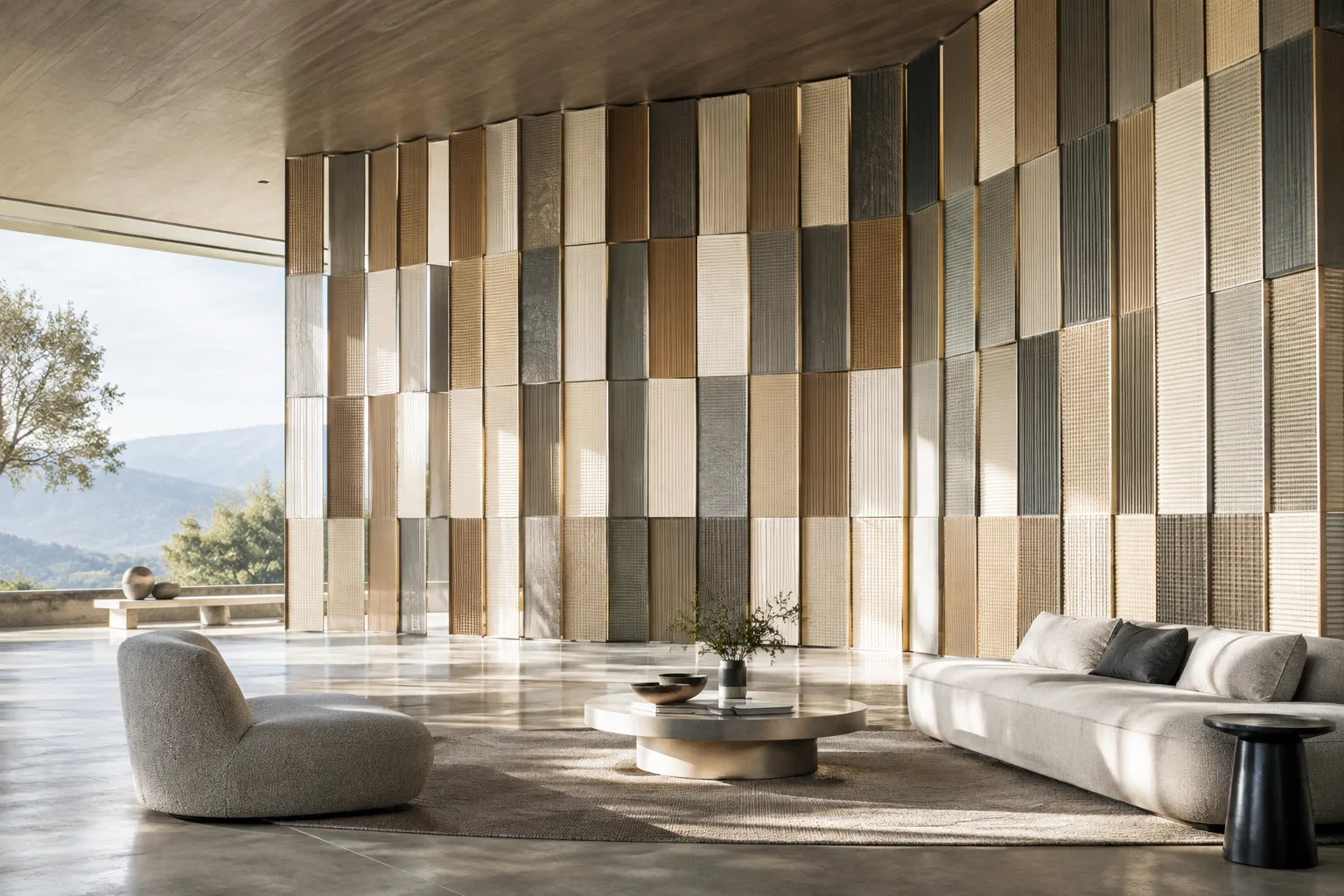
A calm contemporary living room with oak cabinetry, a light stone floor, and a large window. Soft morning light moves across the room. Static eye-level shot, with subtle reflections on the floor.Here, the action is the changing light in the space, while the camera remains static. The guide defines a static shot as one in which the camera stays in place. A static camera is a useful starting point when you want to emphasize materials and lighting effects.
Example 3: Moving through a gallery corridor
A quiet art gallery corridor with white walls, a polished concrete floor, and evenly spaced framed works. A slow tracking shot moves forward through the corridor, keeping the architecture in view.This prompt describes the space and the camera’s forward movement. If you want to use a more explicit movement term from the guide instead of “tracking shot,” you can try describing a dolly move forward through the scene. Results may vary, so review the prompt in a controlled way.
Example 4: Showing a courtyard from above
Bird's-eye view of a small landscaped courtyard between low-rise buildings. A narrow path curves around a shallow reflecting pool, with planting beds along the edges. The camera slowly cranes upward to reveal the full layout.In this example, “bird’s-eye view” describes an angle looking straight down, while the crane movement aims to reveal the entire courtyard by raising the frame. The guide cautions that some advanced angles may not be officially supported and their reliability can vary. Check the result when you request an overhead view, and try again with a simpler wide shot if needed.
Common mistakes
Being too general: “A video of a stylish building” provides little information about the subject, context, or camera. Start by clarifying the space and what happens in the video.
Mixing up camera movements: Pan, tilt, dolly, and zoom are different camera movements. Rather than listing many movements in one prompt, specify one first and assess the result.
Describing a long transformation in a short clip: The guide recommends considering clip length when describing processes that take a long time. Reduce the event to a short, clear action.
Including every element in every prompt: You do not have to use the subject, action, context, angle, and movement together. Leave out anything you don’t need.
Treating the result as guaranteed: A camera angle or movement in a prompt will not necessarily produce the same result every time. Review the output, especially for advanced angles.
Ignoring safety filters: Google says safety filters are applied to Gemini Omni Flash and Veo. Prompts that violate rules against inappropriate content may be blocked.
Implications for architectural and visualization workflows
This approach can help visualization teams, interior designers, and students build prompts more systematically, especially when they want to complement a static architectural presentation with a short moving scene. Thinking separately about the space itself, actions such as lighting or movement, and camera directions can make different attempts easier to compare. However, the sources do not describe a workflow for importing from specific 3D software, compatibility with model files, or turning an existing render into a video.
Choose a model based on the video feature you need, and distinguish between needs such as multi-turn editing and scene extension. Before generating, check which API you will use and its access conditions; note that the sources provide no information about budget or hardware requirements. If camera directions and generated footage will be used in a real project presentation, also review whether the design decisions are represented accurately.
Next steps
Start with a short prompt and choose one primary camera movement. Then make another attempt by changing just one element: for example, describe the same space with a slow pan instead of a static shot. Consult the relevant API documentation for Omni Flash’s multi-turn editing workflow and for the extension or frame-specific generation needs listed for Veo 3.1. If the output does not meet expectations, review the subject, action, setting, and camera elements separately to help identify what is unclear.
Sources and license
This tutorial has been adapted into Turkish based on the model descriptions and prompt components in Google’s “Video generation in the Gemini API” and “Video generation prompt guide” documents. Both sources are licensed under CC BY 4.0.
Sources
2 sourcesSource texts are not republished; short quotes are marked, everything else is our own summary and commentary.
For architecture firms and visualization teams in Turkey, thinking separately about the subject, setting, and camera directions can make the process of creating short presentation videos more structured. Students who want to support static images with moving visuals can also use this approach as a starting point.
Still, the sources do not explain pricing, hardware requirements, or API access conditions, so check the relevant service documentation and costs before starting production. The consistency of camera movements and the accuracy of the design representation should also be assessed in the outputs.
Frequently asked questions
What is the difference between Gemini Omni Flash and Veo 3.1?
Gemini Omni Flash is highlighted for short-video generation and multi-turn editing workflows. Veo 3.1 offers native audio, video extension, frame-specific generation, and image guidance.
What information should an architectural video prompt include?
Subject, action, setting or context, camera angle, and camera movement are elements you can use to build a prompt. You do not need to include all of them in every prompt.
How much do Gemini Omni Flash and Veo 3.1 cost?
The source documents do not include pricing. Check the relevant product documentation for fees and access conditions.