In brief
- LightMix is added as a render channel/element in both V-Ray and Corona, letting you change the intensity and color of lights in the scene after rendering, right in the Frame Buffer.
- Lights can be grouped individually, by group, by layer, or via manual Light Select; the Cinema 4D version of V-Ray also offers grouping by instanced lights.
- Changes made in LightMix can be pushed back to the actual lights in the scene using the "To Scene" button (V-Ray) or "Bake" (Corona).
- Pushing light intensities too high or too low can introduce persistent noise (fireflies) in the render; the documentation recommends baking the changes into the scene to avoid this.
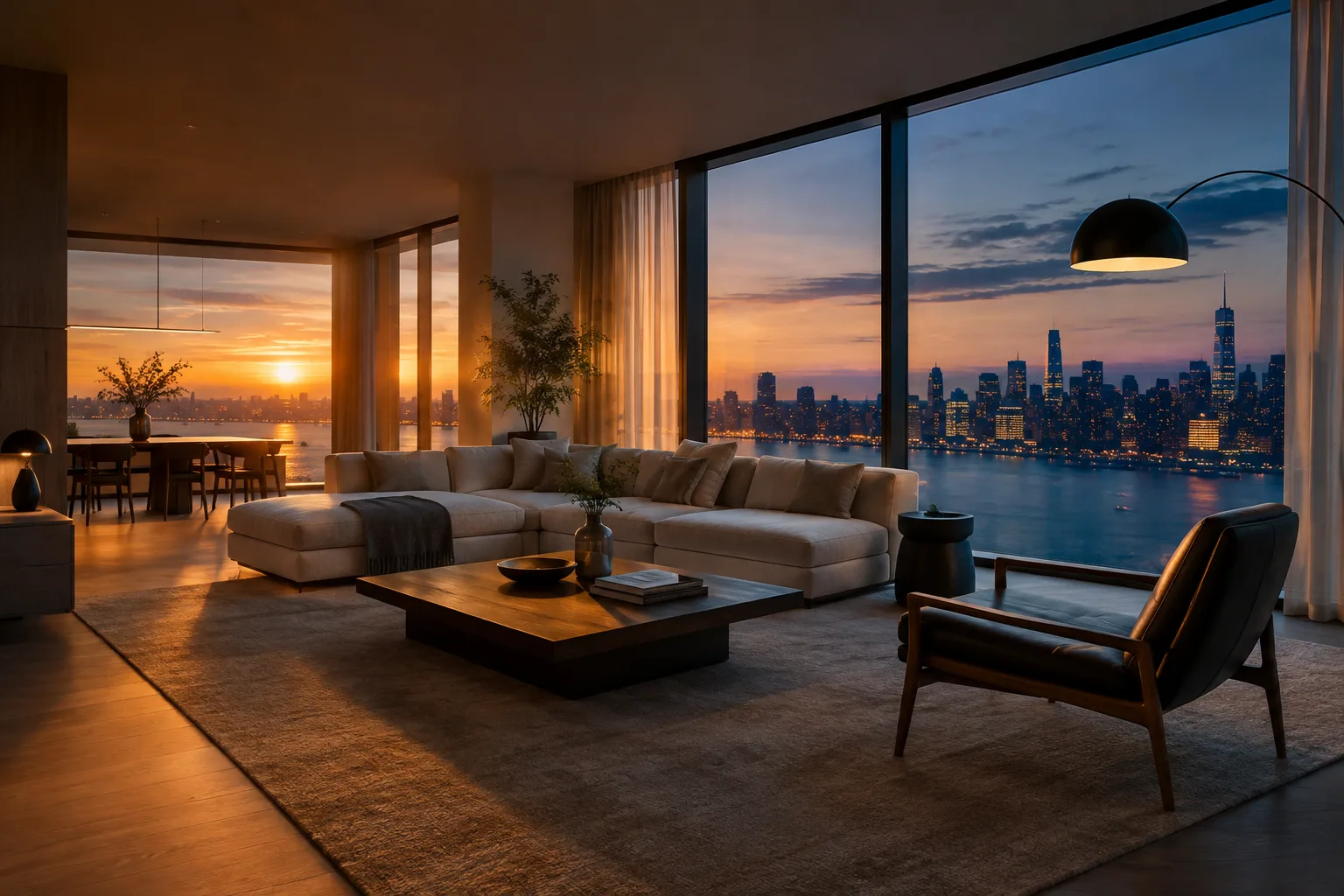
LightMix is a render channel/element found in Chaos's V-Ray and Corona Renderer products, allowing architectural visualization studios to produce multiple lighting scenarios—such as sunset and night—from a single render file. According to official Chaos documentation, this feature works on similar principles in Corona for 3ds Max as well as V-Ray for Blender and Cinema 4D.
What does LightMix do?
Once LightMix is added, the intensity and color of lights and light-emitting materials in the scene can be adjusted through the Frame Buffer (VFB) while rendering or after it finishes. Lights can be toggled on and off individually and fine-tuned in the interactive preview (IPR) without re-rendering the final image. According to the documentation, changes made in the VFB can also be pushed back to the actual lights in the scene with a single click.
Setup in V-Ray (Blender and Cinema 4D)
In V-Ray for Blender, LightMix is added as a render channel:
Add the channel to the scene via
View Layer Properties › Render Channels › Light Mix.Open the V-Ray Frame Buffer and start a new render; the Source automatically switches to Light Mix.
Expand the Source layer and begin adjusting lights from there.
In Cinema 4D, the same functionality is added as the VRayLightMix render element via V-Ray › Render Elements › Add LightMix, and the Source is selected as LightMix in the Layers tab of the VFB.
In both applications, the "Group By" option is important: options like Individual lights, Grouped lights, and Manual light selects determine how lights are split into separate channels in the VFB. The Cinema 4D version additionally offers "Instanced lights" and "Layers" options.
| Setting | Recommended value | Effect |
|---|---|---|
| Group By | Individual lights | Each light on its own channel, finest control |
| Group By | Manual light selects | Groups according to existing Light Select elements; ungrouped lights are collected in the "Rest" channel |
| Separate Emissive Material | On | Light-emitting materials can also be controlled separately from the VFB |
| Denoise | On (when Denoiser is active) | Denoising is applied to the LightMix channel |
Setup in Corona Renderer (3ds Max)
In Corona for 3ds Max, interactive LightMix can be set up either automatically or manually. For automatic setup, use the LightMix setup button in the Corona toolbar or go to Render Setup › Scene › General Settings › Setup LightMix. In the dialog that opens, you choose how lights are grouped (Instanced, Grouped, Layers, Individual), the approximate RAM usage of each layer is shown, and you can specify whether hidden lights should be included and whether denoising should be applied.
For manual setup, you need to add at least one CShading_LightMix and one or more CShading_LightSelect elements under Render Setup › Render Elements; each CShading_LightSelect adds the lights you want to control to its "Included light sources" list.
According to the documentation, the new VFB 2.0 introduced with Corona 12 allows managing multiple LightMix setups simultaneously by adding more than one LightMix element to a single render.
Impact on the architectural visualization workflow
This feature saves significant time especially at the presentation stage: deriving daytime, sunset, and night versions from a single interior render is much faster than rendering each scene separately. However, the documentation highlights a few important points:
Setting lights to a neutral (white) color and high intensity beforehand gives more control in LightMix, since the color applied in LightMix doesn't replace the light's original color but acts more like a filter on top of it.
A large number of lights combined with high resolution can lead to high RAM usage; Corona's documentation recommends adjusting at a lower resolution first, then writing the changes back to the scene with "Bake"/"To Scene" before re-rendering at full resolution.
The V-Ray for Blender documentation gives two separate limits related to light count: for the "Save Rest Channel" feature, if the number of ungrouped lights exceeds 254, the first 254 lights remain as separate Light Selects while the rest fall into the "Rest" channel; separately, the general limit for the Light Select list is stated as 62 lights per Light Select, with lights beyond this limit being collected in the Self_Illumination or Rest channel. Corona's documentation does not give such a numeric limit, instead mentioning only a general RAM warning.
Common mistakes
Rendering with low light intensity and then pushing it up excessively afterward in LightMix causes noise (fireflies) according to the documentation; the fix is to write the settings back to the scene ("To Scene"/"Bake") and re-render.
Giving the same name to multiple lights; the V-Ray documentation notes this can cause saved LightMix results to be overwritten.
If one of the CShading_LightMix or CShading_LightSelect elements is missing or disabled, Corona's VFB displays the warning "Interactive light mixing is currently not possible"; the fix is to ensure both elements are enabled in the Render Elements list.
Trying to denoise LightMix as a whole without enabling denoise on all Light Select elements; according to the documentation, if the entire output needs denoising, denoise must be enabled separately on each LightSelect element.
Sources
3 sourcesSource texts are not republished; short quotes are marked, everything else is our own summary and commentary.
For architectural visualization studios in Turkey, LightMix is a practical tool that significantly cuts render time when producing different time-of-day and atmosphere versions from the same scene. Especially for teams preparing presentation sets, it eliminates the need to render each variation separately and makes it possible to adjust lighting live during client meetings.
On the other hand, RAM consumption in high-resolution, heavily lit scenes shouldn't be overlooked; as the documentation recommends, adjusting at low resolution first and then writing the result back to the scene before rendering at high resolution makes this feature usable even on mid-range workstations. Although the interface naming differs between Corona and V-Ray (CShading_LightMix/LightSelect vs. the Light Mix render channel), the underlying logic is the same; teams simply need to follow the correct menu path for the software they use.
Frequently asked questions
Does LightMix let me change lights after rendering?
Yes, according to the documentation, once the LightMix render channel/element is added, the intensity and color of lights can be changed during or after rendering via the Frame Buffer, with no need to re-render.
How do I make the changes made with LightMix permanent in the scene?
In V-Ray, the "To Scene" button in the VFB, and in Corona, the "Bake" (Scene) button, push the color and intensity changes made in LightMix back to the actual lights in the scene.
Can LightMix cause problems in scenes with a large number of lights?
According to the V-Ray for Blender documentation, if the number of ungrouped lights exceeds 254, the first 254 lights are placed in separate channels while the rest are collected in the Rest channel; there is also a general limit of 62 lights per Light Select. Corona's documentation instead warns that RAM usage can increase in scenes with many lights and high resolution, without giving a specific numeric limit.