In brief
- UnrollSrf is designed to flatten developable surfaces and polysurfaces with curvature in one direction.
- UnrollSrfUV preserves the UV information of input surfaces during flattening; its options include LinearDirection.
- Squish creates a 2D pattern from doubly curved mesh or NURBS surfaces, estimating stretch and compression.
- Squish’s deformation report alone does not verify real material behavior or production results.
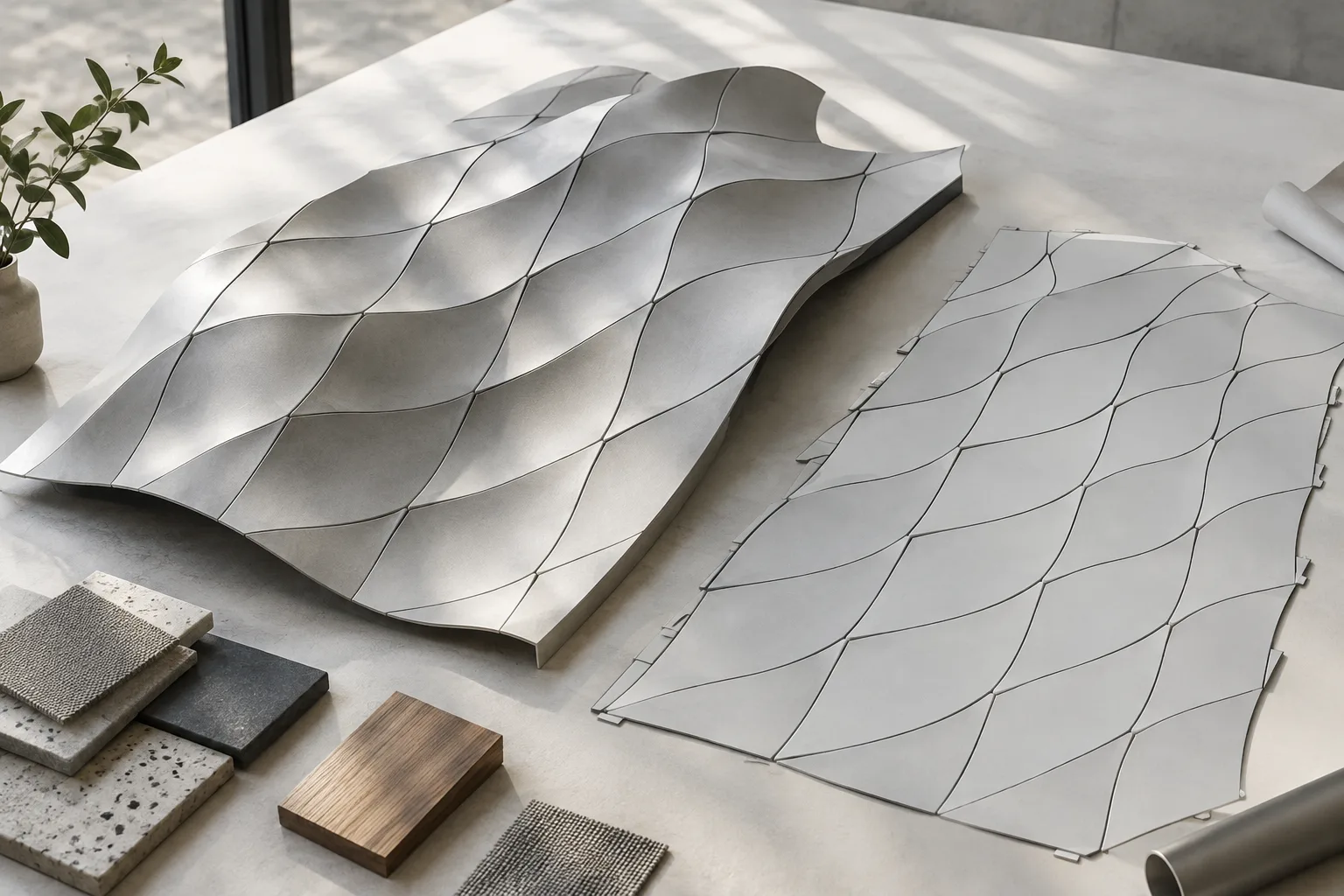
Rhino 8’s official documentation describes UnrollSrf, UnrollSrfUV and Squish as commands for flattening different types of surfaces. The key distinction is whether a surface curves in one direction or two: use UnrollSrf for developable surfaces, and Squish to create an approximate flattening of doubly curved surfaces. UnrollSrfUV also preserves the UV information of input surfaces while flattening them. When preparing an architectural cladding or production pattern, it is important to choose the right command and check for deformation in the result.
1. Identify the geometry type
A surface is developable if it can be formed by bending a flat sheet without stretching, tearing or wrinkling. Cylinders and cones are examples. These shapes curve in one direction and have straight directions along the surface. Rhino recommends UnrollSrf to flatten this type of surface.
Spheres, tori and surfaces curved in two directions cannot be flattened in the same way. Flattening them may require the material to compress or stretch. Before choosing a command, use Gaussian curvature analysis to inspect which areas of the surface have double curvature. The Curvature command in the documentation can also help you examine curvature as you move the cursor over the surface: double curvature is shown with two arcs, while a developable surface is shown with one arc and one line.
2. Flatten developable surfaces with UnrollSrf
Select the surface or polysurface. Rhino 8 Help lists UnrollSrf under
Surface Tools › Surface › Surface Flattening › Unroll Developable Surface.During flattening, select any curves, points or text dots on the surface. If you cannot flatten a trimmed polysurface, try removing the trim curves, flattening the surface and curves, then trimming the flattened surface again.
Use
Explodeto determine how the resulting pieces are handled.Yeskeeps the surfaces separate;Norejoins pieces along edges they shared in the original polysurface.Consider using
Labelsto track matching edges. This option places numbered marks on corresponding edges of the original object and its flattened pieces.If the command reports an area difference, compare the area of the flattened surface with that of the original. You can set the percentage difference that triggers the warning; the documentation notes that flattening may result in differences in area or ruling lengths.
In UnrollSrf, RelativeTolerance sets the threshold for treating a direction as linear when LinearDirection=Natural is used. Smaller values are stricter; the documentation notes that a value of 1.0 may allow most freeform surfaces to be flattened. This value alone does not show that a flattening is suitable for production.
3. Consider UnrollSrfUV when you need to preserve UV information
UnrollSrfUV is designed to preserve the UV information of input surfaces while flattening a surface or polysurface. Its menu path is Surface › Surface Flattening › Unroll Surface UV. The help documentation also describes how to select curves, points or text dots.
In this command, LinearDirection can be set to Natural, U or V. Natural automatically determines which isoparametric lines are treated as linear; U and V let you choose the direction manually. If both directions appear suitable, the flatter one is used. If neither can be treated as linear, the surface cannot be flattened. The documentation specifically warns that choosing the wrong direction for a developable surface such as a cylinder can produce a distorted result and an area loss report in UnrollSrfUV.
| Setting | Values/options | Effect |
|---|---|---|
UnrollSrf Explode | Yes or No | Determines whether flattened surfaces stay separate or rejoin along shared edges. |
UnrollSrf RelativeTolerance | The documentation gives 1.0 as an example for Natural | Affects the tolerance for treating a direction as linear; a smaller value is stricter. |
UnrollSrfUV LinearDirection | Natural, U or V | Determines which isoparametric direction is treated as linear. |
Squish Deformation | Free, StretchMostly, StretchOnly, CompressMostly or CompressOnly | Sets the preference for stretching or compression during flattening. |
4. Use Squish for doubly curved surfaces
Select a mesh or NURBS surface with curvature in two directions. The command’s menu path is
Surface Tools › Surface › Surface Flattening › Squish Double-Curved Surface.Use the
Deformationoption to set a preference for compression or stretching.Freedoes not favor either;StretchMostlyfavors stretching, whileCompressMostlyfavors compression.StretchOnlyprevents compression, andCompressOnlyprevents stretching.Inspect the markers and report in the result. A red point cloud indicates compression; a green point cloud indicates stretching. Up to ten text dots can mark the locations of the most significant changes, with the change in length shown as a percentage at each marker.
Review the compression and expansion estimates alongside the area change. If a closed mesh needs to be split at a seam, use
SplitSeams;PreserveBoundaryis available to prevent boundary lengths from changing.Use
SquishBackto map curves or points created on the 2D pattern back to the original 3D shape.
With CustomA, CustomB and CustomC, you can set stretch and compression parameters for boundary and interior regions. The four parameters have a documented value of 1, and positive values can be entered. Increasing a parameter reduces the deformation it describes, assuming the other parameters remain equal. For example, InteriorCompress=100 is given as a way to limit compression in interior regions. Another example, intended to preserve boundary lengths, sets BndStretch and BndCompress to 10 and InteriorStretch and InteriorCompress to 1.
What does this mean for architectural and visualization workflows?
For teams preparing facade cladding, custom surface components or cutting patterns, choosing the right command can help determine early on whether a surface can be treated as a flat pattern. UnrollSrf can be used for developable surfaces with curvature in one direction; if preserving UV information matters, review the options in UnrollSrfUV. For doubly curved shapes, Squish provides an initial assessment of deformation.
However, Squish does not adequately model the physical properties of real materials, particularly the effects of thickness. Its reported values are therefore no substitute for production validation. For work where material, cutting or bending costs are critical, have the flattening assessed by a production specialist. Also keep in mind that Squish may not work well with developable surfaces; in those cases, use UnrollSrf.
Common mistakes
Expecting to flatten a sphere or another doubly curved surface accurately with UnrollSrf.
Using the UnrollSrfUV result without checking the
LinearDirectionselection.Missing an area difference warning or treating the tolerance value as proof of production accuracy.
Interpreting Squish’s deformation markers as a real material test or final cutting pattern.
Sources
2 sourcesSource texts are not republished; short quotes are marked, everything else is our own summary and commentary.
For architecture and visualization offices in Turkey, the practical value of these commands is that they help determine early on whether a surface can be treated as a flat pattern. UnrollSrf can be considered for developable geometry, UnrollSrfUV when preserving UV information matters, and Squish for an initial assessment of doubly curved shapes.
Squish’s report should not be treated as a material test or production approval. For work where cutting and bending costs matter, validating the result with production expertise is a safer approach. The documentation does not provide information about hardware or licensing requirements; the deciding factors here are geometry type and production checks.
Frequently asked questions
Which surfaces can be flattened with UnrollSrf in Rhino?
UnrollSrf is used to flatten developable surfaces and polysurfaces with curvature in one direction. Doubly curved surfaces such as spheres and tori cannot be flattened accurately.
What is the difference between UnrollSrfUV and UnrollSrf?
UnrollSrfUV preserves the UV information of input surfaces while flattening them. Its documentation covers the LinearDirection options and warns of possible distortion if the wrong direction is selected.
What does Rhino’s Squish command do?
Squish turns a mesh or NURBS surface with curvature in two directions into a flat 2D pattern and estimates compression and stretching. It does not model real material behavior on its own.