In brief
- Veo 3.1 in the Gemini API can generate 8-second videos, with 720p, 1080p, and 4K resolution options listed.
- According to the Gemini API guide, you can generate a video by specifying the first and last frames, extend a video, and use up to three reference images.
- In Vertex AI examples, an image is provided as input via a Cloud Storage URI.
- API and model options vary by platform, so don’t copy a request body directly into another service.
What you’ll learn in this guide
This guide covers the basic steps for turning an architectural image into a moving presentation clip with Veo 3.1. The goal is to prepare a short video test by describing camera movement and environmental motion in a static interior or building image. The examples can be used for project presentations, explaining concepts, or exploring alternatives during the visualization process. The resulting clip is not a substitute for technical drawings or an approved project; it serves as a visual draft.
The Gemini API guide describes 8-second video generation with Veo 3.1, 720p, 1080p, and 4K resolution options, and native audio generation. It also lists generation using first and last frames, extending a previously generated video, and guiding generation with up to three reference images. These details come from the Gemini API documentation; don’t assume that every option is available in the same way across all products.
What you need: platform and access
It’s important to distinguish between two separate API paths:
Gemini API: The Veo 3.1 example in the documentation uses the
generateContentAPI. The examples give the model name asveo-3.1-generate-preview. A Gemini API key is used to make the API request.Vertex AI: You need a Google Cloud project, the Agent Platform API enabled, and appropriate authentication. The image-to-video example in the documentation uses the
gemini-omni-1.1-flash-previewmodel and an image URI in Cloud Storage; Veo 3.1 model IDs are also listed on the same page.
These model names and request formats aren’t interchangeable. First decide which API you’ll use, then follow the model ID and example request in that platform’s current documentation. For Vertex AI, prepare an image that can be accessed from Cloud Storage. The documentation notes that no additional authentication setup is required to access Google Cloud services through the console, while REST examples can use gcloud CLI credentials.
Step by step: from architectural image to clip
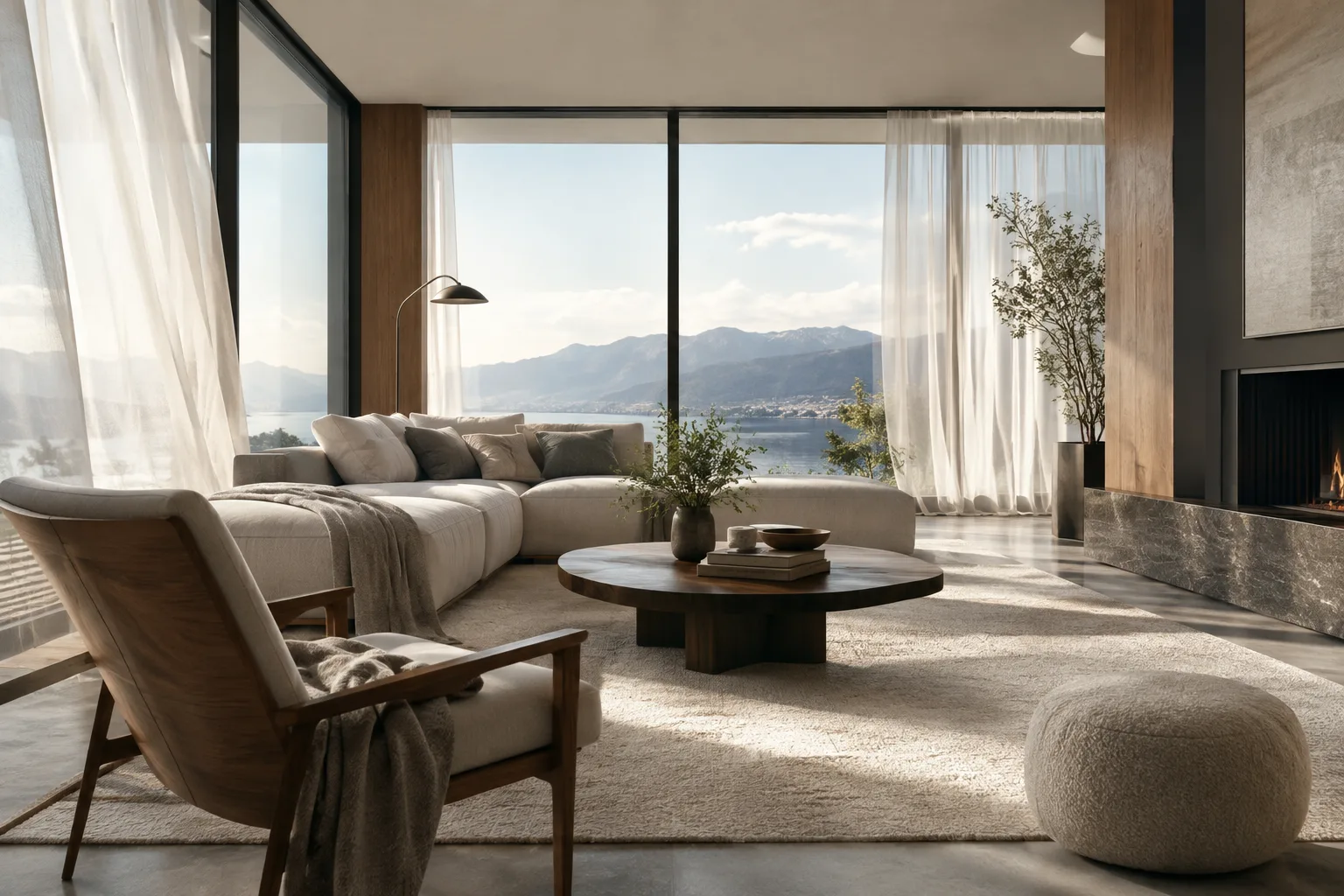
Choose a suitable starting image for motion. Start with a frame that has a single main viewpoint and makes the area of focus clear. For example, an interior render might show the seating area, window, and daylight in the same composition. Rather than trying to animate everything at once, decide what the viewer should focus on in the clip.
Describe the camera movement as a single action. Choose a clear direction, such as “slowly move the camera into the space.” Then specify which elements in the space should remain unchanged: for example, preserve the shape of the walls, furniture, and openings, while allowing the curtains to move slightly. This is a way to tell the model what should stay fixed in the video; it doesn’t guarantee a specific result.
Use a short, focused text prompt for your first attempt. The following is a newly written architectural prompt:
A calm architectural visualization of a contemporary living room, based on the input image. The camera slowly moves forward toward the seating area. Preserve the room layout, wall openings, furniture positions, materials, and proportions. Soft daylight shifts gently across the floor; sheer curtains move slightly in a natural breeze. No people, no new objects, no sudden camera movement. Quiet, realistic atmosphere.This prompt separately specifies the camera direction, the elements of the space to preserve, and the small movements that are allowed. If the geometry or composition changes in an unwanted way, simplify the prompt and try again with less movement.
Send an image input and video options appropriate to the API. In the Vertex AI example, the image is added to the request input with a Cloud Storage URI and MIME type; the video output includes fields for aspect ratio, resolution, and duration. In the Gemini Omni example, duration is defined as an integer between 3 and 10, with seconds as the unit. Don’t confuse these settings with Veo 3.1 settings in the Gemini API: the Gemini API guide describes Veo 3.1 output as 8 seconds.
Regenerate by changing one variable at a time. After the first result, update a single element rather than changing the camera, lighting, and scene motion all at once. In a second attempt, reducing the camera movement—and in another, removing changes in lighting—can make it easier to see which prompt better guides the image.
Consider the relevant feature if you need transitions between frames or references. The Gemini API guide lists generation with first and last frames and the use of up to three reference images among its supported capabilities. These options may be useful in workflows that rely on a starting and ending view or visual references. However, check the current documentation to confirm whether they’re available for your chosen model and API.
Common mistakes
Combining examples from different APIs: The
interactionsrequest on the Vertex AI page and the Veo 3.1 example in the Gemini API don’t use the same request schema. Keep the model ID, authentication, and parameters consistent with the platform you choose.Animating every element in the image: In architectural visuals, explicitly identify features that should be preserved, such as the room layout and furniture positions. Limiting motion in the prompt is a more controlled way to try to preserve the visual integrity of the scene.
Applying duration options to the wrong model: The Gemini Omni example in Vertex AI includes a range of 3–10 seconds, while the Gemini API guide describes Veo 3.1 as an 8-second video model. Don’t transfer parameters from one API to another.
Treating the first output as an approved project visual: The generated video is a moving interpretation of the source image. Before using it in a presentation, check whether the design decisions and spatial details have been preserved.
Assuming every feature is enabled everywhere: Specific Veo 3.1 capabilities may be offered differently in the Gemini API, Vertex AI, and other products. Check the documentation for your chosen platform before sending a request.
Where it fits in architecture and visualization workflows
This approach may be a useful first experiment for architecture and interior design teams that want to present a finished render with a short camera move. Students can also compare different motion prompts using the same image. However, preparation such as API access, account setup, and project configuration is required. Since the sources don’t provide current pricing or access terms that apply to every user, verify cost and access in advance. The sources also don’t specify a particular local GPU requirement; the workflow is described using cloud APIs.
Next steps
Start with a single render and one camera move. Then compare results by changing just one element at a time in the same scene. If you need multiple frames or references, confirm that they’re supported by your chosen API and model. When working with Vertex AI, follow the steps for project setup, enabling the API, and Cloud Storage; when using the Gemini API, follow its own Veo 3.1 request example. Finally, compare the generated clip side by side with the project image to assess any deviations in form, openings, or furniture placement.
Sources and license
This tutorial has been adapted into Turkish based on information in Google Cloud’s image-to-video guide and Google AI for Developers’ Veo 3.1 documentation. Both sources are licensed under CC BY 4.0. Information on Veo’s product page was also used to provide context about the features.
Sources
3 sourcesSource texts are not republished; short quotes are marked, everything else is our own summary and commentary.
For architecture firms and visualization teams, the practical value of this approach lies in its ability to turn an existing render into a short, animated presentation draft. In particular, adding camera movement to a static frame can make an idea easier to understand in concept presentations; however, the generated result shouldn’t be treated as a verified record of the project geometry.
Teams in Turkey should also check API access, usage costs, and the feature set available on their chosen platform before trying it; the sources don’t include pricing information. Since the workflow is described using cloud APIs, no specific local graphics card requirement is given. The safest way to start is with a single frame and limited movement, then review the results.
Frequently asked questions
What are the duration and resolution of videos generated with Veo 3.1?
The Gemini API documentation specifies 8-second videos with Veo 3.1 and resolution options of 720p, 1080p, or 4K.
Can Veo 3.1 generate videos from architectural images?
The Gemini API guide includes image prompting, generation with first and last frames, and the use of up to three reference images. Check which options are available for your chosen API and model.
Do I need a Google Cloud project to use Veo 3.1?
The Vertex AI example requires a Google Cloud project and the Agent Platform API to be enabled. The Gemini API is a separate access path.