In brief
- Gemini Omni and some Veo models can use an existing image as the video’s first frame.
- For Gemini Omni 1.1 Flash Preview, video duration can be set from 3 to 10 seconds.
- The aspect ratio in an API request can be set to 16:9 or 9:16; the default resolution is 720p if none is specified.
- Prompts can be structured with descriptions of the subject, action, scene, and camera.
What will you learn in this guide?
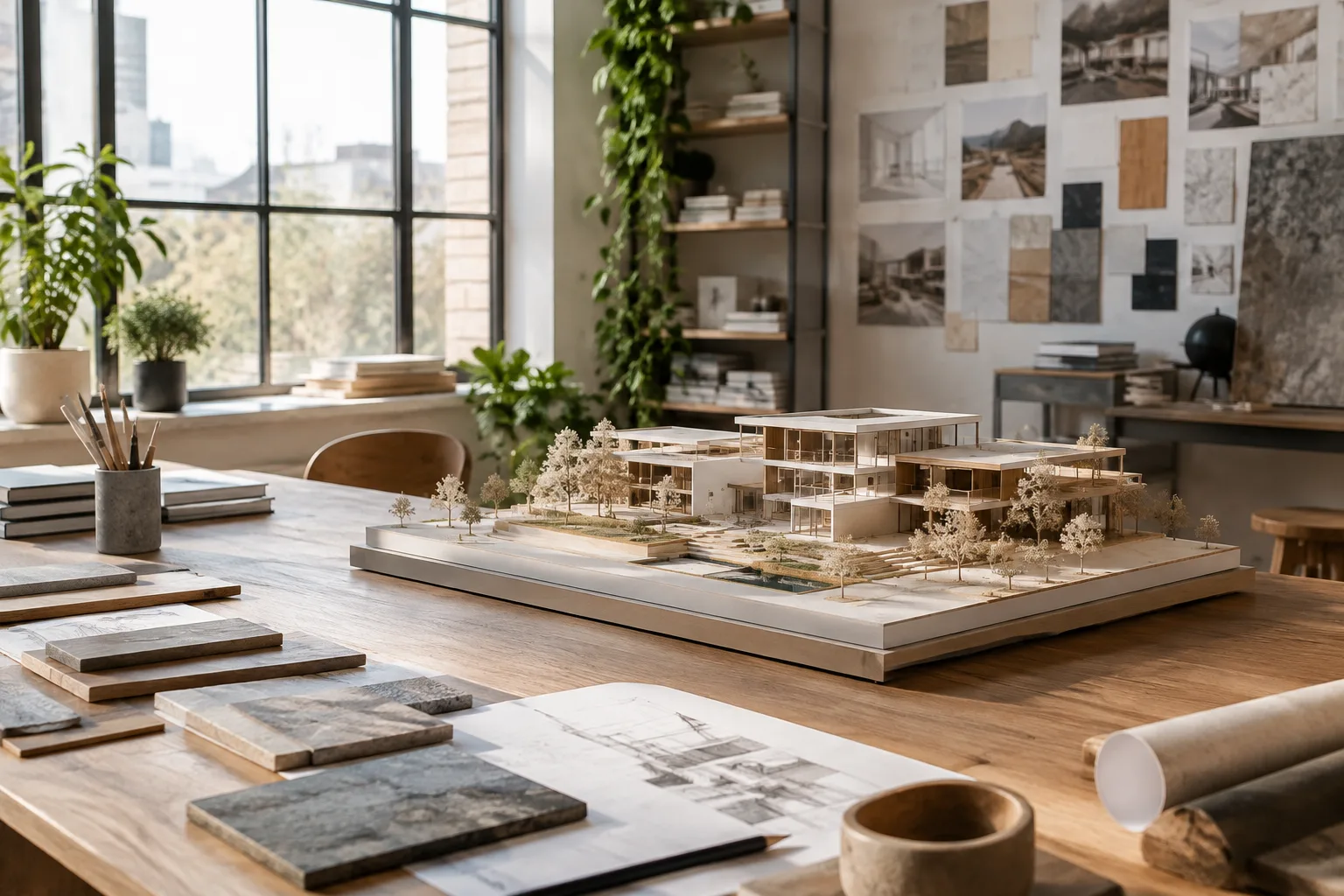
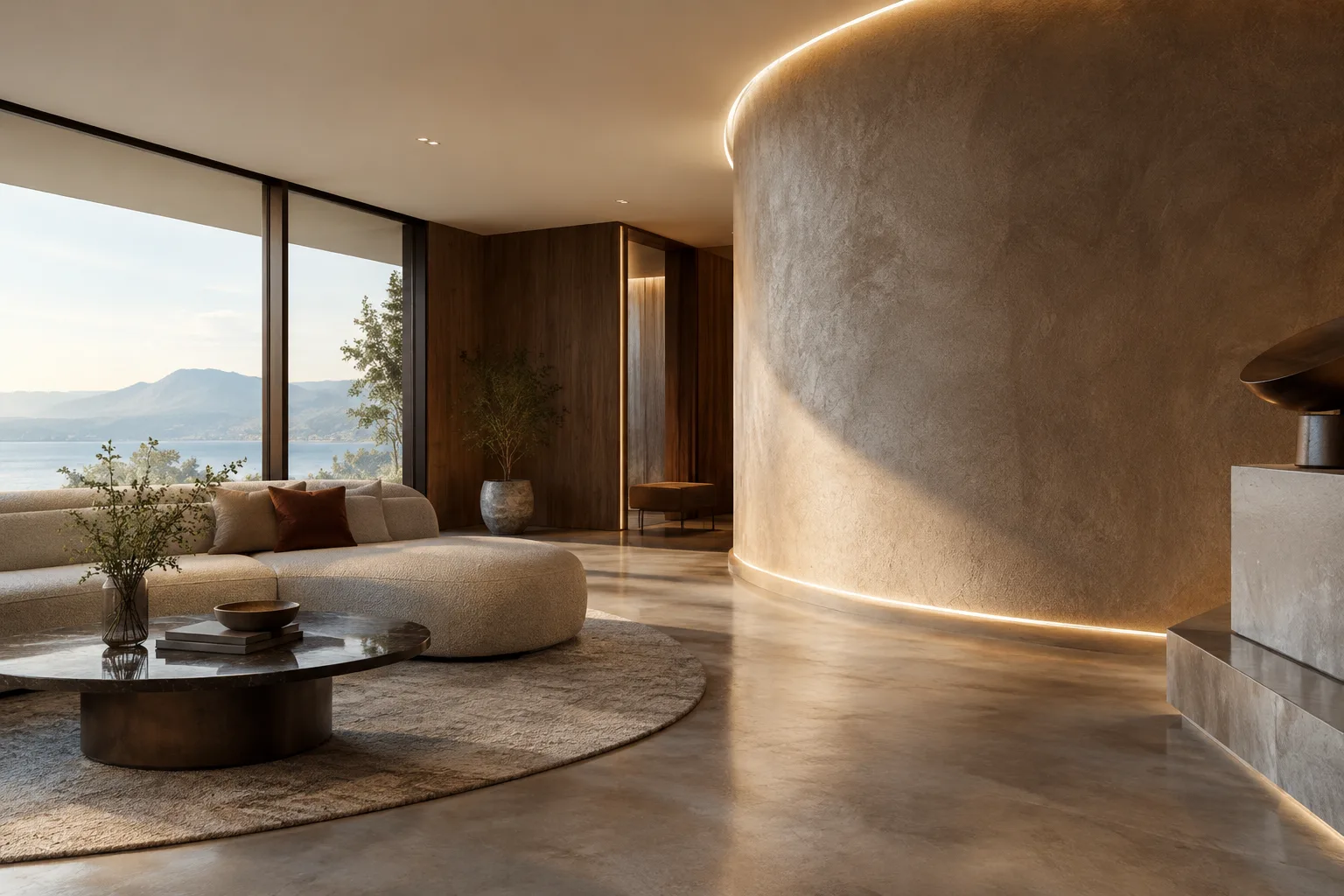
You’ll learn how to use an interior render or architectural image as the opening frame of a short video, then describe in text what should change in the video. According to Google’s documentation, Gemini Omni and Veo support video generation from an existing image. This workflow is designed for architects, interior designers, and visualization artists who want to bring an image to life with motion.
The key distinction is this: rather than writing only a video prompt, you provide an existing image as the starting frame and describe the motion separately. The prompt can explain what is visible, what it is doing, where and when the scene takes place, and how the camera behaves. You don’t need to use every category in every prompt, but considering these elements separately can help you describe more clearly what you want to change.
Requirements and model selection
You’ll need to sign in with a Google Cloud account and select or create a Google Cloud project. If you’re working through the API, you’ll also need to enable the Agent Platform API and configure authentication for your environment. The documentation notes that no separate authentication setup is required when using the console; for REST examples, you can use Google Cloud CLI credentials.
Image-to-video generation is available through Gemini Enterprise Agent Platform Media Studio or the video generation API. This guide uses gemini-omni-1.1-flash-preview, the model name explicitly specified in the documentation. Other options listed in the documentation as supporting this feature include Veo 3.1 Lite, Veo 3.1, Veo 3.1 Fast, Veo 3.0, and Veo 3.0 Fast. For details not covered here about model access, account requirements, and usage fees, check the latest product information on Google Cloud.
The API example provides the input image via a Cloud Storage URL and specifies the MIME type as image/png. Resolution options for Gemini Omni 1.1 Flash Preview are 360p, 720p, 1080p, and 4K; aspect ratio options are 16:9 and 9:16. The default resolution is 720p if none is specified. Video duration can be set to an integer number of seconds from 3 to 10. These are the API parameters in the documentation; don’t assume the same options are available for other models or interfaces.
Step-by-step: generate a video from an architectural image
Choose your starting image. Select the architectural image you want to use. It could be an interior perspective or a building exterior visualization, for example. The image will be used as the first frame of the generated video. Make a note in advance of which elements you want to move: trees, curtains, water, or the camera, for instance.
Choose a generation method. Use Media Studio if you’re working through the interface, or the API if you’re building a programmatic workflow. For the API route, you’ll need to select a project and enable the Agent Platform API. Authentication must also be configured for REST use. In the image-to-video API example, the request is sent with the
image_to_videotask.Break the prompt into components. Google’s prompt guide covers elements such as subject, action, scene or context, camera angle, and camera movement. In an architectural scene, the “subject” might be the space or building itself; the “action” describes the motion you want to see. Then add scene details such as daylight, weather, and surroundings, along with camera directions such as a static shot or a slow camera move.
Use the example below as a starting prompt. Try each prompt separately to see which description works best with the image.
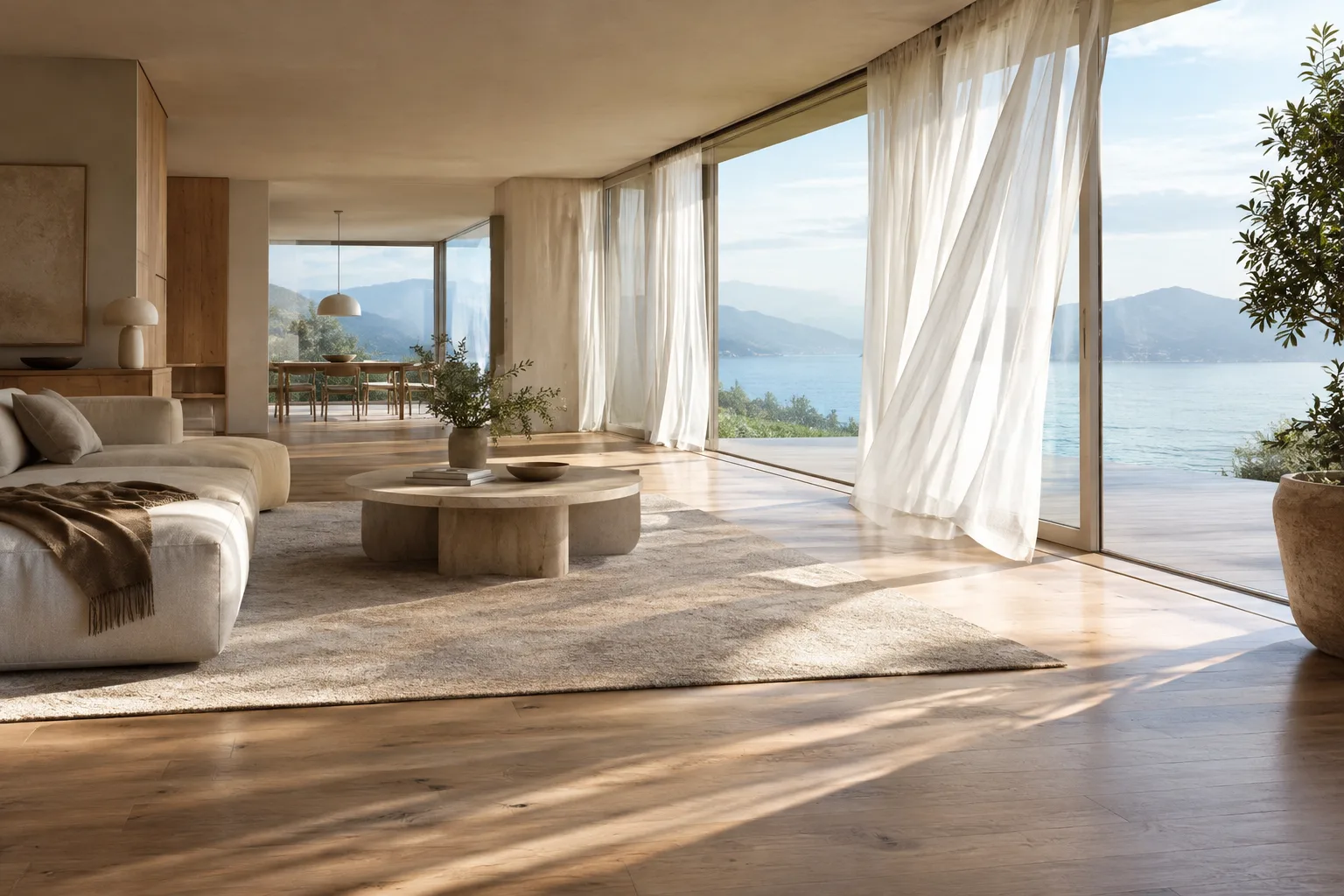
A calm architectural interior, sheer curtains moving gently in a light breeze, soft morning daylight shifting across the timber floor, wide shot, static camera, preserve the original room layout and material paletteIn this example, the space is the subject, the curtains’ movement is the action, morning light describes the scene, and the wide framing and static camera specify the shot. The prompt focuses on creating small, controlled movements from a static architectural presentation.
Keep movement restrained for exterior scenes. Describing movement in the surroundings rather than in the building itself makes it clearer which elements of the scene should come to life.
A contemporary house in a landscaped garden, leaves and tall grasses moving gently in the wind, late afternoon light, a slow dolly in toward the entrance, wide establishing shotHere, the movement of the plants, the light, and the camera’s approach toward the building are described separately. “Dolly in” means the camera physically moves closer to the subject; don’t confuse it with zoom, which simply magnifies the view.
Set the API parameters to match your intended output. The request includes the model ID, text prompt, and image input; the output is defined as video, and the task is set to
image_to_video. For a horizontal presentation, you can use the 16:9 option in the documentation; for vertical sharing, use 9:16. Specify a duration between 3 and 10 seconds. If you don’t enter an output resolution, the API example uses 720p by default.Monitor generation and review the result. Google notes that video generation can take more than a minute. With a synchronous request, the video can be downloaded when it’s ready; an asynchronous request uses a background parameter, and you can query the result later using the interaction ID. Asynchronous requests are stated to be retained for up to 14 days. Before using the output in a presentation, check that the architectural forms, materials, and motion are consistent with the starting image.
Common mistakes
Packing the prompt into one vague sentence: A general direction such as “create a beautiful architectural video” doesn’t specify the subject, motion, setting, and camera choices separately. Instead, clearly state which elements should move and whether the camera should remain static or move.
Using conflicting camera directions: Asking the camera to stay still and move toward the building in the same prompt can create a contradiction. Start by choosing one camera behavior; after reviewing the result, try another version.
Forgetting duration and aspect ratio: The API allows you to set a duration of 3–10 seconds; the documentation says the aspect ratio can be inferred from the prompt if it isn’t specified. Still, explicitly setting the ratio can make experimentation more controlled when you’re targeting a horizontal or vertical output.
Assuming the result will match the source image exactly: The documentation describes using an image as the first frame and directing generation with a prompt; it doesn’t guarantee that architectural geometry or materials will always be preserved exactly. Review the generated video carefully before an important presentation or client delivery.
Next steps: where can this fit into an architectural workflow?
This method is worth trying for architecture and interior design teams that want to create presentation alternatives by adding short environmental movements to a still image. It can be useful for exploring different prompts for camera movement, changes in light, or movement in scene elements such as plants and curtains. However, the source image and video should be checked against the project geometry; don’t treat the output as a technical drawing, measured document, or definitive design record.
Students and visualization artists can test different motion and camera directions using the same first frame. Offices should assess in advance which accounts and services will process project imagery, along with access requirements and potential usage costs. Since the sources don’t provide pricing information, check the latest product terms separately when estimating a budget. The API option also adds project setup, API activation, and authentication to the workflow.
Sources and license
This guide has been adapted into Turkish based on the information in Google Cloud’s “Video generation prompt guide” and “Generate videos from an image” pages. Both sources are available under the CC BY 4.0 license.
Sources
2 sourcesSource texts are not republished; short quotes are marked, everything else is our own summary and commentary.
For architecture and interior design offices, the practical benefit of this approach is the ability to create short presentation alternatives from an existing render. Describing camera and environmental motion in a prompt can be useful for teams looking to explore a still image in a different way. However, don’t assume the output will preserve the design geometry and material choices exactly; it must be checked before delivery.
Offices and students in Turkey should confirm Google Cloud access, API setup requirements, and current usage fees before getting started. The sources don’t provide pricing information. Also, the availability of a 4K option doesn’t mean it’s necessary for every workflow; choose the output resolution and duration based on how you plan to use the result.
Frequently asked questions
Can Gemini Omni generate a video from an image?
Yes. According to Google’s documentation, Gemini Omni supports video generation using an existing image as the first frame. The feature is available through Media Studio or the API.
How long can a Gemini Omni 1.1 Flash Preview video be?
The API documentation allows you to set the duration to an integer number of seconds from 3 to 10.
Which resolutions are available for image-to-video generation?
The listed options for Gemini Omni 1.1 Flash Preview are 360p, 720p, 1080p, and 4K. The default is 720p if no resolution is specified.