In brief
- Gemini Omni Flash is positioned for generating short videos from text and images, as well as for multi-turn editing.
- Veo 3.1 offers features such as native audio, video extension, and generation based on specific frames.
- Breaking a prompt into elements such as subject, action, setting, camera angle, and camera movement makes it easier to guide the result.
- The sources do not specify pricing, hardware requirements, or any particular subscription terms.
What will you learn in this guide?
When turning an architectural idea into a moving presentation, simply asking for “a video of a modern house” often isn’t specific enough. Describing the space, what changes in the scene, and how the camera moves separately makes the request clearer. This guide covers creating architecture- and interior-focused prompts for Gemini Omni Flash and Veo 3.1, and breaking down a scene into components for a more controlled description.
Google’s Gemini API video documentation highlights Gemini Omni Flash for generating short videos from text and images and refining the results over multiple turns. The same documentation associates Veo 3.1 with needs such as native audio, video extension, and generation targeting specific frames. Google recommends Omni Flash as the default option for general video generation, and points to Veo 3.1 when these specialized capabilities are needed. This does not mean both models follow the same workflow.
Requirements and choosing a model
The sources describe video generation through the Gemini API and point to the relevant API documentation for getting started with Gemini Omni Flash and Veo 3.1. A prompt guide published for Vertex AI Agent Platform also explains prompt-writing principles for both models. However, these sources do not provide pricing, free or paid usage terms, specific account requirements, computer hardware requirements, or software version requirements. Before starting a project, check the platforms’ documentation for current access and usage terms.
Choose a workflow based on what you need:
Consider Gemini Omni Flash for generating a short video from text or images and editing the result over multiple conversational turns. The source mentions multimodal input reasoning and multi-turn editing with the Interactions API.
Consider Veo 3.1 if you need features such as extending an existing clip, controlling the final frame, or native audio. The documentation specifies the
generateContentAPI for Veo 3.1.If you need to analyze an existing video rather than generate one, the Gemini API documentation points to the video understanding guide. This is a separate use case from video generation.
For an interior presentation, it helps to start with one clear idea for movement—for example, changing daylight, the camera moving toward the living room, or a slow pass along a façade. Rather than adding many unrelated events to one prompt, describe the scene and movement so they work together.
Step-by-step architectural video prompt
Google’s prompt guide explains components such as subject, action, scene or context, camera angle, and camera movement. You don’t have to use all of them in every prompt. The examples below are original prompts for architecture and interior design, based on the methods described in the guide.
Make the subject and space specific. Instead of “a building,” describe the materials, type of space, and features you want to emphasize. In the example below, the focus is an interior opening onto a courtyard and the relationship between materials.
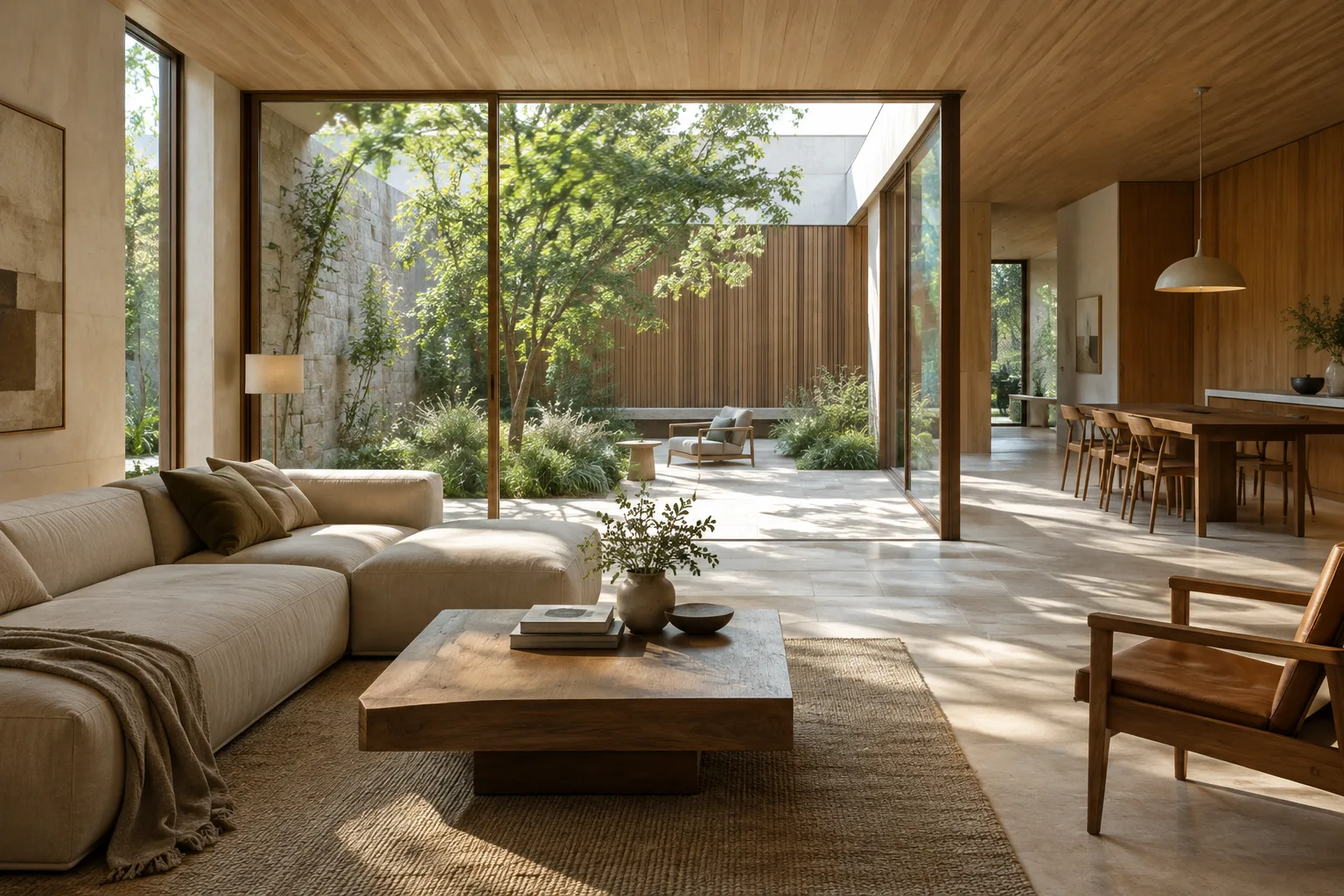
A contemporary house interior with a quiet central courtyard, pale stone flooring, warm timber walls, and a large sliding glass opening. Soft morning light falls across the room.This description establishes where the video takes place and which spatial features will shape its visual atmosphere. If the project has specific materials or design decisions, use those instead of general adjectives.
Describe the action as one observable change. Unlike a still frame, a video conveys movement over time. To make the motion clear, describe how the light, vegetation, or a person behaves.
A gentle breeze moves the courtyard leaves while sunlight slowly shifts across the stone floor. The architecture remains still and unchanged.This example describes environmental movement without changing the design’s form. If elements must remain unchanged in a project presentation, stating this separately can help clarify the intended direction; however, there is no guarantee that the output will always follow the instruction.
Specify the camera angle. A wide shot introduces the scene along with its surroundings, while an aerial view can create a plan-like perspective. The source guide notes that results and reliability can vary for some advanced camera angles. For this reason, describe your intended view clearly rather than using a complex angle.
Wide establishing shot from eye level, showing the full living room and its connection to the courtyard. Keep the room proportions clear and the view calm.This prompt aims to show the relationship between the interior and courtyard in a wide shot. If the priority is to communicate the overall space, choose a wide framing rather than close-up details.
Describe the camera movement separately. The guide explains movements such as a static shot, pan, tilt, dolly, truck, zoom, and crane. You can keep the camera direction clear by choosing one movement for a scene.
Slow dolly forward from the entrance into the living room, maintaining a level viewpoint and a steady pace. End with the courtyard framed beyond the seating area.Here, the camera moves into the space, and the starting and ending points are specified. Try one movement first rather than asking for several at once.
Add atmosphere and, if needed, sound. Time of day, weather, reflections, or ambient sound can help establish the mood. Veo 3.1 is described in the source as supporting native audio, but this does not mean a particular sound will be generated reliably in every prompt.
A quiet evening view of a small urban courtyard after light rain. Reflections shimmer on the paving, and distant city ambience stays subtle as the camera slowly pans left.This example combines an evening atmosphere, post-rain reflections, and a pan movement in a single description. If sound matters, specify what you want to hear, then review the video’s audio and visuals.
Common mistakes and workflow considerations
Vague descriptions of space: General phrases such as “a beautiful house” don’t indicate which spatial qualities to emphasize. Add the relevant details about the space, materials, lighting, and framing.
Actions that compete with each other: Describing many changes in the same short scene can make the narrative unclear. Start with one main action, then try another editing round after reviewing the result. The source notes Gemini Omni Flash’s support for multi-turn editing.
Leaving out the camera direction: Camera angle and movement affect how viewers see the scene. Make a clear choice, such as a wide shot to show the overall design or a close framing to focus on a detail. The guide also notes that results can vary for some advanced angles.
Treating video as project validation: Generative video can help communicate a design idea in motion, but the sources do not claim that the output guarantees accuracy in dimensions, materials, or the project itself. Don’t use it as a substitute for technical drawings, a model, or construction documentation. Check the presentation for any changes to the design.
Impact on architecture, interior design, and archviz workflows
This approach may help firms that want to present design alternatives as short mood videos, students presenting spatial ideas, and archviz artists creating moving scene drafts. Camera approaches, lighting changes, or indoor-outdoor relationships—which can be difficult to convey in a still image—can be described in a prompt. The sources do not explain how to import an existing 3D scene directly or whether the tools are compatible with specific rendering software, so such integrations shouldn’t be assumed.
Before generating videos, assess licensing and costs, API access, and suitability for your team’s workflow. Because the sources provide no hardware requirements or pricing, no definitive local computer specifications can be inferred. For real projects, it’s important to check whether the video reflects the design intent accurately and review which details may have changed artificially in the presentation.
Next steps
Start by creating a short prompt for one space, then compare the results by changing only the camera movement or lighting description. This makes it easier to track how changes in wording affect the visual narrative. If you need to work with multiple inputs or edit over several turns, review Gemini Omni Flash; if you need the specified features such as video extension, frame control, or native audio, consult the relevant Veo 3.1 API documentation. To analyze an existing video, use the video understanding documentation rather than the generation guide.
Sources and license
This guide has been adapted into Turkish based on information in Google’s Gemini API video generation documentation and Vertex AI generative AI video prompt guide. Both sources are available under the CC BY 4.0 license. The prompt examples were not copied from the sources; they were created as original examples for architecture and interior design use.
Sources
2 sourcesSource texts are not republished; short quotes are marked, everything else is our own summary and commentary.
For architecture firms and students in Turkey, the practical value of this approach lies in being able to communicate a design idea not only as a still image but also through camera and atmosphere. Breaking a prompt into components can make iterations more structured, especially for a short interior sequence or a courtyard connection.
However, since the sources do not provide pricing or account terms, check the current API requirements before making budget decisions. Hardware requirements are also unspecified, so there’s no basis for concluding that a local computer upgrade is needed. It’s important to treat generated video as a design communication tool, not as technical validation, and to check whether it accurately reflects the project decisions.
Frequently asked questions
Should I use Gemini Omni Flash or Veo 3.1 to generate architectural video?
Google recommends Gemini Omni Flash as the default option for general video generation. It suggests considering Veo 3.1 for needs such as video extension, final-frame control, or native audio.
What information should an architectural video prompt include?
Describing the space or subject, action, scene context, camera angle, and camera movement can make the direction clearer. You don’t need to include every component in every prompt.
Have the pricing or hardware requirements for Gemini Omni Flash and Veo 3.1 been specified?
The sources used do not specify pricing or particular hardware requirements. Check the relevant API documentation for access and usage terms.