In brief
- A good prompt clearly describes the subject, composition, action, setting, and visual style.
- Images uploaded to Gemini can be edited with text instructions, and ideas from different concepts can be combined.
- When editing an image, giving one clear, targeted instruction at a time makes it easier to stay in control.
- Style, text, and aspect ratio may not always be consistent in generated images.
What will you learn in this guide?
This guide shows you how to structure prompts when creating architectural concepts and interior images with Gemini. We’ll cover how to describe a scene from scratch, request specific changes to an existing image, and bring ideas from two images together in a new composition. The examples were created specifically for architectural visualization workflows.
Google’s prompting guide recommends specifying not only what appears in an image, but also elements such as framing, action, location, and style for more controlled results. When requesting edits, it’s important to describe the area you want changed directly. This approach can make it easier to communicate a design idea, but it doesn’t mean the generated image can replace a technical drawing or dimensioned model.
Requirements and getting started
Google’s image generation and editing features are available in the Gemini app, AI Studio, and Vertex AI. Since the sources don’t explain account requirements, current pricing, or all access options for these services, we won’t make assumptions about them. Check access and pricing separately for the tool you plan to use.
Try the examples by writing a text prompt in a Gemini environment that supports image generation. If you want to edit an existing image, upload one you have the right to use and add your instructions as text. You can also continue with follow-up prompts that refer to the earlier image in the same conversation.
The Gemini Image model family is updated over time. Google’s API release notes state that Nano Banana 2.1 became generally available on 6 October 2026, bringing improvements to image quality, prompt adherence, multi-turn consistency, text generation, and wide/panoramic aspect ratios. Access to or features of this model in the API may differ from the options available in the app you’re using. The methods below should be limited to the features available in your tool.
Step by step: Creating an architectural prompt
1. Start by defining the main subject
In your first sentence, say what you want to visualize. Instead of a general description such as “an interior,” specify its purpose and distinctive features. Then add the framing, lighting, and atmosphere. The example below describes a single scene:
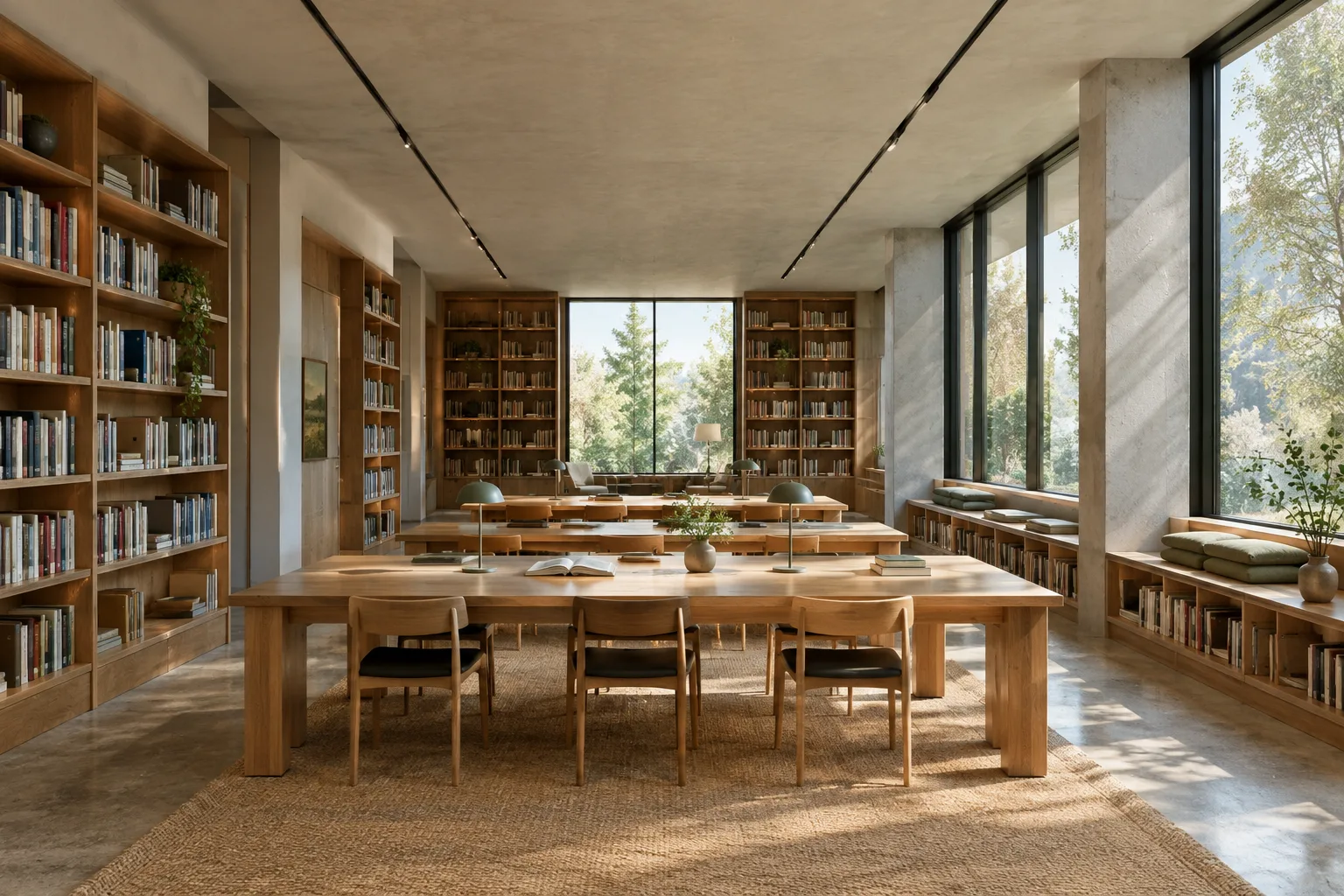
Photorealistic architectural visualization of a small public library reading room, long oak tables, built-in bookshelves, large north-facing windows, wide interior view from the entrance, soft overcast daylight, restrained natural materials, calm atmosphere.The prompt combines information about the subject, framing, setting, and style. When reviewing the result, don’t assume every detail will appear as expected; treat the prompt as a description that guides image generation.
2. Describe the framing and visual language
Phrases such as “wide interior view” or “view from the entrance” describe how the scene should be framed. For style, you can use clear terms such as “photorealistic architectural visualization” or “architectural sketch.” Rather than piling very different visual languages into one prompt, decide which approach matters most.
Photorealistic interior visualization of a compact apartment kitchen, eye-level wide shot from the dining area, matte pale cabinets, a stone worktop, warm oak details, gentle morning light, realistic material appearance, uncluttered composition.This description specifies the viewpoint and the material feel you’re aiming for. Don’t assume materials will be represented with complete accuracy or that their technical properties will be verified.
3. Request one specific change to an existing image
If you want to change a particular element in an image, name the target directly. Google’s guide also recommends using clear, simple instructions for local edits. For example, to change only the wall color in an uploaded interior image:
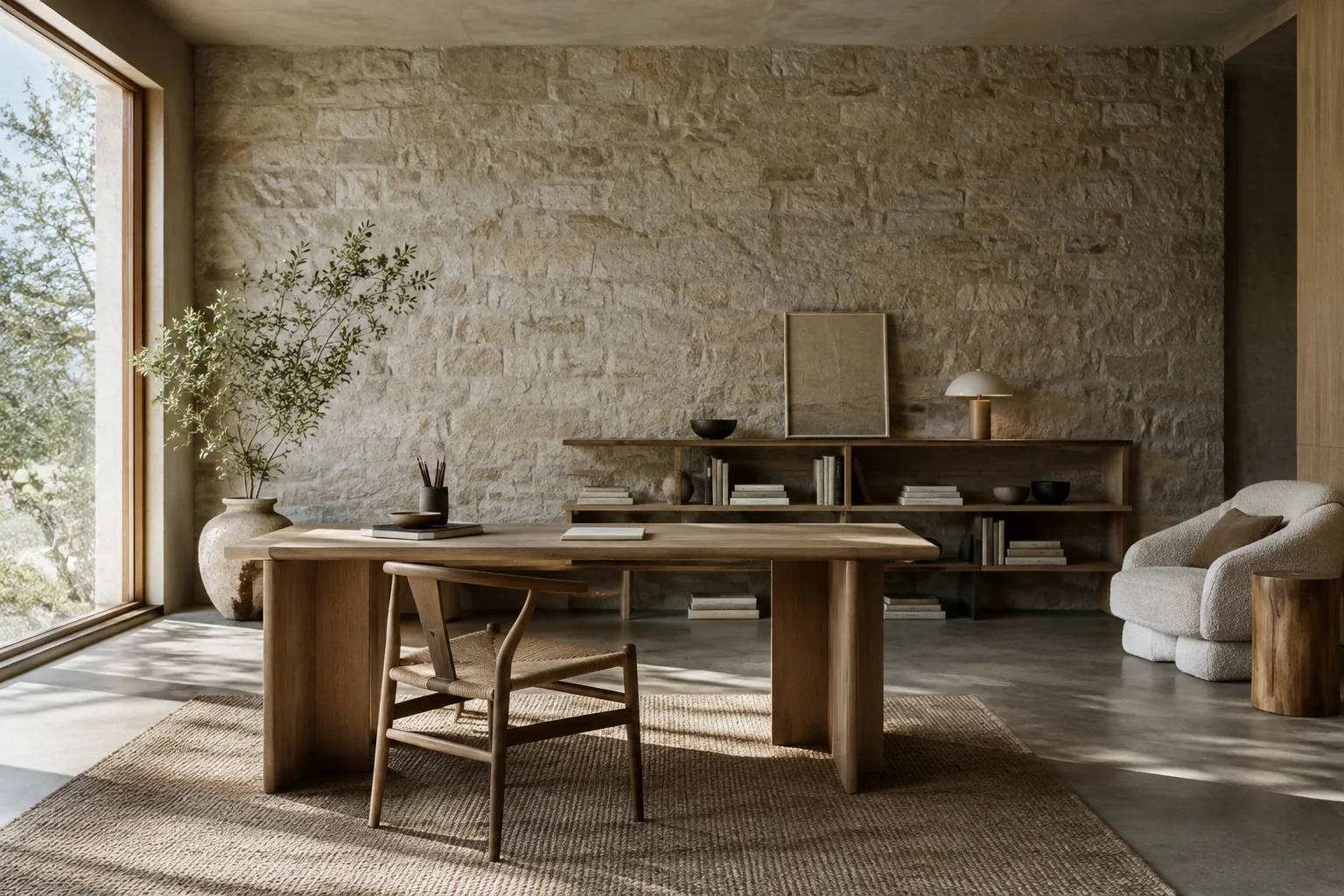
Change only the living room wall color to a muted sage green. Keep the furniture, camera angle, lighting, and all other details unchanged.Here, the wall color is the target for the change, while the furniture, camera angle, and lighting are the elements you want to preserve. If other areas change too, re-upload the original image and repeat your request using more limited, clearer wording.
4. Make edits gradually through conversation
Instead of requesting many changes at once, refine the image step by step. Change the main element first, review the result, and then request another edit. For example, after changing the wall color, use a separate follow-up prompt to change the accessory on the coffee table:
Now add a small stack of three design books to the coffee table. Do not change the room layout or the wall color.The follow-up prompt refers to the previous scene and limits the scope of the new edit. Continuing the conversation to refine an image is covered in official model descriptions, but there’s no guarantee that every detail will be preserved perfectly in every turn.
5. Combine ideas from two sources in one composition
You can upload images to Gemini and give it text instructions to combine different visual elements. For architectural work, think of one image as a reference for the space and another as a reference for materials or atmosphere. Describe clearly how you want them to relate:
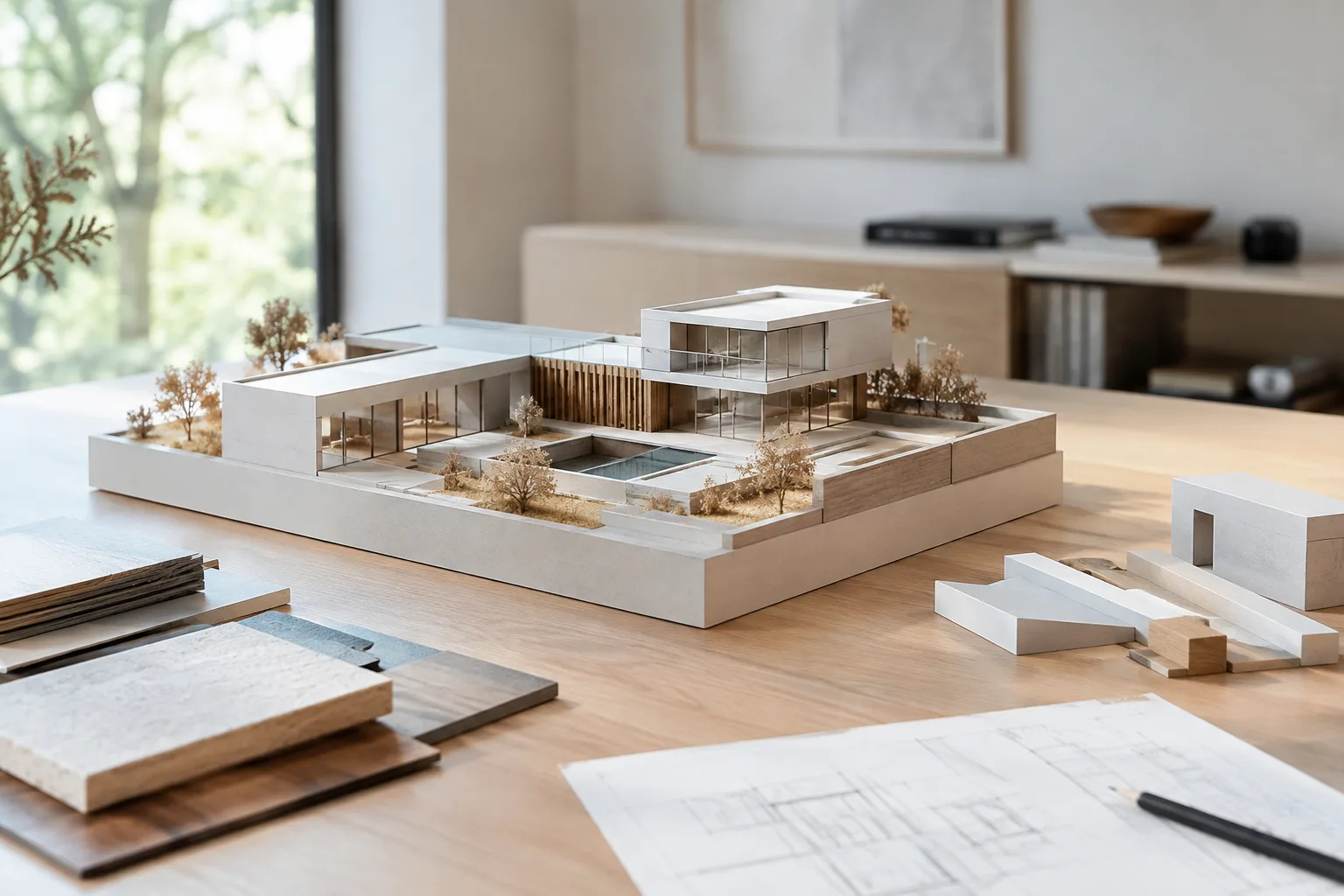
Combine the uploaded images into one architectural concept visualization. Use the first image as the reference for the room layout and the second image as inspiration for the material palette. Create a coherent interior scene with a wide view and soft daylight.This prompt asks the model to use the first image for the layout idea and the second for its approach to materials. Combining images doesn’t mean every detail in the references will be transferred with precise dimensions; review the result as a design idea or presentation alternative.
Common mistakes
Vague descriptions: A short request such as “make a modern space” may not adequately define the subject or visual goal. Start by specifying the type of space, framing, and style.
Too many changes in one prompt: Changing the color, furniture, lighting, and framing at the same time makes it harder to tell which instruction affected the result. Split the changes into separate turns.
Assuming everything else will stay the same: Unwanted details may change during editing. Check the result, and clearly name any important elements you want to preserve.
Expecting precise text and aspect ratios: Google’s guide notes that complex text can contain errors and that maintaining the requested aspect ratio may be inconsistent. Although the API release notes for Nano Banana 2.1 mention improvements to wide and panoramic aspect ratios, they don’t state that the same level of control is available in every environment. Check the text and framing before using the output.
Treating a generated image as technical verification: The sources describe image generation and editing capabilities; they don’t promise dimensioned drawings or verification of building information. Carry out any technical checks required for project decisions separately.
Impact on architecture and visualization workflows
These methods may help architects, interior designers, and visualization teams quickly explore alternative atmospheres during concept development, develop visual ideas for interior presentations, or change elements such as color and accessories in an existing image. In particular, making small edits conversationally on the same scene can make it easier to explore variations without rebuilding a prompt from scratch.
However, the sources don’t provide information about a dedicated connection between Gemini prompts and architectural software, hardware requirements, or licensing and pricing covering all access types. Check the access terms for the tool and model you use. Treat generated images as visual studies that need review, not as dimensioned project data or final technical outputs.
Next steps
Start with a single scene prompt and describe the subject, framing, setting, and style separately. Then try editing prompts that change just one element. If you use multiple references, clearly state the purpose of each image. Compare the results with your original design inputs and check for text, aspect ratio, and unintended changes.
Sources and license
This guide draws on Google’s official prompting guide for Gemini image generation and editing, as well as the Gemini Image model page. The Gemini API release notes in Google AI developer documentation are licensed under CC BY 4.0; the model and date information from this source has been adapted into Turkish. The sample prompts were written specifically for this guide.
Sources
3 sourcesSource texts are not republished; short quotes are marked, everything else is our own summary and commentary.
For offices and students in Turkey, this approach can help quickly open up discussions of different color, material, and atmosphere options in concept presentations. Making small edits conversationally on an image is especially practical during early-stage ideation.
It shouldn’t be treated as a replacement for technical drawings or verified project imagery. Access and pricing terms should be checked separately for the Gemini environment being used, and the workflow should include checking the results for text, framing, and unintended changes. The sources don’t explain hardware requirements.
Frequently asked questions
What should I include in a prompt to generate an interior image with Gemini?
Specify details such as the subject, framing, action, setting, and visual style. Describing the desired result more clearly can help you exert greater control over the image.
Can I edit an uploaded architectural image in Gemini?
According to Google’s model descriptions, you can upload an image to Gemini and give it text instructions to generate and edit images. Clearly describe the element you want changed, and check the result.
Are aspect ratios and text always accurate in Gemini image generation?
No. Google’s prompting guide notes that complex text can contain errors and that maintaining the requested aspect ratio may be inconsistent. The API release notes for Nano Banana 2.1 describe improvements to aspect ratio support, but it’s still important to check the output.