In brief
- The model’s API name is listed as gemini-nano-banana-2.1.
- You can generate a new image from a text prompt or edit an image by providing it together with text.
- The documentation mentions 1K, 2K, and 4K resolutions.
- Generated images are stated to include a SynthID watermark.
What will you learn in this guide?
This guide offers a starting workflow for using Nano Banana 2.1 with text prompts to create architectural and interior visuals. In the Gemini API documentation, the model is listed as gemini-nano-banana-2.1. The API can generate images from text alone or modify an image using text instructions. The five examples below are tailored to different presentation needs, including concept massing, interior atmosphere, material alternatives, and landscaping.
These prompts are not a substitute for project drawings, dimensioned models, or technical sheets. Treat them as starting points for exploring design options and discussing visual directions. Before using a generated image in a real project, verify any design dimensions and decisions against the relevant project documents.
Requirements: API access and model name
The official guide identifies the Gemini API and the model ID gemini-nano-banana-2.1 for image generation. The documentation includes examples in Python, JavaScript, Java, Go, and REST. In the REST example, the API key is sent in the GEMINI_API_KEY header. Choose an example based on the client and your team’s technical preferences; this guide does not assume a specific setup step or menu path.
Before your first try, clarify the following:
You’ll need API access and an API key ready to use.
Specify the model ID as
gemini-nano-banana-2.1.If you plan to edit a photo or project image, make sure you have the necessary rights to upload it.
The documentation mentions 1K, 2K, and 4K resolutions for the model; check the relevant API documentation for generation settings that suit your needs.
Pricing and free usage terms are not covered in the sources this guide is based on. Before you start, verify API costs and access terms using the latest official information.
Five architectural prompt examples
When writing a prompt, first describe the purpose of the image, then the space, composition, materials, and lighting. Instead of piling on vague adjectives, clearly state what you want the model to show. Limiting unwanted elements can also give the result a clearer direction. The examples below are original prompts written with these principles in mind; you can copy them directly into the API.
1. Exterior view for concept massing
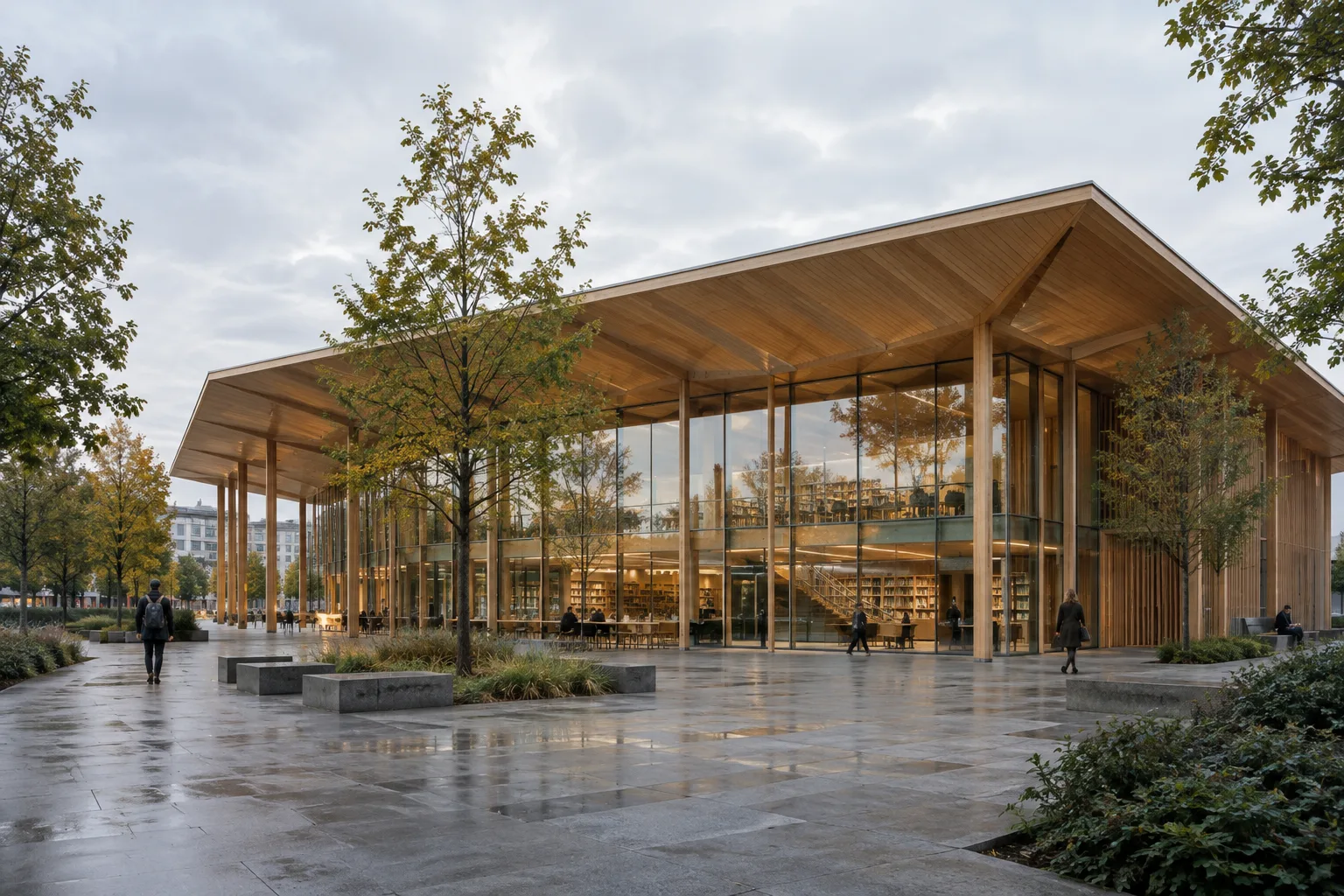
Create an architectural concept visualization of a small public library on a quiet urban corner. Show a clear three-quarter exterior view at pedestrian eye level, with a simple rectangular volume, a recessed entrance, tall glazing, and a sheltered outdoor seating area. Use pale limestone, warm timber, and restrained dark metal details. Soft overcast daylight, realistic material textures, a few people for scale. Keep the building geometry legible and the surroundings secondary. Do not add signage, captions, dimensions, or logos.This prompt describes the building’s program and surroundings while also establishing the building’s visual priority. If the first result doesn’t make the massing clear enough, change just one element in a new generation, such as the camera angle or the density of the surroundings. This makes it easier to compare which instruction affected the image.
2. Interior perspective for atmosphere
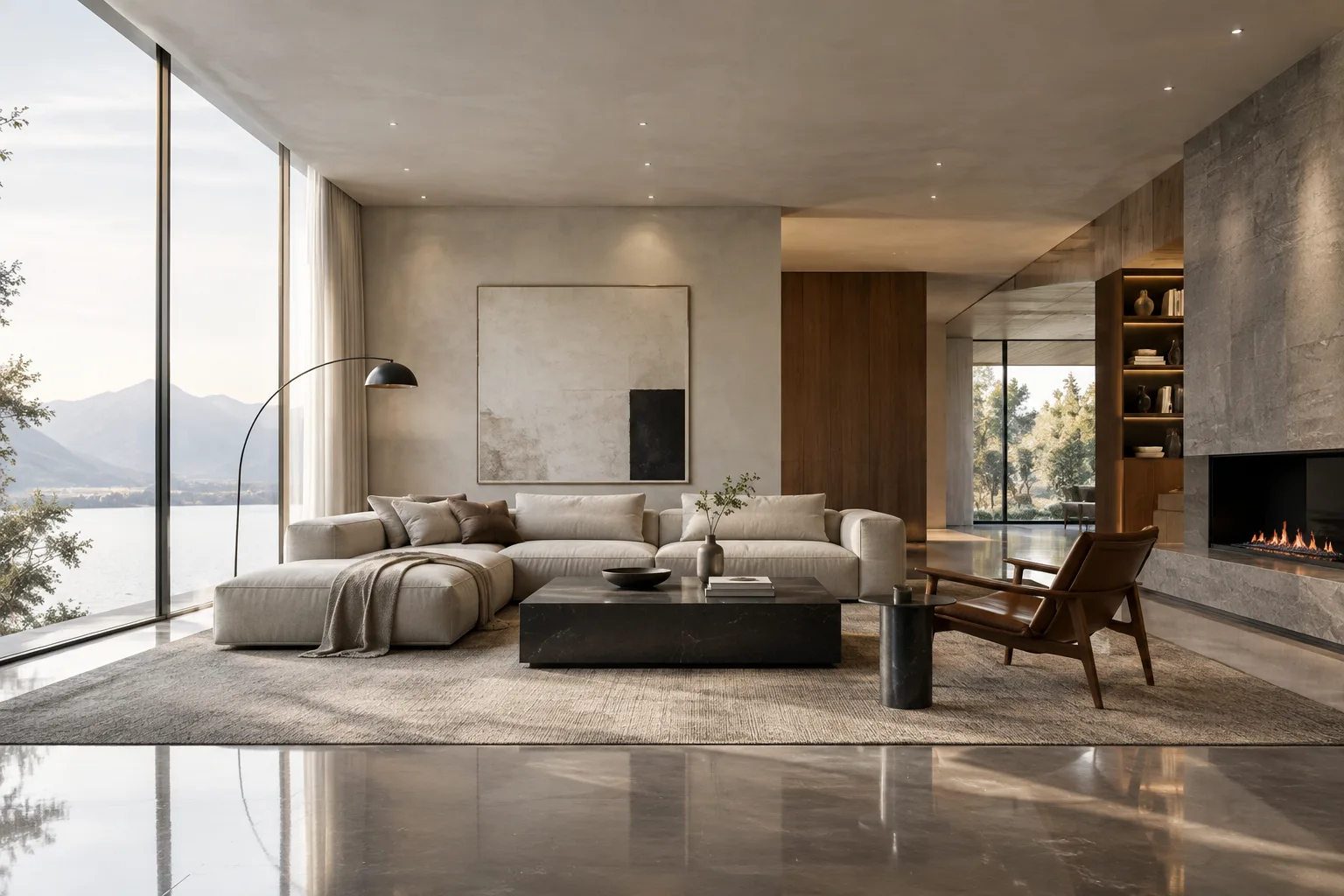
Create a realistic interior design visualization of a compact apartment living room. Show the full seating area and the window wall in a calm, eye-level perspective. Include a low sofa, a small round table, built-in storage, and a clear walking route through the room. Use muted green upholstery, light oak, warm white walls, and soft morning daylight. Keep the composition uncluttered and the room proportions visually plausible. No people, text, labels, or logos.This example combines a furniture list with directions for circulation and framing. If you’re using the output only to discuss a color palette, emphasize materials and colors in the prompt. If you’re working on the layout, be more specific about which areas should appear in the same frame.
3. Exploring facade material options
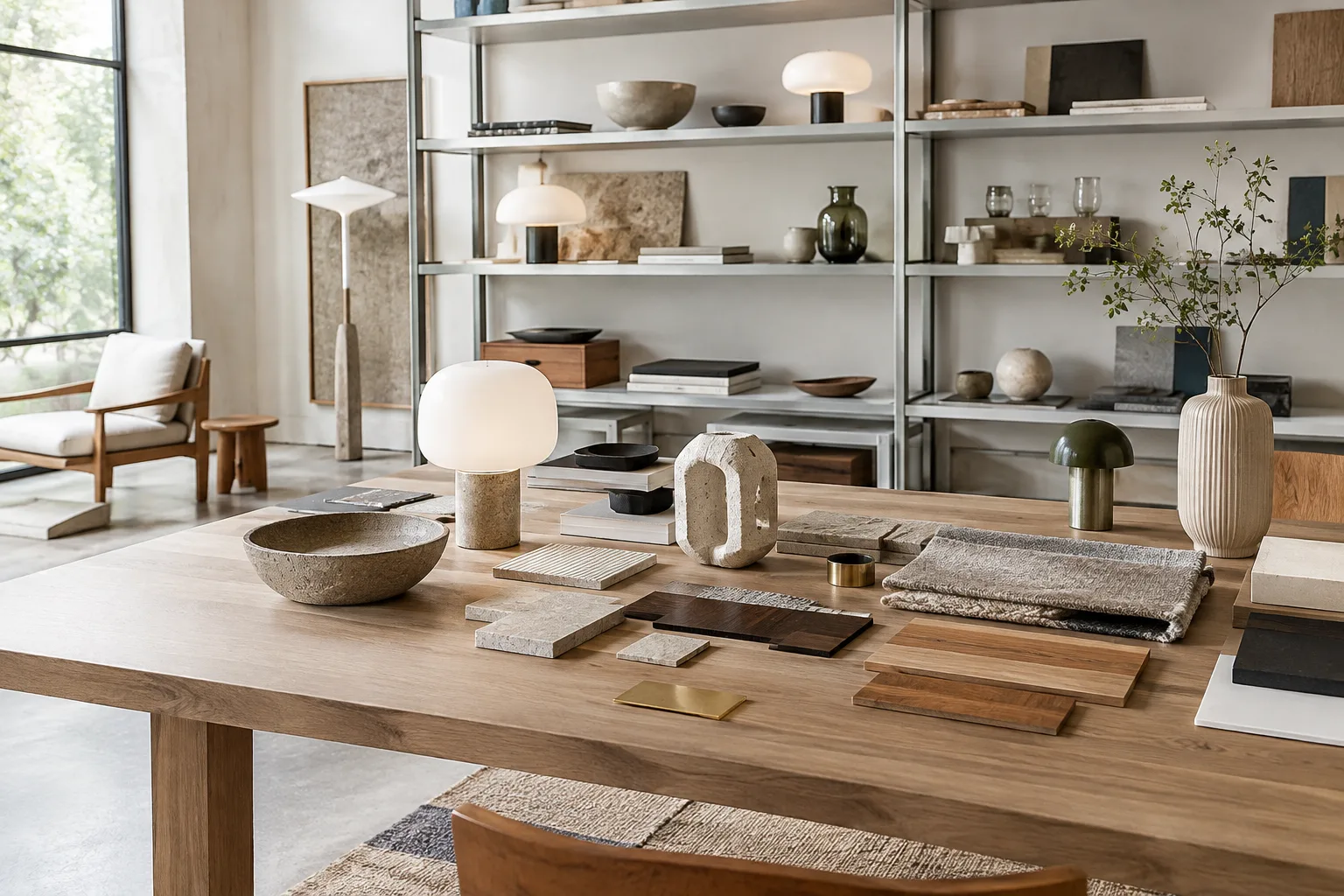
Create a close architectural visualization of a contemporary building facade, framed straight on. Show a repeating rhythm of deep window openings, vertical timber fins, and light-colored mineral plaster. Use late-afternoon side light to reveal texture and shadow depth. Keep the pattern consistent across the visible facade and avoid decorative elements that are not specified. Neutral background, realistic surface detail, no people, text, dimensions, or logos.This prompt asks for a close framing of the facade and lighting that reveals the surface texture. Keeping the core description the same and changing the material names to generate alternatives can help compare different directions in early-stage presentations. The image does not prove the real-world performance or technical properties of the selected material.
4. The relationship between landscape and building
Create an architectural visualization of a small community pavilion beside a planted courtyard. Show the pavilion, a shaded sitting area, and the main pedestrian path together in a wide three-quarter view. Use a simple timber roof structure, a stone floor, low planting, and a few slender trees. Bright but soft daylight, natural material colors, realistic shadows. Keep the landscape and building balanced in the composition; do not add signs, text, labels, or logos.The goal here is to show the building and outdoor space in the same frame. If the landscape overwhelms the building in the result, revise the prompt to specify the pavilion’s prominence within the frame and the viewing angle. Remember that the image is tied to a single perspective; you’ll need separate prompts to generate new views from different angles.
5. Editing an existing image with text
Using the supplied interior image as the reference, change only the wall finish to a warm off-white mineral plaster. Preserve the existing room layout, camera viewpoint, furniture positions, window openings, and lighting direction. Keep all other visible materials unchanged. Return a realistic edited image without adding people, text, labels, or logos.This example includes a reference image alongside the prompt. The guide states that an image and text can be provided together as input, and that text instructions can be used to add, remove, or change elements. Stating exactly what should change—and listing the features to preserve—makes the editing request clear. If other areas change in the result, add them again to the list of features to preserve in the next pass.
Common mistakes
Giving vague instructions: General requests like “make the facade better” don’t explain which feature should change. Specify observable elements such as building type, framing, materials, and lighting.
Requesting too many changes in one prompt: Changing the layout, camera, materials, and atmosphere all at once can make the result harder to evaluate. Start with the main goal, then update one or a few related features in subsequent attempts.
Ignoring the rights to reference images: The official documentation notes that you must have the necessary rights to uploaded images. Check permissions and usage terms before using client or office files.
Presenting an image as technical verification: Treat generated output as design exploration or a presentation alternative. Don’t assume that dimensions, construction details, or project decisions have been verified from the image alone.
Next steps
After your first generation, review the result with a design team and note which features to preserve and which to change. For image editing, include that distinction in the prompt and make changes as small as possible. The Gemini API guide states that the latest generated image data can be accessed through the interaction.output_image property. For more complex outputs that combine elements such as images and text, it notes that this convenience property may not include every part, so you may need to inspect the steps separately.
According to the documentation, generated images include a SynthID watermark. Set your team’s usage rules before bringing an output into a delivery, archiving, or publishing workflow. Nano Banana 2.1 is described in the source as a high-efficiency main image-generation model; it also mentions 1K, 2K, and 4K resolution options and improvements to consistency across multiple turns. Evaluate how these features affect your workflow by comparing several attempts with prompts of the same type.
Sources and license
This guide was adapted into Turkish from Google’s Gemini API image-generation and prompt-design guides. Both sources are published under the CC BY 4.0 license. The prompt examples for architecture and interiors were created specifically for this guide.
Sources
2 sourcesSource texts are not republished; short quotes are marked, everything else is our own summary and commentary.
For architecture firms and students in Turkey, this approach can make it easier to quickly discuss concept and atmosphere alternatives. Visualizing initial ideas about material language or interior character can be especially useful for team discussions, but the output is no substitute for project drawings or technical verification.
It’s important to check the latest official information before making decisions about API access, usage terms, and costs. The source mentions 1K, 2K, and 4K resolutions; teams should test results against their own presentation needs. Usage rights for reference files and the presence of SynthID in generated images should also be factored into the workflow.
Frequently asked questions
How do you generate architectural images with Nano Banana 2.1?
You can generate images from text prompts using the model ID `gemini-nano-banana-2.1` in the Gemini API. The API documentation provides examples in Python, JavaScript, Java, Go, and REST.
Can Nano Banana 2.1 edit an existing interior image?
Yes. You can provide an image to the API along with text, then use instructions to change, add, or remove elements in the image. You must have the necessary rights to use the uploaded image.
Do Nano Banana 2.1 images have a watermark?
The Gemini API image-generation documentation states that all generated images include a SynthID watermark.