In brief
- Nano Banana 2.1 is documented under the model ID gemini-nano-banana-2.1 in the Gemini API.
- The model supports generating images from text prompts and editing existing images with text.
- Google refers to image generation at 1K, 2K, and 4K resolutions for Nano Banana 2.1.
- According to the source, generated images include a SynthID watermark.
What will you learn in this guide?
This tutorial explores how to use Nano Banana 2.1 to develop architectural concepts and interior visualization ideas. The goal is not to memorize app menus, but to write prompts that describe the scene, clarify the visual target, and, when needed, direct edits to a reference image. This approach can help you quickly explore options for atmosphere, materials, and composition in the early stages of design. Generated images should not be treated as measured, verified technical drawings or construction documents.
Google’s Gemini API documentation describes Nano Banana 2.1 as the primary efficiency model for image generation and conversational editing. The source mentions image quality, text rendering, consistency across multiple turns, and Google Search grounding. The prompts in this guide are original examples adapted for architectural workflows; they do not guarantee a particular result.
Requirements
This workflow requires access to the Gemini API and a client capable of sending API requests. The documentation includes examples in Python, JavaScript, Java, Go, and REST. The REST example sends the API key in the x-goog-api-key header, while the SDK examples create a client. Since the provided source does not explain account, pricing, or API access requirements in detail, check the latest access and pricing information separately before getting started.
The model ID is gemini-nano-banana-2.1. For text-to-image generation, the prompt is sent to the model; for image editing, image data and its MIME type are included alongside the text prompt. The source provides an example using PNG. Although the documentation mentions 1K, 2K, and 4K resolutions for Nano Banana 2.1, this guide does not suggest undocumented parameters or interface steps for selecting a resolution.
Before uploading a reference photo, make sure you have the rights to use it. Google reminds users to obtain the necessary rights for uploaded images and not to generate content that infringes on others’ rights.
Step-by-step architectural image generation
1. Describe the scene’s purpose and framing
In your initial prompt, specify the type of space, viewpoint, lighting, and material feel together. Rather than listing disconnected adjectives, explain what should stand out in the image. The example below is intended for exploring concepts for a compact residential interior.
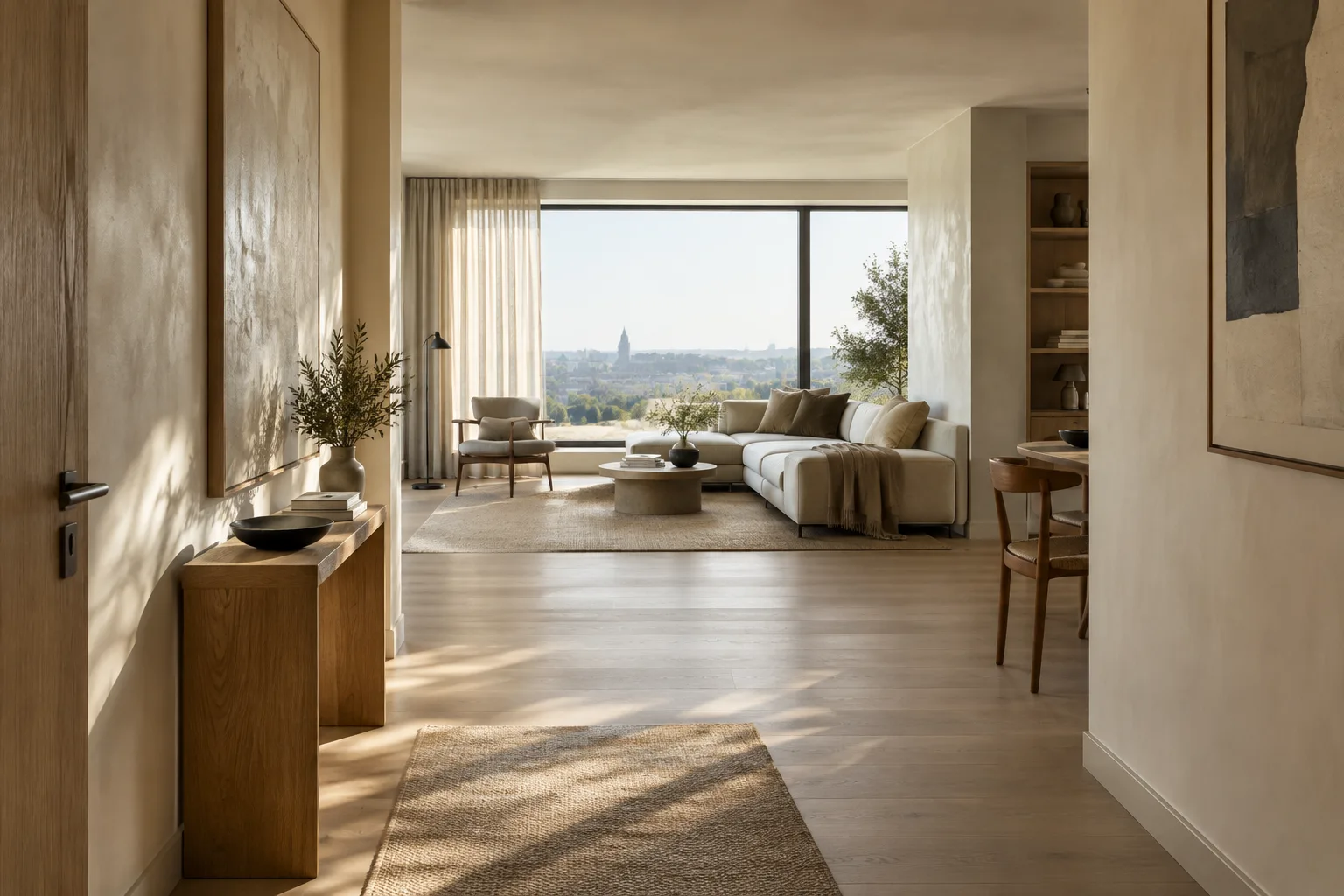
Create an architectural concept image of a compact urban apartment living room, viewed from the entrance at eye level. Show a calm, functional layout with a pale oak floor, warm off-white walls, a linen sofa, and soft daylight entering from a large side window. Use realistic material textures and natural shadows. Keep the composition focused on the relationship between the seating area and the window; no people, no signage.This prompt specifies the space, viewpoint, key materials, and lighting. If the first output misses the mark, describe only the element you want to change in a follow-up instruction rather than rewriting everything. This lets you preserve the composition while exploring atmosphere or materials separately.
2. Choose what to emphasize in an exterior concept
For a façade image, define the building’s setting, the lighting conditions, and the focus of the frame. Avoid presenting design decisions that have not yet been finalized as fixed technical specifications in the prompt; the goal is to explore design alternatives visually.
Create a photorealistic architectural concept view of a small contemporary cultural pavilion in a landscaped public courtyard. Show the entrance facade from a slightly elevated three-quarter angle, with a shaded outdoor threshold, textured light stone, and slender timber screens. Use overcast daylight and a restrained palette. Keep the building as the main subject and make the surrounding planting secondary; no text, no signage, no people.Here, the entrance threshold and timber screens are emphasized, while the surrounding landscape is kept secondary. If the framing or material balance in the first result is not what you want, focus your next edit on that element alone.
3. Edit a reference image with text
The Gemini API documentation demonstrates a workflow that sends text and an image together as input, allowing you to add, remove, or replace elements in an existing image, or adjust its style or colors. When using your own reference, clearly distinguish what should stay from what should change instead of giving a broad instruction such as “redesign everything.”
Edit the provided interior reference image. Preserve the camera viewpoint, room proportions, window position, and overall furniture layout. Change only the wall finish to a soft warm-white plaster and replace the dark coffee table with a low pale-oak table. Keep the existing daylight direction and avoid adding new objects.This example clearly states which features should remain unchanged and which two elements should be modified. When reviewing the result, check the camera and layout features the prompt asked to preserve; generative editing does not mean the project geometry has been verified.
4. Change the visual language in a controlled way
To explore different atmospheres for the same design idea, change one visual quality at a time in a new turn. For example, keeping the material palette while changing the lighting or color treatment makes it easier to compare the alternatives.
Using the same architectural concept and composition, create a second visual direction with cooler morning light, muted grey-green accents, and a more tactile natural-stone finish. Preserve the room layout and camera position. Do not introduce additional furniture or decorative objects.The source highlights multi-turn consistency for Nano Banana 2.1. You can therefore try refining the image in stages; however, restating which features should remain unchanged in each turn helps keep your instructions clear.
Common mistakes
Packing too many decisions into one prompt: Asking for changes to the space, materials, lighting, furniture, and camera all at once can make the result difficult to evaluate. Establish the main scene first, then make one or a few targeted changes.
Failing to say what should stay the same: If the camera, layout, or openings need to remain unchanged when editing a reference, state that explicitly.
Treating a concept image as a technical deliverable: The sources describe image generation and editing; they do not guarantee dimensional, regulatory, or construction accuracy.
Ignoring reference image rights: Check that you have the right to use an uploaded image and avoid prompts that could lead to rights infringements.
Forgetting image labeling: According to Google’s documentation, generated images include a SynthID watermark.
Next steps
First, generate an initial image for the same scene; then try separate editing turns that change the lighting, materials, or a single furniture item. When reviewing the results with your design team, keep the prompt and reference image as well so you can track which instruction influenced each visual direction. For more complex image generation and editing workflows, consult the Gemini API image generation documentation; for multimodal text and image outputs, see the relevant interaction guidance.
Source and license
This guide is based on Google’s Gemini API image generation documentation, including its descriptions of the Nano Banana 2.1 model and text-to-image generation and image editing workflows, adapted for architectural use. The source is licensed under CC BY 4.0. The sample prompts were written specifically for this guide.
Sources
1 sourceSource texts are not republished; short quotes are marked, everything else is our own summary and commentary.
For architecture firms and students, one of Nano Banana 2.1’s most practical advantages is how quickly it lets them explore an idea with different lighting and material treatments. Its ability to work with reference images can also be useful for teams looking to generate alternatives during early concept development.
However, this workflow is no substitute for technical verification or a real-time 3D scene. Before adopting it in Turkey, it is important to check API access and pricing terms, respect reference image rights, and treat the results as concept visuals that support design decisions. No hardware or cost claims can be inferred beyond the resolution options stated in the source.
Frequently asked questions
What kinds of architectural images can Nano Banana 2.1 be used for?
It can generate images from text prompts and edit existing images with text through the Gemini API. Architectural concepts and interior design examples can be adapted to this workflow.
What is Nano Banana 2.1’s Gemini API model ID?
The documentation gives the model ID as gemini-nano-banana-2.1.
Do images generated with Nano Banana 2.1 include a watermark?
Google’s image generation documentation states that all generated images include a SynthID watermark.