In brief
- Gemini Omni Flash stands out for generating short videos from text and images, as well as for multi-turn editing.
- Veo 3.1 supports native audio, video extension, generation for specific frames, and image guidance.
- Clear, specific instructions and output constraints help the model get closer to the intended scene.
- Google’s guide recommends iteratively refining prompts based on observed results after the first attempt.
What will you learn in this guide?
Turning an architectural idea into a moving visual narrative starts with choosing the right generation workflow, followed by describing the scene clearly. The Gemini API documentation highlights two options for video generation: Gemini Omni Flash and Veo 3.1. This guide covers which model suits which kind of task, how to write instructions for an architectural scene, and how to improve the first result.
Gemini Omni Flash focuses on generating short videos from text and images, as well as conversational, multi-turn editing. Veo 3.1 offers features such as native audio generation, video extension, generation for specific frames, and image guidance. This does not mean both models should be used in the same way for every project; choose according to the workflow you need.
Requirements: software, version, and account
This guide covers video generation through the Gemini API. Google’s documentation describes Gemini Omni Flash and Veo 3.1 for video workflows. The sources do not specify a required account type, pricing, local hardware requirements, or additional software versions. Before you start generating, check API access and current terms in the relevant service documentation; don’t assume an account or hardware requirement that isn’t specified here.
To get started, break the scene you want to generate into a few concrete elements: the type of space, visible materials, lighting, key objects in the frame, and the purpose of the video. Prepare any visual references you plan to use. Gemini Omni Flash supports video generation from text and images, while the documentation describes image guidance for Veo 3.1 through the generateContent API.
Step-by-step: creating an architectural video prompt
1. Decide what you need the model to do
If you want to generate a short video from text or an image and edit the result over several turns, consider Gemini Omni Flash. In addition to video generation, it supports conversational, multi-turn editing. If you need video extension, a focus on specific frames, or native audio, review the documented capabilities of Veo 3.1. Your choice of model should depend less on the architectural nature of the scene and more on the features your workflow requires.
2. Describe the scene clearly and keep the scope focused
Google’s prompt design guide recommends giving clear, specific instructions and adding constraints about the response format and limits. In architectural visualization, rather than simply asking for “a video of a modern house,” describe which elements should be visible and what changes to avoid. Instead of trying to resolve every detail in the first attempt, focus on the key visual goals.
The example below is written to request a short architectural video from text using Gemini Omni Flash:
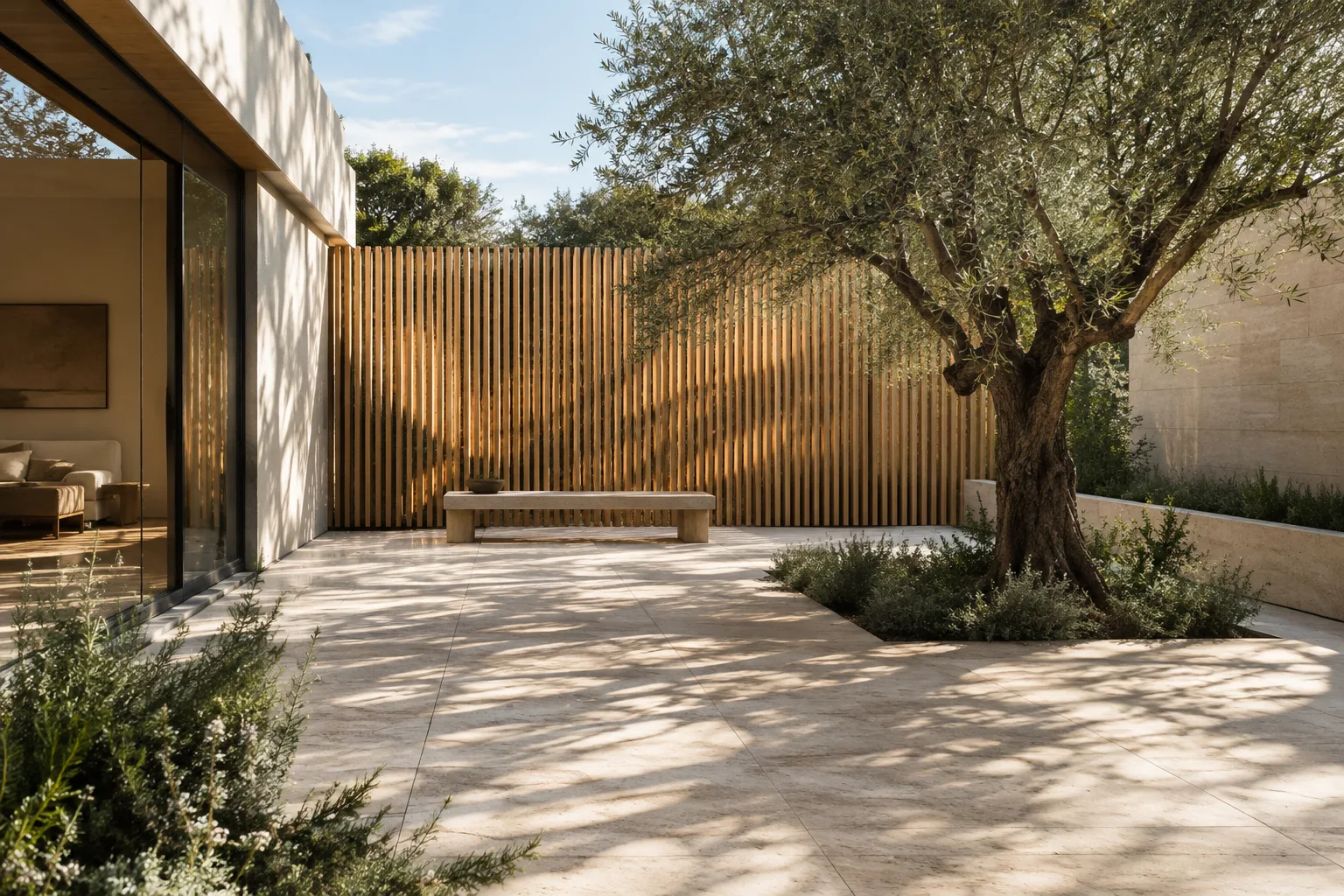
Create a short architectural video of a quiet contemporary courtyard. Show pale stone paving, a timber screen, and a single olive tree. Keep the building geometry and material palette consistent throughout. Use soft morning light. Avoid adding people, signage, or extra structures.The English prompt lists the courtyard’s main elements, the lighting conditions, and the visual consistency to preserve. “Short” matches the documented use of Gemini Omni Flash for short video generation. Review the first output, note any missing or changed elements, and give a new instruction focused only on those points.
3. Use a reference image to guide the result
If you have an interior or facade image, you can try using the image alongside text. Gemini Omni Flash supports video generation from text and images, and Veo 3.1 also supports image guidance. Specifying which qualities of the reference matter in your prompt makes your request clearer. Don’t assume every detail of the image will be preserved exactly; check the output.
Use the supplied interior image as visual direction for a short video. Preserve the room's visible layout, warm wood surfaces, and large window. Show a calm transition in the daylight across the space. Do not introduce new furniture, change the room layout, or add text.This example uses written instructions to make clear which aspects of the reference image you want the model to follow. If the layout or material language changes in the result, describe the specific change in the next turn and try again.
4. Refine the first result through multi-turn editing
Gemini Omni Flash supports conversational, multi-turn video editing; the documentation gives examples of replacing an element and changing perspective. This lets you narrow your editing request to a specific point instead of describing the scene again from scratch. The text below can be used as a follow-up instruction for the previous output:
Revise the previous video by changing the viewing perspective to show more of the timber screen. Keep the courtyard layout, stone paving, olive tree, and morning light consistent. Do not add new objects.This follow-up prompt asks for a change in perspective while reminding the model which scene elements to preserve. Rather than requesting several major changes at once, review the result and specify the most important correction in a separate turn.
5. Consider whether you need frames, extension, or audio in Veo 3.1
When using Veo 3.1, shape your request around the features described in its documentation. The model supports video extension, generation for specific frames, image guidance, and native audio. The prompt below is an example of an architectural scene with audio:
Generate an architectural video of a small gallery courtyard with natural ambient sound. Keep the stone surfaces and surrounding walls visually consistent. Let the sound remain subtle and suited to a quiet outdoor space; do not include speech or music.This prompt is an example of using Veo 3.1’s native audio support; it does not guarantee that a specific sound will be generated. If you need generation for specific frames or video extension, tailor your request to that feature and follow the documentation for the API workflow you use. Don’t assume parameters or menu steps not covered by the sources here.
Common mistakes
Giving vague descriptions: A general request such as “an impressive interior video” doesn’t explain which elements matter. Clearly describe the type of space, the materials to preserve, and the visual change you want.
Packing too many goals into one prompt: Asking for major changes to the scene, materials, perspective, and atmosphere all at once can make the result harder to evaluate. Establish the main scene first, then address any shortcomings you observe in a separate turn.
Treating the first result as final: Google’s guide describes prompt design as an iterative process. Review the output, keep what works, and try more specific instructions for anything that needs improvement.
Assuming both models have the same features: Gemini Omni Flash and Veo 3.1 have different standout functions. For example, multi-turn editing is among Omni Flash’s features, while native audio and video extension are capabilities noted in the Veo 3.1 documentation. Identify the feature you need before choosing a model.
Assuming a reference image locks every detail: Image guidance helps direct how the model handles a scene, but the sources don’t guarantee that every detail will remain unchanged. Compare the output with the reference and write instructions for any necessary corrections.
Next steps
Start with a short, clear base prompt for the same scene. Then review the result and turn one change into a follow-up instruction. Keeping notes on different prompt versions and which model you tested them with can make visual reviews within the office more structured. This is in line with Google’s recommended approach of experimenting and refining prompts based on the observed response.
For architecture and interior design teams, this workflow can be useful for turning a spatial idea into a moving narrative for a concept presentation, or for using an existing image to guide video generation. However, the sources don’t explain production costs, hardware requirements, licensing terms, or compatibility with specific design software. Before delivering work on a real project, verify access, terms of use, and workflow compatibility separately. Treat generated video as part of visual communication, not as a replacement for design decisions.
Sources and licensing
This guide is adapted from Google’s Gemini API video generation and prompt design documentation. Unless otherwise noted, the content of both pages is licensed under CC BY 4.0. The prompt examples were written specifically for architectural use, based on the technical guidance in the sources.
Sources
2 sourcesSource texts are not republished; short quotes are marked, everything else is our own summary and commentary.
For architecture and visualization teams, this approach could turn a static visual idea into a short moving narrative and make it easier to assess alternatives. Working with visual references and editing over multiple turns could make concept-stage experimentation more manageable.
Before deciding, offices and students in Turkey should look into API access, usage costs, and licensing terms separately; the sources don’t cover these topics. Local hardware requirements are also unspecified, so it’s worth running a small test to check whether generation fits the existing workflow and delivery expectations. It makes sense to treat the results as visual communication output, not as final design data.
Frequently asked questions
Should I use Gemini Omni Flash or Veo 3.1 to generate architectural video?
Consider Gemini Omni Flash for short videos from text or images and multi-turn editing. If you need native audio, video extension, or generation for specific frames, review the documented features of Veo 3.1.
How do I write an architectural video prompt with the Gemini API?
Clearly describe the space, the elements that need to be preserved, and the visual change you want. Review the result, then focus on a specific correction in the next turn.
Does Veo 3.1 support image guidance and audio?
According to Google’s documentation, Veo 3.1 supports image guidance and native audio generation. Image guidance is described through the generateContent API.