In brief
- Gemini Omni Flash is designed for generating short videos from text and images, as well as conversational editing.
- Veo 3.1 offers native audio, video extension, frame-specific generation, and image guidance.
- Google recommends Gemini Omni Flash as the default option for general video generation.
- The source documents do not specify pricing, account requirements, or hardware requirements.
What you’ll learn in this guide
Turning an architectural idea into a video means describing not only what the space looks like, but also how the viewer moves through it and which details to focus on. This guide covers the key differences between Gemini Omni Flash and Veo 3.1 in the Gemini API, how to write clear prompts for architectural content, and how to improve results over several iterations.
According to Google’s Gemini API documentation, Gemini Omni Flash can create short videos from text and images, as well as edit them over multiple turns. Veo 3.1 is described as offering features such as native audio generation, video extension, frame-specific generation, and image guidance. These features point to different use cases, but the source documents do not explain every technical detail of either model.
Requirements and model selection
The workflow is described as using the Gemini API. The documentation does not provide information about required account types, pricing, hardware, SDKs, or specific software versions, so we do not make assumptions about them here. Before implementation, check the current access and usage terms for the Gemini API separately.
Choose a model based on the task:
Gemini Omni Flash: A suitable starting point for generating short videos from text or images and refining the result through conversational, iterative editing. Google recommends this model as the default for general video generation; it also highlights multimodal reasoning and character consistency among its features.
Veo 3.1: Consider it when you need native audio, scene extension, frame-specific guidance, or image-based guidance. The documentation states that this model uses the
generateContentAPI for video generation.
If your goal is to inspect and analyze an existing video rather than generate one, the Gemini API documentation points to a separate “Video understanding” guide. The steps here focus on generating new videos.
Step-by-step prompt writing for architectural video
The examples below follow the source recommendations to give clear, specific instructions, state constraints, and refine results iteratively. These are original examples for architectural content; they do not assume any particular parameter, camera control, or interface command.
Start by defining the space and purpose of the shot. Instead of a broad description such as “modern interior,” specify the type of space, visible materials, quality of light, and what the viewer should understand. Setting a single main goal for the first attempt makes the output easier to evaluate.
Create a short architectural video introducing a bright residential kitchen. Show the light oak cabinets, pale stone countertop, and soft daylight coming through the large window. Give it a calm, realistic presentation feel and keep the layout of the space clear.This example describes the space, materials, and lighting together. The words “short” and “clear” also set expectations for the output without specifying a particular duration or technical setting.
If you use image input, say what should be preserved. Gemini Omni Flash works with text and images, while Veo 3.1 also supports image guidance. When you provide an image, clearly state in the prompt which features to use as reference and what aspects of the video you want to develop.
Create an architectural presentation video based on the supplied interior image. Preserve the existing arrangement of the walls, window openings, and built-in furniture. Highlight the way light affects the surfaces and the contrast between the wood and stone materials; do not add new architectural elements.This instruction clearly distinguishes the request to preserve the source image’s layout from the material details to emphasize. Image guidance does not guarantee the same result every time; review the output and, if needed, request a correction in another round.
Give movement a purpose. In an architectural presentation, movement should make the plan easier to understand, not distract the viewer. Since the sources do not list specific camera-movement parameters, the example describes the viewing experience rather than using technical control names or values.
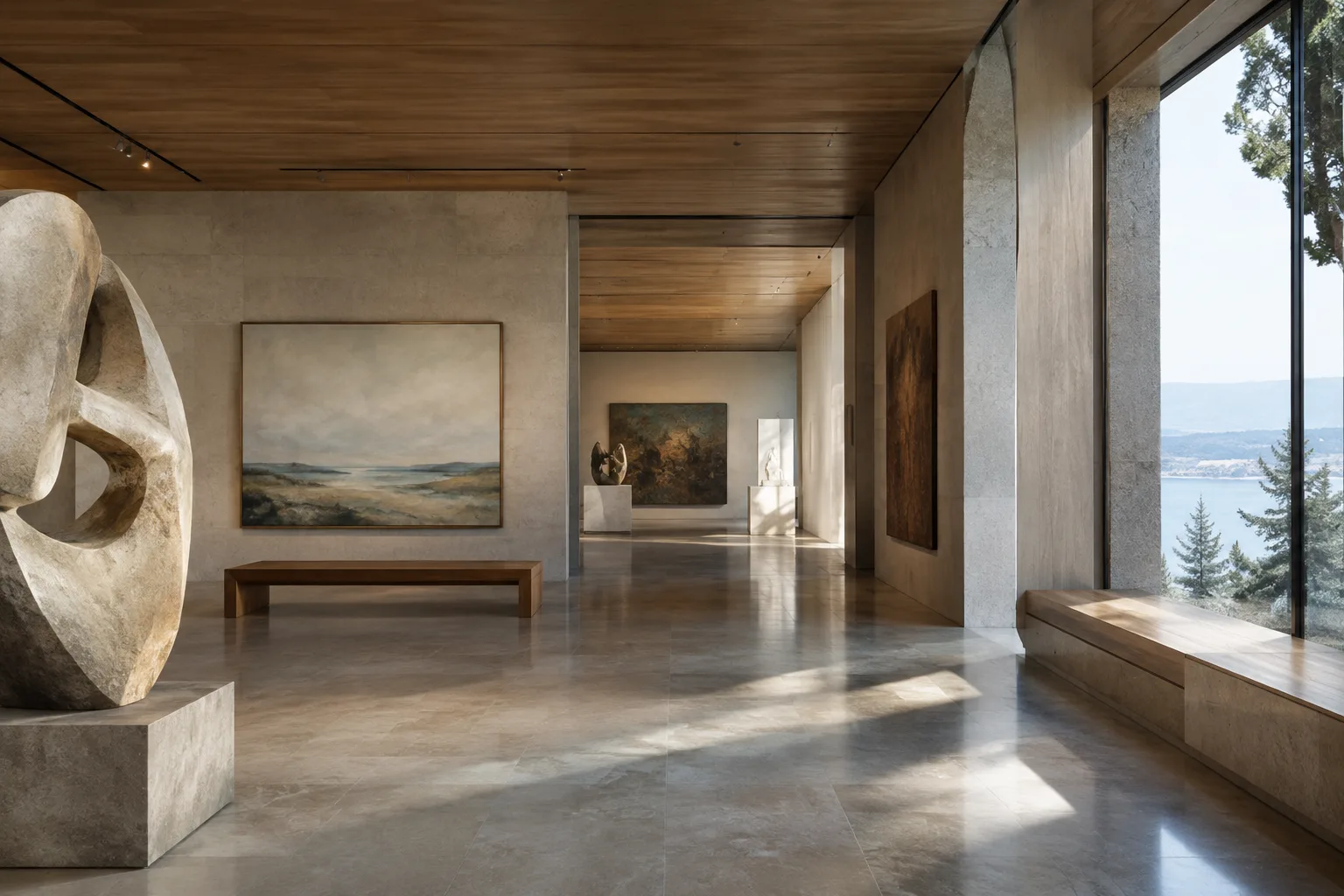
Create a short video showing the spatial relationships in a museum gallery. Give it a calm sense of progression that helps the viewer understand the main exhibition area, side passages, and ceiling height. Keep the lighting and material perception natural; avoid distracting visual changes.The goal here is to make the relationships within the gallery easy to read. If the passages or ceiling are unclear in the result, describe only that issue in a new prompt; avoid adding many new instructions at once.
Refine the result one thing at a time. Gemini Omni Flash supports multi-turn conversational editing. Examples in the documentation include replacing an element and changing the perspective. Preserve what works in the first video and describe the feature that needs attention in your next request.
Preserve the video's spatial layout and material appearance. Change the camera perspective to show the room's depth and window wall more clearly. Do not add new furniture or architectural elements.This second-round request focuses on a specific change instead of describing the entire generation from scratch. Changing perspective is one of the conversational editing examples listed for Gemini Omni Flash; the documentation does not provide a more detailed technical method for how the prompt is applied.
Consider Veo 3.1 for specialized video needs. If scene extension, frame-specific guidance, or native audio matters to your project, check whether Veo 3.1’s documented features match your needs. If you use these features, state the goal clearly; do not add durations, resolutions, or other parameters absent from the documentation as if they were supported.
Common mistakes
Vague descriptions: Brief prompts such as “a stylish interior video” may not provide enough direction about the space, materials, or goal. Describe the desired result using concrete details.
Packing too many goals into one prompt: Requesting a presentation, material changes, a different perspective, and new design decisions all at once makes the result harder to evaluate. Generate the basic scene first, then split changes across multiple rounds.
Leaving out constraints: If you do not specify which elements in an image should be preserved or which changes to avoid, the result may differ from what you expect. In line with the source recommendation, state what should and should not be done.
Treating the first output as final: Google’s prompting guide describes prompt writing as an iterative process. Review the result, choose one thing that is missing, and update your instruction accordingly.
Confusing model capabilities: Gemini Omni Flash and Veo 3.1 are not described as having identical feature sets. If you specifically need scene extension or frame-specific generation, choose a model based on the relevant documented feature.
Next steps: what to consider in an architectural workflow
For an architecture or interior design team, this approach could make it possible to create short presentation videos from existing images or explore a spatial concept through moving imagery. Image guidance and multi-turn editing may be useful for workflows based on a still image, but the sources do not specify direct compatibility with any CAD, BIM, or 3D software. So the model should not be assumed to integrate automatically into an existing production pipeline.
Before implementation, verify API access and potential costs, licensing terms, user access within the team, and compatibility with existing tools. The source documents do not explain pricing, account requirements, or hardware requirements, so do not make budget or workstation decisions until those points are confirmed. Review generated videos as outputs that support visual communication, not as verified representations of design decisions.
Sources and license
This guide has been adapted into Turkish based on Google’s Gemini API video generation guide and its prompt design strategies document. Both sources are available under the CC BY 4.0 license. The prompt examples are original examples for architectural use and have not been copied from the sources.
Sources
2 sourcesSource texts are not republished; short quotes are marked, everything else is our own summary and commentary.
For architecture and interior design teams, the most practical advantage is the ability to refine prompts over several rounds while turning an idea into a short video presentation. The option to work from existing images and change a specific element or perspective looks worth exploring for concept presentations.
However, the sources do not provide information about pricing, access terms, hardware requirements, or compatibility with 3D software. Offices and students in Turkey should verify the API terms, license, and compatibility of the output with their existing production pipeline before making budget or workflow decisions.
Frequently asked questions
Which model should I choose for architectural video generation with the Gemini API?
Google recommends Gemini Omni Flash as the default option for general video generation. If you need features such as scene extension, frame-specific generation, or native audio, consider Veo 3.1’s documented capabilities.
Can Gemini Omni Flash turn architectural images into videos?
Gemini Omni Flash is described as generating short videos from text and images. It also supports multi-turn conversational editing of the results.
Are pricing and hardware requirements for video generation with the Gemini API specified?
The source documents used here do not specify pricing or hardware requirements. They also do not explain account requirements, so check the current API terms separately.