In brief
- Gemini Omni Flash is positioned for generating short videos from text and images, and editing them over multiple turns.
- Veo 3.1 supports native audio, video extension, frame-specific generation, and image-guided prompting.
- Writing clear, specific instructions, describing the desired output, and iteratively refining the result are among the core prompting strategies.
- The sources do not provide pricing, account requirements, or information about a specific software version.
What will you learn in this guide?
This guide covers how to prepare prompts for short videos focused on architecture or interiors through the Gemini API. You’ll learn to choose a model based on your use case, break requests into clear sections, and improve the initial result with follow-up instructions. The examples focus on conveying the atmosphere of an interior, turning a design image into a moving visual narrative, and refining a video concept in stages.
The prompts here are original examples created for architectural work; they do not guarantee a specific result. Google’s guides describe prompt design as an iterative process that requires testing and refinement. For that reason, treat the first generation as a starting point for further guidance, not as the final output.
Requirements and model selection
The official video generation guide offers two options in the Gemini API: Gemini Omni Flash and Veo. It recommends Gemini Omni Flash as the default choice for workflows such as fast video generation and conversational editing. In addition to generating short videos from text and images, the model supports multi-turn refinement through the Interactions API. The source also lists its ability to use text, image, audio, and video inputs at the same time.
Veo 3.1 is intended for needs such as video generation with native audio, video extension, frame-specific generation, and image-guided prompting. According to the official documentation, these capabilities are available through the generateContent API. Veo 3.1’s documented features may be worth considering if you need to continue an existing clip or generate content focused on specific frames.
To get started, you need access to the relevant model in the Gemini API. However, the sources do not explain account setup, pricing, usage limits, or a specific software version. Check access and cost conditions separately before starting production; don’t assume a package or version requirement that isn’t stated here.
Step-by-step prompt preparation
Define the production goal in one sentence. State whether you want a new short video, a moving presentation based on an existing image, or an edit to an existing video. Set a clear priority rather than combining multiple goals vaguely in one prompt.
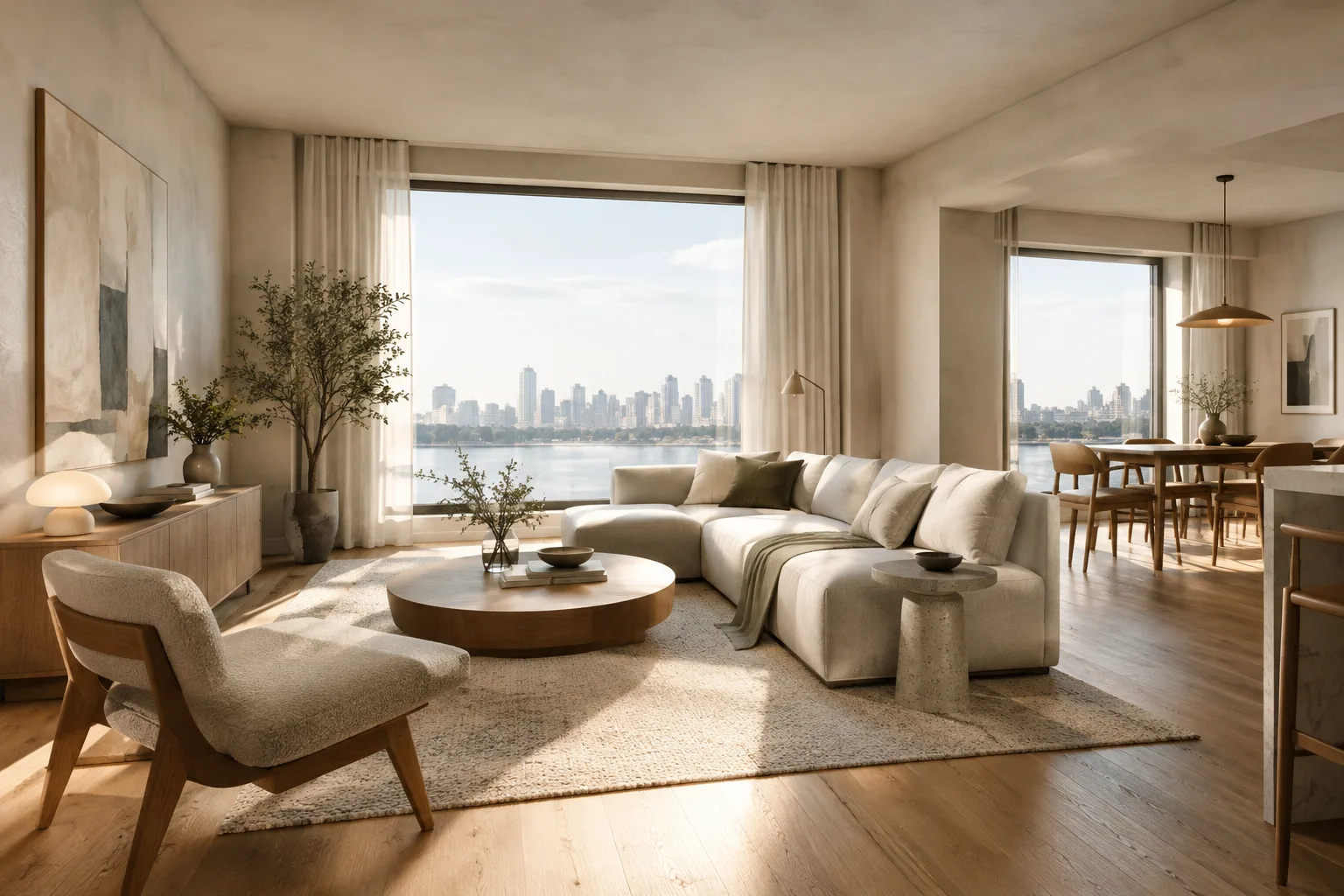
Describe the space and design focus. Include details such as the interior’s function, the materials to highlight, and what viewers should pay attention to in the video. The example below is an original starter prompt for a short interior showcase.
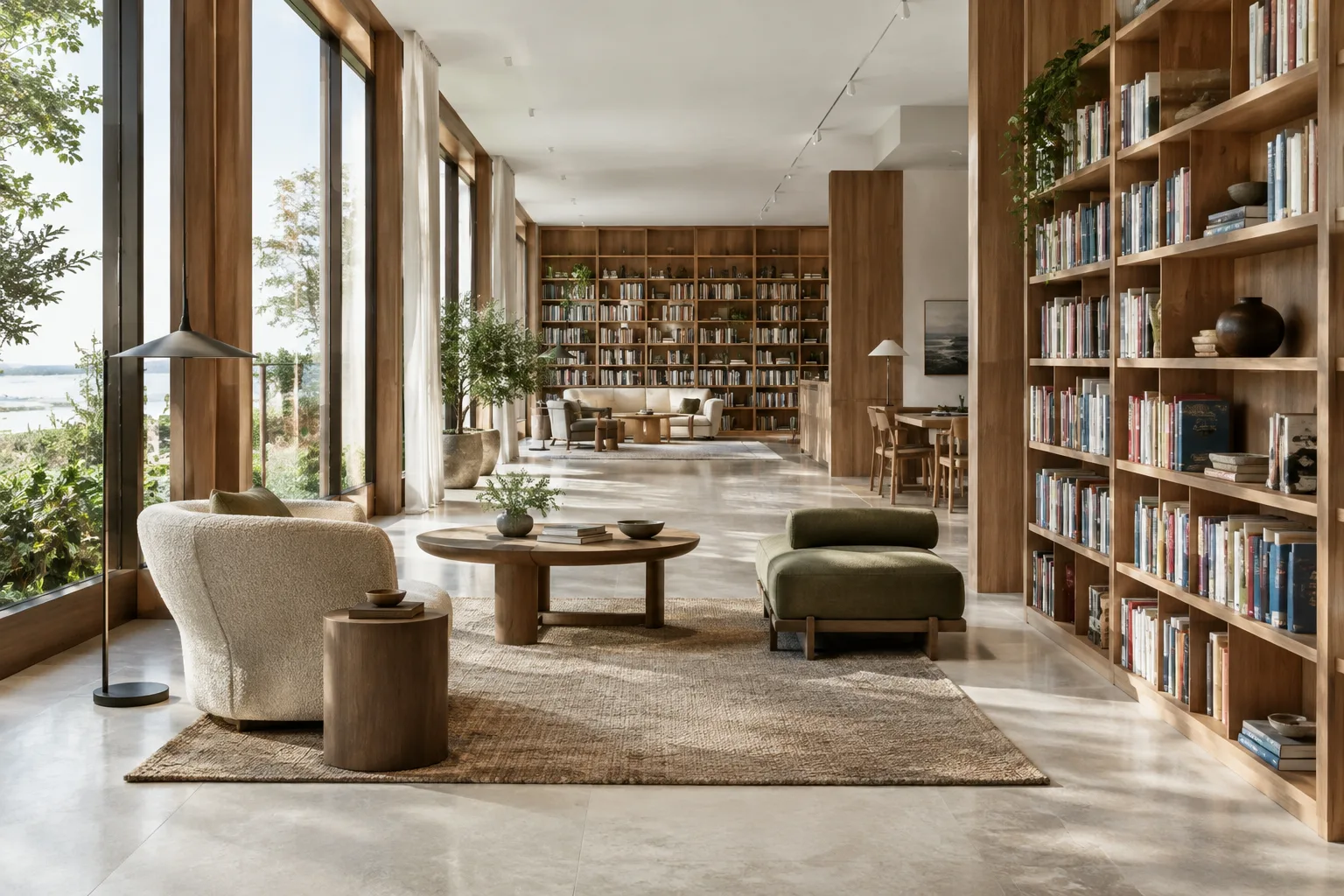
Create a short architectural video of a calm contemporary reading room. Show the timber shelving, pale stone floor, and soft daylight as the main design features. Use a slow, steady camera move through the room. Keep the furniture layout and architectural details consistent. Avoid adding people or changing the room design.This prompt specifies the type of space, design features, and requested camera movement separately. The camera movement is a direction requested through the prompt; the sources do not guarantee that it will be followed in every case or that a specific control is available. A general description such as “short” also does not guarantee an unstated duration or format; it simply communicates the desired output in text.
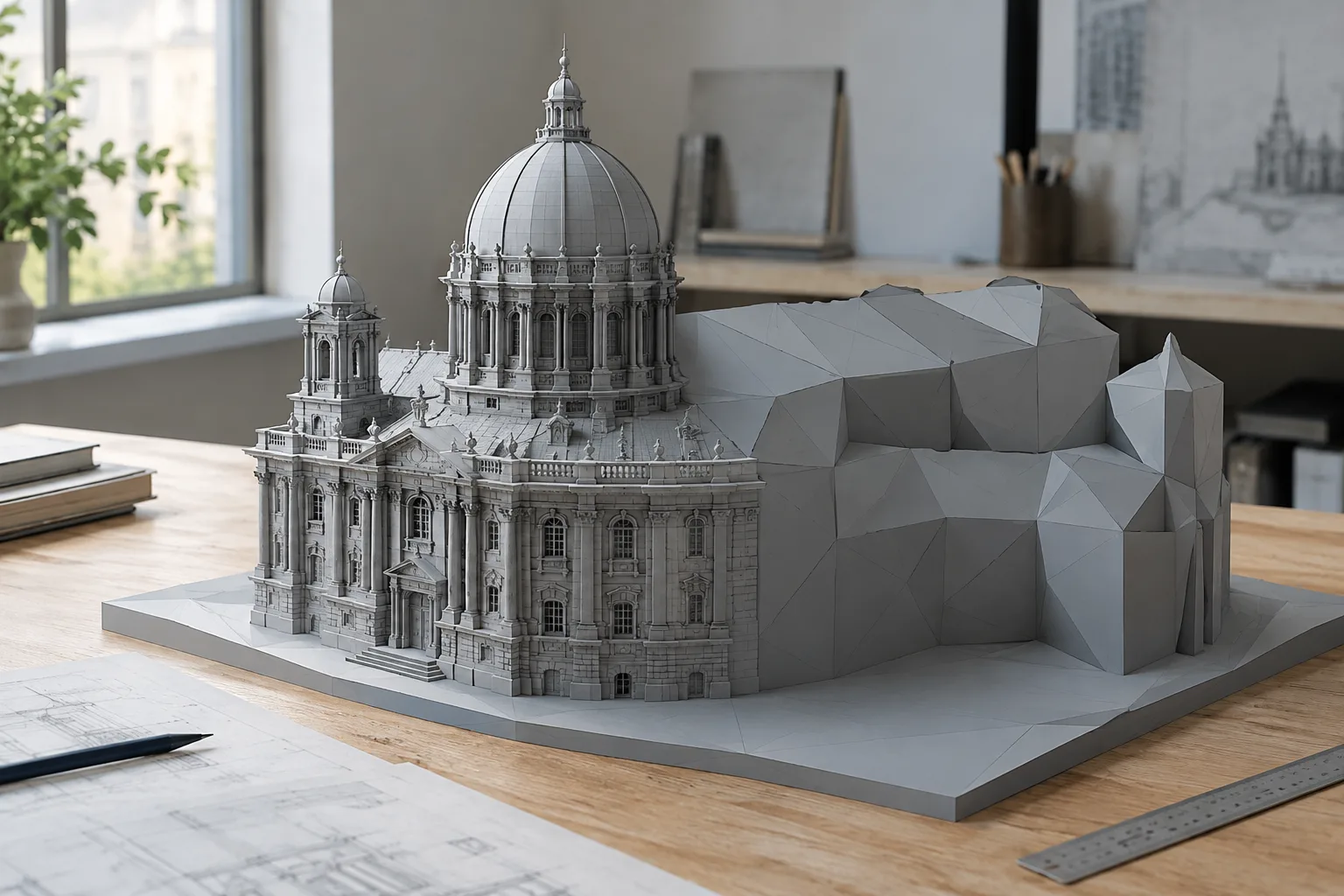
Use a reference image as guidance if you have one. Gemini Omni Flash can work with text and images, so you can provide your design image alongside the prompt. Clearly state which qualities of the image should be preserved, such as the floor plan, façade rhythm, or material character. Describe the desired presentation approach separately from the design decisions.
Use the provided architectural image as the visual reference for a small urban courtyard. Create a short video that reveals the planted edge, seating area, and surrounding façades. Preserve the visible layout and material character from the image. Keep the presentation calm and observational.This example defines the image not as general inspiration, but as a reference for design features that should be preserved. There is no guarantee that every detail in the image will remain unchanged in the result; compare the output with the reference and request any necessary corrections in new instructions.
Review the first result and make your editing request specific. Omni Flash’s multi-turn conversational editing workflow is designed for gradual refinement. The official guide gives examples such as replacing an element and changing perspective. Instead of rewriting the entire prompt each time, clearly state which element or perspective you want changed and how.
Revise the previous video by replacing the central seating with a simple timber bench. Adjust the perspective to show more of the courtyard entrance. Keep the material character and overall layout consistent with the reference image.This follow-up prompt requests an element replacement and a perspective adjustment, in line with the documented examples. Giving instructions separately and concretely makes it easier to compare the new output with the design intent. Don’t assume every detail will be preserved; if necessary, clarify the request in another round.
Consider Veo 3.1 if it suits your needs. If you need video extension, frame-specific generation, image-guided prompting, or native audio, check whether Veo 3.1’s documented capabilities match your requirements. To request a scene continuation, you can describe the existing clip and the desired continuation in your prompt; however, these sources do not specify a particular menu, parameter, or duration. Follow the current usage instructions in the API documentation.
Common mistakes
Giving vague instructions: A broad request such as “Create an impressive architectural video” doesn’t explain which space or design quality to highlight. Make the task, input, and expected result as specific as possible.
Packing too many goals into one prompt: Requesting many changes at once can make it difficult to tell which instruction affected the result. Generate the core scene first, then break edits into smaller steps.
Not specifying the role of the reference: If you provide an image, state which aspects the model should take into account. For example, preserving the feel of the materials is not the same as requesting a new composition.
Confusing the models’ capabilities: Omni Flash is positioned for fast, multimodal generation and conversational editing, while Veo 3.1 is documented for specific video features. When choosing a workflow, match your needs to the capabilities described in the source; don’t assume an undocumented function is supported.
Treating the first output as final: Prompt design is iterative. Review the generated video against the design intent, reference, and narrative focus, then clearly identify what isn’t working in your next instruction.
What changes in an architecture and visualization workflow?
This approach can help architecture and visualization teams that want to turn a design concept into a short moving narrative, assess the atmosphere of an interior before a presentation, or experiment with video based on a reference image. Multi-turn editing makes it possible to work through documented examples of replacing an element and changing perspective after the initial generation. However, the sources don’t say that this replaces traditional 3D scene setup; it’s therefore more appropriate to treat the output as a visual storytelling experiment than as design validation or a final technical presentation.
Hardware requirements, licensing costs, and model access conditions are also part of the decision-making process for teams. Since the documents provided don’t specify figures or conditions on these topics, review current API information separately before purchasing or planning a project. Test how well the visual reference preserves design decisions and how editing rounds affect the production process using real project examples.
Next steps
Start by testing a single scene with a small number of design focuses. Save the initial prompt and follow-up edits for the same reference so you can see which instructions contribute to your workflow. For needs such as video extension or frame-specific generation, review Veo 3.1’s documented features; if working across multiple turns with text and image inputs is the priority, consider Gemini Omni Flash. Analyzing existing videos is a different need from generating new ones; the official guide points to a separate video understanding guide for that purpose.
Sources and licensing
This guide has been adapted into Turkish based on Google’s Gemini API video generation and prompt design strategy pages. Both sources are licensed under CC BY 4.0. The architectural prompt examples were created originally for this guide.
Sources
2 sourcesSource texts are not republished; short quotes are marked, everything else is our own summary and commentary.
For architecture firms and visualization teams in Turkey, this workflow is appealing as a way to create short narrative experiments from design images and quickly test presentation ideas. Multi-turn editing can help teams work through documented examples of changing an element or perspective after the initial generation; however, the output’s fidelity to the design reference should be checked on real projects.
When making a decision, consider API access, licensing and production costs, and fit with the existing workflow together. The sources provide no pricing, hardware requirements, or usage conditions, so don’t make assumptions about budget or technical suitability. Starting with a small pilot is the most cautious way to match the model to your needs.
Frequently asked questions
Should I use Gemini Omni Flash or Veo 3.1 for architectural video generation?
Gemini Omni Flash is recommended for generating short videos from text and images and for multi-turn editing. Veo 3.1 stands out for capabilities such as video extension, frame-specific generation, and native audio.
How can I improve a video prompt in the Gemini API?
Clearly describe the space, the design features to highlight, and the desired result. After the first output, break changes into small steps and iterate with new instructions.
Have the pricing and account requirements for Gemini API video generation been specified?
The sources this guide is based on do not specify pricing or account requirements. Check current access and cost information separately.