In brief
- Render passes provide different types of render data as separate layers.
- Cryptomatte can create object or material masks and supports multiple objects per pixel.
- Multi-Layer OpenEXR can store render layers and passes in a single file.
- Rendering animation frames to an image sequence first makes it easier to resume from the frame where a render was interrupted.
This guide adapts the render pass and output options described in the current “latest” Blender Manual documentation to architectural visualization workflows. Since the documentation does not specify a particular Blender version, check whether the settings are available in your installed version. The basic approach is to select the required image data during rendering, work with it separately in compositing, and save it in a file format suited to delivery.
When should you use render passes?
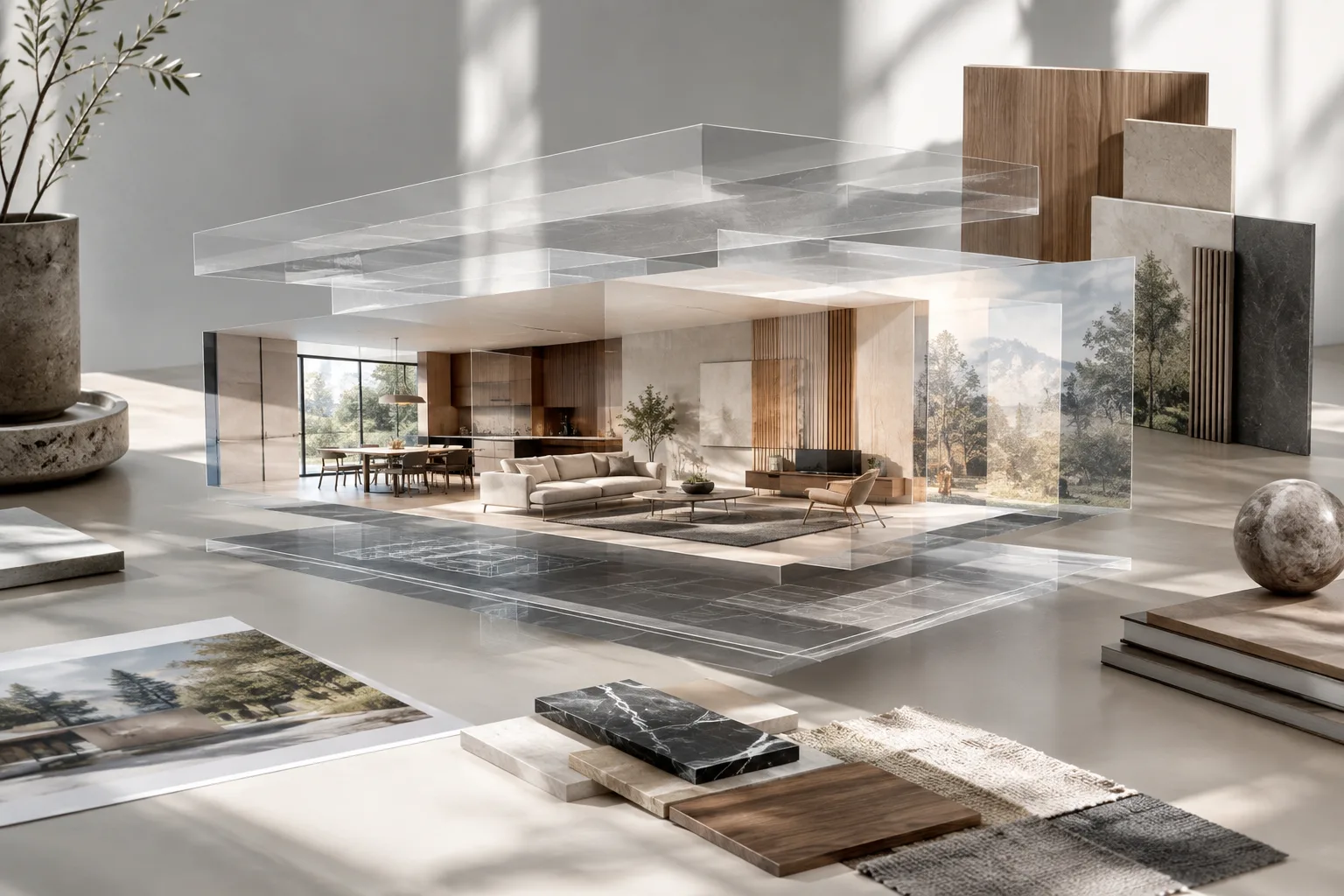
A render pass is a specific type of information from a render output as a separate image. For example, surface color, lighting, depth, and normal data can be used as separate passes. The Render Layers Node in Blender Compositor reads this data, allowing you to composite or make other adjustments independently of the main render.
1. Choose passes according to your needs
Select the passes your scene requires in the Properties › View Layer › Passes panel. Start by checking the Combined pass: it provides the render output before compositing. Use the Depth pass when you need to create depth effects, or the Normal pass when you need surface normals in world space. The Depth pass can also be used with the Defocus Node to create a fake depth-of-field effect.
The Mist pass lets you control depth and haze separately. It maps the distance to a surface to a range of 0.0–1.0 and can be used to fade distant objects. The documentation notes that the Depth pass can produce noisy results when the render has depth of field or motion blur; in such scenes, the Mist pass may be a cleaner alternative.
2. Prepare masks and selective adjustments
Use Cryptomatte passes to isolate a specific object or material in compositing. The View Layer settings offer Object, Material, and Asset options. Asset separates groups of objects that share the same parent; it is not the same as Blender’s asset feature. Cryptomatte serves a similar masking purpose to the Object Index and Material Index passes, but is easier to set up, works in other compositing software, and supports multiple objects within a pixel. When using Cycles, it also works with transparency, motion blur, and depth of field.
If you choose Object Index or Material Index, keep in mind that these passes are not anti-aliased. In Cryptomatte, Levels sets the maximum number of objects to distinguish per pixel. Rather than adding unnecessary passes, identify in advance the materials and objects you may need to adjust later for a more controlled layer structure.
3. Enable denoising data only when needed
In Cycles, Denoising Data generates auxiliary data for denoising alongside the noisy image. This includes surface color, specular color, normal, roughness, and depth information. When used with the Denoise Node in Compositor, it can help produce higher-quality results than denoising based only on the noisy image.
However, these additional passes increase memory usage and render time. Enable them if denoising will be done in Compositor; otherwise, don’t leave unneeded auxiliary data enabled. The documentation also notes that the Render Time pass is not supported for GPU rendering, so account for this limitation in your render plan if you need this data.
Organize output for compositing and delivery
4. Choose how to store frames
The Media Type setting in the Output panel determines how images are saved. Image writes each input as a separate file, and each file can use its own image format settings. Multi-Layer EXR combines inputs in a single multilayer OpenEXR file. The Cache Result option in the Output panel saves rendered View Layers and passes as OpenEXR files in the Render Cache folder; these files can later be used by Compositor.
For animation frames, a frame number is automatically added to the file path. By default, it uses four-digit zero padding, as in image0001.png. You can customize the padding by using # characters in the filename. Still renders are not saved automatically; you can save them manually from Image Editor or write them using a File Output Node.
5. Render an image sequence first, then make a video
For architectural animations, render individual images first—such as PNG or OpenEXR, which can preserve HDR pixel data—instead of rendering directly to a video format. If an error occurs during rendering, you can resume the image sequence from the frame where it stopped. You can also test video compression options without waiting for the scene to be rendered again. The images can later be combined as an Image Strip in Video Sequencer.
| Setting | Recommended value | Effect |
|---|---|---|
| Image sequence | PNG or OpenEXR | PNG is a standard option; OpenEXR can preserve HDR pixel data. |
| Multilayer output | Multi-Layer EXR | Combines all inputs in a single multilayer OpenEXR file. |
| Video color depth | 8, 10, or 12 | Higher bit depth provides more color levels and precision, but also increases memory usage. |
| Lossy compression | Final delivery stage | Compression artifacts may become visible during subsequent processing. |
Bit-depth options in video settings depend on the format used: 8-bit is common for standard video and screen graphics, while 10-bit is available for H.264, H.265, and AV1; 12-bit is available for H.265 and AV1. Higher bit depth can reduce banding and improve color precision, but increases memory consumption. The video encoder and container must be compatible; an incompatible choice may produce an error. Leave lossy compression until the delivery stage rather than processing a compressed file later.
Impact on architecture and visualization workflows
In interior renders, Cryptomatte can be used to mask furniture, materials, or decorative elements separately; Depth and Mist can be used to control the sense of distance in compositing. Light Groups work only in Cycles and allow you to adjust the contributions of lights in separate passes, making it possible to change light color and intensity without rendering again. This can be useful for visualization teams that want more control over lighting after the render.
As the number of passes and the amount of denoising data increase, memory usage and render time can also be affected. So instead of enabling every pass in every scene, identify the elements you’ll actually need to adjust for delivery. In EEVEE, depth of field and motion blur are not rendered in passes other than Combined; moreover, transparent materials set to the Blended method are not included in passes other than Combined and Transparent. These limitations make it important to test your masking and compositing plan before rendering.
Common mistakes
Rendering directly to video: If the process is interrupted, the file may become unplayable and you may need to generate the frames again from the beginning.
Enabling unnecessary passes: Denoising Data in particular increases memory usage and render time.
Expecting every pass to look the same: In EEVEE, depth of field and motion blur are not present in passes other than Combined.
Using a lossy file as an intermediate: Compression artifacts may become more noticeable during later post-production.
Overlooking compatibility between the container and encoder: Incompatible choices can cause output errors.
Sources
2 sourcesSource texts are not republished; short quotes are marked, everything else is our own summary and commentary.
For architecture and visualization offices in Turkey, the most practical benefit is being able to adjust masks, lighting, and depth without rendering the scene again. However, it’s more efficient to identify the elements most likely to need revisions than to enable every pass from the outset; the memory and time costs of denoising data should also be factored into planning.
The documentation does not specify minimum system requirements; it only notes that some additional data increases resource consumption. For this reason, it makes sense to run a small test render for large scenes. Teams should also verify pass behavior in the Blender version they use and check that delivery files are compatible; they should review license terms according to their own workflows.
Frequently asked questions
Where do you enable render passes in Blender?
Select the passes you want to use in the `Properties › View Layer › Passes` panel. The selected data can be accessed through the Render Layers Node in Compositor.
Why render a Blender animation as an image sequence instead of directly to video?
If rendering is interrupted, you can resume the image sequence from the frame where it stopped. You can also test different video encoding options without rendering the 3D scene again.
What is Cryptomatte used for?
It creates masks for specific objects or materials. It supports multiple objects in a pixel and, in Cycles, also works with transparency, motion blur, and depth of field.