In brief
- In the Gemini API, Nano Banana 2.1 is identified by the model name `gemini-nano-banana-2.1`.
- According to the source documentation, the model supports image generation at 1K, 2K, and 4K resolutions.
- You can add or remove elements, change styles, or adjust colors by pairing a text prompt with an existing image.
- Generated images contain a SynthID watermark; usage rights should be checked for uploaded images.
This guide covers how to use Nano Banana 2.1 through the Gemini API to create interior concept images and edit a reference image with text prompts. The prompts will clearly describe the space type, framing, materials, lighting, and desired output. The examples are designed for architecture and interior design; results should support visual research and idea development, not replace design decisions or technical drawings.
Requirements and model selection
The source documentation lists Nano Banana 2.1 in the Gemini API under the model name gemini-nano-banana-2.1. Google describes it as a high-efficiency model for image generation and conversational editing, and says it works at 1K, 2K, and 4K resolutions. It is recommended for new projects. The documentation also lists Nano Banana 2 Lite, which focuses on faster generation and scale, Nano Banana Pro for more complex visual tasks, and the previous-generation Nano Banana 2.
The example workflow uses the Gemini API. The official documentation includes a Python example using the google.genai client and saving image data to a file; its REST example uses the API key through the GEMINI_API_KEY variable. This guide does not cover SDK installation or account setup, so consult the API documentation for access and authentication details. The sources do not specify pricing or local computer hardware requirements.
Only upload reference images you have the rights to use. The documentation states that all generated images contain a SynthID watermark. You should also separately check whether a generated image is suitable for a project presentation or other intended use.
Step by step: turning a space brief into a prompt
1. Define the scene and framing first. Instead of using a general phrase such as “modern interior,” describe the type of space, the viewing angle, and the purpose of the image. Bring multiple requirements together in one short text; rather than trying to resolve every detail in the first attempt, establish the basic composition.
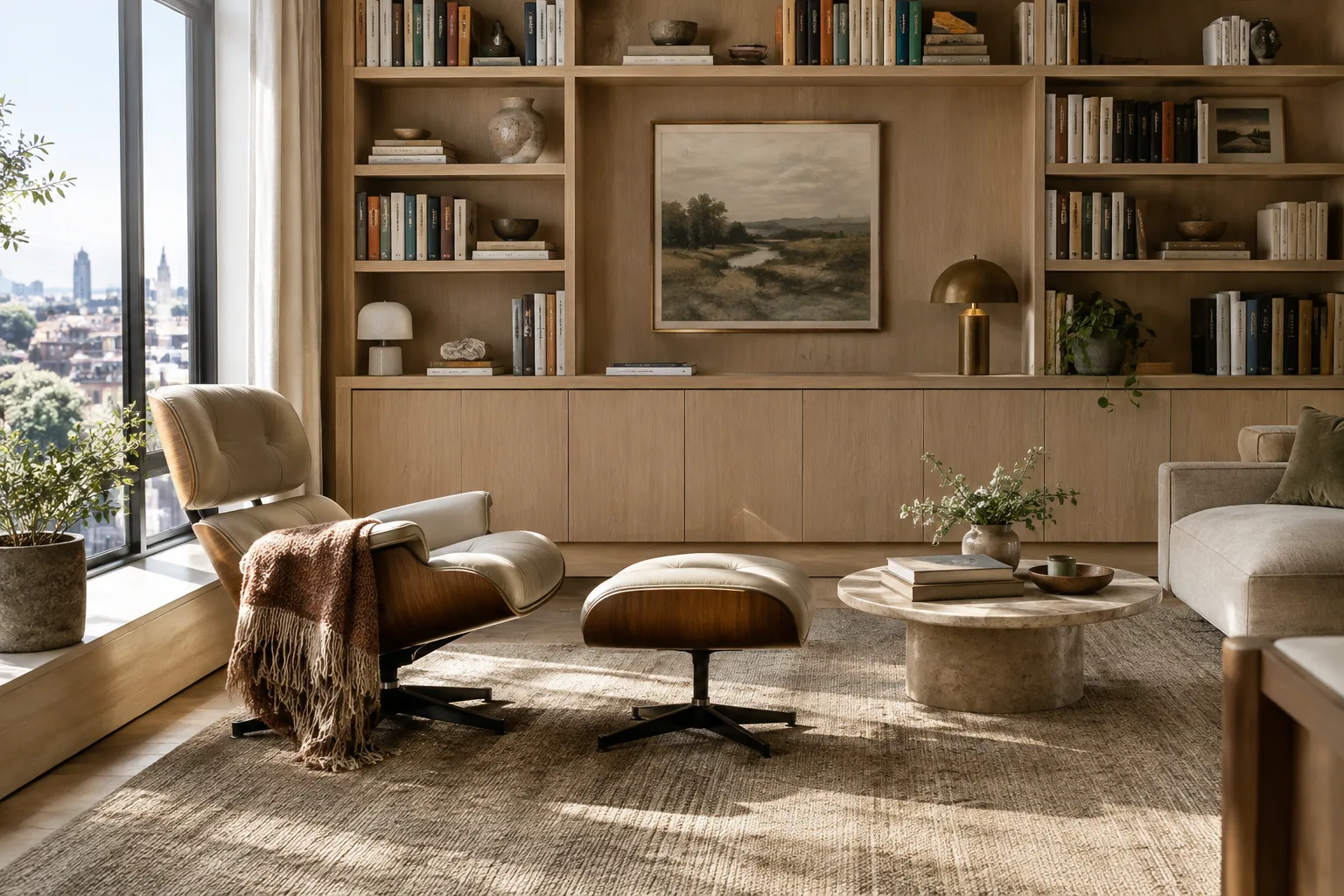
Create a calm editorial interior image of a compact reading room in a contemporary apartment. Show the full seating area from a clear eye-level viewpoint, with a built-in bookshelf on the back wall and a large window on the left. Keep the composition uncluttered and make the room feel quiet and lived-in.This example describes the type of space, framing, and placement of the main elements. If the layout differs from what you expected in the first output, don’t rewrite the entire brief. Instead, specify only the correction to the framing or a particular element in your next prompt.
2. Describe materials and lighting separately. Explain how you want the surfaces to look and how light should fall across the space. The source documentation recommends giving clear, specific instructions for image generation, so describe the visual quality you want rather than relying on vague adjectives such as “make it realistic.”
Create an interior concept image of a small apartment kitchen with pale oak cabinet fronts, a light stone countertop, and matte metal details. Soft morning light enters from a side window and falls across the counter. Use restrained colors, subtle surface texture, and balanced shadows; keep the room practical rather than decorative.This prompt brings materials, lighting, and the overall atmosphere together in one scene. If a material is misinterpreted in the generated image, clarify only that material in your correction prompt. Compare each result with the project brief before turning it into a design decision.
3. Send the image-generation request to the API. The example below follows the Python workflow in the official documentation: the text prompt is sent to the selected model, and the returned image data is decoded and written to a file. Assign one of the examples above, or your own text, to the prompt variable.
from google import genai
import base64

client = genai.Client()
prompt = "Create an interior concept image of a small apartment kitchen with pale oak cabinets and soft morning light."
interaction = client.interactions.create(
    model="gemini-nano-banana-2.1",
    input=prompt,
)

with open("interior_concept.png", "wb") as image_file:
    image_file.write(base64.b64decode(interaction.output_image.data))
This example uses the model name in the documentation and the method for accessing image data through interaction.output_image. The client and API access must be configured in the runtime environment; follow the official API documentation for setup and authentication details.
4. Edit an existing image as a reference. The Gemini API accepts image input alongside text. According to the source documentation, this can be used to add or remove elements, change the style, or adjust colors. Use the prompt below with an interior image you have the rights to use.
Using the supplied interior image as the reference, change the wall color to a warm off-white and remove the small decorative objects from the shelf. Keep the room layout, furniture positions, and viewpoint unchanged. Do not add new furniture.Here, the requested edits are clearly separated from the elements that should remain unchanged. If the requested changes aren’t made, or other unwanted differences appear, narrow the request in the next round and focus on a single change. The source documentation mentions multi-turn editing, but does not guarantee that specific geometry will always be preserved exactly.
5. Review the result and iterate on the prompt. Prompt design is a process of testing and refinement. Check the output for composition, material appearance, lighting, and alignment with the brief. Describe shortcomings specifically; work through individual corrections such as “don’t change the position of the window” or “keep the countertop surface a lighter stone color.” Avoiding details that aren’t really needed can also make the result easier to control.
Common mistakes
Writing an overly general prompt: If you don’t specify the space type, framing, or main materials, the result may drift from the intended design direction. Structure the request around the scene, appearance, and visual qualities.
Requesting too many changes in one round: When several edits are made at once, it can be difficult to tell which instruction affected the result. Try the most important change first, review the output, and then continue.
Ignoring the rights to reference images: Users are responsible for ensuring they have the necessary usage rights for uploaded images. The source documentation warns against uploading content you don’t have rights to use.
Treating the output as proof of technical accuracy: The API features covered in this guide relate to image generation and editing. The sources do not state that generated images have been verified for dimensions, material performance, or construction details.
Assuming pricing or resolution details: The documentation lists model options and 1K, 2K, and 4K resolutions, but pricing is not covered in this guide. Check the API terms and the resolution option you intend to use for your project separately.
Next steps: architecture and visualization workflows
Architects and interior designers can try this workflow to generate early concept alternatives or explore color and style variations in an existing image. For visualization teams, turning a written brief into different visual directions and making limited edits to a reference image may also support the workflow. However, the sources do not specify direct integration with any particular 3D software or the ability to import scene geometry; don’t treat the output as a file that replaces a 3D scene.
Before using the workflow, clarify which model you’ll select, API access, output resolution, and image usage rights. The fact that Nano Banana 2.1 is a model available through the API and that generated images contain SynthID should also be considered in the presentation process. Compare results with project requirements; don’t present visual qualities described in a prompt as technical specifications verified against actual project data.
Sources and license
This guide is adapted into Turkish from Google Gemini API’s “Nano Banana image generation” and “Prompt design strategies” documentation. Both sources are provided under the CC BY 4.0 license. The architecture and interior design prompts are original to this guide.
Sources
2 sourcesSource texts are not republished; short quotes are marked, everything else is our own summary and commentary.
For architecture firms and students in Turkey, this approach can help bring different atmospheres into the conversation quickly during concept research. Trying out color or style changes on an existing image, in particular, can make it easier to evaluate alternatives as a team. However, these outputs should not be presented as technical drawings, dimensioned models, or construction decisions.
API access and pricing terms should be reviewed separately before starting a project; the sources do not include pricing information. Hardware requirements are also unspecified, so it would be unwise to make assumptions about local computer performance. In addition, the usage rights for uploaded references and the SynthID watermark on images should be factored in before incorporating the workflow into a business process.
Frequently asked questions
How do you generate an interior image with Nano Banana 2.1?
Send a text prompt to the `gemini-nano-banana-2.1` model through the Gemini API. The official documentation includes an example of saving the image output to a file with the Python client.
Can Nano Banana 2.1 edit an existing image?
According to the source documentation, you can provide text and an image to the API together. The text prompt can request that elements be added to or removed from the image, that the style be changed, or that colors be adjusted.
What resolutions does Nano Banana 2.1 support?
The official documentation lists 1K, 2K, and 4K resolution options for Nano Banana 2.1.