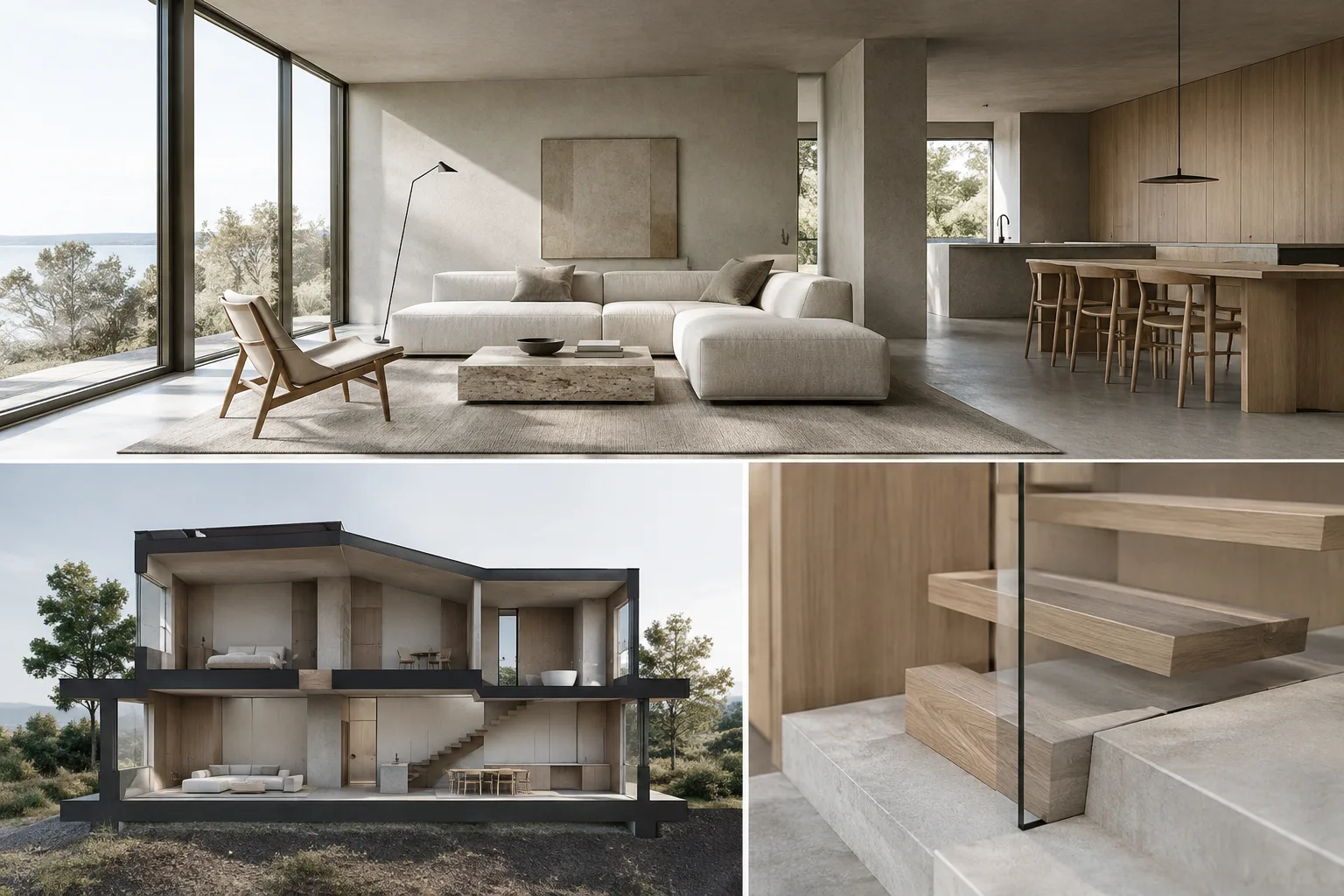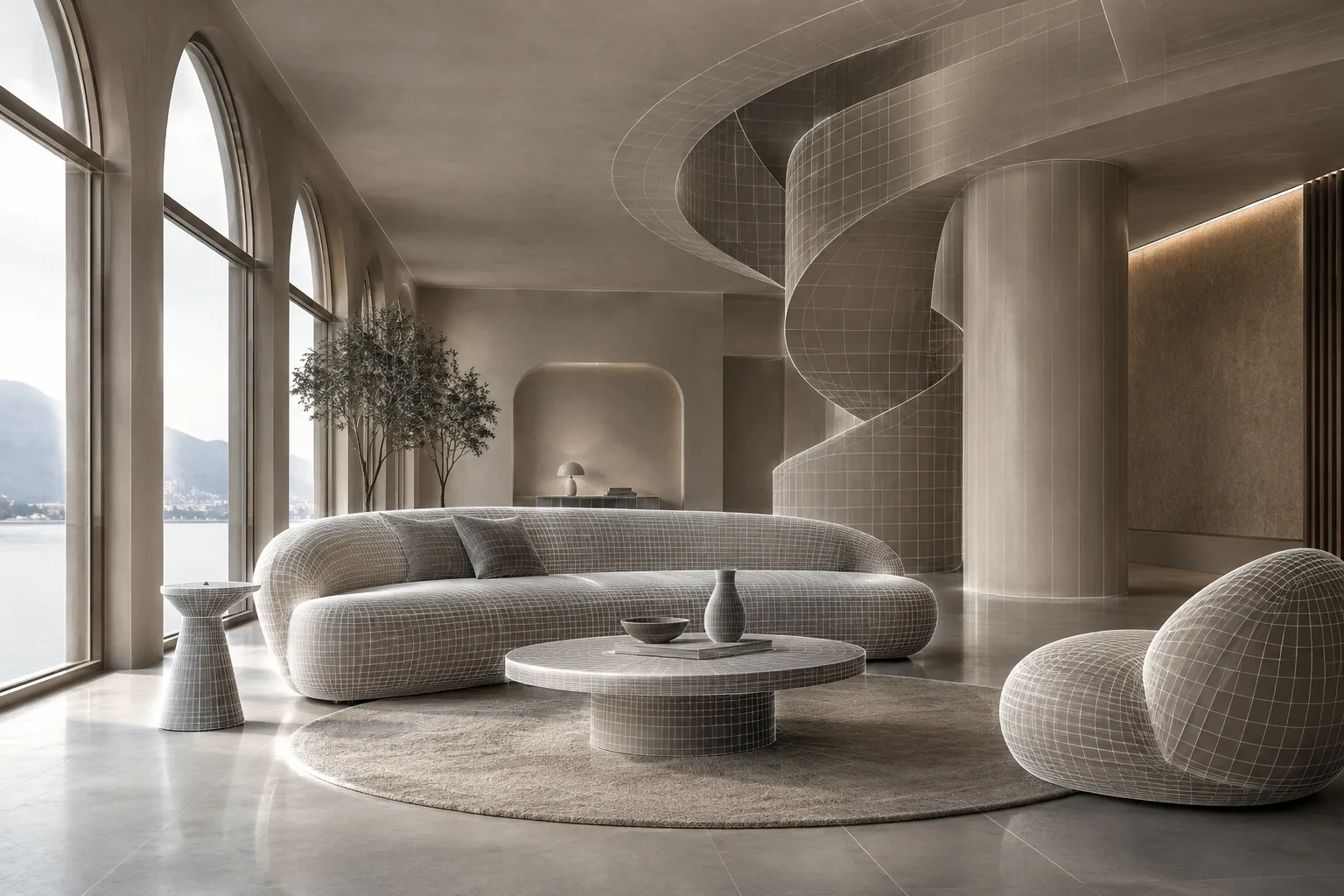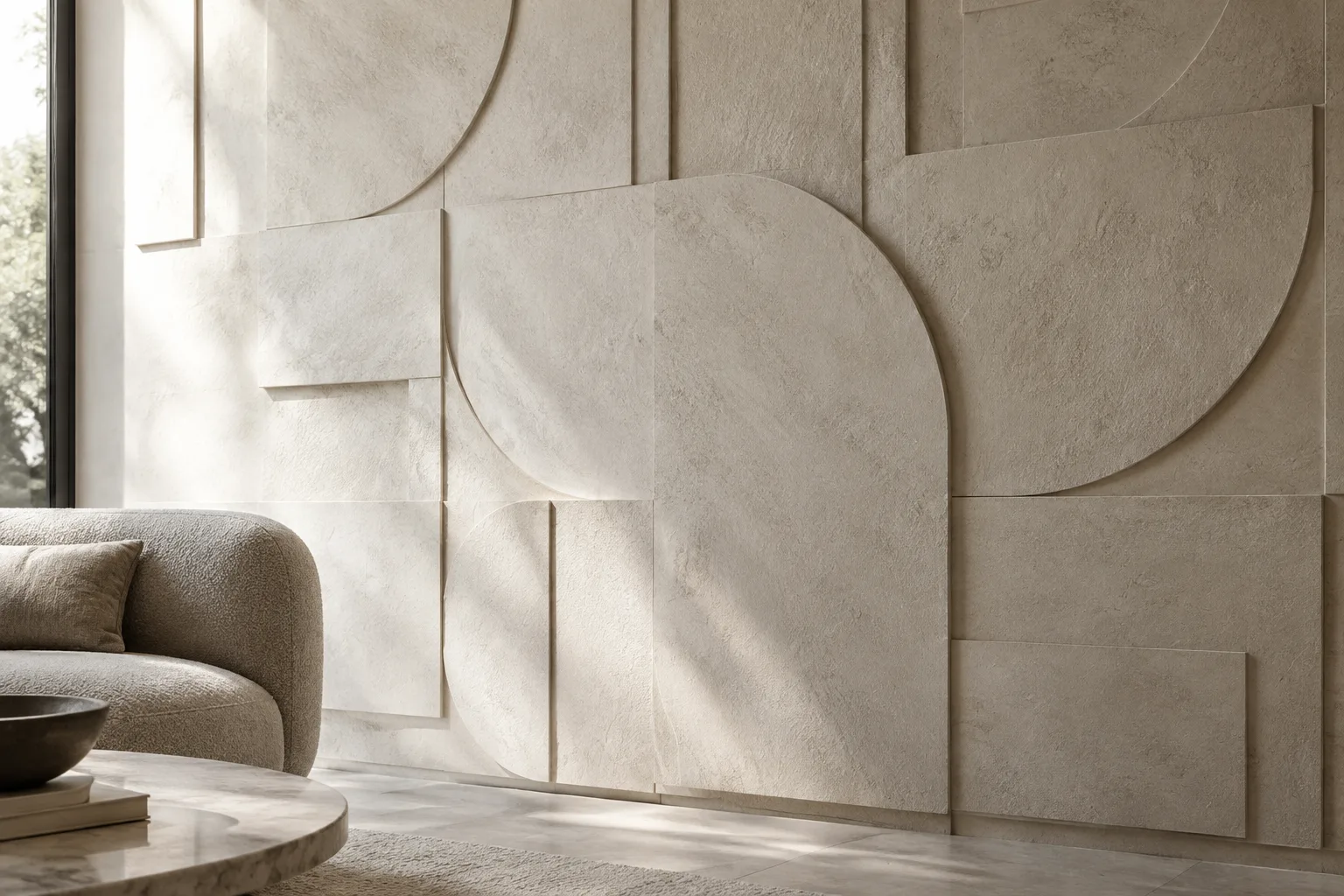
In brief
- Unlike bump, displacement changes surface geometry.
- 2D Displacement requires valid UV coordinates; it does not support 3D procedural or object-/world-coordinate textures.
- Reducing Edge Length increases detail, but also increases render time and RAM usage.
- When using a custom bitmap, prepare the texture mapping and apply Tri-Planar Projection (Fit) when needed.
Chaos updated its V-Ray for SketchUp documentation on 6 August 2026. This guide explains, based on the documentation, how to set up V-Ray’s surface displacement tool in SketchUp and which settings to check in an architectural visualization workflow. Unlike a bump map, displacement changes not only a surface’s appearance but also its geometry.
When should you use displacement?
Bump creates the impression of raised detail through lighting and shading; it does not change the model’s geometry. Displacement subdivides the surface and moves it according to the map values. This makes it useful for details that should also affect the geometric silhouette, such as brick joints, stone surfaces, flooring, or pronounced relief. If you only need a subtle surface effect, consider the difference between bump and displacement; the documentation distinguishes how the two techniques work.
To create displacement, right-click in the Geometries category in the V-Ray Asset Editor and select Displacement. Alternatively, use Create Asset > Geometries > Displacement. You can also apply it to a selected object via SketchUp’s Extensions > V-Ray > Objects > Add Displacement to Selection menu or the corresponding command in the V-Ray Objects toolbar. If a geometry asset created in the Asset Editor does not appear directly in the viewport, you may need to add it to the scene from SketchUp’s Components list.
Preparing a surface with a custom bitmap
When using your own bitmap texture, prepare the mapping before applying displacement. The documentation recommends the following sequence:
Select the material on the object to be displaced. In the
Viewport Displaysection, setTexturemode toCustom.Right-click the object and apply
V-Ray UV Tools > Tri-Planar Projection (Fit).Create displacement and apply it to the selected object.
Select
Bitmapfrom the texture slot next toMode/Mapand load your prepared bitmap.Adjust the
Color Manipulationsettings to suit the image.
This preparation helps control how the custom texture is positioned on the surface. To remove displacement, use Remove from Selection in the selected object’s context menu.
How to choose mode and quality settings
Normal Displacement divides the existing surface triangles into smaller sub-triangles and moves them according to the map. 2D Displacement is based on a predefined texture map; it can preserve detail but requires valid UV coordinates. According to the documentation, the 2D method cannot be used with 3D procedural textures or textures that use object/world coordinates.
| Setting | Recommended value | Effect |
|---|---|---|
| Amount | No fixed recommendation; 0.0 leaves the surface unchanged. | Increasing the value strengthens the displacement effect; a negative value pushes the geometry inward. |
| Edge Length | No fixed recommendation; with View Dependent enabled, 1.0 is an example of a maximum sub-triangle edge length of approximately 1 pixel. | Smaller sub-triangles mean more detail, longer render times, and higher RAM usage. |
| Max Subdivs | The documentation advises against going much above 256. | The value sets the maximum number of sub-triangles that can be generated for each original triangle; for example, 256 gives an upper limit of 256 × 256 = 65,536 sub-triangles. |
| Resolution | If using a bitmap, match its dimensions. | Determines the resolution V-Ray uses for the displacement texture. |
With View Dependent enabled, Edge Length is measured in pixels; when disabled, it represents a length in scene units. The same value therefore does not produce the same result in both modes. The documentation specifically notes that higher detail increases render time and RAM consumption. If you need a much higher Max Subdivs value, tessellating the original mesh may be a better option than increasing the value.
Shift offsets the surface along its normals by adding a fixed amount to the displacement map values. It is expressed in absolute world units; you may need to readjust Shift when changing Amount. If the surface splits at sharp edges or where adjacent triangles have different normals, try the Keep Continuity option. It helps create a connected surface and can reduce separations caused by different smoothing groups or material ID boundaries in MultiSubObject materials.
How displacement affects an architectural visualization workflow
In architectural projects, displacement can add geometric depth to surfaces without having to model every detail individually. Its effect is especially noticeable in close-ups or scenes where the surface silhouette matters. However, subdividing each triangle into more parts can increase render time and RAM requirements. So evaluate the setting not just on the material, but also in relation to camera distance and the detail’s size in the image.
Check the UV coordinates before choosing the 2D method for custom bitmaps. Also bear in mind that the 2D mapping (landscape) method supports only one UV mapping channel. When transferring a project from SketchUp to LayOut, you may need to hide V-Ray objects’ viewport helpers; the Hide V-Ray Widgets button in the V-Ray toolbar can hide items such as proxies, lights, fur, clippers, and infinite planes.
Common mistakes
Trying to use 2D Displacement without valid UV coordinates or with a 3D procedural texture.
Ignoring the increase in render time and RAM usage when reducing
Edge Length.Failing to recheck
Shift, which uses world units, after changingAmount.Increasing other settings to fix separations at sharp edges without first trying
Keep Continuity.Assuming a geometry asset created in the Asset Editor is automatically added to the scene; add it from SketchUp’s Components list if needed.
The interface paths and parameters in this guide are based on the V-Ray for SketchUp documentation. Since the source does not specify coverage for a particular current software version, version compatibility should not be stated beyond the note about V-Ray 6: the documentation says that special objects such as Fur, Scatter, and Displacement can be used together in the same group or component in V-Ray 6.
Sources
2 sourcesSource texts are not republished; short quotes are marked, everything else is our own summary and commentary.
For architecture firms and visualization teams in Turkey, the practical benefit of displacement is that it can reduce the need to model surface details individually when they matter in close-ups. However, rather than aiming for maximum detail in every scene, it is more efficient to consider whether the detail will actually be visible in the frame and weigh that against the rendering cost.
RAM usage and render time should be part of the decision, especially in complex scenes. Skipping UV preparation for custom bitmaps can lead to unexpected results, and the limitations of the 2D method should also be checked before choosing it. Since the documentation gives neither a fixed hardware requirement nor a single setting suitable for every project, it is important to test values according to the scene and output requirements.
Frequently asked questions
What is the difference between displacement and bump in V-Ray for SketchUp?
Bump changes only the shaded appearance of a surface. Displacement also changes the surface geometry.
Does V-Ray 2D Displacement require UVs?
Yes. According to the documentation, 2D Displacement requires valid UV coordinates and cannot be used with 3D procedural or object-/world-coordinate textures.
How does reducing Edge Length affect rendering?
It produces more sub-triangles and detail, while also increasing render time and RAM usage.