In brief
- The Gemini API identifies Nano Banana 2.1 with the model ID gemini-nano-banana-2.1.
- Image generation uses clear, specific instructions and prompts that describe the desired output format.
- An existing image can be provided as input for editing with text instructions.
- According to the Gemini API guide, all generated images include a SynthID watermark.
What will you learn in this guide?
Nano Banana is the name used for Gemini’s built-in image-generation capabilities. In Google’s Gemini API documentation, Nano Banana 2.1 is described as the current workhorse model for image generation and conversational editing, and its use is recommended for new projects. Its model ID is gemini-nano-banana-2.1.
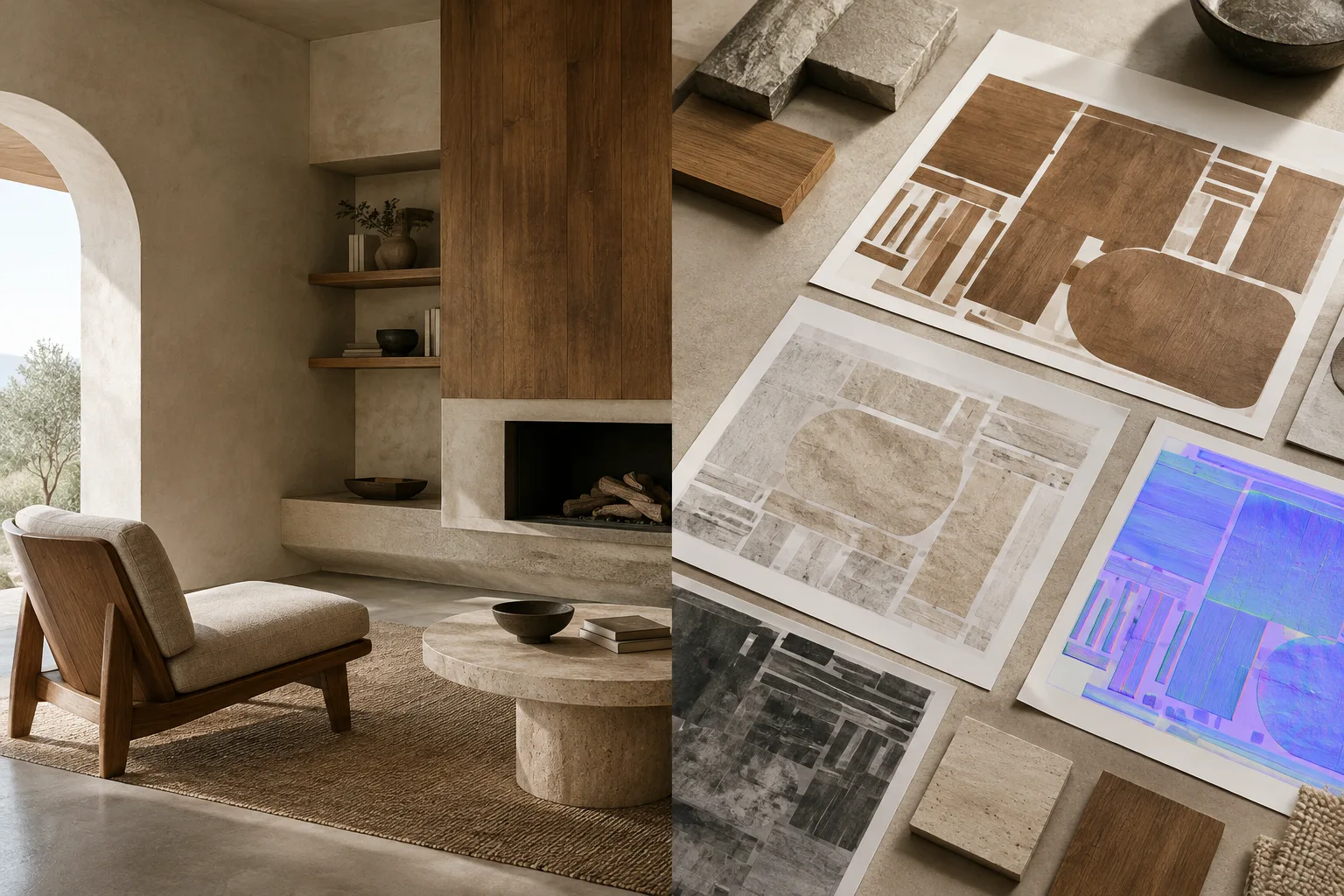
In these steps, we’ll prepare clear prompts for architectural concepts, interior atmospheres, and material explorations. The aim is not to obtain technical drawings or verified project documentation from the model, but to explore ideas visually and try out described changes to a reference image. The model’s output should always be reviewed.
The Gemini API supports not only generating an image from text, but also editing with text and an image provided together as input. Google’s prompt design guide recommends making instructions clear, stating constraints and the desired output format explicitly, and refining results through an iterative process.
Requirements
This workflow uses the Gemini API. Google’s examples create a Gemini client and specify the model ID in the call; the REST example also sends an API key using the GEMINI_API_KEY environment variable. API access and a key are therefore required. The section summarized here in the documentation does not specify any computer hardware requirements or pricing.
To generate a new image, provide a text prompt as input to the model. For editing, send an image file as well as a text instruction; the examples include image data and a MIME type. You must have the right to use any uploaded image. The documentation also lists other model names that can be used for image generation; this guide focuses on Nano Banana 2.1, which the documentation recommends for new projects.
Step-by-step architectural image generation
Choose the purpose of the image. First decide what the output is for: initial ideation, exploring a material atmosphere, or making a limited change to an existing image. The prompt design guide describes framing requests as a task, a question, or an asset to work on. For architectural images, this means clearly describing the space and desired visual result rather than making a generic request such as “create an interior atmosphere.”
Make the first prompt specific. The example below describes the subject, material direction, lighting, and framing of a concept image. These are natural-language instructions the model can interpret; they do not guarantee a particular render setting or dimensional accuracy.
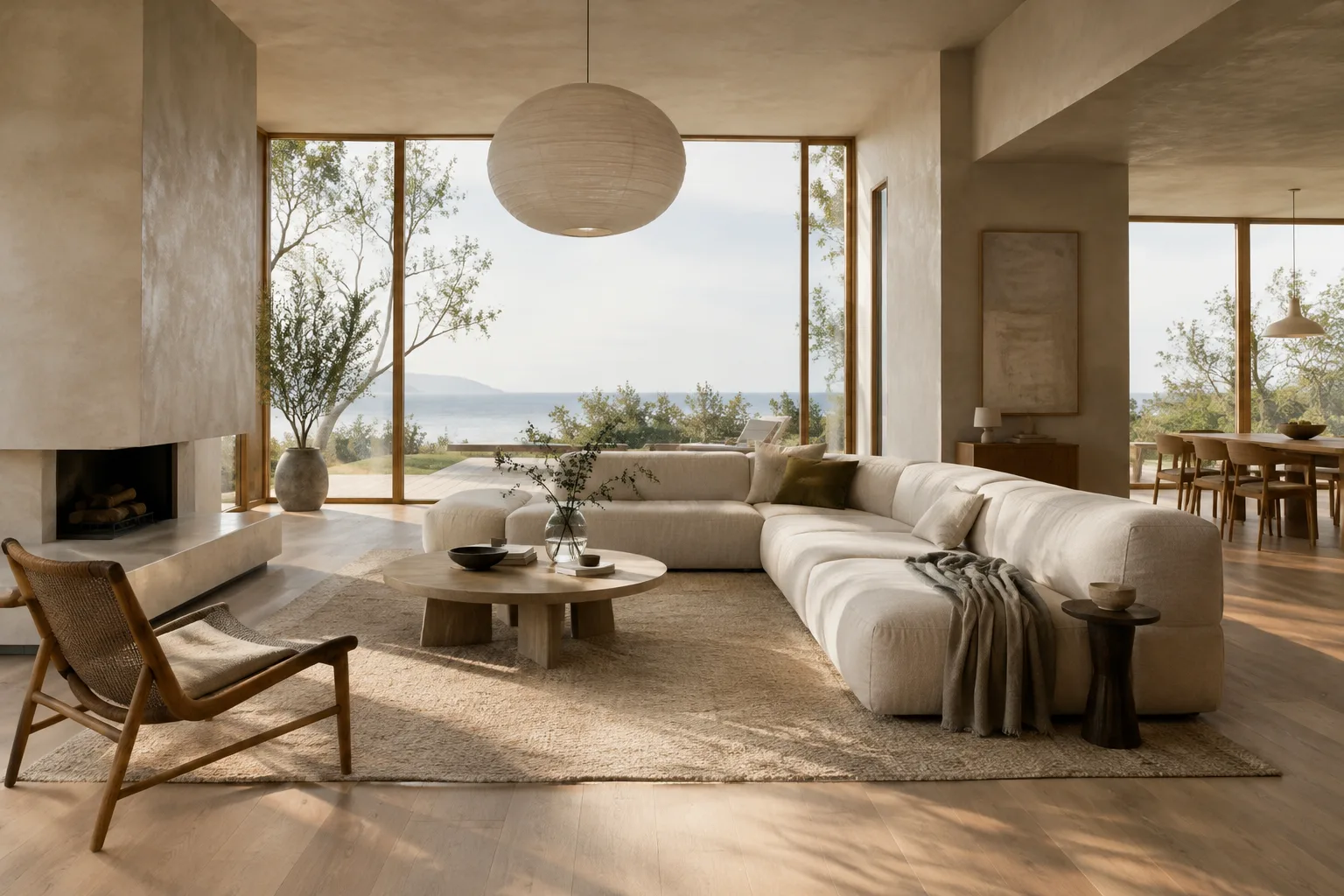
Create an architectural concept image for the living area of a contemporary home. Use light oak surfaces, matte mineral plaster, and natural stone. Let soft morning light enter through large windows. Create a simple, balanced composition; keep the circulation areas visible. Use a photorealistic architectural visualization approach.This initial request specifies the space type, surfaces, lighting, and composition together. If the first result isn’t what you expected, choose the quality you want to change rather than rewriting the entire prompt from scratch.
Refine by targeting one variable. The prompt design guide explains that you can include constraints as well as clear, specific instructions. In the next iteration, for example, focus only on the lighting atmosphere:
Keep the same living area concept. Make the morning light softer and more diffuse; do not change the material palette or the overall layout of the space.These kinds of follow-up instructions are based on a conversational approach to image generation and editing. Describing just one quality in each round makes the requested change clearer, though the model’s output should still be reviewed.
Try a second concept for an interior. When describing a new space from scratch, bring together its function, atmosphere, and key surfaces in the same request:
Create an interior concept image for a small boutique hotel lobby. Use warm wood, textured light-colored walls, and fabric surfaces in the seating area. Make the reception desk easy to spot; create a calm atmosphere balanced with daylight. Use a wide-angle interior composition.This prompt is an original example written for architectural visualization; it is not a copy of an instruction from the source documentation. When reviewing the results, pay particular attention to whether the functional areas, material choices, and requested atmosphere are visible.
Edit using an existing image as a reference. You can add a sketch, concept image, or another image you have the right to edit as input, then describe the desired change in text. The documentation gives examples of editing requests such as adding, removing, or changing elements in an image. Use the instruction below while attaching the appropriate image to the API call:
Keep the overall layout of the space in this image. Only change the wall surfaces to look like light-colored mineral plaster and soften the lighting atmosphere. Do not change anything else.Check that you have the right to use the image before uploading it. The source guide shows how to add images to the API and specify their MIME type, so choose the input image transfer method according to the relevant API documentation, whether you use a client or REST.
Review the output and describe the next iteration. Did the requested change happen? Did anything else change unintentionally? Is the image suitable for review by the project team? After checking, write a short, targeted follow-up instruction. In Gemini API examples, generated image data can be retrieved with the
interaction.output_imageproperty. The documentation also cautions that this convenience property may not show all parts of complex text-and-image outputs.
Common mistakes
Writing vague requests: General phrases like “create a beautiful interior” don’t explain what space, surfaces, or atmosphere you want. Make the instruction concrete by specifying the task, space, and visual qualities.
Requesting too many changes in one prompt: Changing the lighting, layout, materials, and furniture all at once can make it difficult to tell which instruction affected the result. Target one change per round and compare the output.
Treating the result as technically accurate documentation: This guide covers image generation and editing; the sources do not say that the output is a scaled plan, construction detail, or verified material specification. Don’t make definitive project decisions based on the generated image alone.
Ignoring the rights to a reference image: Google reminds users to ensure they have the necessary rights to uploaded images. Don’t use images as input without permission.
Not specifying the output format: Clearly state whether you want an image, a short text, or a response in a particular structure. The prompt design guide recommends specifying the expected format and supporting it with examples.
Next steps in an architecture and visualization workflow
Architects, interior designers, and visualization teams can explore this method during early concept development, when testing material atmospheres, or when developing ideas based on a reference image. Turning the desired visual qualities into a prompt as a team can make it easier to discuss different iterations. However, treat the generated image as a visual proposal to review, not as ready-to-use project data.
For the next iteration, narrow the prompt with clearer constraints or write a follow-up instruction that changes only one quality. For API use, check the model ID, how to transfer the input image, and how to retrieve the image output in the relevant documentation. Images include a SynthID watermark. Since the sources do not describe hardware requirements or pricing, check access and cost conditions separately before adopting the tool at a team scale.
Sources and licensing
This guide has been adapted into Turkish based on Google’s Gemini API image-generation and prompt design guides. Both sources are provided under the CC BY 4.0 license. The architectural and interior prompt examples were written specifically for this guide.
Sources
2 sourcesSource texts are not republished; short quotes are marked, everything else is our own summary and commentary.
For architecture and visualization firms in Turkey, Nano Banana 2.1 could speed up concept exploration and help teams discuss material or lighting atmosphere options. The most effective approach is to treat the output as a visual proposal for the team to review, not as final project documentation.
The requirement for API access and a key adds a setup step to the workflow. Since the documentation does not specify pricing or hardware requirements, it’s important to check cost and access conditions before moving to regular use. Also keep in mind the rights to reference images and the SynthID watermark on generated outputs.
Frequently asked questions
What is the Gemini API model ID for Nano Banana 2.1?
Google’s API documentation lists the model ID as `gemini-nano-banana-2.1`.
Can Nano Banana 2.1 edit an existing image?
The Gemini API supports editing by using an image and text instructions together as input. You must have the right to use the uploaded image.
Do images generated with Nano Banana include a watermark?
According to Google’s Gemini API image-generation documentation, all generated images include a SynthID watermark.